


Category filter
Script to change a non-admin user to an admin user in Windows
A user belonging to the ‘Users’ group does not have complete access to the device. Suppose you want to enable administrator privileges for a user. You can easily get it done by writing commands to remove the users from the ‘Users’ group and add them to the ‘Administrators’ group. These commands can be embedded in a script, and you can run them directly from Hexnode using the Execute Custom Scripts action.
Batch script to change a non-admin user to an admin user
|
1 2 3 4 5 6 7 8 9 10 11 |
Rem Step 1: Add the user to the Administrators group. NET LOCALGROUP Administrators Username /ADD Rem Step 2: Remove the user from the Users group NET LOCALGROUP Users Username /DELETE Rem Step 3 (Optional): List the users belonging to Administrators or Users group NET LOCALGROUP Groupname |
Replace the terms “Username” and “Groupname” with the actual names.
Batch script to change a non-admin Azure domain account user to an admin user
To grant admin rights:
123
@echo off net localgroup administrators "AzureAD\SAMName" /add echo.
To revoke admin rights:
123
@echo off net localgroup administrators "AzureAD\SAMName" /delete echo.
|
1 2 3 |
@echo off net localgroup administrators "AzureAD\SAMName" /add echo. |
To revoke admin rights:
123
@echo off net localgroup administrators "AzureAD\SAMName" /delete echo.
|
1 2 3 |
@echo off net localgroup administrators "AzureAD\SAMName" /delete echo. |
Replace SAMName with the username of the Azure domain account.
PowerShell script to change a non-admin user to an admin user
|
1 2 3 4 5 |
# Replace 'username' with the actual account name Add-LocalGroupMember -Group "Administrators" -Member "username" # Optional: Verify that the user is now in the Administrators group Get-LocalGroupMember -Group "Administrators" |
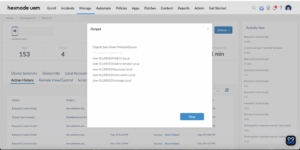
How to View Script Output in Hexnode
To review the execution results, navigate to the Action History tab of the specific device in your Hexnode UEM portal. Locate the script entry in the Subject column and click the Show Output button next to the status field to view the returned data.


