


Category filter
Script to backup files and folders on Windows devices
Windows has a plethora of ways to back up and restore your data – File History, System Image Recovery, System Restore, just to name a few. However, if you’re someone who wants to doubly secure their data backups just to be on the safe side, you can also achieve the same by executing a custom script that’ll backup your data wherever you want. You’ll always have your data copied in a location of your choice.
Powershell script
|
1 2 3 4 5 6 7 8 9 10 11 12 13 14 |
# === USER INPUT REQUIRED === # Replace the paths below with your own folders $src = "C:\<SourceFolderPath>" # Example: C:\Users\Admin\Documents $dest = "C:\<DestinationFolderPath>" # Example: D:\Backup # === SCRIPT LOGIC === If (!(Test-Path -Path $dest)) { Write-Host "Destination folder does not exist. Creating it..." New-Item -ItemType Directory -Path $dest | Out-Null } Write-Host "Copying files from $src to $dest..." Copy-Item -Path $src -Destination $dest -Recurse -Force -Container Write-Host "Backup completed successfully." |
The variable $src determines the folder that you want to back up – the source location of your files. For example, using the line $src = “C:\\Users\\Admin\\Documents” will back up everything in your Documents folder. You can change this path to whatever folder you want to copy and preserve on your system.
The variable $dest specifies where the backup is to be stored. This is your destination location where your copied files will go. For example, $dest = “D:\\Backup” will create a Backup folder, or use the existing one, on the D: drive. This ensures that the backup process runs smoothly, without errors caused by missing drives. You can change this path to whatever folder you want to store the files and folders.
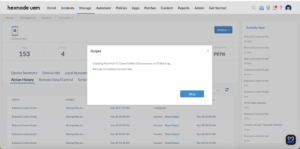
How to View Script Output in Hexnode
To review the execution results, navigate to the Action History tab of the specific device in your Hexnode UEM portal. Locate the script entry in the Subject column and click the Show Output button next to the status field to view the returned data.


