


Category filter
Re-enroll an ADE Mac after device setup
Automated Device Enrollment (ADE), formerly known as Device Enrollment Program (DEP), streamlines initial Mac setup by automating enrollment into a UEM solution like Hexnode UEM. This capability enables efficient, zero-touch deployment and ensures consistent device configurations across your organization.
However, situations can arise where a Mac intended for ADE completes the initial setup but fails to enroll, or is mistakenly enrolled using a manual profile. This often leads to missing ADE functionalities. While the typical solution is to wipe the device and re-enroll, this process provides a non-destructive, single-command method to re-enroll your ADE Mac by renewing the MDM enrollment profiles.
Procedure to Re-Enroll Mac via Terminal
Follow these steps precisely to re-trigger the Automated Device Enrollment process without wiping the Mac:
Step 1: Remove Existing Profiles
To prevent enrollment failures, ensure the Mac is free of conflicting management profiles.
- If a management profile from a different MDM server or a manual profile already exists on the Mac, you must delete that profile before proceeding.
- Additionally, confirm that no other existing configuration profiles are present, as these can conflict with the ADE enrollment.
Step 2: Open Terminal and Run the Command
- Open the Terminal application on the Mac.
- Run the appropriate command based on the installed macOS version:
macOS Version Command to Renew Enrollment Profile macOS 10.13.5 and later Run either of the following: sudo profiles renew -type enrollment OR sudo profiles -N macOS 10.13.4 and below Run the following: sudo /usr/libexec/mdmclient dep nag - When prompted, enter the password associated with the currently logged-in local administrative account.
Step 3: Complete Enrollment
- The Mac will display a banner notification in the upper-right corner, prompting you to enroll the device into Hexnode UEM.
- Click on Details within this banner.
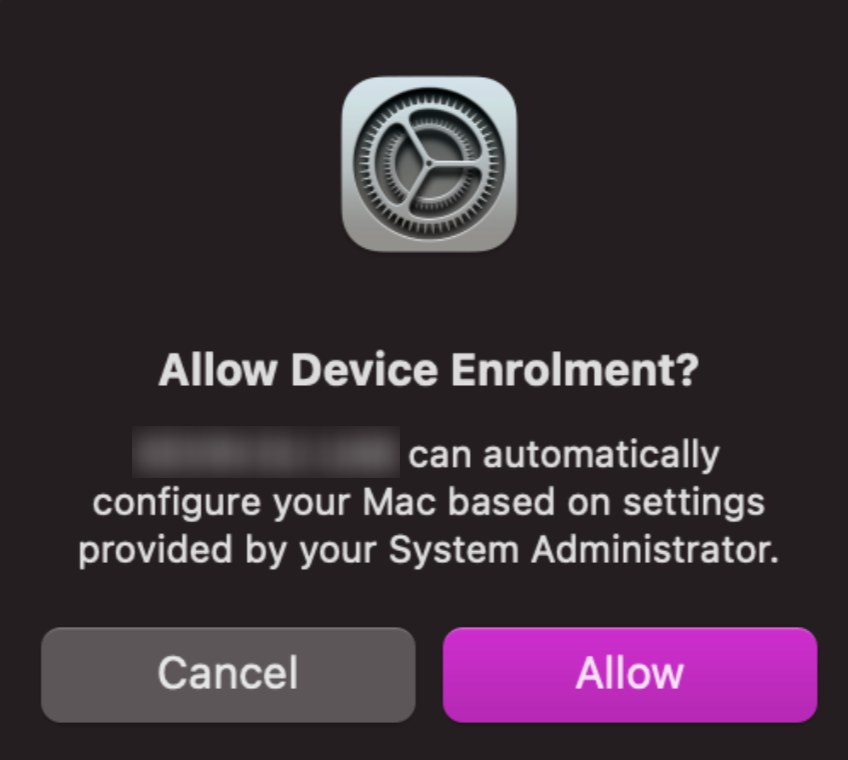
- System Preferences (or System Settings on newer macOS versions) will open, displaying a prompt requesting confirmation for the enrollment.
- Click on Allow and the Mac will be successfully enrolled into the Hexnode UEM.
The Mac will now be successfully enrolled into Hexnode UEM through Automated Device Enrollment.
Post-Enrollment Note
Once the re-enrollment is successfully completed, the Hexnode MDM enrollment profile cannot be manually removed from the Mac, as the device is recognized as being enrolled through Automated Device Enrollment (ADE/DEP). The profile will remain intact for device management and configuration purposes.
Frequently Asked Questions (FAQs)
Q1. Is this ADE re-enrollment command useful for Mac devices not registered in ABM/ASM?
No, it is not. The Terminal commands, such as sudo profiles renew -type enrollment or sudo profiles -N, are designed exclusively for Automated Device Enrollment (ADE/DEP) devices. They rely on the Mac having a mandatory enrollment instruction pre-registered and assigned to your MDM (Hexnode UEM) within Apple Business Manager (ABM) or Apple School Manager (ASM). A non-ADE Mac will not recognize or execute the necessary trigger.
Q2. Why is deleting existing manual or conflicting profiles a critical prerequisite?
Deleting existing profiles is critical because any pre-existing MDM profile (whether manual or from a different solution) creates a severe management conflict. If a Mac attempts to process the mandatory ADE enrollment profile while another is installed, the system will reject the new profile, leading directly to enrollment failure or preventing the Mac from receiving ADE’s crucial mandatory settings.
Troubleshooting Guide for Mac ADE Re-enrollment
Issue 1: Command Not Recognized
Symptom:
When attempting to run the command sudo profiles renew -type enrollment or sudo profiles -N in Terminal, the system returns an error stating the command is not recognized or not found.
Cause:
You are operating on an older version of macOS (specifically macOS 10.13.4 or below), which does not support the modern profiles command syntax for re-triggering enrollment.
Solution: Use the older, alternative command designed for those macOS versions:
|
1 |
sudo /usr/libexec/mdmclient dep nag |
Issue 2: Profile Installation Failed
Symptom:
The Mac displays a banner notification, but when attempting to finalize the enrollment through System Settings/System Preferences, the process fails with a specific “Profile Installation Failed” error message.
Cause: The new, mandatory ADE profile is being blocked due to existing system conflicts:
- Conflicting Profiles: Conflicting configuration profiles (such as pre-existing enrollment profiles) are preventing the installation of the mandatory ADE profile.
- Missing Requirements: The Mac may not meet the basic ADE requirements (e.g., incorrect purchase history or unsupported macOS version).
Solution:
- Remove Conflicts: Manually check and delete all existing profiles by navigating to System Settings > Privacy & Security > Profiles (or System Preferences > Profiles on older versions) before re-running the enrollment command.
- Verify Requirements: Re-confirm that the device meets the necessary macOS version (10.13 or later) and purchase date requirements (after March 1, 2011) from an authorized vendor.


