


Category filter
Bypass Activation Lock using Hexnode UEM
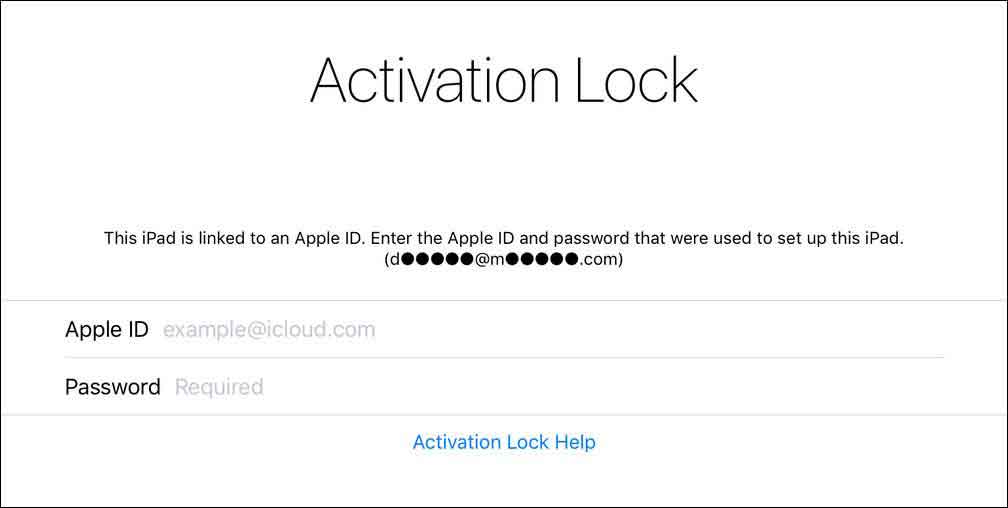
Activation Lock is an Apple security feature that prevents unauthorized access to lost or stolen devices by requiring the previous user’s Apple Account credentials after a factory reset.
Why Bypass Activation Lock in Enterprise?
In corporate environments, Activation Lock becomes a hurdle when an employee leaves the organization without signing out of their personal iCloud account. Hexnode UEM allows IT admins to bypass this lock to repurpose or redeploy company-owned assets.
Prerequisites and Support
For the bypass methods to function, the devices must be currently managed by Hexnode UEM and meet the following criteria:
| Requirement | Details |
|---|---|
| iCloud State | The device must be signed in to iCloud with Find My enabled. |
| iOS / iPadOS | Must be Supervised and running iOS 7.1+. |
| macOS | Running macOS 10.15+ with Apple T2 security chip or enrolled in ABM/ASM. |
| ADE Enrollment | Bypass Codes are supported only on Automated Device Enrollment (ADE) devices. |
Methods to Clear Activation Lock
Method 1: Remote Clear via Hexnode Console
This method sends a direct command to the Apple servers to remove the lock associated with the managed device.
- Log in to the Hexnode UEM portal.
- Navigate to the Manage tab and select the target device.
- Click Actions > Security > Clear activation lock.
- Confirm the action to send the command.
Method 2: Manual Bypass with Bypass Code
If the device is already at the “Activation Lock” setup screen, you can retrieve a unique alphanumeric code from Hexnode to unlock it.
- Navigate to the Manage tab and select the target device.
- Go to the Device Info tab.
- Locate the Activation Lock section.
- Click the eye icon to reveal the Activation Lock Bypass Code.
How to Apply the Bypass Code on the Device
| Device Type | Entry Instructions |
|---|---|
| iOS / iPadOS | Enter the code in the Password field; leave Apple Account blank. |
| iOS (Alternative) | If the account field is required, enter the Bypass Code in the Apple Account field. |
| macOS | Click Recovery Assistant in the top menu bar > select Activate with MDM key… > enter the code. |
How to Re-activate Activation Lock
To restore protection, the user must manually re-enable Find My services on the device:
- iOS 13+: Go to Settings > [Your Name] > Find My > Turn On Find My [Device].
- iOS 12 or earlier: Go to Settings > [Your Name] > iCloud > Turn On Find My.
- macOS: Click the Apple Icon > System Preferences > Apple Account > iCloud > Enable Find My Mac.
Troubleshooting Guides
| Problem | Resolution |
|---|---|
| “Clear Activation Lock” action fails | Ensure the device is Online. If the device is wiped and cannot reach Wi-Fi, it cannot receive the remote “Clear” command. Use Method 2 (Bypass Code) instead. |
| Bypass Code is not visible in portal | Verify the device was enrolled via ADE (formerly DEP). Standard manual enrollments do not consistently generate or store bypass codes in the UEM. |
| Bypass Code rejected on device | Ensure the code is entered exactly as shown (case-sensitive). For macOS, verify you have selected Activate with MDM key in the Recovery Assistant. |
Frequently Asked Questions (FAQs)
Why is Activation Lock an issue for enterprise environments?
It blocks IT admins from reusing company-owned devices if they are linked to an employee’s personal Apple Account. Without the credentials, the device remains an unusable “brick”.
Does bypassing Activation Lock remove the device from iCloud?
No. Bypassing allows you to gain access to the device hardware, but it does not remove the device from the previous user’s list of “Find My” devices in their iCloud account.
Can Activation Lock be cleared if the device is offline?
No. The device requires an internet connection to communicate with Apple’s activation servers to verify the “Clear” command or the “Bypass Code”.


