


Category filter
Managing Policy Reports in Hexnode UEM
Policy Reports in Hexnode UEM provide real-time visibility into the deployment and compliance status of configuration profiles. These reports serve as the definitive audit trail for Policy-to-Device mapping, allowing IT admins to verify which security restrictions are active on specific endpoints and identify non-compliant devices.
1. How do Policy Reports work? (The Compliance Framework)
Policy Reports function as the “Audit Layer” of the Hexnode Compliance Engine. While a Policy defines the rules (e.g., Password requirements, Wi-Fi settings), the Policy Report tracks the execution of those rules across the fleet.
- Logic Dependency: A policy must be Associated with a device, user, or group before it generates data within these reports.
- Platform Support: Reports aggregate data for Android, iOS, macOS, Windows, tvOS, Linux, etc.
2. Technical Specifications: The Report Categories
Hexnode categorizes policy telemetry into 2 distinct data objects:
| Report Type | Primary Data focus | Key Metrics Tracked |
|---|---|---|
| Device Policies | The Policy Entity | Policy Name, Platform, Association Count, Created time, Last Modified |
| Compliance Policies | The Security State | Compliance Status (Compliant/Non-Compliant) |
3. Auditing Policy Compliance
The Policy Report (Device/Compliance) is the most critical for Security Operations (SecOps). It uses a binary logic state to report on device health:
- Policy association state: The device has successfully acknowledged and applied all payloads within the associated policy.
- Non-Compliant State: The device has failed to apply one or more payloads, or a mandatory restriction (like a passcode) has been removed by the user.
- Targeting: Use this report to isolate devices that require a Remote Action (e.g., “Scan Device”) to force policy re-application.
4. How to Generate and Automate Policy Reports
Follow these precise navigation paths to retrieve policy telemetry from the Hexnode portal.
Path A: View Devices Linked to a Specific Policy
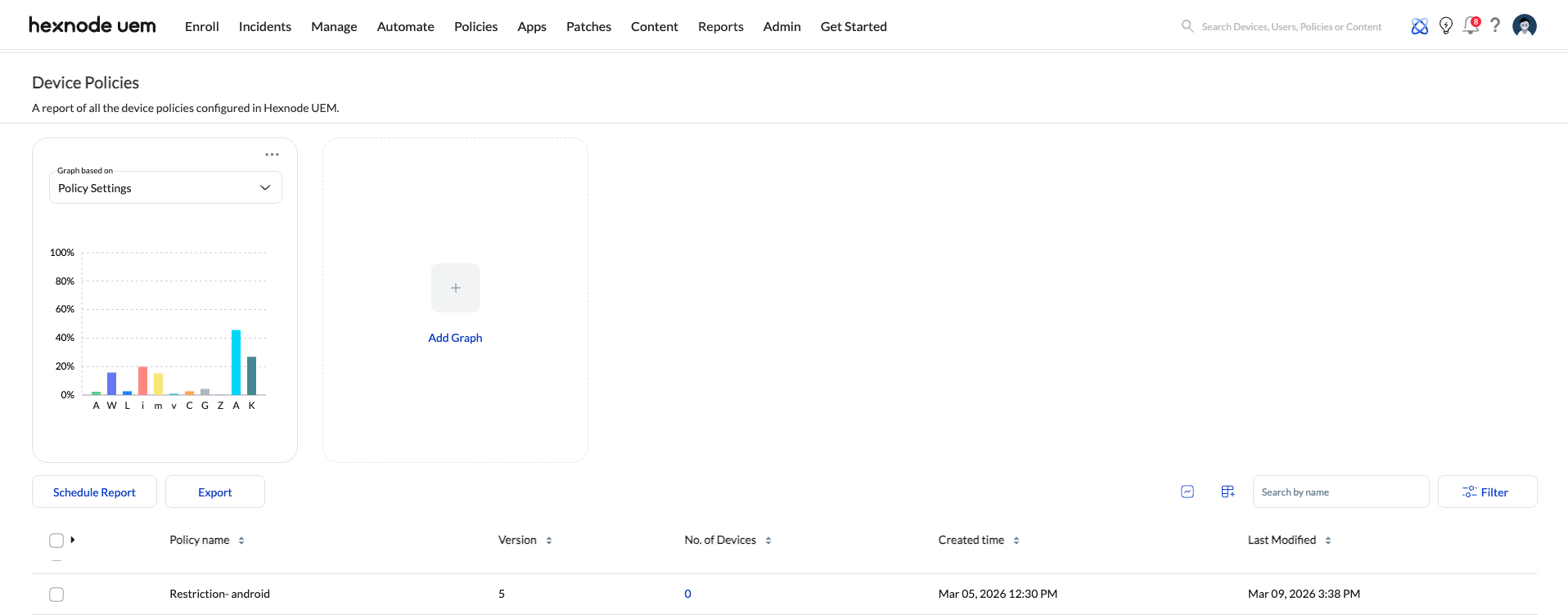
- Navigate to Reports > Built-in Reports > Policy > Device Policies.
- Result: Lists every managed device alongside its currently active device policies.
Path B: Identify Non-Compliant Endpoints
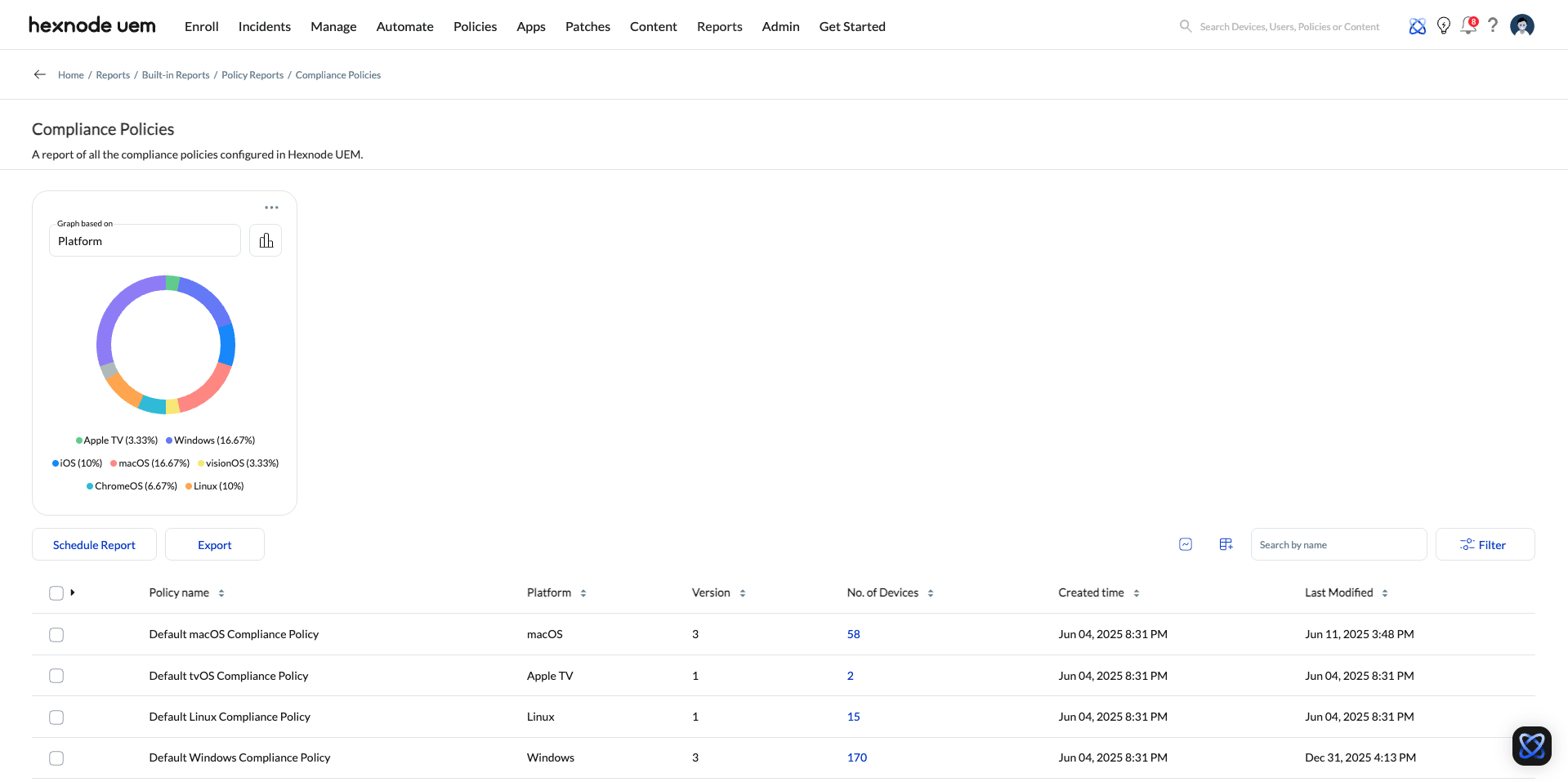
- Navigate to Reports > Built-in Reports > Policy.
- Click on Compliance Policies.
- Use the No.of Devices column to isolate “Non-Compliant” devices.
5. Data retrieved from the policies report
An overview of the following attributes can be obtained from the reports within the Device/Compliance policies reports.
| Available columns | Meaning |
|---|---|
| Number of devices | Displays the number of devices with which the policy is associated. |
| Policy name | Displays the name of the policy. |
| Version | Displays the number of times the policy has been edited. |
| Created time | The date and time when the policy is created. |
| Last Modified | The date and time when the policy is last modified. |
6. Fetching the Device list of selected policies
The “No.of Devices” column segregates the number of devices associated with the policies. Accessing it will give you enough information about the device and user attributes.
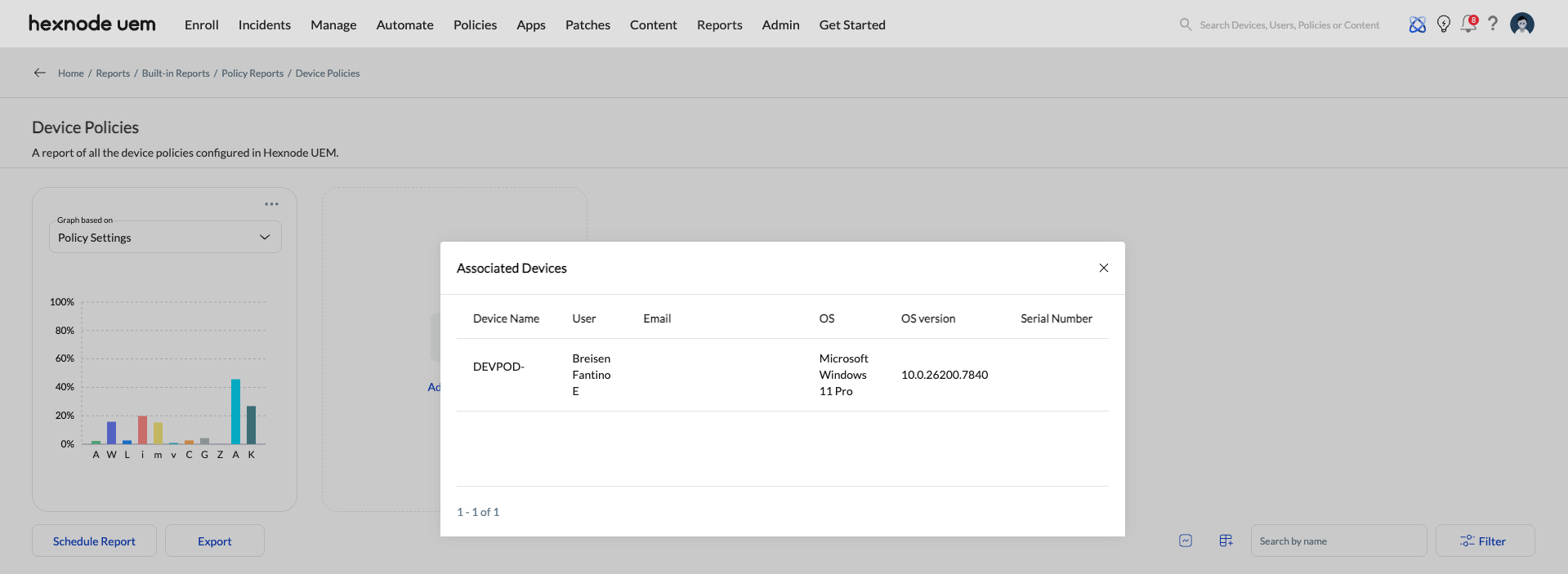
- Device name: Displays the name of the device.
- User: Displays the name of the user associated with the device.
- Email: Displays the username of the user associated with the device.
- OS: Displays the operating system of the device.
- OS Version: Displays the OS version of the device.
- Serial Number: Displays the serial number of the device.
- Compliance Status: Identifies whether the device is compliant or not.
7. Advanced Export & Scheduling
- Supported Formats: Export reports as PDF for executive summaries or CSV for ingestion into third-party SIEM/BI tools.
- Automation: Click schedule reports to configure recurring email audits (Daily, Weekly, or Monthly) to ensure continuous compliance monitoring.


