


Category filter
Hexnode UEM: Manage Device Reports and Inventory Audits
Introduction
The ability to generate detailed Device Reports is critical for maintaining regulatory compliance and operational efficiency. These reports convert the dynamic state of your entire device fleet—spanning multiple OS platforms and ownership models—into verifiable, static data. By automating these reports, IT teams can proactively identify security risks (e.g., non-encrypted devices) and manage hardware lifecycles.
Initiating and Exporting a Device Report
To generate and export any Built-in Device Report from the Hexnode console:
- Login: Access the Hexnode UEM portal using administrator credentials.
- Navigate: Go to the Reports tab in the main console.
- Select Category: Choose the Built-in Reports section, then select the Device category.
- Select Report: Click on the specific report name.
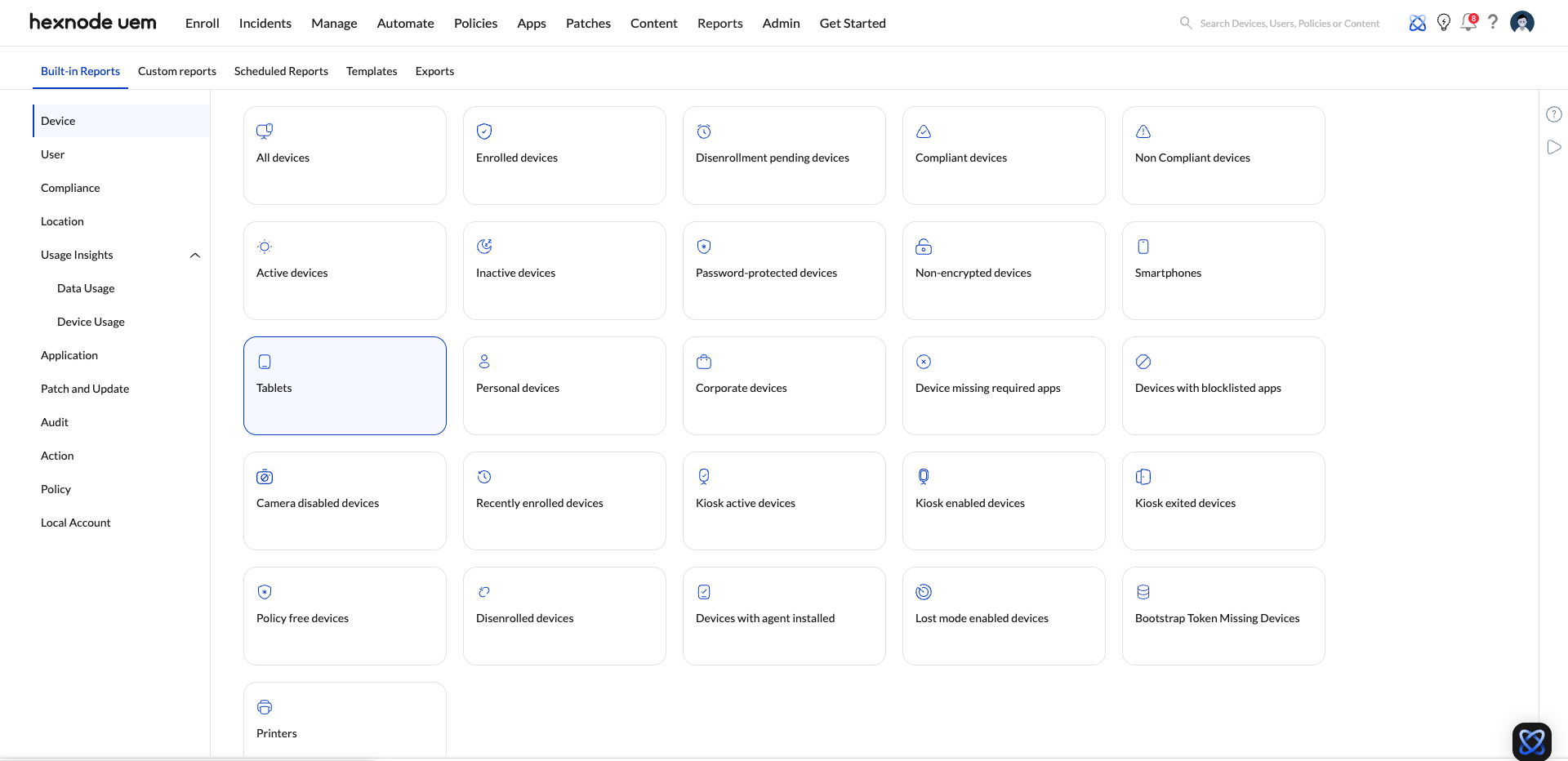
- Apply Filters: Use the available contextual filters to narrow the scope of the data. Available filters:
- Ownership: Corporate or Personal.
- Enrollment Status: Disenrollment Pending, Disenrolled, Pre-approved, User deleted, or Enrolled.
- Activity status: Active or Inactive.
- Device type: Laptop, PC, Smartphone, Smart TV or Tablet.
- Platform: Android, Windows, iOS, macOS, or Apple TV.
- Group Type: Custom device group or Dynamic device group.
- Devices In School: One-to-One or Shared.
- Export: Click the Export button and choose the desired file format (PDF or CSV) to download the report file locally.
Or,
Click the Schedule Report button to schedule reports to be sent to technicians.
Available Built-in Device Reports
1. Inventory & Lifecycle Status Reports
These reports track the device’s state relative to the UEM portal, focusing on enrollment, activity, and device history.
| Report Name | Primary Focus | Key Status Indicator |
|---|---|---|
| All devices | A complete list of all devices in the console. | Full Inventory/Baseline. |
| Enrolled devices | Devices currently under active management. | Active Management Status. |
| Active devices | Devices that have checked in recently (based on inactivity threshold configured in the Hexnode console). | Device Activity Status. |
| Inactive devices | Devices that have failed to report for a specified number of days. | Device Inactivity Status. |
| Recently enrolled devices | Devices onboarded recently. | Enrollment Date/Time. |
| Devices with Agent Installed | Devices that have the Hexnode UEM app installed. | Agent Installation Status. |
| Disenrolled devices | Devices that have been officially removed from the portal. | Offboarding Audit Trail. |
| Disenrollment Pending devices | Devices awaiting final removal from the console. | Offboarding Process Status. |
2. Security and Compliance Reports
These reports are critical for auditing security posture, policy adherence, and managing endpoint risk.
| Report Name | Primary Focus | Key Compliance Indicator |
|---|---|---|
| Compliant devices | Devices meeting all defined corporate compliance policies. | Overall Compliance Status (Pass). |
| Non-compliant devices | Devices failing one or more compliance policies, requiring remediation. | Policy Violation Summary (Fail). |
| Password-protected devices | Devices that meet the required passcode policy (complexity, length) and devices with already set passwords. | Passcode Protected Status. |
| Non-encrypted devices | Devices where disk or volume encryption is not active (e.g., BitLocker/FileVault). | Encryption Status. |
| Policy free devices | Devices that are not associated with any policy, posing an unmanaged security risk. | Policy Association Status. |
| Bootstrap Token Missing devices | macOS devices where the Bootstrap Token is missing. | macOS Security Status. |
| Devices with Agent Installed | Devices that have the Hexnode UEM agent app installed. | Agent Installation Status. |
3. Inventory & Ownership Reports
These reports segment the fleet based on physical device type and ownership classification.
| Report Name | Primary Focus | Key Status Indicator |
|---|---|---|
| Smartphones | Lists all devices classified by the system as mobile phones. | Device Form Factor. |
| Tablets | Lists all devices classified by the system as tablets. | Device Form Factor. |
| Personal devices | Lists devices assigned the “Personal” (BYOD) ownership type. | Device Ownership. |
| Corporate devices | Lists devices assigned the “Corporate” ownership type. | Device Ownership. |
4. Configuration and Restriction Reports
These reports track application restrictions, active Kiosk lockdown statuses, and unique device configurations/remote actions.
| Report Name | Primary Focus | Key Status/Restriction |
|---|---|---|
| Kiosk active | Devices currently locked down into Kiosk Mode. | Kiosk Lockdown Status. |
| Kiosk enabled | Devices that have a Kiosk policy associated, regardless of current status. | Kiosk Policy Association. |
| Kiosk exited | Devices that have recently exited the Kiosk lockdown mode. | Kiosk Status (Exited). |
| Device missing required apps | Devices that lack required business applications. | Application Compliance. |
| Devices with blocklisted apps | Endpoints that have prohibited applications installed. | Application Compliance. |
| Camera disabled | Devices where the camera function has been disabled via a policy restriction. | Hardware Restriction Status. |
Data Columns (Report Output Fields)
Hexnode Device Reports allow administrators to select various data fields to provide a comprehensive inventory and audit record.
1. Primary Device Identification & Inventory
These fields are essential for asset tracking and physical inventory management.
| Data Field Category | Output Column Examples | Purpose |
|---|---|---|
| Identifiers | Device Name (Mandatory), Device ID, Serial Number, UDID. | Unique identification and friendly naming. |
| Hardware | Device Model, Device Type (Smartphone, Tablet, PC, Laptop), Manufacturer, Processor Name, Installed RAM. | Physical asset tracking and hardware inventory. |
| Operating System | Platform (iOS, Android, Windows, macOS), OS Name, OS Version, OS Build. | Software audit and patch management eligibility. |
| Network Address | Wi-Fi IP Address, Ethernet IP Address, Wi-Fi MAC Address, Bluetooth MAC Address. | Network access and connectivity troubleshooting. |
2. Compliance, Security, & Enrollment Status
These fields indicate the current security posture and the device’s relationship with the UEM system.
| Data Field Category | Output Column Examples | Purpose |
|---|---|---|
| UEM Status | Enrollment Status, Activity Status (Active/Inactive), Last Checked-in Time. | Monitoring management status and connection health. |
| Compliance Status | Compliance Status (Overall), Password Compliance Status, Application Compliance Status, Geofence Compliance Status. | Auditing adherence to corporate security policies. |
| Encryption | Encryption Status (Disk/Volume), FileVault Recovery Key (macOS), Bootstrap Token status (macOS). | Verification of data protection mandates. |
| Security Features | Root Access, Jailbroken, Kiosk Mode (Status), Lost Mode (Status), Rapid Security Response (iOS). | Identifying high-risk or compromised devices. |
3. User, Ownership, & Telecom Data
These fields connect the hardware asset to the associated end-user and track mobile/telecom usage.
| Data Field Category | Output Column Examples | Purpose |
|---|---|---|
| User Identity | Enrollment Status, Activity Status (Active/Inactive), Last Checked-in Time. | Personnel tracking and user-centric management. |
| Ownership | Ownership (Corporate/Personal), Department, Office Location. | Asset classification (BYOD vs. COPE). |
| Telecom | Phone Number (SIM 1/2), IMEI (SIM 1/2), Current Carrier Network, ICCID. | Mobile asset tracking and expense management. |
4. Resource & Configuration Management
These fields provide technical details about the device’s internal state and applied configurations.
| Data Field Category | Output Column Examples | Purpose |
|---|---|---|
| Storage and Battery | Total Internal Storage, Available Internal Storage, Battery Level, Battery Health. | Capacity planning and hardware lifecycle monitoring. |
| UEM Configuration | Device Configuration (Profile applied), UEM Profile Password, No. of Blocklisted Apps, No. of Missing Apps. | Auditing specific policy settings enforced on the endpoint. |
| Data columns | Description |
|---|---|
| Device Name (Mandatory field) | The name of the device. |
| Device Group | List of all device groups associated with the device. |
| Device Model | Specific model of the device. |
| Ownership | Shows if the device is Corporate or Personal. |
| Platform | The operating system of the device. |
| OS Version | Current operating system version of the device. |
| Manufacturer | The manufacturer of the device (e.g., Apple, Samsung). |
| Supervision | Supervision status for iOS, macOS, and Apple TV devices. |
| Apple DEP | Indicates whether the device is enrolled via Apple Device Enrollment Program (DEP). |
| Device ID | Device ID assigned by the portal. |
| Battery Level | Current battery level of the device. |
| Department | Department associated with the device. |
| Asset Tag | Custom label assigned to a device for identification. |
| Device Notes | Custom description added to a device. |
| UDID | Unique Device Identifier used to map devices enrolled in UEM. |
| MEID | Mobile Equipment Identifier (a unique 14-digit number) for identifying a physical mobile device. |
| Serial Number | The serial number of the device. |
| Enterprise Management Type | Enrollment type of device, specific to Android devices (e.g., Generic, Android Enterprise). |
| Encryption Status | Displays whether the device is encrypted or not. |
| Bootstrap Token | Token used for securely starting up a macOS device in a supervised environment. |
| FileVault Personal Recovery Key | Displays the recovery key of a macOS device, if escrowed. |
| TPM Version | The version of the Trusted Platform Module (TPM) on the device. |
| BitLocker Policy Compliance | Indicates whether the device complies with BitLocker encryption policy settings. |
| Enrolled Time | Date and time when the device was enrolled. |
| Disenrolled Time | Date and time when the device was disenrolled. |
| Last checked-in Time | Date and time of the last check-in from the device. |
| Available Internal Storage | Amount of available internal storage on the device. |
| Used Internal Storage | Amount of internal storage currently used on the device. |
| Total Internal Storage | Total internal storage capacity of the device. |
| Installed RAM | Amount of RAM installed on the device. |
| Processor Name | Name of the device’s processor. |
| OS Name | Name of the operating system installed on the device. |
| Device Type | Type of device (e.g., smartphone, tablet, PC, etc.). |
| Device Configuration | Configuration profile or settings applied to the device. |
| Rapid Security Response | Status of Apple’s Rapid Security Response on iOS devices for quick security updates. |
| UEM Profile Password | Password used to remove the UEM profile on a macOS device. |
| Agent Type | Type of agent installed on Android devices (e.g., General Android, Samsung Knox). |
| License Activation Date | Date on which the Hexnode license was activated on the device. |
| Enrollment Type | The method used to enroll the device (e.g., manual, Apple DEP, Zero-touch). |
| Build Version | The software or firmware version currently running on the device. |
| OU Name | The Organizational Unit to which the device is assigned within the organization. |
| OU(s) Google | The device’s Organizational Unit in Google Workspace, if enrolled under Google Admin Console. |
| Username | The username of the user associated with the device. |
| The primary email address of the user associated with the device. | |
| Alternate Email | Alternate email address associated with the user. |
| Domain Name | Domain name associated with the user account or device. |
| User Type | Type of user (e.g., AD, Microsoft Entra ID, Google Workspace, local). |
| sAMAccountName | Security Account Manager (SAM) account name associated with the user in Active Directory. |
| Title (AD) | Job title of the user as listed in Active Directory. |
| Department (AD) | Department of the user as listed in Active Directory. |
| Office Location (AD) | Office location of the user as listed in Active Directory. |
| User Group | Group to which the user belongs. |
| Phone Number SIM 1 | Phone number associated with SIM card 1. |
| IMEI SIM 1 | IMEI number associated with SIM card 1. |
| Current Carrier Network SIM 1 | Wireless carrier network for SIM card 1. |
| ICCID SIM 1 | ICCID number associated with SIM card 1. |
| Phone Number SIM 2 | Phone number associated with SIM card 2. |
| IMEI SIM 2 | IMEI number associated with SIM card 2. |
| Current Carrier Network SIM 2 | Wireless carrier network for SIM card 2. |
| ICCID SIM 2 | ICCID number associated with SIM card 2. |
| IMSI | International Mobile Subscriber Identity associated with the device’s SIM card. |
| SIM Carrier Network | Carrier network associated with the SIM card in the device. |
| Subscriber Carrier Network (iOS) | The cellular carrier network to which the iOS device’s subscriber belongs. |
| Roaming Enabled | Indicates if the device has roaming enabled. |
| International Data Roaming | Status of international data roaming on the device. |
| Home Carrier | The device’s home carrier network. |
| Home Country | Country of the device’s home carrier network. |
| Last Connection Date | Date of the device’s last network connection. |
| Wi-Fi IP Address | IP address of the Wi-Fi network the device is connected to. |
| Ethernet IP Address | IP address of the Ethernet network the device is connected to. |
| Personal Hotspot | Indicates if the device’s personal hotspot feature is enabled. |
| Bluetooth MAC Address | MAC address of the device’s Bluetooth interface. |
| Ethernet MAC Address | MAC address of the device’s Ethernet interface. |
| Wi-Fi MAC Address | MAC address of the device’s Wi-Fi interface. |
| Wi-Fi SSID | SSID (Service Set Identifier) of the Wi-Fi network the device is connected to. |
| Current MCC | Mobile Country Code of the current network the device is connected to. |
| Current MNC | Mobile Network Code of the current network the device is connected to. |
| Subscriber MCC | Mobile Country Code of the subscriber’s carrier network. |
| Subscriber MNC | Mobile Network Code of the subscriber’s carrier network. |
| Activity Status | Displays whether the device is Active or Inactive. |
| Enrollment Status | Shows the current enrollment status of the device (e.g., enrolled, disenrolled). |
| Compliance Status | Indicates whether the device is compliant or non-compliant with policies. |
| Application Compliance Status | Compliance status based on the applications installed on the device. |
| Password Compliance Status | Compliance status based on the device’s password settings. |
| Geofence Compliance Status | Compliance status based on the device’s location in relation to geofencing policies. |
| Kiosk Mode | Indicates if the device is in kiosk mode. |
| Lost Mode | Status of whether the device is in lost mode. |
| Jailbroken | Indicates if the device has been jailbroken. |
| Rooted | Indicates if the device has been rooted. |
| MDM Profile | Indicates if the MDM profile is installed on the device. |
| Root Access | Status of whether the device has root access. |
| No. of Blocklisted Apps | Number of blocklisted apps on the device. |
| No. of Missing Apps | Number of required apps missing on the device. |
Summary of Device Reports in Hexnode
All Devices
Fetch a complete list of all the devices in Hexnode that are enrolled, pre-approved, user-deleted, or disenrollment-initiated.
Filters:
- Enrollment Status
- Device Inactivity
- Type
- Ownership
- Platform
- Device Groups
- Devices In School
Disenrollment pending devices
Fetch a list of all devices to be disenrolled from the Hexnode console, but the ‘Disenrolled’ action has not yet reached the device.
Filters:
- Device Inactivity
- Type
- Ownership
- Device Groups
Enrolled devices
List of all devices that are currently enrolled with Hexnode.
Filters:
- Device Inactivity
- Type
- Ownership
- Platform
- Device Groups
Non-compliant devices
List of all devices that do not meet the compliance policy.
Filters:
- Device Inactivity
- Type
- Ownership
- Device Groups
Inactive devices
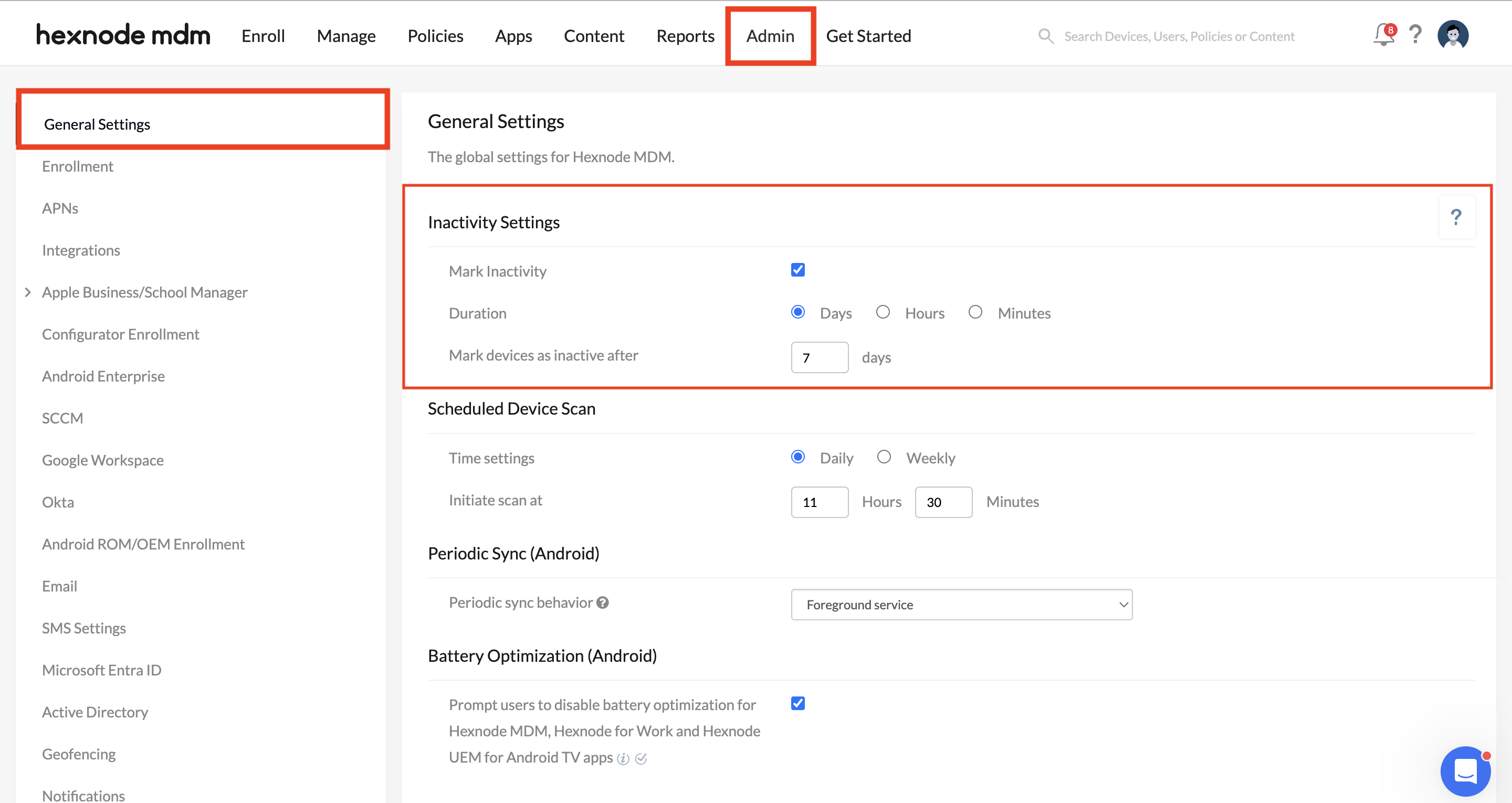
Generate a report of those devices that have device status marked as ‘Inactive’ based on Inactivity Settings.
Filters:
- Type
- Ownership
- Device Groups
Password protected devices
List of all devices that have been password protected. Includes devices with password policy applied and devices with already set passwords.
Filters:
- Device Inactivity
- Type
- Ownership
- Device Groups
Non-encrypted devices
List of all devices that have not been encrypted. Includes all devices on which data encryption is not enabled.
Filters:
- Device Inactivity
- Type
- Ownership
- Device Groups
Compliant devices
List of all devices that meet all the compliance requirements set under Compliance Policies.
Filters:
- Device Inactivity
- Type
- Ownership
- Device Groups
Smartphones
List of all smartphones enrolled with Hexnode.
Filters:
- Device Inactivity
- Ownership
- Device Groups
Tablets
List of all tablets enrolled with Hexnode.
Filters:
- Device Inactivity
- Ownership
- Device Groups
Personal devices
List of all devices with Ownership set as Personal during enrolment.
Filters:
- Device Inactivity
- Type
Corporate devices
List of all corporate-owned devices enrolled with Hexnode.
Filters:
- Device Inactivity
- Type
- Device Groups
Devices missing required apps
A list of all devices on which the apps associated with the ‘Required Apps’ policy are absent i.e., apps have not been installed on the device or were uninstalled by the users.
Filters:
- Device Inactivity
- Type
- Ownership
- Device Groups
Devices with blocklisted apps
List of all devices containing blocklisted apps.
Filters:
- Device Inactivity
- Type
- Ownership
- Device Groups
Camera disabled devices
List of all devices that have camera disabled in them.
Filters:
- Device Inactivity
- Type
- Ownership
- Device Groups
Recently Enrolled devices
List of all devices that have been enrolled recently.
Filters:
- Device Inactivity
- Type
- Ownership
- Device Groups
Policy free devices
List of all devices that are not associated with any policy.
Filters:
- Device Inactivity
- Ownership
Active devices
This report fetches a list of all active devices enrolled in the portal. These are devices that responds to a device scan within the specified number of days, hours, or minutes provided in Admin > General Settings > Inactivity Settings.
Filters:
- Type
- Ownership
- Device Groups
Kiosk active devices
Lists all the devices that are currently locked down into kiosk mode.
Filters:
- Device Inactivity
- Ownership
- Device Groups
Kiosk enabled devices
Lists all devices that have been assigned a kiosk policy but are not currently in kiosk mode. For example, a device that was inactive when the kiosk policy was applied to it.
Filters:
- Device Inactivity
- Ownership
- Device Groups
Kiosk exited devices
List of all devices which have exited from the kiosk lockdown mode. This includes devices with kiosk policy removed and kiosk mode exited on the device by a user.
Filters:
- Device Inactivity
- Ownership
- Device Groups
Disenrolled devices
List of all devices disenrolled from the portal.
Filters:
- Type
- Ownership
- Device Groups
Devices With Agent Installed
List of all devices that have the Hexnode Agent application installed on them. This report features an additional data field indicating the installed version of the Hexnode Agent app on the devices:
- Agent Version
Filters:
- Device Inactivity
- Ownership
- Platform
- Device Groups
Lost mode enabled devices
List of all devices that have lost mode enabled on them.
Filters:
- Device Inactivity
- Type
- Ownership
- Platform
- Device Groups
- Devices In School
Bootstrap Token Missing Devices
List of all macOS devices where the bootstrap token is missing.
Filters:
- Ownership
- Activity status
- Device type
Frequently Asked Questions
| Concept | Definition | Core Purpose |
|---|---|---|
| Device Reports | A primary category within Hexnode’s Built-in Reports that provides a comprehensive, granular record of all managed hardware endpoints. | Inventory Audit and Fleet Monitoring. |
| Data Scope | Reports are generated based on device attributes, status, platform, and ownership information. | Enables administrators to audit security compliance, track assets, and assess technical readiness. |
| Generation Type | Reports are generated instantly (on the go) or scheduled for automated delivery. | Supports both real-time audits and periodic tracking. |


