


Category filter
Manage Device Compliance reports in Hexnode UEM
The Device Compliance Reports in Hexnode UEM allows administrators to analyze and audit managed devices based on security criteria configured within the portal. This systematic reporting is essential for identifying non-compliant devices, performing bulk administrative actions, and meeting corporate audit requirements.
What is a Compliance report?
A Device Compliance Report is a built-in Hexnode UEM report that lists all enrolled devices and details their adherence status against configured compliance policies (e.g., password strength, encryption, application blocklist, and geofence boundaries).
Procedure: Generating a new Compliance report
Use this standardized path to access the reporting tool.
- Log In: Log into your Hexnode UEM console.
- Navigate: Go to the Reports tab.
- Select: Choose Built-in Reports from the left navigation panel.
- Access: Click on the Compliance report category.
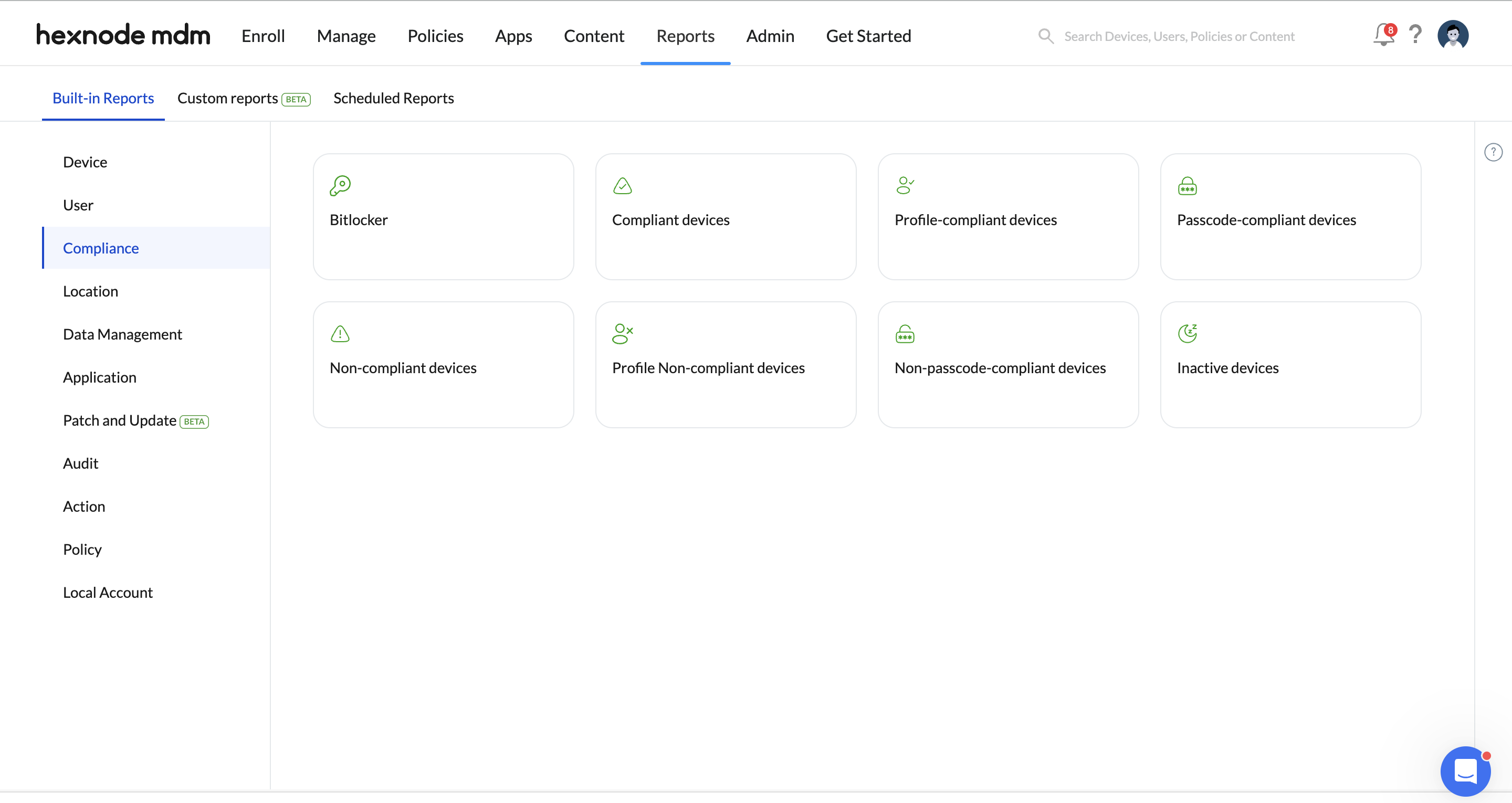
- Choose Report Type: Select one of the seven available report types (e.g., Compliant Devices or Non-compliant Devices).
- Filter (Optional): Apply required filters (Activity Status, Device Type, Ownership) to segregate the data.
Available Filters for Data Segmentation
Filter Name Segmentation Criteria Activity Status Active devices vs. Inactive devices. Device Type Filter by platform category (e.g., Smartphone, Laptop, Smart TV). Ownership Corporate-owned devices vs. Personally-owned (BYOD) devices. -
Generate: Review the available data columns and generate the report. You can also export the report in either PDF or CSV format using the Export action.
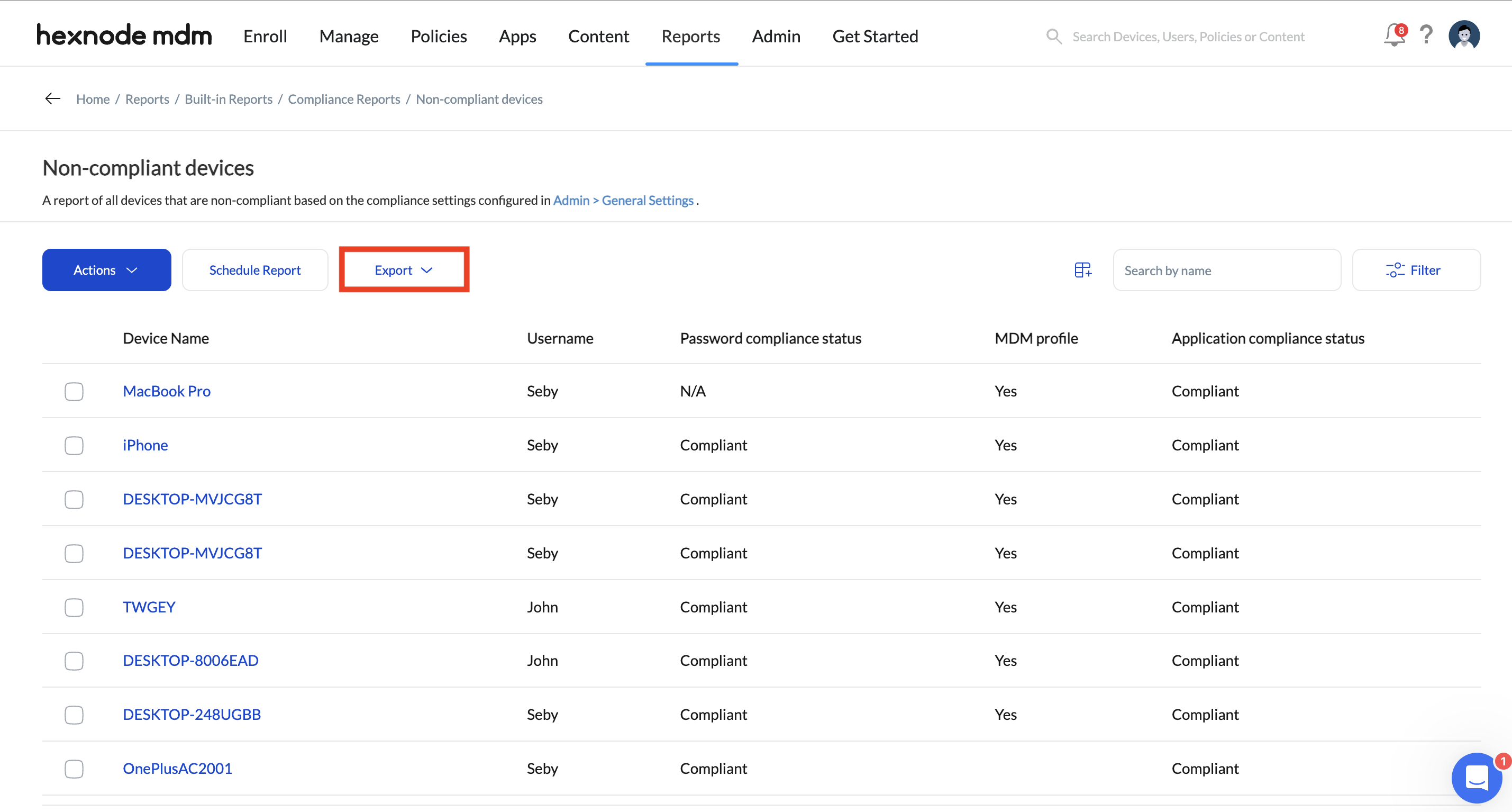
Or, admins can set up the Schedule Reports.
Data Columns Available in Compliance Reports
Administrators can include or omit the following data fields to customize report granularity.
| Data Column Field | Description |
|---|---|
| Device Name | The designated name of the device (Mandatory field). |
| Serial Number | The hardware serial number of the device. |
| Device Model | The manufacturer model name of the device. |
| Device Type | The device category (e.g., Smartphone, Tablet, Laptop). |
| Username | The specific user assigned to the device. |
| Device Status | Indicates the current enrollment status (Active or Inactive). |
| Activity Status | Shows if the device has recently communicated with the Hexnode server. |
| OS Version | The current operating system version running on the device. |
| MDM Policy Removed | Indicates if an associated MDM policy has been manually removed. |
| Encryption Status | Confirms whether the device’s storage is encrypted (e.g., BitLocker, FileVault). |
| TPM Version | Trusted Platform Module version present on the device (Windows). |
| OS Drive Status | The status of the operating system drive (Windows only). |
| BitLocker Policy Compliance | Shows compliance with the configured BitLocker encryption policy (Windows only). |
| Application Compliance Status | Indicates device adherence to the app blocklist/allowlist policy. |
| Password Compliance Status | Indicates compliance with the configured password policy (e.g., length, complexity). |
| Geofence Compliance Status | Confirms if the device is currently located inside the associated geofence boundary. |
| MDM Profile | Indicates if the device meets all MDM profile/policy configurations. |
Report Types and Purpose
Hexnode UEM provides specific built-in reports to quickly isolate device groups based on compliance status.
1. Compliant devices
Purpose: Lists all devices that meet all corporate compliance requirements configured in the compliance policies.
2. Non-compliant devices
Purpose: Lists all devices that do not meet one or more compliance requirements associated with the device.
3. Profile-compliant devices
Purpose: Lists only those devices that meet the specific MDM profile and policy configurations associated with them.
4. Profile Non-compliant devices
Purpose: Lists only those devices that fail to meet the specific MDM profile and policy configurations associated with them.
5. Passcode-compliant devices
Purpose: Lists all devices that adhere strictly to the associated passcode policy (e.g., minimum length, expiration).
6. Inactive devices
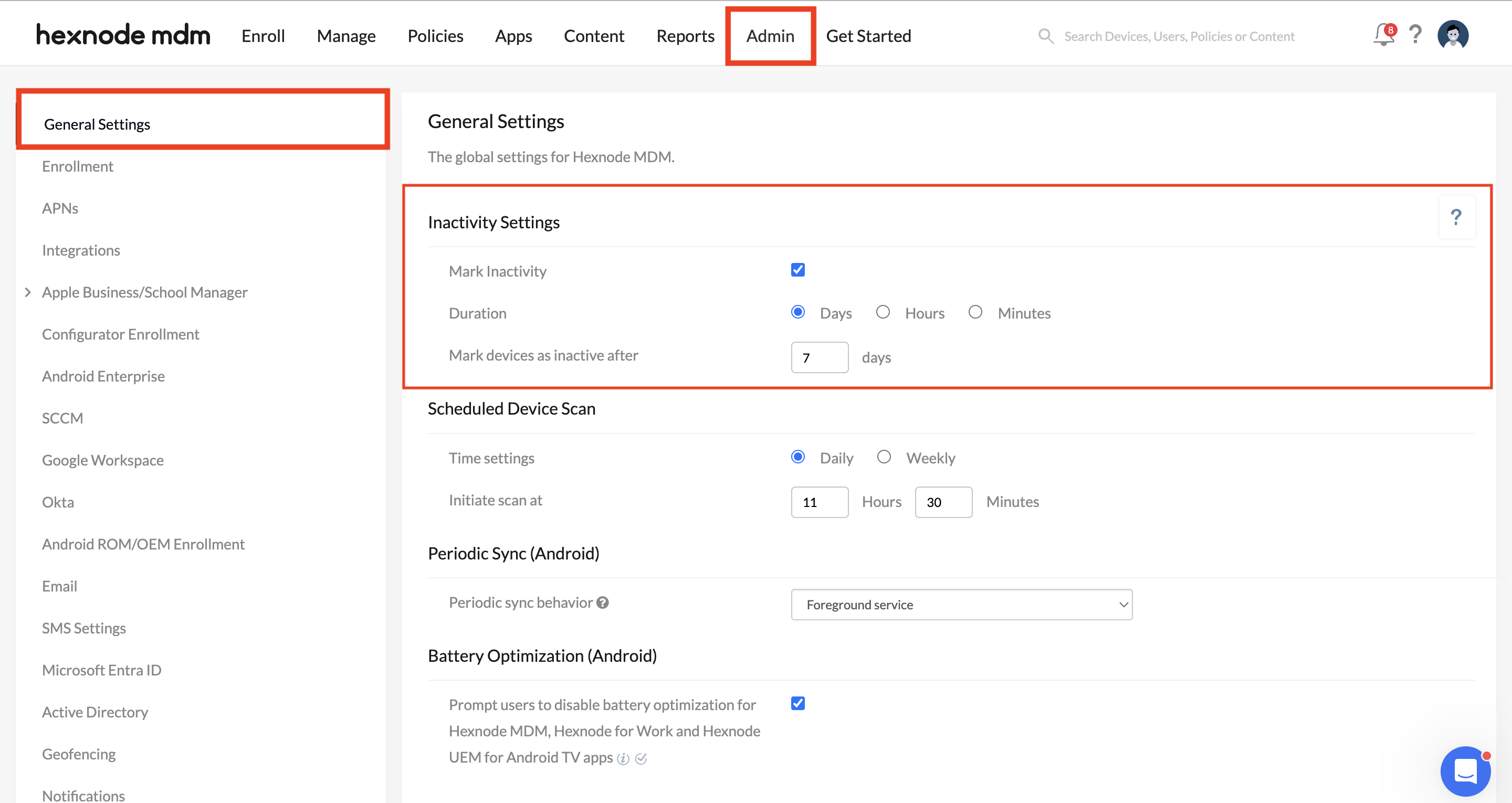
Purpose: Lists all devices that have not successfully checked in or been scanned for a specified number of days (as defined under Admin > General Settings > Inactivity settings).
Actions based on reports
Note that the Reports tab also supports immediate, corrective administrative actions to maintain compliance.
Bulk Actions: Admins can select devices directly from the report and execute bulk actions, including:
- Device Wipe (Factory Reset)
- Corporate Data Wipe
- Disenroll (Delete device)
- Scan Device Location/Status


