


Category filter
Enable location tracking for co-managed Windows devices
The Enable Location Tracking remote action allows IT administrators to track the real-time geographical position and movement history of co-managed Windows devices without requiring a standard MDM policy.
What is Location Tracking in Hexnode UEM?
Location tracking is a security and asset management feature that fetches real-time coordinates and maintains a historical log of a device’s traversed locations to assist in recovering lost or misplaced assets.
- Standard Devices: Typically require a Location Tracking policy to be associated with the device.
- Co-managed Devices: Cannot have policies associated with them; therefore, the Enable Location Tracking remote action is used to bypass the policy requirement.
- Update Frequency: Once enabled, Hexnode automatically updates the device location every 30 minutes.
Prerequisites and Dependencies
| Item | Requirement |
|---|---|
| Device Eligibility | Available strictly for co-managed Windows devices. |
| Instant Tracking | The Scan Device Location action remains greyed out until Enable Location Tracking is successfully executed. |
Step-by-Step Guide: Executing Location Tracking Actions
-
How to Enable Location Tracking
- Open the Hexnode UEM console.
- Navigate to Manage > Devices.
- Select the target devices (or click on a specific device).
- Select Actions > Security > Enable Location Tracking.
- Configure the user prompt setting:
- Force location tracking without user prompt: If enabled, tracking activates silently without requesting permission.
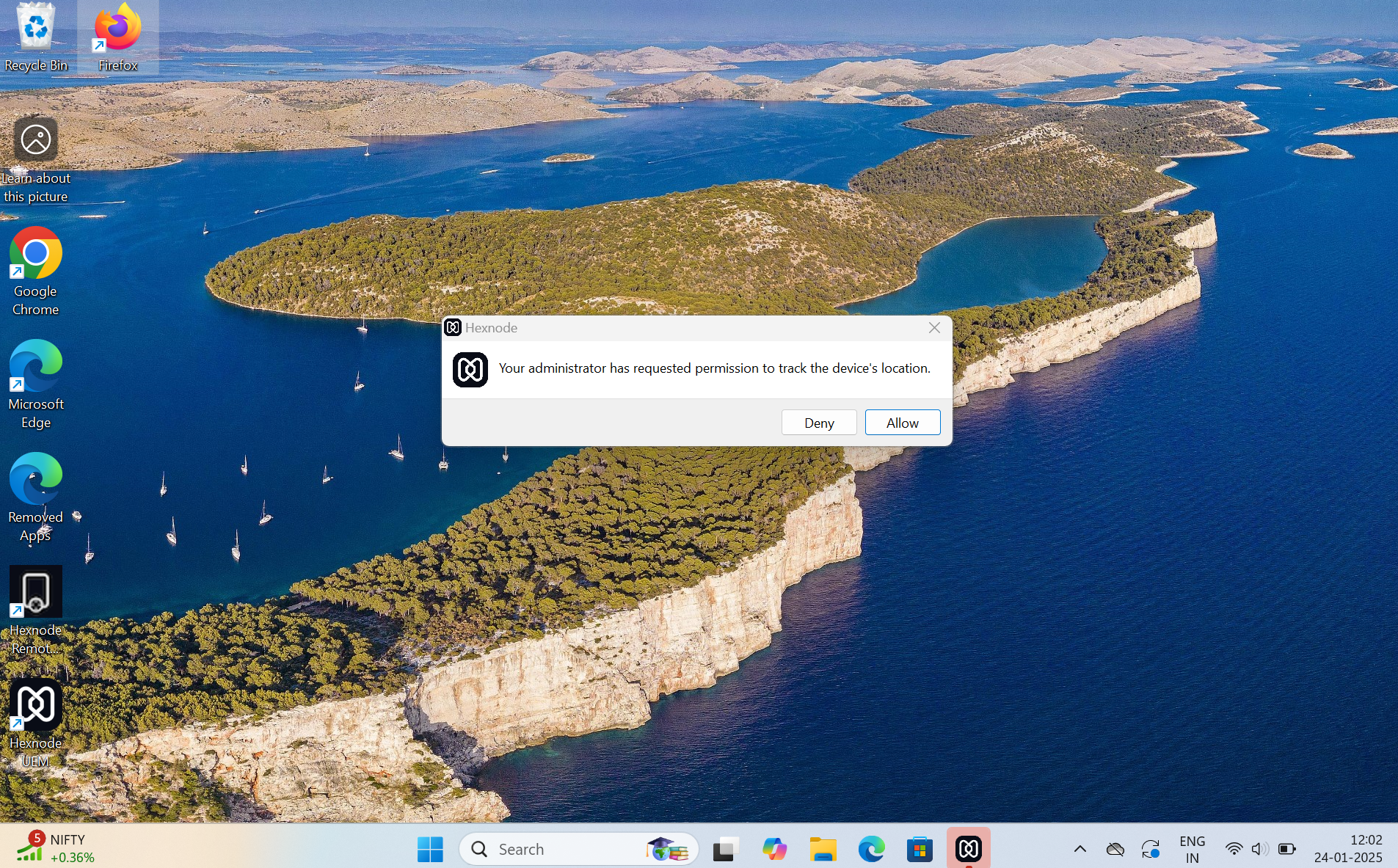
- Disabled (Default): The user receives a prompt: “Your administrator has requested permission to track the device’s location.” and must approve it.
- Click Enable.
-
How to Fetch Instantaneous Location (Scan Device Location)
Use this action to bypass the 30-minute interval and retrieve an immediate location update.
- Navigate to Manage > Devices.
- Click on the device name to open the Device Summary page.
- Select Actions > Scanning & Monitoring > Scan Device Location.
Viewing and Managing Location Data
Administrators can monitor device positions and export reports for audit or recovery purposes.
Accessing Location Details
- Navigate to Manage > Devices.
- Click the device name and view the current location on the dashboard.
- Click See history to access the full log.
Available History Actions:
- Filter: Sort location reports by specific dates.
- Export: Download reports as a CSV file.
- Clear: Permanently remove the device’s location history from the portal.
How to Disable Location Tracking
To stop all location updates for a device:
- Navigate to Manage > Devices.
- Select the target devices.
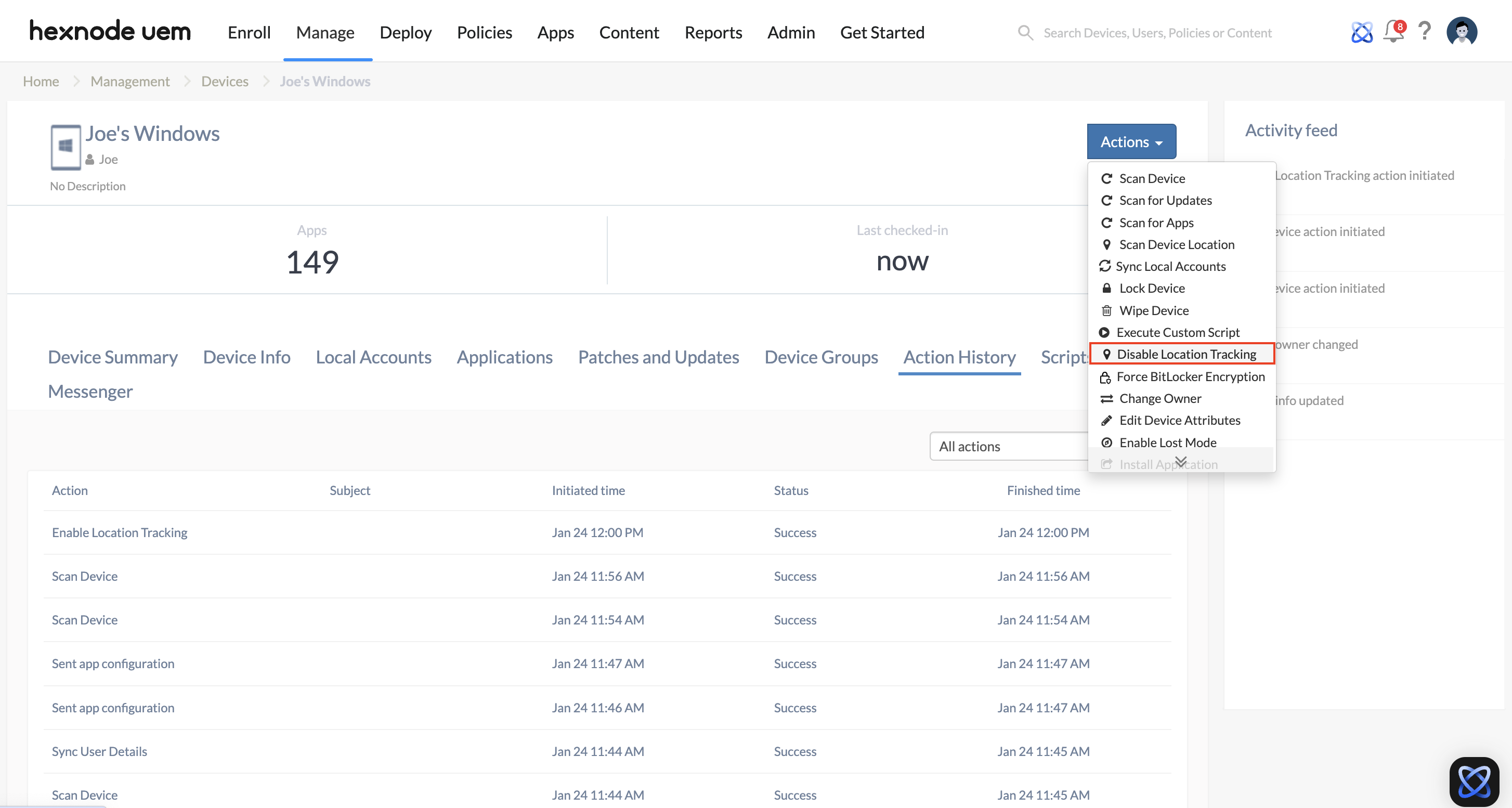
- Select Actions > Security > Disable Location Tracking.
- Click Continue.
Troubleshooting: Location Check Failures
If the location check fails or coordinates are not updating, verify the following requirements on the target device:
Device-Side Requirements
- OS Verification: Ensure the device is running Windows 10 or 11.
- Always-on Internet: Verify the device has a stable internet connection.
- Windows Location Services: This must be enabled manually or via script on the device:
- Go to Settings > Privacy > Location.
- Toggle the Location service button to On.
Policy Configuration (For Standard Managed Devices)
If the device is not co-managed and uses a standard policy:
- Log in to your UEM portal > Policies.
- Select the associated policy and go to General Settings > Location Tracking.
- Check the option Enable Location Tracking.
- Set the Location Update Interval (Choose between 15 minutes and 24 hours).
Frequently Asked Questions (FAQ)
Why is “Scan Device Location” greyed out a co-managed device?
The Scan Device Location action is dependent on the Enable Location Tracking action. The Scan Device Location action must be successfully executed before the instantaneous scan becomes available.
Can a device be tracked without the user knowing?
Yes. By enabling the Force location tracking without user prompt option during the “Enable” action, the device will be tracked without displaying a permission request to the user.
How often does Hexnode update the location of a co-managed device?
After the remote action is executed, the location is fetched automatically every 30 minutes.


