


Category filter
Script to list Windows local user accounts
Administrators need to keep tab on users accounts in their corporate devices for effective user management. Hexnode users can deploy scripts to get the details of all the users on a Windows device. Deploying scripts is one of the useful methods to view user details of accounts from Windows devices located remotely.
Batch Script
|
1 2 3 4 5 6 7 8 9 10 11 12 13 14 15 16 17 18 19 20 21 22 |
@echo off REM List only enabled local user accounts using net user echo Local user accounts: for /f "skip=4 tokens=*" %%a in ('net user') do ( REM Stop when we reach the footer line echo %%a | findstr /I "The command completed successfully." >nul if errorlevel 1 ( for %%b in (%%a) do ( REM Check if this is a valid account name net user "%%b" >nul 2>&1 if not errorlevel 1 ( net user "%%b" | findstr /I "Account active Yes" >nul if not errorlevel 1 ( echo %%b ) ) ) ) ) echo Listed all enabled local user accounts successfully. exit /b 0 |
PowerShell Script
|
1 2 3 4 5 6 7 8 9 10 11 12 13 14 15 |
# List all enabled local user accounts try { $users = Get-LocalUser | Where-Object { $_.Enabled -eq $true -and $_.PrincipalSource -eq 'Local' } if ($users) { Write-Output "Local user accounts:" foreach ($u in $users) { Write-Output $u.Name } } else { Write-Output "No enabled local user accounts found." } } catch { Write-Error "An error occurred: $($_.Exception.Message)" } |
How to View Script Output in Hexnode
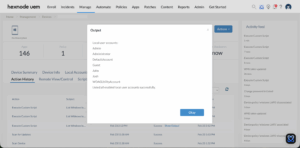
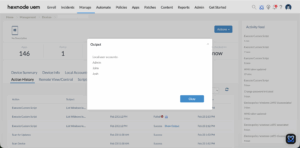
To review the execution results, navigate to the Action History tab of the specific device in your Hexnode UEM portal. Locate the script entry in the Subject column and click the Show Output button next to the status field to view the returned data.
Need more help?


