


Category filter
Configure LDAP settings for iOS Devices
LDAP (Lightweight Directory Access Protocol) settings for iOS allow organizations to sync corporate contact directories directly with the native Contacts app on mobile devices. This ensures that employees can easily search for and access internal colleague information without needing to manually import contact lists.
1. Configuration Workflow
To set up LDAP settings on iOS devices:
- Log in to the Hexnode UEM portal.
- Navigate to Policies > New Policy > Create a fully custom policy > iOS > Accounts > LDAP and click Configure.
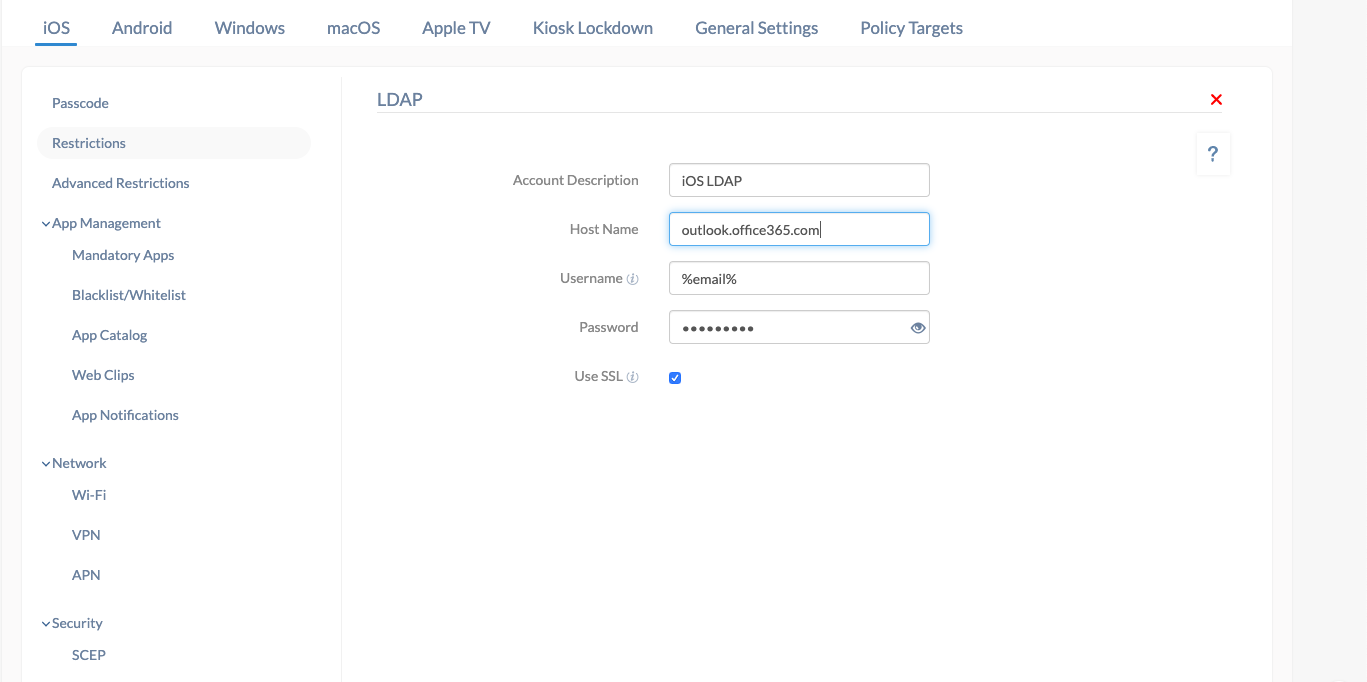
2. Technical Parameter Breakdown
| Setting | Technical Description |
| Account Description | A unique name or description used to identify the LDAP account on the device. |
| Host Name | The IP address or hostname of the LDAP server. |
| User Name | The username for the LDAP account. This field supports the use of wildcards %email% and %alternateemail%. |
| Password | The password associated with the LDAP account username. |
| Use SSL | (Enabled by default) Establishes an encrypted connection between the iOS device and the LDAP server for secure data transmission. |
3. Policy Association
To apply these settings to your devices:
- New Policies: Go to the Policy Targets tab, click +Add Devices, select your targets, and click Save.
- Existing Policies: Select the policy from the Policies list, click Manage > Associate Targets, and choose the relevant entities.
4. What Happens at the Device End?
Once the policy is successfully deployed to the target devices:
- Contact Synchronization: The contacts from the associated LDAP directory will be automatically synced with the native Contacts app.
- Verification: The account will be listed on the device under Settings > Contacts > Accounts.
- MDM Visibility: Users can also view the account details under Settings > General > Device Management > Hexnode UEM > Accounts.
5. Troubleshooting & FAQs
Frequently Asked Questions (FAQs)
- Can users edit the synced LDAP contacts?
No. LDAP contacts are typically read-only feeds from the server. Changes must be made in the central directory to reflect on the device.
- What happens if the policy is removed?
When the policy is disassociated, the LDAP account is removed from the device, and the synced contacts will no longer be visible in the Contacts app.
- Can multiple LDAP accounts be configured?
Yes. You can add multiple LDAP configurations within Hexnode to sync different directories (e.g., different branches or departments).
Troubleshooting
- Contacts Not Appearing: Verify that the Host Name is reachable from the device’s current network. Ensure that any necessary firewalls are configured to allow LDAP traffic (usually Port 389 for standard or 636 for SSL).
- Authentication Errors: Double-check the User Name and Password. If using wildcards, ensure the user’s email or alternate email is correctly populated in the Hexnode portal.
- SSL Connection Issues: If the LDAP server does not support SSL, the Use SSL toggle must be turned off in the policy settings.


