


Category filter
How to Setup Business Container for iOS Devices
The Hexnode Business Container for iOS is a strategic security framework designed to partition corporate data from personal content. By creating a logical boundary between managed and unmanaged applications, organizations can prevent data leakage while maintaining user privacy on BYOD (Bring Your Own Device) or corporate-owned assets.
1. What is the Business Container?
The Business Container functions as a discrete partition that controls the flow of documents and information. It ensures that sensitive corporate data remains within “managed” apps (apps deployed via Hexnode) and is not accessible to “unmanaged” apps (apps installed personally by the user).
2. Configuration Workflow
To set up the container, administrators must apply a policy through the Hexnode UEM portal:
- Navigate to the Policies tab.
- Click New Policy or select an existing one.
- Go to iOS > Enterprise > Hexnode Business Container > Business Container.
- Configure the specific data flow restrictions as detailed below.
3. Available Data Flow Configurations
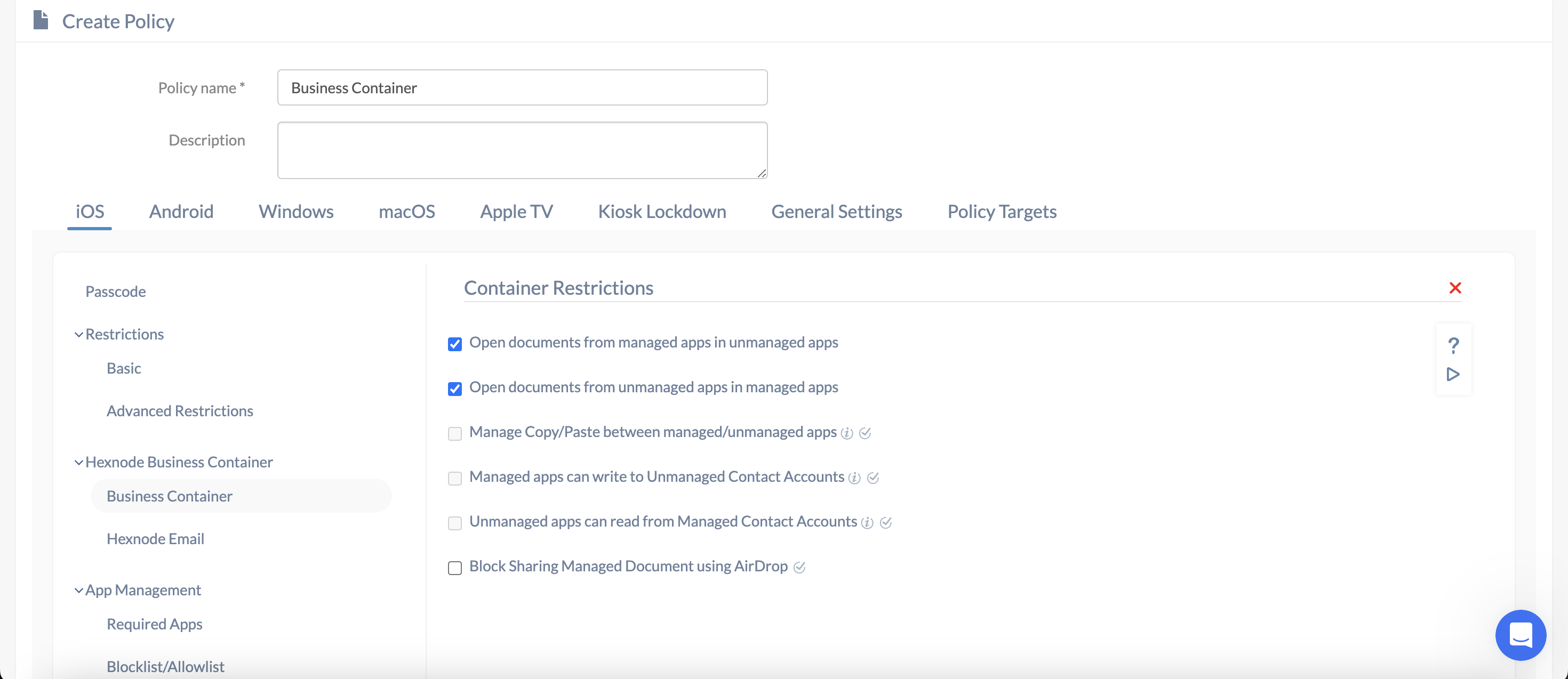
| Setting | Technical Description | Default State |
|---|---|---|
| Open documents from managed apps in unmanaged apps | Controls whether files from work apps can be shared with personal apps. If unchecked, data is confined to managed apps. | Allowed |
| Open documents from unmanaged apps in managed apps | Controls whether personal files can be imported into work applications. | Allowed |
| Manage Copy/Paste between managed/unmanaged apps | Restricts the clipboard functionality across the container boundary. Note: Requires specific ‘Open’ settings to be restricted. | Disabled |
| Managed apps can write to Unmanaged Contact Accounts (iOS 12+) | Allows work applications to save contacts to the user’s personal contact list. | Disabled |
| Unmanaged apps can read from Managed Contact Accounts (iOS 12+) | Allows personal apps (like WhatsApp) to view contacts stored within the work container. | Disabled |
| Block Sharing Managed Document using AirDrop | Specifically disables AirDrop sharing for any file originating from a managed corporate application. | Disabled |
4. Policy Deployment
Once configured, navigate to Policy Targets to associate the policy with your specific iOS devices or user groups. Click Save to deploy the restrictions to the target fleet.
5. Key Considerations for Implementation
Managed vs. Unmanaged Apps
- Managed Apps: Any application installed via the Hexnode UEM console.
- Unmanaged Apps: Any application installed directly from the App Store by the user.
Enrollment Support
The Copy/Paste restriction is specifically supported on:
- Device Enrolled devices.
- User Enrolled (BYOD) devices.
6. Frequently Asked Questions (FAQs)
- Does the business container wipe personal data?
No. The Business Container only manages the interaction between work and personal data; it does not access or delete personal photos, messages, or apps.
- Can work contacts be seen by personal apps?
Not unless the Unmanaged apps can read from Managed Contact Accounts setting is explicitly enabled.
- Does this affect the native Mail app?
Only if the mail account is configured as a “Managed Account” via Hexnode.
7. Troubleshooting
- Copy/Paste Setting Greyed Out:
Solution: This option becomes unavailable if both “Open documents from managed to unmanaged” and vice-versa are enabled. At least one data flow must be restricted for clipboard management to engage.
- AirDrop Still Working:
Solution: Ensure the specific “Block Sharing” toggle is checked. This setting is only visible and active if the policy allows managed documents to be opened in unmanaged apps initially.


