


Category filter
How to set up iOS network usage rules for applications?
Network usage rules for iOS devices allow organizations to regulate cellular and roaming data consumption for managed applications. By implementing these rules, administrators can prevent excessive data costs and ensure that corporate data is used only on approved networks.
Network usage rules only apply to Managed Applications, i.e., apps that have been deployed or installed via the Hexnode UEM portal.
1. Configuration Workflow
To establish network usage rules:
- Log in to the Hexnode UEM portal.
- Navigate to Policies > New Policy > Create a fully custom policy > iOS > Expense Management > Network Usage Rules and click Configure.
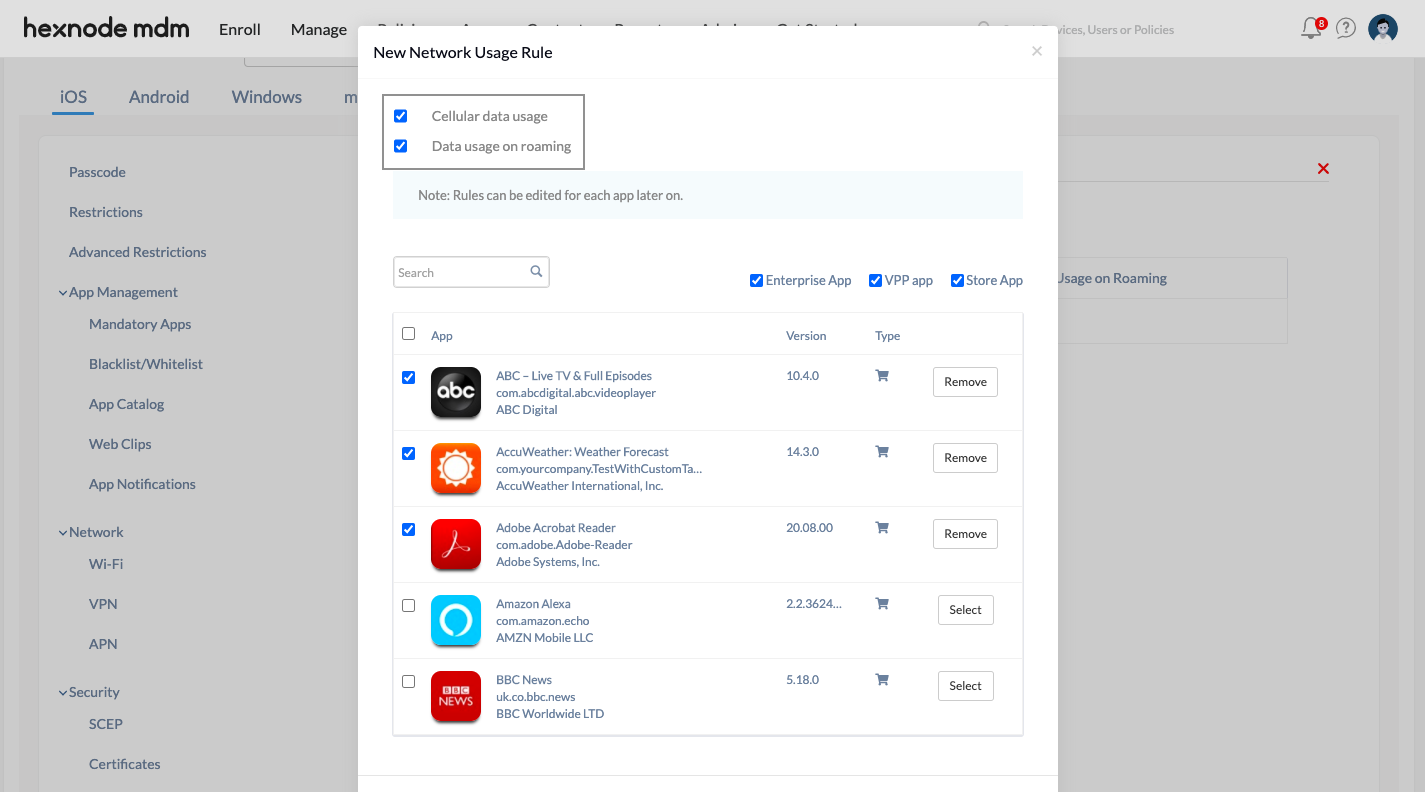
- Click on +New network usage rule.
2. Technical Parameter Breakdown
| Setting | Technical Description |
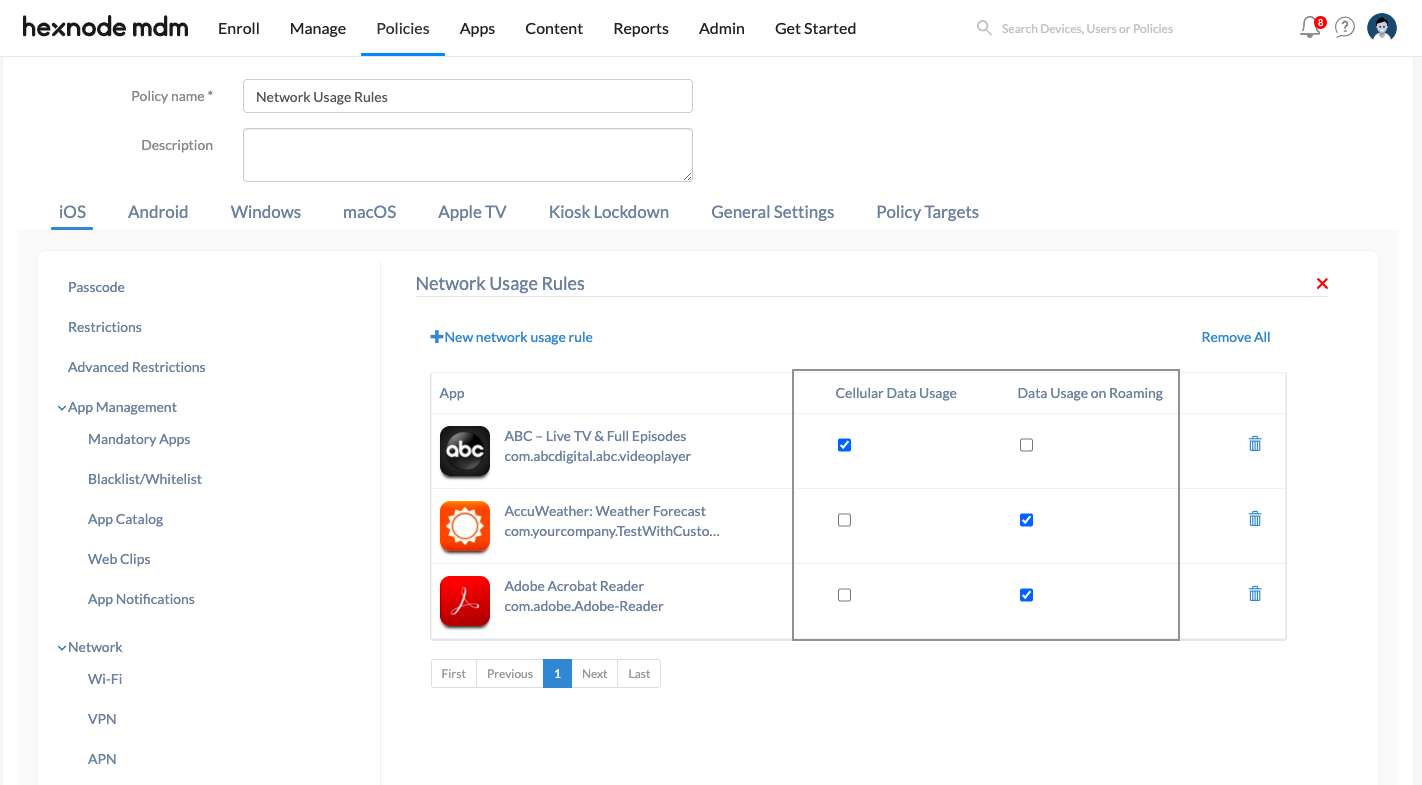
| Cellular data usage | Disable this option to completely restrict managed apps from using mobile/cellular data. (Allowed by default) |
| Data usage on roaming | Disable this option to restrict managed apps from using mobile data while the device is in a roaming state. (Allowed by default) |
Application Selection:
- You can select the required apps from the configuration window.
- Supported app types include Enterprise apps, VPP apps, or Store apps.
- Rules can be applied to apps in bulk or individually.
3. Policy Association
Once the rules are configured, you must target the devices:
- Navigate to the Policy Targets tab.
- Select the relevant Devices, Device Groups, Users, User Groups, or Domains/OUs.
- Click Save.
For already saved policies:
- Go to the Policies tab and select the specific policy.
- Click the Manage drop-down and select Associate Targets.
- Select the target entities and click Associate.
4. What Happens at the Device End?
Once the policy is deployed to the iOS device, the following changes occur:
- Settings Restrictions: Under Settings > Cellular, the cellular data management toggles for the associated managed apps are disabled (grayed out), preventing the user from manually re-enabling data access.
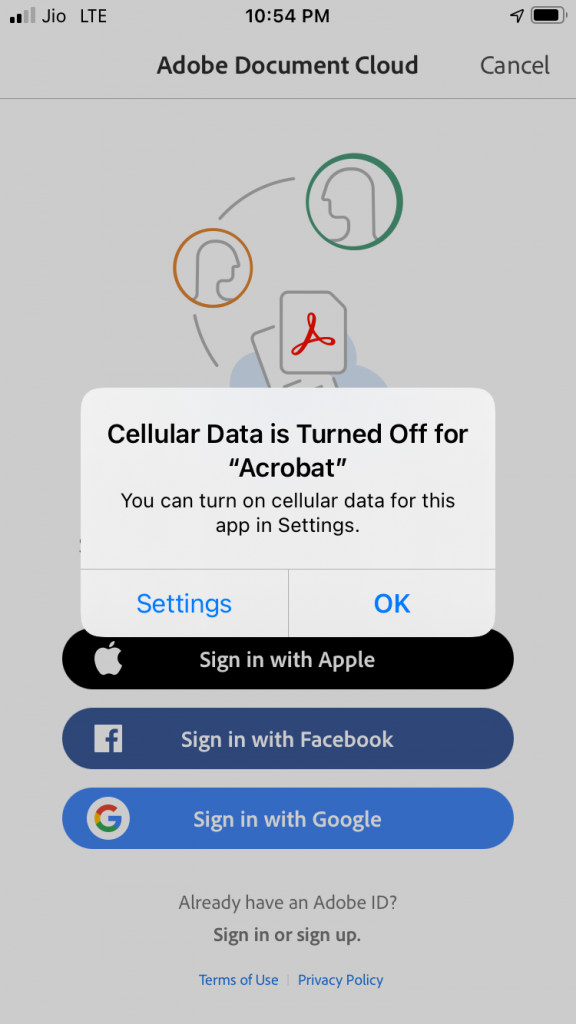
- App Behavior: When a user launches an app that has cellular or roaming data restricted, the app will be unable to access internet-based features unless the device is connected to a Wi-Fi network.

5. Troubleshooting & FAQs
Frequently Asked Questions (FAQs)
- Can data usage be restricted for personal apps?
No. Apple’s MDM framework only allows for the regulation of apps that are managed by the UEM. Personal, unmanaged apps remain under the user’s control.
- What happens if the device is on Wi-Fi?
Network usage rules only apply to cellular and roaming data. All managed apps will continue to have full internet access when the device is connected to a Wi-Fi network.
- Does this work on unsupervised devices?
Yes, network usage rules are generally supported on both supervised and unsupervised iOS devices, provided the apps being regulated are managed by the MDM.
Troubleshooting
- Rule Not Applying: Verify that the app is truly a Managed App. If the user installed the app manually from the App Store before the policy was pushed, it is considered unmanaged. You may need to take over management of the app or reinstall it via Hexnode.
- Data Still Being Used: Check if the device is actually in a roaming state if the “Data usage on roaming” rule is the only one active. Also, confirm the device has a valid cellular data plan and that the policy has successfully synced.
- Settings Not Grayed Out: Ensure the device is connected to the internet to receive the policy update. Check the Action History in the Hexnode portal to verify if the command was successful.


