


Category filter
How to schedule OS updates in Android devices?
Scheduling OS updates with Hexnode allows IT administrators to automate system patches, ensuring device security and performance while minimizing network congestion and user downtime during work hours.
Benefits of Managing Android OS Updates
Centralized OS management ensures all corporate devices run stable, secure software versions, preventing compatibility issues with enterprise applications and mitigating security vulnerabilities found in outdated firmware.
- Security Compliance: Installs latest patches to eliminate security flaws.
- App Compatibility: Ensures devices meet the minimum OS requirements for enterprise software.
- Bandwidth Management: Prevents network throttling by staggering updates or scheduling them during off-peak times.
- User Productivity: Avoids unexpected restarts during active working hours.
Prerequisite
To manage system updates through Hexnode, the Android devices must be provisioned as Device Owner (Android Enterprise).
Configuration Steps for Android OS Updates
- Navigate to Policies > New Policy (or select an existing one).
- Go to Android > Enterprise > Security > OS updates > Configure.
- Click on System update settings and select one of the following options:
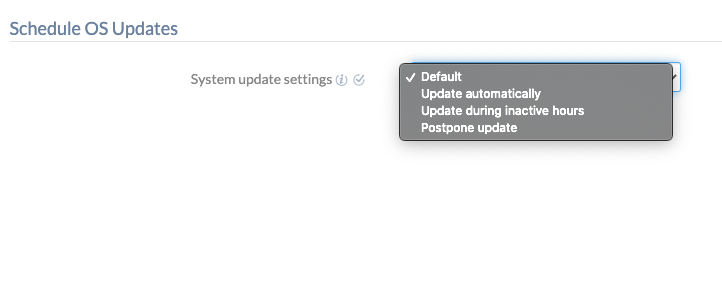
| Setting | Description |
|---|---|
| Default | The system updates according to the default configuration set on the device. |
| Update automatically | Automatically downloads and installs updates as soon as they become available. |
| Update during inactive hours | Allows the admin to set a specific time window for updates when the device is not in use. |
| Postpone update | Delays the installation of OS updates for a maximum of 30 days. |
Associating OS Update Policies with Targets
Method 1: For New/Unsaved Policies
- Navigate to the Policy Targets tab within the policy configuration screen.
- Click +Add Devices (or select Device Groups, Users, or Domains).
- Select the required devices and click OK.
- Click Save to deploy the policy.
Method 2: For Saved Policies
- In the Policies tab, check the box next to the desired policy.
- Click Manage > Associate Targets.
- Select the target Devices, Device Groups, Users, User Groups, or Domains.
- Click Associate to apply the settings.
Frequently Asked Questions
1. What is the technical difference between the “OS Updates Policy” and the “Update OS” Remote Action?
The OS Updates Policy is used to schedule or postpone standard Over-the-Air (OTA) updates provided by the manufacturer. The Update OS Remote Action, however, is used to push a specific firmware ZIP file via a custom URL. While the policy works for all Device Owner enrolled devices, the remote action specifically requires the Hexnode System Agent to be signed by the OEM and installed as a system app.
2. Can OS updates be installed silently while the device is in Kiosk Mode?
Yes. If the policy is set to Update automatically or Update during inactive hours, the update will download and install in the background. In Kiosk Mode, since the user cannot access the “Settings” menu to manually approve or trigger updates, the UEM policy is the only way to ensure the device stays updated without manually exiting the kiosk.


