


Category filter
How to remove iOS supervision?
What is iOS Supervision?
Supervision is a specialized Apple mode designed for institutionally owned iOS devices. When an organization enables supervision, it gains access to advanced management capabilities and deeper configuration controls through an UEM (Unified Endpoint Management) solution.
If an organization no longer requires these enhanced controls, the device can be reverted to an unsupervised state. The exact removal process depends on:
- The method used to supervise the device, and
- The UEM policies currently applied.
Hexnode supports supervision through the following enrollment methods:
- Apple Configurator enrollment
- Apple Business Manager (ABM) / Apple School Manager (ASM) enrollment
- ABM/ASM enrollment using Apple Configurator
How to identify whether an enrolled iOS Device is supervised?
From the Hexnode portal (Single Device)
- Go to Manage > Devices in the Hexnode console.
- Select the required device from the device list.
- Under the Device Summary > Hardware Info section, check the displayed supervision status.

From the Hexnode portal (All iOS Devices)
- Navigate to Manage > Devices.
- Click the pencil icon in the top-left corner of the device list.
- Enable the Supervised column and click Done.
- Apply the filter: Platform > iOS.
- View the Supervised column to identify each device’s supervision state.

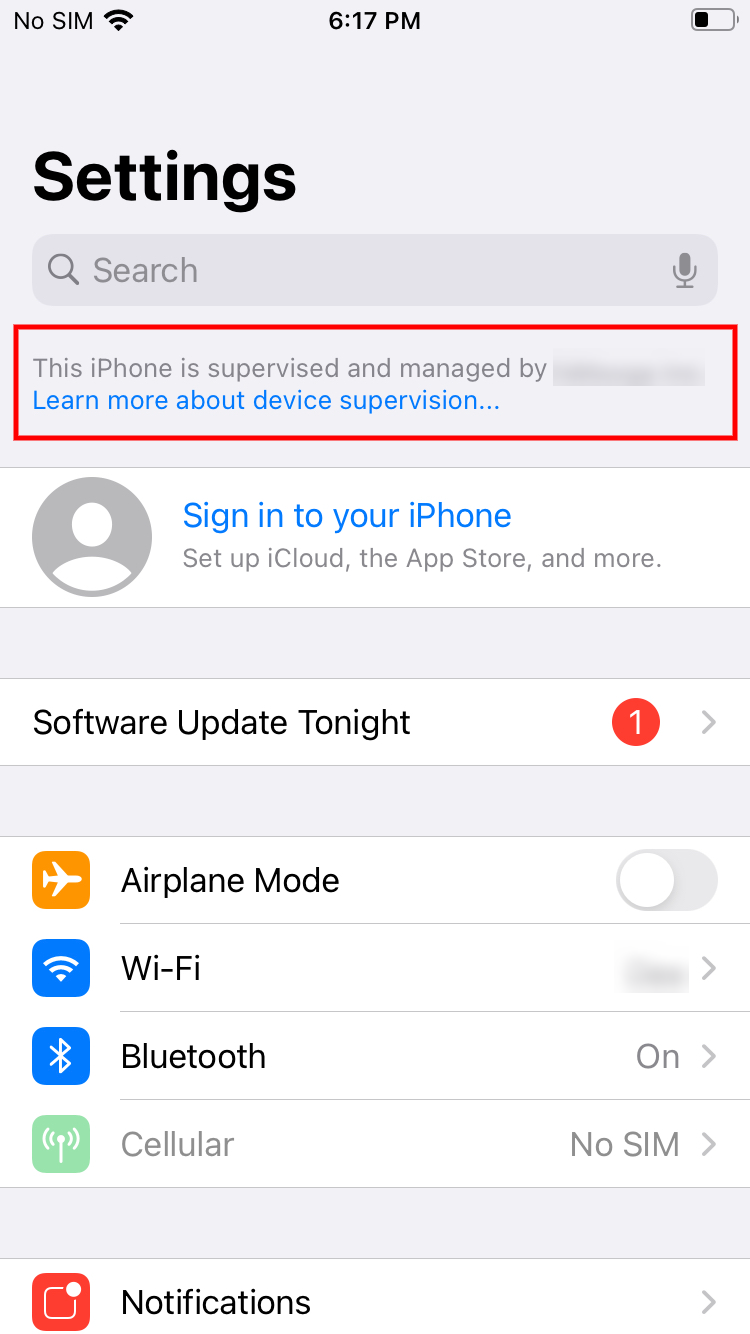
From the device itself
Go to Settings on the device.
If supervised, you will see a message indicating that the device is “supervised and managed by [Organization Name].”
Removing Supervision
1. Apple Configurator enrolled devices
To remove supervision from Apple Configurator–enrolled devices, you must perform a complete device wipe. This action also removes device enrollment.
You may wipe the device using one of the following methods:
- From Hexnode UEM:
Use the Wipe Device action to remotely erase the device. - From Device Settings:
Go to Settings > General > Reset > Erase All Content and Settings. - Using Apple Configurator (macOS):
Connect the device to a Mac → open Apple Configurator 2 → go to Actions > Advanced > Erase All Content and Settings.
Apple Business Manager / Apple School Manager (ABM/ASM) enrolled devices
For ABM/ASM-enrolled devices, supervision cannot be removed without removing enrollment itself.
Follow these steps:
- Log in to your Apple Business Manager account.
- Go to Devices.
- Select the device → click Edit Device Management.
- Choose Unassign, then click Continue.
- Reset the device to factory settings.
ABM/ASM devices enrolled via Apple Configurator
The supervision removal process is generally the same as standard ABM/ASM-enrolled devices.
However, during the first 30 days after deployment (provisional period):
- Users can choose to leave remote management during setup, even if “Enroll devices in MDM” is enabled under Enroll > iOS > Apple Business/School Manager > Enrollment Profiles > General Settings > Device Settings.
- If the user opts out, the device will lose both supervision and MDM enrollment.


