


Category filter
How to make MDM profile non-removable on Windows PC
Organizations employ device management solutions to remotely administer and monitor corporate deployed endpoints. Hexnode manages Windows PCs via an MDM profile installed on the device during enrollment. Removing this profile from the device removes the MDM administration and hinders Hexnode’s remote server from remotely managing it. To restrain it from happening, the organization can block manual MDM profile removal from the PC via a restriction policy on Hexnode. Here’s how.
Prevent MDM profile removal
To block the end-users from manually removing the Hexnode administration from Windows PCs,
- Log in to your Hexnode console.
- Go to Policies tab.
- You can choose an existing policy or create a new one by clicking on New Policy.
- From Windows, choose Restrictions and click on Configure.
- Under Allow Security and Privacy Settings, uncheck the option Manual MDM administration removal.
- Save the policy.
Associate the policy with Windows PCs in Hexnode
If the policy has not yet been saved,
- Navigate to Policy Targets.
- Click on +Add Devices.
- Select the devices and click OK.
- Click Save
Apart from devices, you can also associate the policies with device groups, user and user groups from Policy Targets.
If the policy has been saved, you can associate it in either of the following two ways:
- From Policies, check the policies to be associated.
- Click on Manage → Associate Targets and select the devices.
- Apply the policy to the devices.
Or,
- From Manage tab, click on the device name for which the policy is to be associated.
- From Actions, choose Associate Policy.
- Select the policy and associate it with the device.
Frequently Asked Questions
1. Does making the MDM profile non-removable prevents the device from being wiped or disenrolled from the Hexnode console?,
No. This restriction only applies to the user’s ability to manually disconnect the account via the Windows “Access work or school” settings. The admin retains full authority to perform a “Wipe” or “Disenroll Device” action directly from the Hexnode UEM portal.
2. Will the “Manual MDM administration removal” setting affect the ability to remove other personal accounts on the device?
The admin should be aware that this policy is specific to the enrollment profile (the work/school account associated with Hexnode). It does not prevent the user from adding or removing their own personal Microsoft or local accounts, provided those accounts are not tied to the management layer.
3. If the admin unchecks “Manual MDM administration removal,” does it hide the “Disconnect” button entirely?
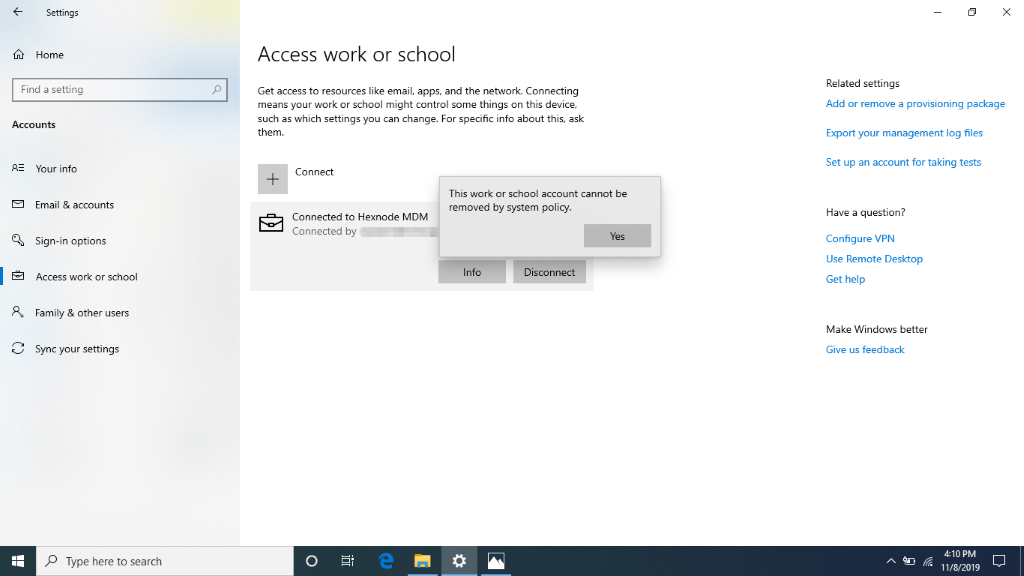
On Windows 10/11, the “Disconnect” button may still be visible, but when the user attempts to click it, the OS will trigger a block. The user will see a system message stating that the action is restricted by policy, preventing the disenrollment process from completing.
Troubleshooting
1. The ‘Disconnect’ button is still functional, and the user successfully removed the MDM profile.
Probable Cause:
This typically occurs if the device is Microsoft Entra ID joined, as Windows prevents the “Manual MDM administration removal” restriction from being enforced when management is tied to the primary user identity. Alternatively, the device may not have communicated with the Hexnode server, resulting in a policy sync delay where the restriction settings haven’t yet been applied locally.
Solution:
The admin must verify the enrollment type. If the device is Entra ID joined, this restriction cannot be enforced. For standard enrollments, ensure the device is online and trigger a Scan Device action from the Manage tab to ensure that the Restrictions policy is deployed and acknowledged by the Windows Configuration Service Provider (CSP).


