


Category filter
How to find lost iOS devices with MDM
Hexnode UEM can help locate and secure a lost or stolen iOS device when the device is enrolled and has the required management state. For organization-owned iPhone and iPad devices, Apple Automated Device Enrollment (ADE), formerly Device Enrollment Program (DEP), makes recovery more reliable by reinstalling the MDM profile during setup after a wipe when profile removal is not allowed. Supervised devices provide the strongest Hexnode UEM recovery controls, including location scans, Lost Mode, Lock Device, Wipe Device, and Remote Ring. Managed but unsupervised devices support fewer actions, and unmanaged devices must be located through Apple’s Find My service.
TL;DR: Find a Lost iOS Device with Hexnode UEM
- Use Apple Automated Device Enrollment through Apple Business or Apple School Manager to keep the Hexnode UEM profile non-removable on organization-owned devices.
- Deploy a Location Tracking policy before using the Scan Device Location action in Hexnode UEM.
- Use Manage > [Select Device] > Actions to lock, wipe, ring, locate, or enable Lost Mode on supported devices.
- Lost Mode and Activation Lock management require supervised iOS devices. Unsupervised devices have limited recovery options.
- If the device is not enrolled in Hexnode UEM, use iCloud Find Devices, provided Find My was enabled on the device.
Use Automated Device Enrollment for Persistent iOS Device Recovery
Apple Automated Device Enrollment (ADE) through Apple Business or Apple School Manager improves device recovery because the Hexnode UEM profile can be made non-removable. If an enrolled device is erased, the assigned MDM profile is installed again during Setup Assistant when the device is connected to a network and assigned to the Hexnode UEM server.
- Configuration requirement: In Hexnode UEM, go to Admin > Apple Business/School Manager > Automated Device Enrollment > Enrollment Profiles > Create Enrollment Profile and keep Allow MDM profile removal unchecked.
- Recovery benefit: ADE helps re-establish Hexnode UEM management after a reset, so supported actions such as Remote Ring, Wipe, Lock, and Lost Mode can be used again after the device completes enrollment and comes online.
Find and Secure Supervised iOS Devices in Hexnode UEM
Supervised iOS devices provide the highest level of recovery control in Hexnode UEM. With the required policies and network connectivity, Hexnode UEM can scan the device location, lock the device, erase corporate data, enable Lost Mode, or trigger a remote ring.
Deploy a Location Tracking Policy for iOS Devices
Location tracking must be configured by policy before Hexnode UEM can collect location history or run an on-demand location scan.
- Go to Policies > New Policy > Enterprise > iOS > Tracking and Fencing > Location Tracking.
- Configure the location tracking frequency.
- Assign the policy to the target device under Policy Targets.
- Click Save.
Run the Scan Device Location Action
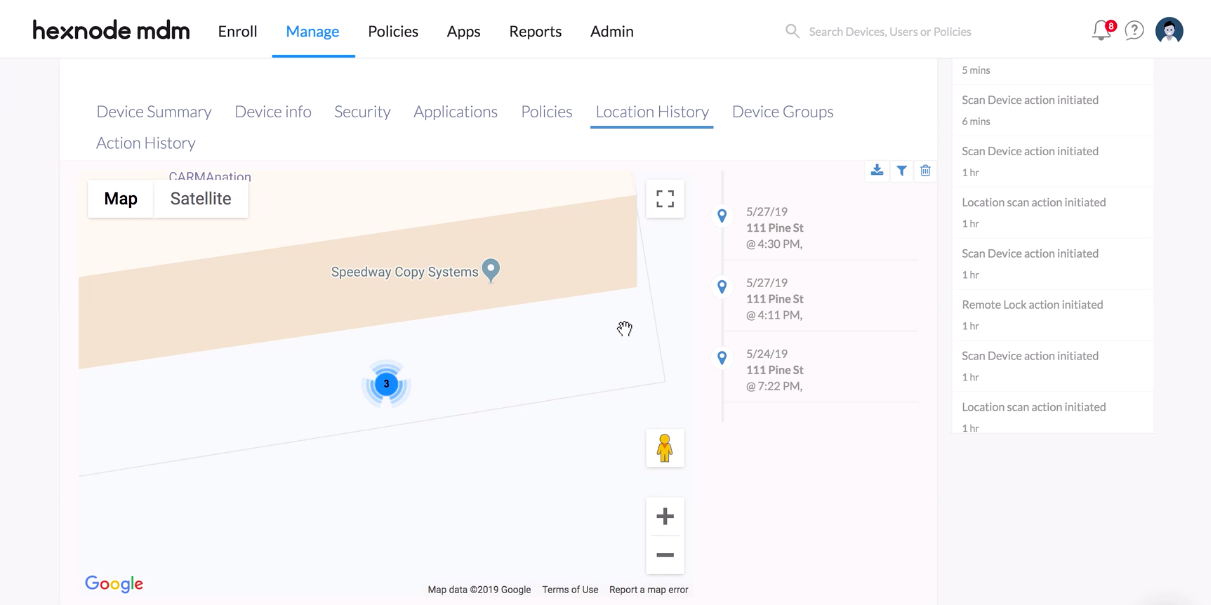
After the Location Tracking policy is active, use the Scan Device Location action to request the current location of the managed iOS device.
- Go to the Manage tab in the Hexnode UEM console.
- Select the target device.
- Click Actions > Scan Device Location.
- Open the Location History tab to view the reported location data.
Use Lock, Wipe, Lost Mode, and Remote Ring
Go to Manage > [Select Device] > Actions in Hexnode UEM to perform supported recovery and security actions.
- Lock Device: Locks the iOS device with the device passcode and prevents further use until the passcode is entered.
- Wipe Device: Erases data and settings to reduce the risk of data exposure.
- Enable Lost Mode: Locks a supervised iOS device and displays a custom message and contact number.
- Remote Ring: Plays a loud sound to help locate a nearby device.
Manage Activation Lock for iOS Device Recovery
Activation Lock helps prevent unauthorized users from erasing, reactivating, or selling a device by requiring the associated Apple Account during reactivation. In Hexnode UEM, Activation Lock settings are configured through an iOS policy.
Enable Activation Lock in Hexnode UEM
- Go to Policies > New Policy > iOS > Enterprise > Advanced Restrictions.
- Open Allow Security and Privacy Settings.
- Select Activation Lock.
- Save the policy and apply it to the target device.
Find Managed but Unsupervised iOS Devices in Hexnode UEM
If an iOS device is managed by Hexnode UEM but is not supervised, Hexnode UEM can still run basic security commands when a Location Tracking policy is in place.
- Available actions: Lock Device, Wipe Device, and Scan Device Location.
- Unsupported on unsupervised devices: Enable Lost Mode and Disable Activation Lock.
Find Unmanaged and Unsupervised iOS Devices with Find My
If the device is not managed by Hexnode UEM and is not supervised, use Apple’s native Find My service instead of Hexnode UEM. Find My must have been enabled on the device before it was lost.
- Sign in to iCloud Find Devices.
- Select the specific device from the device list.
- Use the available Find My options to locate the device.
- Verify the required conditions: Find My must be enabled, and the device must be online for live location updates.
- Use supported actions such as Play Sound, Lost Mode, Activation Lock, or Erase Device.
Disable Lost Mode After an iOS Device Is Recovered
After the lost iOS device is recovered, disable Lost Mode from the Hexnode UEM portal, from the device lock screen, or during disenrollment when applicable.
- From the Hexnode UEM portal: Go to Manage > [Select Device] > Actions > Disable Lost Mode.
- From the device: Enter the device passcode on the lock screen to disable Lost Mode.
- During disenrollment: If an administrator disenrolls a device while Lost Mode is active, the device automatically exits Lost Mode. Hexnode UEM pushes the Disable Lost Mode command as part of the disenrollment process so the device remains usable.
Troubleshoot Lost iOS Device Recovery in Hexnode UEM
Scan Device Location Does Not Return a Current Location
If Scan Device Location does not return an updated location, confirm that the device is managed by Hexnode UEM, has an active network connection, and has a Location Tracking policy assigned. Location scans and MDM commands require the device to communicate with the Hexnode UEM server.
iOS Device Is Stuck in Lost Mode
An iOS device can remain in Lost Mode when it cannot connect to a network after restart or when it is outside the range of known Wi-Fi networks. If the device has no SIM card or cellular data, Hexnode UEM cannot receive the Disable Lost Mode command until connectivity is restored.
Common causes include:
- Connectivity loss: The device is outside known Wi-Fi range or has no SIM card or cellular data.
- Post-restart lockout: Some iOS versions require passcode entry after restart before Wi-Fi becomes available, but Lost Mode prevents normal passcode entry.
- USB accessory restriction: If Allow USB accessories while locked is disabled, the device may reject recovery accessories while locked.
Restore Network Connectivity to Disable Lost Mode
If the device is offline, use a wired network connection when compatible adapters are available.
- Hardware required: Lightning to USB 3 Camera Adapter and an Apple USB Ethernet adapter.
- Action: Connect the device to a wired internet source with the adapters. After the device comes online, run Actions > Disable Lost Mode from the Hexnode UEM console.
Restore the Device with Apple Configurator
- Connect the iOS device to a Mac through USB and open Apple Configurator.
- Select the device in the Apple Configurator window.
- Go to Actions > Restore, or Control-click the device and select Restore.
Erase the Device with Apple Configurator
- Connect the device to a Mac and open Apple Configurator.
- Go to Actions > Advanced > Erase All Content and Settings, or Control-click the device and select Advanced > Erase All Content and Settings.
Restore the Device in Recovery Mode
Use recovery mode when the Mac does not recognize the device normally. Open Finder on macOS Catalina or later, or iTunes on macOS Mojave or earlier.
Enter recovery mode using the steps for the device model:
- iPhone 8 or later: Press and quickly release the volume up button. Press and quickly release the volume down button. Press and hold the side button until the recovery-mode screen appears.
- iPhone 7 and iPhone 7 Plus: Press and hold the side button and the volume down button at the same time until the recovery-mode screen appears.
- iPad models without a Home button: Press and quickly release the volume button closest to the top button. Press and quickly release the volume button farthest from the top button. Press and hold the top button until the recovery-mode screen appears.
- iPad with a Home button and iPhone 6s or earlier: Press and hold the Home button and the top or side button at the same time until the recovery-mode screen appears.
Final action: After the device appears on the Mac, click Restore. This erases all data stored on the device.
Frequently Asked Questions
Can Hexnode UEM track an iOS device if it is offline?
No. Hexnode UEM actions such as Scan Device Location require the device to have an active internet connection. Apple’s Find My service may show available location information if Find My was enabled before the device went offline.
Does Wipe Device remove the ability to track the iOS device?
For devices enrolled through standard MDM enrollment, wiping the device removes the MDM profile and stops Hexnode UEM management. For devices assigned through Apple Automated Device Enrollment, Hexnode UEM management is re-established during setup after the device is powered on, connected to a network, and enrolled again.
Is Lost Mode supported on unsupervised iOS devices in Hexnode UEM?
No. Enable Lost Mode is not supported on unsupervised iOS devices. Use available actions such as Lock Device, Wipe Device, and Scan Device Location when the device is managed and the required policy is in place.
What happens if an iOS device restarts while in Lost Mode?
The device may lose Wi-Fi connectivity after restart. Because Hexnode UEM can disable Lost Mode from the portal only when the device is online, the device may require a restored network connection or device restore before it can be used again.
Does Automated Device Enrollment help recover an iOS device after a reset?
Yes. When the device is assigned to Hexnode UEM through Automated Device Enrollment and Allow MDM profile removal is unchecked, the MDM profile is installed again during setup after the reset. Recovery actions become available again after the device completes enrollment and connects to the network.


