


Category filter
Enrolling Android Devices via Google Workspace
The Android Enterprise program allows you to enroll devices using your Google Workspace (formerly G Suite) account. Depending on the device ownership, you can choose between two enrollment modes:
- Device Owner Mode (Corporate-Owned):
- Best for: Company-owned devices requiring full control.
- Requirement: A Device Owner can only be assigned during the initial device setup. If the device is already in use, you must wipe (Factory Reset) the device to enroll in this mode.
- Profile Owner Mode (BYOD – Personal):
- Best for: Employee-owned personal devices.
- Requirement: No factory reset is needed. Enrollment creates a separate work container that isolates corporate data from personal data, ensuring privacy.
Prerequisites
Before attempting enrollment, ensure the following configurations are in place:
- Google Workspace Account: Your organization must possess a valid Google Workspace account.
- Android Enterprise Configuration: Your organization must be configured in Android Enterprise using Google Workspace.
-
Google Admin Console Configuration:
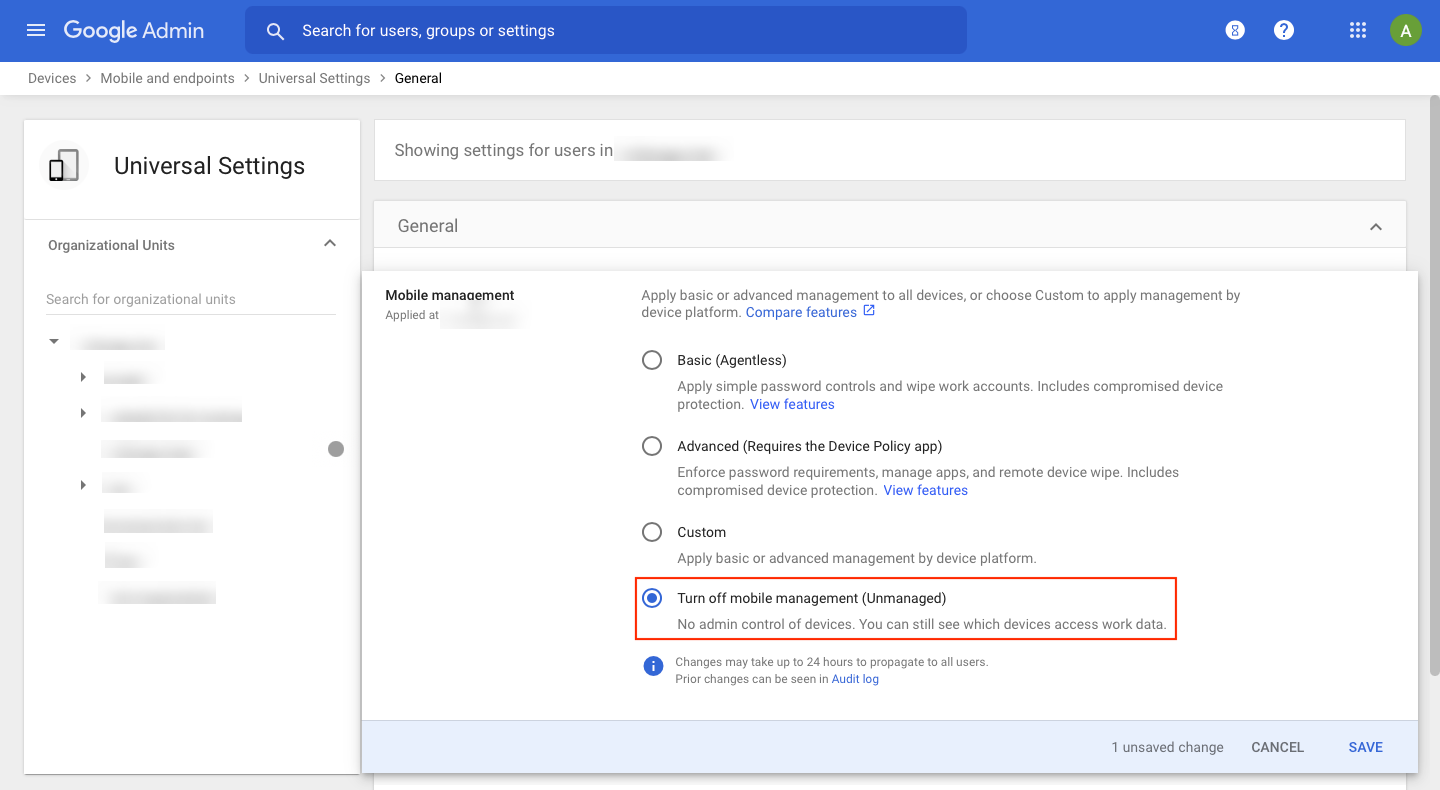
- Navigate to Google Admin Console > Devices > Mobile & endpoints > Settings > Universal Settings > General > Mobile Management.
- Select the Turn off mobile management option.
- Why? Enabling this option prevents Google’s native management from interfering, ensuring the Hexnode For Work app prompt appears correctly during enrollment.
Enrollment Configuration Steps
Step 1: Check Android EMM Status
Before enrolling devices, you must verify the Third-party Android mobile management setting in your Google Admin Console. This setting determines which enrollment workflow you should follow.
- Log in to the Google Admin Console.
- Navigate to Devices > Mobile & endpoints > Settings > Setup > Third-party integrations.
- Locate the toggle for ‘Enable third party Android mobile management’.
Step 2: Choose Your Enrollment Path
Based on the status of the “Enable third party Android mobile management” setting, proceed to the corresponding section below:
- Case A: The Option is Enabled (Enforced): Select this path if the toggle is ON. This enables a streamlined flow where adding a Google account automatically triggers enrollment.
- Case B: The Option is Disabled: Select this path if the toggle is OFF. This requires manual app installation or standard enrollment methods
Enrollment Scenarios
Case 1: If “Enable third party Android mobile management” is Enforced
Use this workflow if you have enabled the integration setting in the Google Admin Console. Enrollment is triggered automatically when the Google account is added.
To Enroll in Profile Owner Mode (BYOD/Personal):
- Open Settings on the Android device and select Accounts.
- Note: This path may vary by device (e.g., Accounts & Backup > Accounts).
- Tap + Add account and select Google.
- Enter the username and password of your Google Workspace account.
- Tap I agree to accept the terms.
- A prompt to install the Hexnode For Work app will appear automatically. Tap Install.
- Once installed, follow the on-screen instructions to set up the work profile.
- Enter the Hexnode Portal Name when prompted.
- The device is now enrolled.
To Enroll in Device Owner Mode (Corporate-Owned):
- Factory Reset the device.
- Turn on the device and proceed through the initial setup wizard.
- When prompted to sign in, enter your Google Workspace account credentials.
- A prompt to install the Hexnode For Work app will appear. Tap Install.
- Follow the on-screen instructions to complete the setup.
- Enter the Hexnode Portal Name.
- The device is now enrolled as a Device Owner.
Case 2: If “Enable third party Android mobile management” is Disabled
Use this workflow if the integration setting is disabled. You must install the agent manually or use standard enrollment triggers first.
To Enroll in Profile Owner Mode (BYOD/Personal):
- Open the Google Play Store on the device.
- Download and install the Hexnode For Work app.
- Open the app and enter the Hexnode Portal Name.
- Tap Agree to proceed.
- When the screen shows Setup Work Profile, tap Continue.
- Follow the on-screen instructions to create the work profile.
- Note: The Hexnode For Work app may minimize during this process but will relaunch automatically in a few seconds.
- When prompted to Configure your Google Workspace Email Account, tap Continue.
- Enter your Google Workspace username and password to finalize enrollment.
To Enroll in Device Owner Mode (Corporate-Owned):
- Initiate enrollment using a standard Device Owner method.
- Complete the initial Hexnode agent installation.
- When the setup screen prompts to Configure your Google Workspace Email Account, tap Continue.
- Enter your Google Workspace username and password.
- The device will sync with the account and complete enrollment.
Frequently Asked Questions (FAQs)
Q1: What is the difference between “Device Owner” and “Profile Owner” modes?
- Device Owner: Best for corporate-owned devices. It gives the organization full control over the device (e.g., kiosk mode, full wipe, restriction of settings). It requires a factory reset to set up.
- Profile Owner: Best for personal devices (BYOD). It creates a separate “Work Profile” on the device. The organization manages only the corporate data (Work Profile), leaving personal apps and data private.
Troubleshooting
1. Error: “Invalid Input” during integration
Problem: While attempting to integrate Google Workspace with the Hexnode console, the process fails with an Invalid Input error message.
Possible Causes: This generic error usually indicates a mismatch in the configuration details or a missing prerequisite step in the Google Developers Console.
Solution: Please verify the following checklist to ensure all prerequisites are met:
- Service Account Setup: Ensure the JSON file uploaded is the one downloaded from the corresponding Service Account in the Google Developers Console.
- Roles: The Service Account must have the Service Account Admin role assigned.
- Delegation: Verify that Enable Google Workspace Domain-wide Delegation is checked under the Service Account settings.
- API Authorization: In the Google Admin Console, ensure API clients are correctly authorized to sync users and groups.
- Input Data: Double-check that you have entered the correct Google Workspace Admin email, Domain name, and Token in the Hexnode portal.
2. Error: “Google Workspace could not be configured”
Problem: After configuring settings in the Hexnode portal, you receive the error: “Google Workspace could not be configured, ensure that necessary OAuth scopes are provided.”
Possible Causes:
- The API client is missing required OAuth scopes.
- The Admin SDK is not enabled for the account.
Solution:
Step 1: Verify OAuth Scopes Log in to your Google Admin account and ensure the following scopes are added under the Show Domain-Wide Delegation dropdown:
- https://www.googleapis.com/auth/admin.directory.user
- https://www.googleapis.com/auth/admin.directory.group
- https://www.googleapis.com/auth/admin.directory.domain
Step 2: Enable Admin SDK If the scopes are correct but the issue persists:
- Sign in to your Google Admin Account.
- Navigate to Security > API reference.
- Ensure the Enable API access box is checked.
- Click Save.
Need more help?
Then you can check out these dedicated troubleshooting guides:


