


Category filter
How to enable lost mode on supervised iOS devices?
Managed Lost Mode is a remote security state for supervised iOS devices that locks the screen, displays recovery information, and enables real-time location tracking while preventing unauthorized access to corporate data.
Why Use iOS Lost Mode?
If an iPhone or iPad is stolen or misplaced, Lost Mode provides a strategic defense by rendering the device unusable. Unlike a standard passcode lock, Lost Mode is enforced at the system level via MDM, ensuring that only an authorized administrator can restore the device to its operational state.
- Security Lockdown: Restricts all device functionality, even if the user knows the passcode.
- Data Protection: Safeguards sensitive corporate resources from physical intruders.
- Recovery Info: Displays a custom message and phone number to the finder to facilitate the return of the hardware.
Prerequisites for iOS Lost Mode
To initiate this remote action, the target device must meet the following technical criteria:
| Requirement | Specification |
|---|---|
| Supervision State | Device must be in Supervised Mode. |
| OS Version | iOS 9.3 and later. |
| Connectivity | Must have an active internet connection (Wi-Fi or Cellular). |
| MDM Status | Must be successfully enrolled in the Hexnode UEM portal. |
Step-by-Step Guide: Enabling Lost Mode
Administrators can secure a reported lost or stolen device directly from the Hexnode console.
- Log in to the Hexnode UEM console.
- Navigate to the Manage tab and select the target device.
- Click on Actions > Security > Enable Lost Mode.
- Configure the lock screen display:
- Message: Enter a custom recovery message.
- Phone Number: Provide a contact number (supports the %phonenumber% wildcard).
- Footnote: Add extra details for the finder.
- Click Continue.
Supported Wildcards for Lock Screen Details
Use these wildcards to dynamically populate device-specific info: %devicename%, %deviceid%, %username%, %model%, %udid%, %assettag%, %serialnumber%, %name%, %department%, %imei%, %email%, %devicenotes%, %alternateemail%, %phonenumber%, %domain%, %osname%, %wifimacaddress%, %osversion%, %iccid%, %userprincipalname%, %netbiosname%, %newline%.
Tracking and Locating a Lost Device
Hexnode utilizes Apple’s MDM framework to retrieve coordinates without requiring the user to enable Location Services manually.
- Automatic Scanning: Enabling Lost Mode automatically triggers a Scan Device Location action.
- Manual Tracking: Administrators can execute Scan Device Location from the Actions menu to get the most recent coordinates.
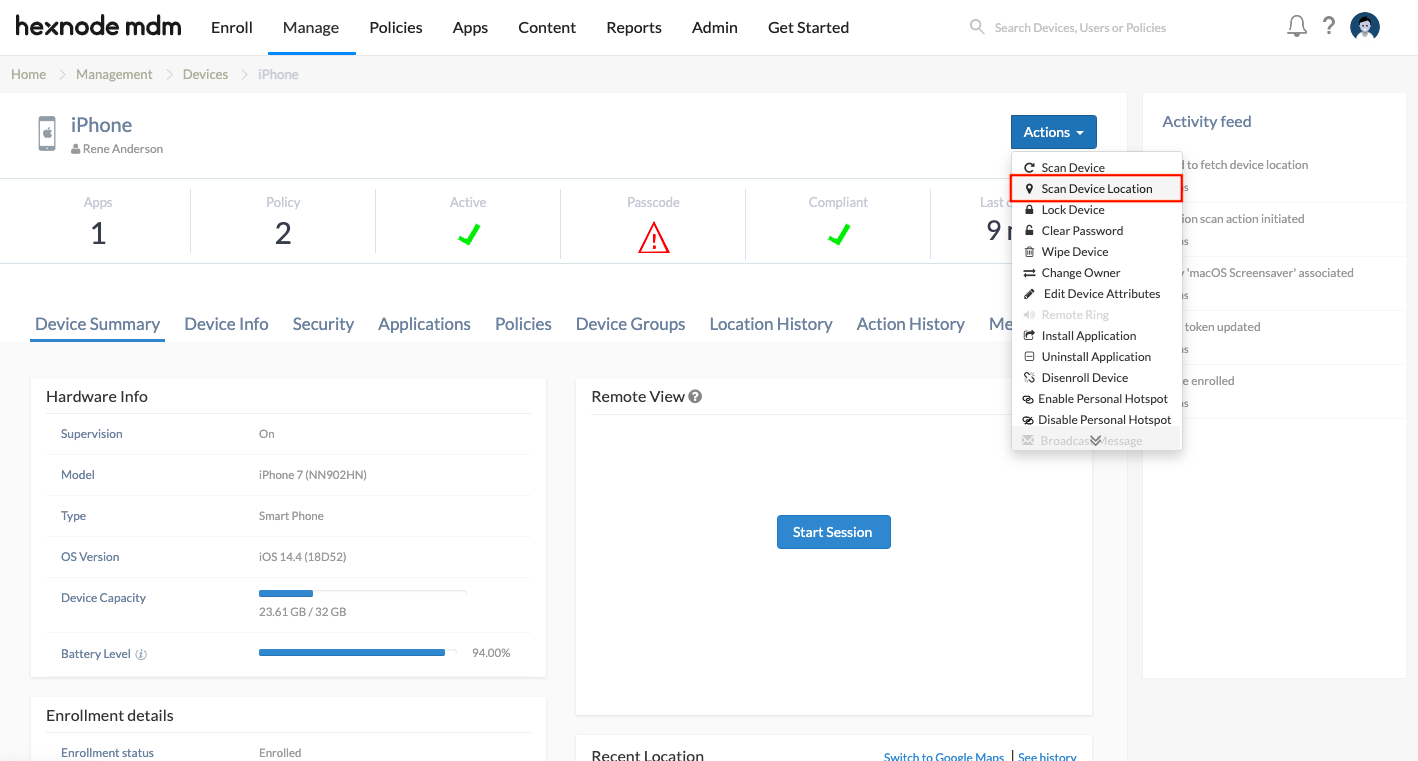
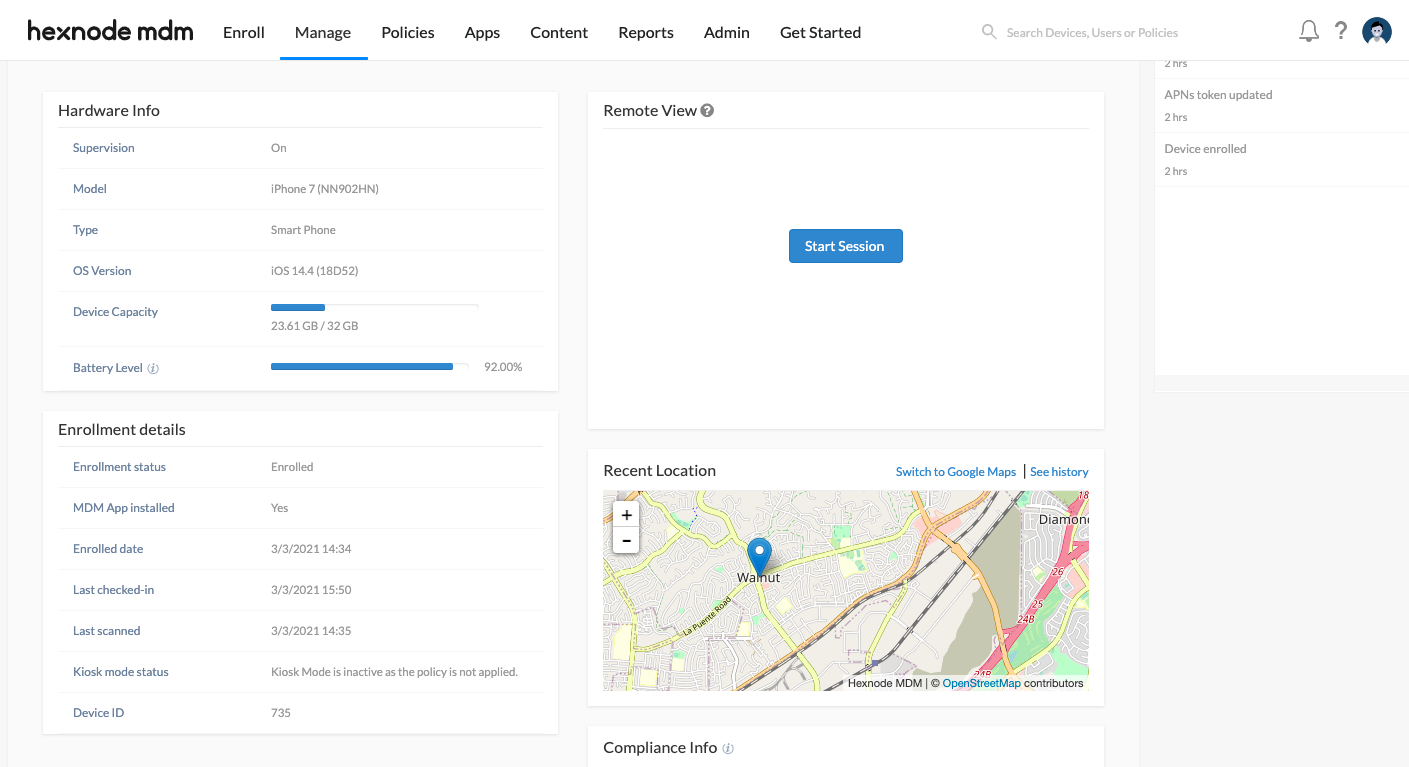
- Location Reports: View coordinates under Reports > Location Reports > Location History or on the Device Summary page under Recent Location.
How to Disable Lost Mode
Once the device is recovered, administrators must lift the restriction via the portal to resume device operations.
- Primary Method: Navigate to Manage, select the device, and click Actions > Security > Disable Lost Mode.
- Alternate Methods: Disenrolling the device or initiating a Wipe Device action will also exit Lost Mode (though wiping deletes all data).
Troubleshooting Guides
If a device is unable to receive the “Enable/Disable Lost Mode” command, it is likely due to a network interruption, an untimely restart, or outdated software.
Probable Causes for Execution Failure
- Device network connection was interrupted.
- Device was restarted before disabling lost mode (causing Wi-Fi loss).
- The iOS version is outdated.
Precautions to Avoid “Brick” States
- Network Redundancy: Ensure devices are connected to two or more corporate Wi-Fi networks and a cellular network.
- Avoid Restarts: Do not restart a device currently in Lost Mode before sending the disable command.
Solutions for Devices Without Network Connectivity
If the device is stuck and offline, use a macOS device (preferably with Apple Configurator 2) to recover it. Ensure “Prevent pairing with non-Configurator hosts” is not enabled, or use the original host Mac.
| Method | Steps |
|---|---|
| 1. Wired Ethernet | Use a Lightning to USB 3 Camera Adapter and Apple USB Ethernet adapter to provide a wired internet connection. Once online, send the disable command from Hexnode. |
| 2. AC2 Restore | Connect to Mac via USB > Launch Apple Configurator 2 > Actions > Restore (or Control-click > Restore). Warning: Erases all content and supervision profiles. |
| 3. AC2 Erase | Connect to Mac > Launch Apple Configurator 2 > Actions > Advanced > Erase All Content and Settings. |
| 4. Recovery Mode | Connect to Mac/PC (using Finder/iTunes). Force Recovery Mode (specific to device model) and click Restore. Warning: Loses all stored data. |
Frequently Asked Questions (FAQs)
Can the user unlock Lost Mode with their passcode?
No. The device is locked at the system level. Only an administrator sending the Disable Lost Mode command from Hexnode can restore access.
Does Lost Mode work if Location Services are turned off?
Yes. When Lost Mode is enabled via MDM, Apple allows the server to fetch the device location regardless of the user’s privacy settings.
Why did the device lose Wi-Fi after a restart?
iOS devices in Lost Mode often drop Wi-Fi connections upon rebooting. This is why it is critical to use cellular-enabled devices or follow the wired Ethernet recovery method if a restart occurs.
What happens if the device is disenrolled while it’s lost?
Disenrolling the device will exit Lost Mode, but you will lose all remote management and tracking capabilities.


