


Category filter
How to delay OS update on iOS devices
In a mission-critical enterprise environment, an immediate OS update can be as disruptive as it is beneficial. The Force Delayed Software Updates feature in Hexnode UEM provides IT administrators with a strategic buffer, allowing them to gatekeeper new iOS releases.
By implementing a delay, organizations can ensure that every new version of iOS undergoes rigorous compatibility testing with internal apps and infrastructure before reaching the end-user. This prevents “Day 0” bugs from impacting productivity and allows for a controlled, phased rollout that preserves network bandwidth.
1. Why delay iOS Updates?
- Compatibility Testing: Provides additional time to test corporate applications for bugs or issues with the latest OS version.
- Bandwidth Management: Prevents a simultaneous network surge caused by all devices downloading large update files at once.
- Stability: Ensures that only stable, vetted versions are deployed across the enterprise fleet.
2. Configuration Workflow
This feature is supported only on Supervised iOS devices running iOS 11.3 or later.
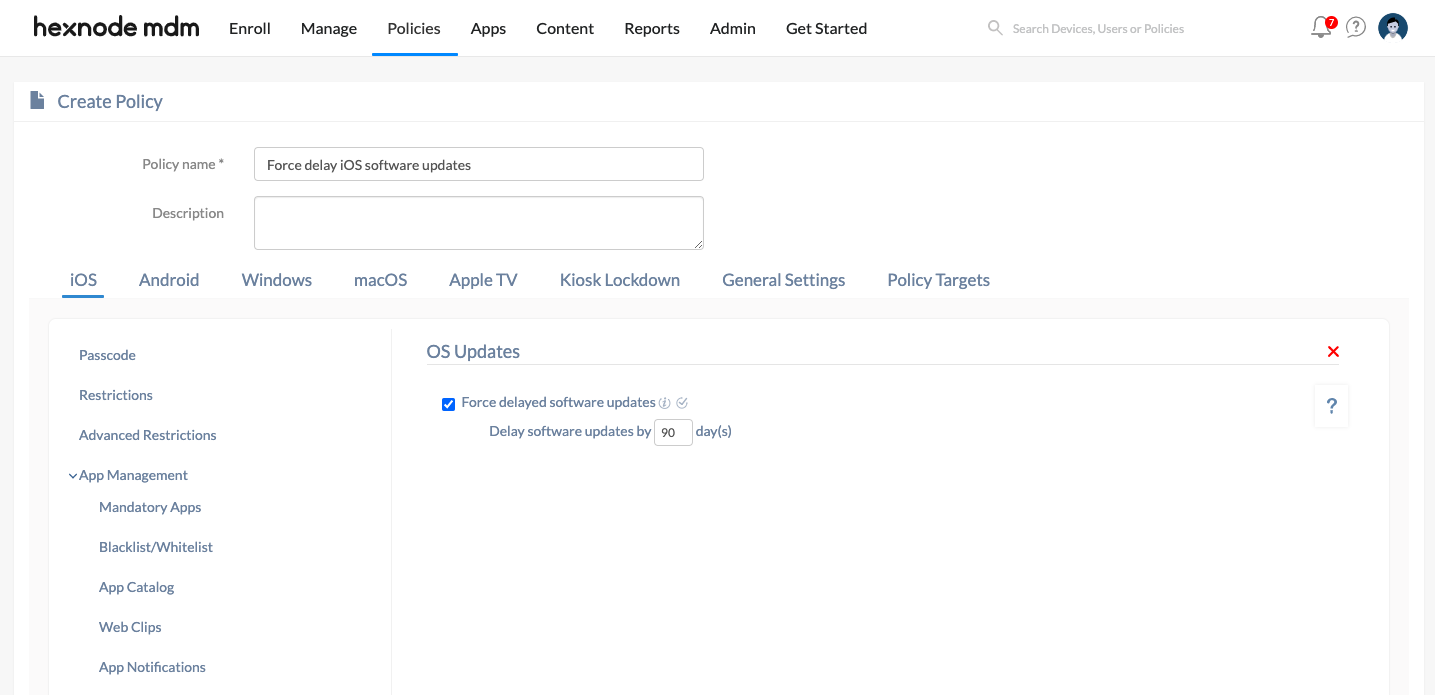
To delay iOS updates:
- Log in to the Hexnode UEM portal.
- Navigate to Policies > New Policy > Create a fully custom policy > iOS > Security > OS Updates and click Configure.
- Check the option Force delayed software updates.
- Enter the number of days for the delay (up to 90 days). The default delay is 30 days.
- Go to Policy Targets tab and select the Devices/Device Groups/User/User Groups or Domains/OUs to which the policy is to be attached.
- Click on Save option.
3. Technical Behavior & Visibility Rules
Software Update Visibility
If this restriction is attached to a device, the software update will not be available to the user for install until the specified number of days after the software update release date.
Example Scenario (90-Day Delay):
Suppose a 90-day delay period is set for an Apple device running iOS 11.3.1 and two OS versions are released within the specified period (90 days).
- Release 1: iOS 11.4 is released on April 1.
- Release 2: iOS 11.4.1 is released on May 2.
Visibility Result: The user will be able to install or see the first update only on June 30 and the second one on July 31 (exactly 90 days after each specific OS release date).
Administrative Overrides
This restriction only delays the updates for the specified number of days, preventing the user from receiving the updates on the device. However, the Update OS action can still be used to download and/or install updates on the devices remotely even during this period.
4. Summary Table: Delay vs. Action
| Feature | Behavior under Delay Policy |
| User Visibility | Updates are hidden in Settings > General > Software Update until the delay expires. |
| User Installation | Users cannot manually initiate the update during the delay window. |
| Remote Admin Action | Allowed. The administrator can trigger an Update OS action via the Hexnode console to override the delay. |
| Maximum Delay | The maximum allowable delay is 90 days. |
5. Troubleshooting & FAQs
FAQs
- Can the delay be longer than 90 days?
No. Apple restricts the maximum MDM-enforced delay to 90 days to ensure devices eventually receive critical security patches. - Does this affect app updates?
No. This policy specifically manages the Operating System (iOS) updates. App updates are managed separately through the App Management section. - What happens if the policy is removed?
The restriction is immediately lifted, and the device will check for and display the latest available update.
Troubleshooting
- Update visible despite policy: Verify that the device is Supervised. Unsupervised devices will ignore the “Force delayed software updates” command.
- Manual override: On supervised devices, this policy locks the software update settings, preventing the user from bypassing the restriction.


