


Category filter
Configure power management settings for Windows devices
The doc helps you configure power management settings for Windows devices from the Hexnode UEM console.
Power management refers to the practices followed to minimize energy consumption on devices. These practices can include configuring the idle time of the device, turning on the energy saver, and even more. It ensures energy efficiency, cost savings, and an extended lifetime of the device. The devices can be configured to manage power settings both when running on battery and when plugged in. With Windows Power policy, an IT Admin can configure devices as per the organization’s requirements.
Configure Power management settings
Follow the below steps to configure the Power policy:
- Login to your Hexnode UEM portal.
- Navigate to the Policies tab.
- Click on New Policy to create a new one or click on any policy to edit an existing one. Enter the Policy Name and Description in the provided fields.
- Navigate to Windows and select Power under Configurations.
- Click on Configure.
- Click Save.
Hibernate
Enable this option to allow the system to Hibernate. By default, this option is enabled.
To disable, click Yes on the dialogue box that appears on unchecking ‘Hibernate’. If not enabled, the system will not be able to hibernate. Any settings that cause the device to hibernate will be set to default and the ‘Hibernate’ option will be unavailable for some of the configurations.
Hybrid Sleep
This setting ensures that the device resumes the current session as if from sleep. In case of power failures or any mishaps that cause the system to shut down, the device resumes as if from Hibernate. Enabling this setting makes sure that the current session is not lost.
| Settings | Description |
|---|---|
| Enable | System enters a Hybrid mode, and the current session is retained. |
| Disable | System does not enter Hybrid mode. |
Turn on Energy Saver when charge level is at
When the device is running on battery, this setting determines the charge level at which the Energy Saver gets activated. When the device is plugged in, it determines the charge level that the device must reach for the Energy Saver to be deactivated. If the charge level of the device is higher than the value configured under ‘Turn on Energy Saver when charge level is at’, Energy Saver does not get activated.
The acceptable range of values is 0 to 100. If the value is not configured, the default value, 0 is configured, which allows the user to control this setting.
Upon pressing Sleep button
This setting specifies the function of the Sleep button that is available on the keypad.
| Settings | Description |
|---|---|
| Not Configured | Allows the user to change the setting. |
| Take no action | Pressing the sleep button has no effect. |
| Sleep (Default) | System enters the Sleep state. |
| Hibernate | System enters a state of Hibernation. |
| Shut down | System is shut down. |
Upon closing the lid
This setting specifies the action that occurs when the lid of a mobile PC is closed.
| Settings | Description |
|---|---|
| Not Configured | Allows the user to change the setting. |
| Take no action | Closing the lid of the system has no effect. |
| Sleep (Default) | System enters the Sleep state. |
| Hibernate | System enters a state of Hibernation. |
| Shut down | System is shut down. |
Upon pressing Power button
This setting specifies the function of the Power button on the keypad.
| Settings | Description |
|---|---|
| Not Configured | Allows the user to change the setting. |
| Take no action | Pressing the power button has no effect. |
| Sleep (Default) | System enters the Sleep state. |
| Hibernate | System enters a state of Hibernation. |
| Shut down | System is shut down. |
Unattended Sleep after
This setting specifies the period of inactivity after which a device that was in sleep wakes up due to a timed event and goes back to sleep when left unattended.
Associate the Power policy with Windows devices
If the policy has not been saved,
- Navigate to Policy Targets > +Add Devices.
- Choose the target devices and click Ok. Click Save.
- You can also choose to associate the policy with device groups, users, user groups, or domains from the left pane of the Policy Targets tab.
If the policy has been saved,
- Go to the Policies tab and choose the desired policy.
- Click on the Manage drop-down and select Associate Targets.
- Choose the target entities and click Associate.
What happens at the device end?
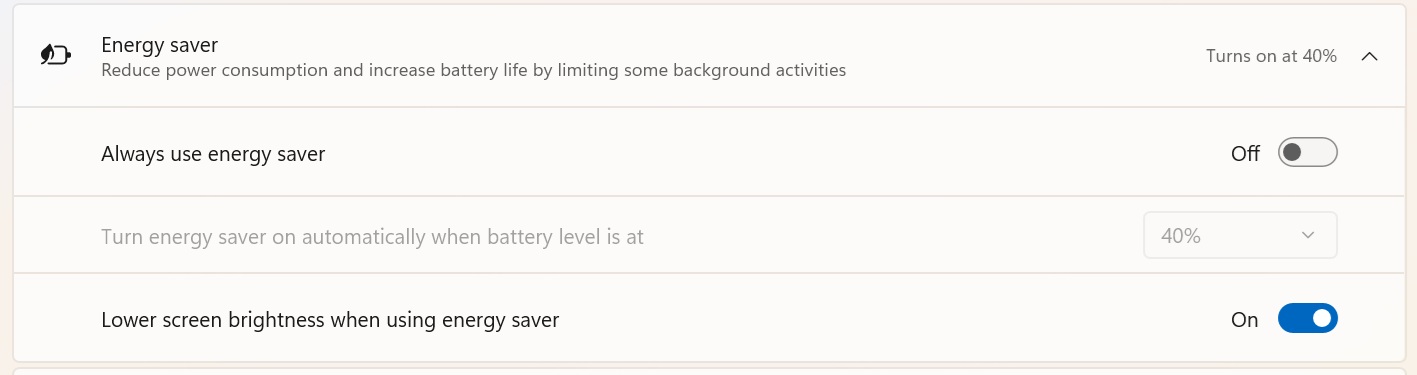
Here, the ‘Turn energy saver on automatically when battery level is at’ is set to 40% and the value cannot be modified by the user.
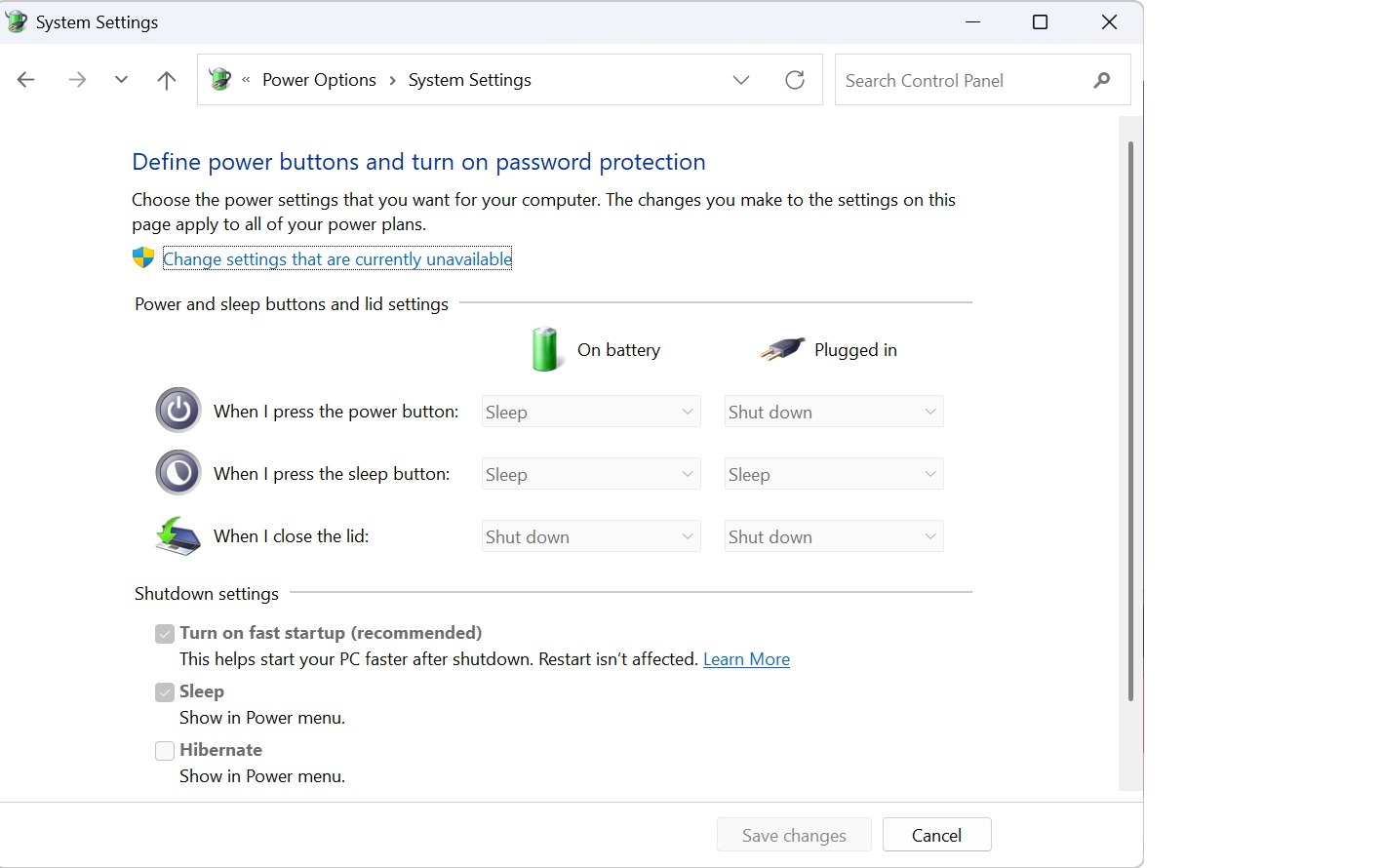
Other power settings are configured likewise.
Frequently Asked Questions
1. Does the Power management policy apply to Windows Virtual Machines (VMs)?
No. Hardware-level power management settings, such as battery-saver thresholds and physical lid-close actions, are generally not supported on virtualized environments.
2. Why is the Power policy supported in multi-app kiosk mode but not in single-app kiosk mode?
Single-app kiosk mode is designed to keep a specific application always foregrounded and active. The Windows operating system often suppresses idle power transitions in this mode to prevent the kiosk terminal from becoming unresponsive to public users. Multi-app kiosk mode provides a more standard shell environment where idle timers can function as intended.
Troubleshooting
1. Issue: Power management settings are still editable by the user on the device despite the Power policy being associated.
Probable Cause:
The device has not been restarted since the policy was associated with the endpoint.
Solution:
The admin should remotely initiate a Restart device action from the Hexnode portal, as a reboot is mandatory for these configurations to take effect.
2. Issue: The device fails to enter a sleep state despite the “Unattended Sleep after” configuration being enabled.
Probable Cause:
A Windows Screensaver policy is also associated with and active on the device.
Solution:
The admin should check if a screensaver policy is associated with the device. Because a screensaver keeps the system active, it prevents the device from reaching the idle threshold required to trigger an unattended sleep state.
Best Practices
- Standardize Lid Close Actions for Mobile PCs: To conserve battery and prevent laptops from overheating while stored in bags, administrators should standardize the “Upon closing the lid” option to Sleep or Hibernate. Leaving this as “Take no action” allows the device to drain power unnecessarily while not in use.
- Monitor Battery Health: The admin should regularly review the Hardware Info under the Device Summary page to identify endpoints with degrading battery capacity. Proactively applying stricter “Energy Saver” charge levels to these specific devices can extend their operational lifespan.


