


Category filter
How to configure Per-App VPN in iOS devices
Per-App VPN allows organizations to exercise granular control by routing data traffic through a secure tunnel only for specific managed applications. Unlike device-wide VPNs, this ensures that personal data remains private while corporate data is securely transmitted, optimizing network performance and security.
Core Benefits
- Granular Control: Segregates personal and corporate traffic at the application level.
- Security: Protects internal-use apps while maintaining end-user privacy.
- Automation: Supports VPN On Demand to automatically establish tunnels for specific domains.
- Flexibility: Managed apps can be assigned to different VPN connections (e.g., Finance apps vs. Marketing apps).
1. Prerequisites
- Managed Apps: The VPN will only work for applications installed and managed via Hexnode UEM.
- Framework: Apps must be built with the Cocao framework and use standard networking APIs.
- Client App: The specific VPN client application (e.g., AnyConnect, OpenVPN) must be installed and managed by Hexnode on the target device.
- Supported OS: iOS 7.0 and later.
2. Configuration Workflow
To set up Per-App VPN in the Hexnode portal:
- Log in to the Hexnode UEM portal.
- Go to Policies > New Policy > Create a fully custom policy > iOS > Network > Per-App VPN and click Configure.
- Add Apps: Click the +Add button to select the specific apps or app groups that will use the VPN.
- Provider Type: Select the tunneling layer:
- App-proxy: Tunnels traffic at the application layer.
- Packet-tunnel: Tunnels traffic at the IP layer.
3. VPN Connection Parameters
Hexnode supports multiple connection types, each with its own specific configuration fields.
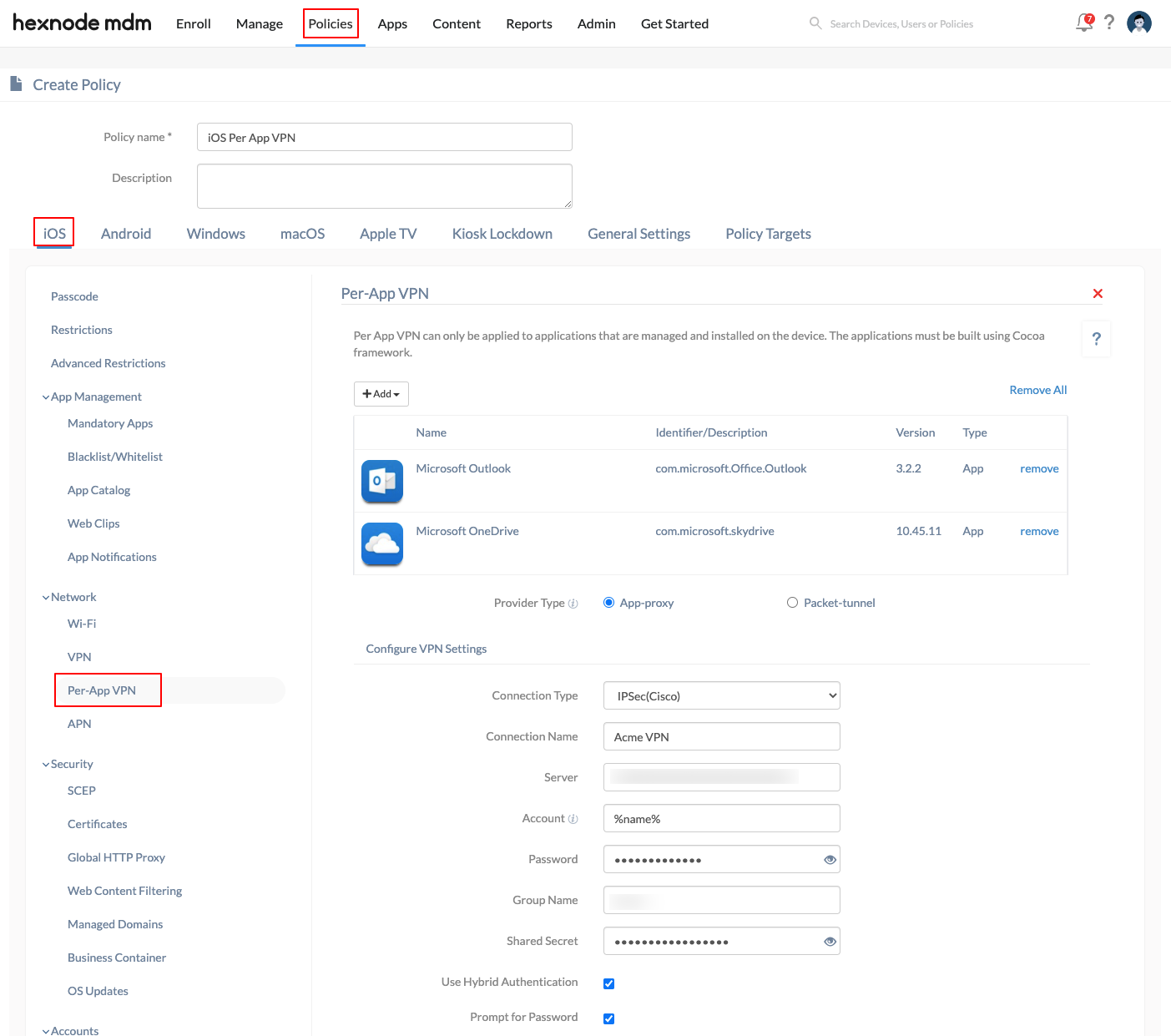
General Settings (Applicable to all types)
| Setting | Description |
| Connection Type | Choose from: IPSec (Cisco), Cisco AnyConnect, Juniper SSL, F5 SSL, SonicWALL Mobile Connect, Aruba VIA, Check Point Mobile VPN, or Open VPN. Make sure that the VPN client application is installed and managed by Hexnode on the target devices. |
| Connection Name | The name displayed for the VPN connection on the device. |
| Server | The IP address or Fully Qualified Domain Name (FQDN) of the VPN server. |
| Account | The username for authentication. Supports the %name% and %email% wildcards. |
4. Per-App VPN On Demand
On Demand VPN enables administrators to choose specific domains to automatically trigger the VPN connection whenever Safari or other system apps attempt to access them.
This requires an authentication method, such as certificate-based authentication, to ensure no user interaction is needed. Domain entries must follow the format: www.domainname.com.
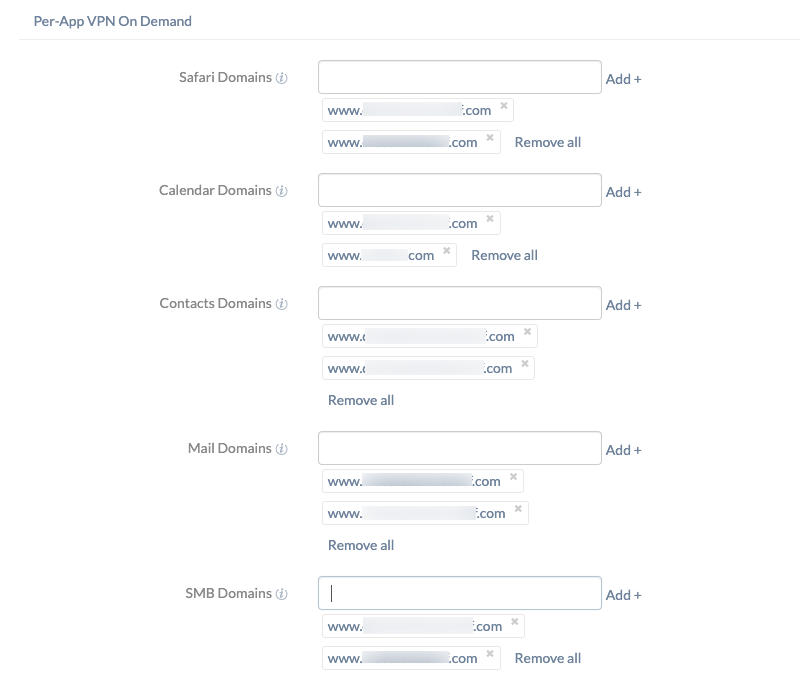
| Domain Category | Description |
| Safari Domains | Automatically activates the VPN when accessing these domains in the Safari browser. |
| Calendar Domains | Triggers the VPN connection for specified Calendar service domains. |
| Contacts Domains | Starts the VPN when the Contacts app initiates network communication with these domains. |
| Mail Domains | Triggers the VPN when the Mail app communicates with the specified domains. |
| SMB Domains | Specifies Server Message Block (SMB) domains accessible through this VPN. |
5. Proxy Settings
A proxy serves as an intermediary to hide the device’s actual IP address. Hexnode allows for three configuration types:
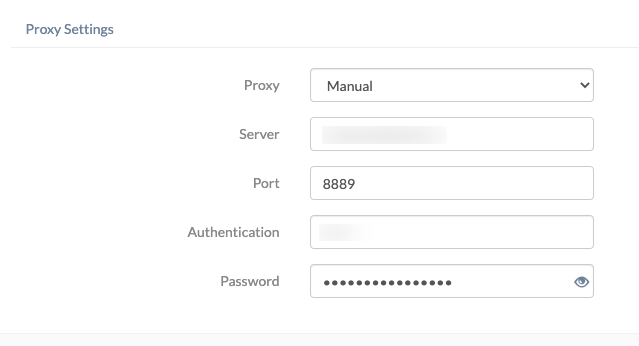
- None: Skip setting up a proxy server.
- Manual:
- Server: Enter the IP address or hostname.
- Port: Specify the required port.
- Authentication: Provide the username for the proxy.
- Password: Enter the associated password.
- Automatic: Enter the Proxy Server URL to connect automatically.
6. Connection Type-Specific Parameters
IPSEC (Cisco)
- Password: Password for server authentication.
- Group name: The group identifier of the connection.
- Shared secret: Secret used to establish the connection.
- Use hybrid authentication: Uses group name, secret, and a server-side certificate (Disabled by default).
- Prompt for password: If checked, users are prompted to enter their passwords manually.
Cisco AnyConnect / Juniper SSL
- Group (AnyConnect): The specific group identifier for the Cisco AnyConnect server.
- Realm (Juniper): The authentication realm for the Juniper SSL VPN.
- Role (Juniper): The user access level or role defined on the Juniper server.
- User Authentication: Select Password or Certificate.
- Password: If “Password” is selected, provide the necessary credentials for authentication.
- Credential: If using certificates, select one previously added under iOS > Security > Certificates in the same policy.
F5 SSL / Aruba VIA / Check Point Mobile VPN / Open VPN
- User Authentication: Choose Password (default) or Certificate.
- Password/Certificate: Enter the password or select a certificate uploaded in the Certificates subtab of the policy.
SonicWall Mobile Connect
- Login Group or Domain: Specifies the security appliance login group the device must connect to.
- User Authentication: Choose Password or Certificate.
- Password: If “Password” is selected, provide the password required to authenticate the user.
- Certificate: Select the digital certificate to be used for secure authentication under iOS > Security > Certificates.
7. What Happens at the Device End?
Once the policy is associated, the configured VPN activates automatically when:
- An associated managed application is launched.
- An associated application sends traffic in the background.
- A specified domain is visited via any app or the Safari browser.
8. Troubleshooting & FAQs
FAQs
- Can unmanaged apps use the Per-App VPN?
No. Only apps installed via Hexnode (Managed Apps) can utilize this tunnel.
- Does the VPN stay on all the time?
No. Per-App VPN only establishes the tunnel when the specific app or domain is accessed, saving battery and data.
- Where to upload certificates?
Certificates must be added under Policies > [select an existing policy] > Manage > Modify > iOS > Security > Certificates within the same policy used for the VPN configuration.
Troubleshooting
- VPN not associating with re-installed apps: If a managed app is uninstalled and re-installed, the policy must be removed from the device and re-associated for the VPN to link to the app again.
- Connection Failures: Ensure the specific VPN client (e.g., AnyConnect, OpenVPN) is installed and managed by Hexnode. Verify that the Server FQDN/IP is reachable.
- On Demand not triggering: Verify that a Certificate is used for authentication; on-demand rules often fail with password-based authentication due to the lack of “silent” login.


