


Category filter
How to Add Certificates for Android Devices
Adding certificates to Android devices enables IT administrators to securely authenticate users for corporate Wi-Fi, VPN, and encrypted email communications.
Hexnode UEM allows administrators to remotely deploy Identity Certificates and Certificate Authorities (CAs). Once a certificate is uploaded to a specific policy, it becomes immediately available for selection in any other configuration (such as Wi-Fi or VPN settings) strictly within that same policy.
System Requirements & Compatibility
- OS Version: Works on devices running Android 5.0+.
Installation Behaviour
1. By device enrollment type
- Samsung Knox & Android Enterprise: Supports Silent Installation. Deployment occurs automatically without user intervention.
- Standard Android Devices: On devices not enrolled via Knox or Android Enterprise, users must click Click to Install. The Click to Install button will still be shown even if the certificate is successfully installed.
2. Exceptions for silent Installation
Even on Knox or Android Enterprise devices, manual interaction is required if:
- Password-Protection is present: Password-protected certificates (such as .p12 files) cannot be decrypted silently by the Android Enterprise OS; the user must manually authorize the installation.
Device Security Prerequisites
- Password Requirement: The certificate won’t install if the device is not secured with a password.
- Action: A prompt appears asking to set the password. The certificate installs only after the password is set.
- Exemption: For devices enrolled via the Android Enterprise program, a device password is not mandatory to install certificates silently.
How to Configure the Certificate Policy?
- Log in to the Hexnode UEM Portal.
- Go to Policies > New Policy (or select an existing one).
- Select Android > Enterprise > Security > Certificates and click Configure.
- Optional: Enable Remove all user installed trusted credentials.
- Effect: Removes trusted CA certificates manually installed by users to prevent malicious activity.
- Scope: Does not remove system CAs or policy-installed certificates.
- Default: Disabled.
- Click Add Certificate and upload the specific credential file.
Certificate Configuration Parameters
Once uploaded, configure the following parameters:
| Field | Description |
|---|---|
| Credential Name | A unique identifier used within the console. Pre-filled but editable. |
| Credential Details | Displays read-only metadata: Subject, Issuer, and Expiry Date. |
| Keystore | Defines usage scope. Valid only for silent installation. |
Keystore Options
The Keystore setting determines exactly how the Android system is allowed to use the uploaded certificate.
- Default: Allows the certificate to be used for any purpose within the device (System-wide).
- Wi-Fi: Limits the certificate to be used specifically as an identity certificate for Wi-Fi.
- VPN and APPS: Limits the certificate to be used as VPN credentials or for authenticating app communications.
Installation Logic & Exceptions
The behaviour depends on the file extension and password protection.
File Extension Behaviour
- .cer: Installs silently.
- .p12: Requires a password for installation.
Password Logic (For .p12 files)
You must provide the certificate password in the Hexnode console during upload.
- Correct Password: Installation proceeds automatically.
- Incorrect Password: Installation fails; the user must manually install the certificate.
Usage Context
Certificates installed via Hexnode can be utilized for:
- Authenticating Wi-Fi networks (using certificates as identity credentials).
- Establishing VPN connections.
- Authenticating Android applications.
Associate Certificate Policies with Android Devices
Method 1: For New (Unsaved) Policies
- Go to Policy Targets.
- Click +Add Devices (or select Device Groups, Users, or Domains).
- Select the targets and click OK.
- Click Save to deploy.
Method 2: For Existing (Saved) Policies
- In the Policies tab, check the box next to the desired policy.
- Click Manage > Associate Targets.
- Select the devices/groups and click Associate.
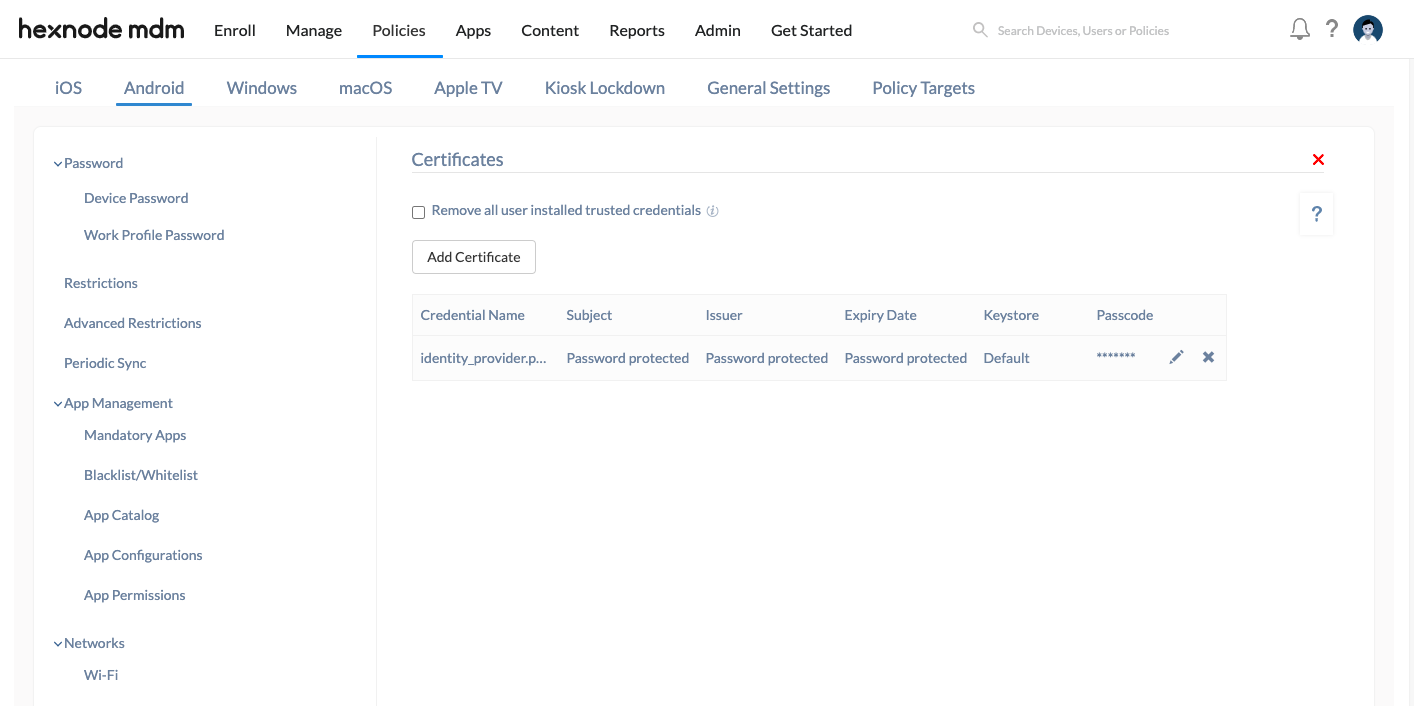
Modifying Certificate Settings
After importing a certificate to a policy, administrators can still modify specific values.
- Editable Fields: Credential Name, Keystore, and Passcode.
- Sync Behavior: Any changes made using the edit action will automatically reflect across the target devices once the policy is saved.
Certificate Removal
To silently remove certificates from Samsung Knox or Android Enterprise devices:
- Edit the policy and remove the certificate, or
- Remove the policy entirely.
Frequently Asked Questions
1: What happens if a specific Keystore (e.g., Wi-Fi) is configured for a device that requires manual installation?
The specific usage restriction will be ignored. Since the Keystore configuration is valid only for silent installations (Samsung Knox/Android Enterprise), a device requiring manual action will simply prompt the user to install the certificate.
2. Will enabling Remove all user installed trusted credentials delete certificates installed manually for personal use?
Yes. This setting is designed to clear all trusted CA certificates from the user store to ensure device security. This includes any certificates you may have manually installed for personal home networks, debugging, or side-loaded apps. However, it will not affect the device’s pre-installed System CAs or any certificates deployed remotely via Hexnode.
3. Can a certificate uploaded in one policy be used for a Wi-Fi or VPN configuration in a different policy?
No. Certificate availability is scoped strictly to the same policy where it was uploaded. A certificate uploaded to “Policy A” cannot be selected within a configuration in “Policy B”. To use the same certificate across multiple policies, the same certificate file must be uploaded separately into each policy.
Troubleshooting
1. The certificate deployment is successful, but the user is unable to authenticate for Wi-Fi or VPN access.
Resolution: The most likely cause is an incorrect Keystore assignment during the policy configuration.
- Check the Configuration: Ensure the Keystore setting matches the intended use case. If it is set to “Wi-Fi,” it cannot be used for VPN access. If it is set to “VPN and APPS,” it will fail for Wi-Fi authentication.
- Fix: If you need a single certificate to handle both, you must edit the policy and change the Keystore setting to Default, which enables universal usage across the device.
2. A .p12 certificate remains in a “Pending” or “Incomplete” state on an Android Enterprise device without a password prompt.
Resolution: Check the device’s security status. Even though Android Enterprise supports silent certificate installation, and a device password is not mandatory, password protected .p12 identity certificates may still require the device to be secured with a lock screen password before they can be stored.
- Check Device Security: Verify if the user has set a screen lock. If the device is unsecure, the certificate store is often locked.
- Remediation: Ensure a device lock screen password is set. Once the device is secured, the Hexnode agent can complete the certificate installation.


