Category filter
Hexnode App Settings policy for macOS
The Hexnode App Settings policy is a dedicated customization tool for macOS that streamlines the deployment and maintenance of the Hexnode UEM App and Hexnode Remote Assist app. By automating the installation and update lifecycle of Remote Assist app, administrators can ensure that devices are always prepared for remote troubleshooting without requiring manual user intervention. Additionally, adding a Hexnode icon to the macOS menu bar provides instant access to Hexnode UEM app. Together, these capabilities helps IT admins to maintain a seamless remote management experience across macOS endpoints.
Configuring Hexnode App Settings on macOS devices
To customize Hexnode App Settings on macOS devices,
- Log in to your Hexnode UEM portal.
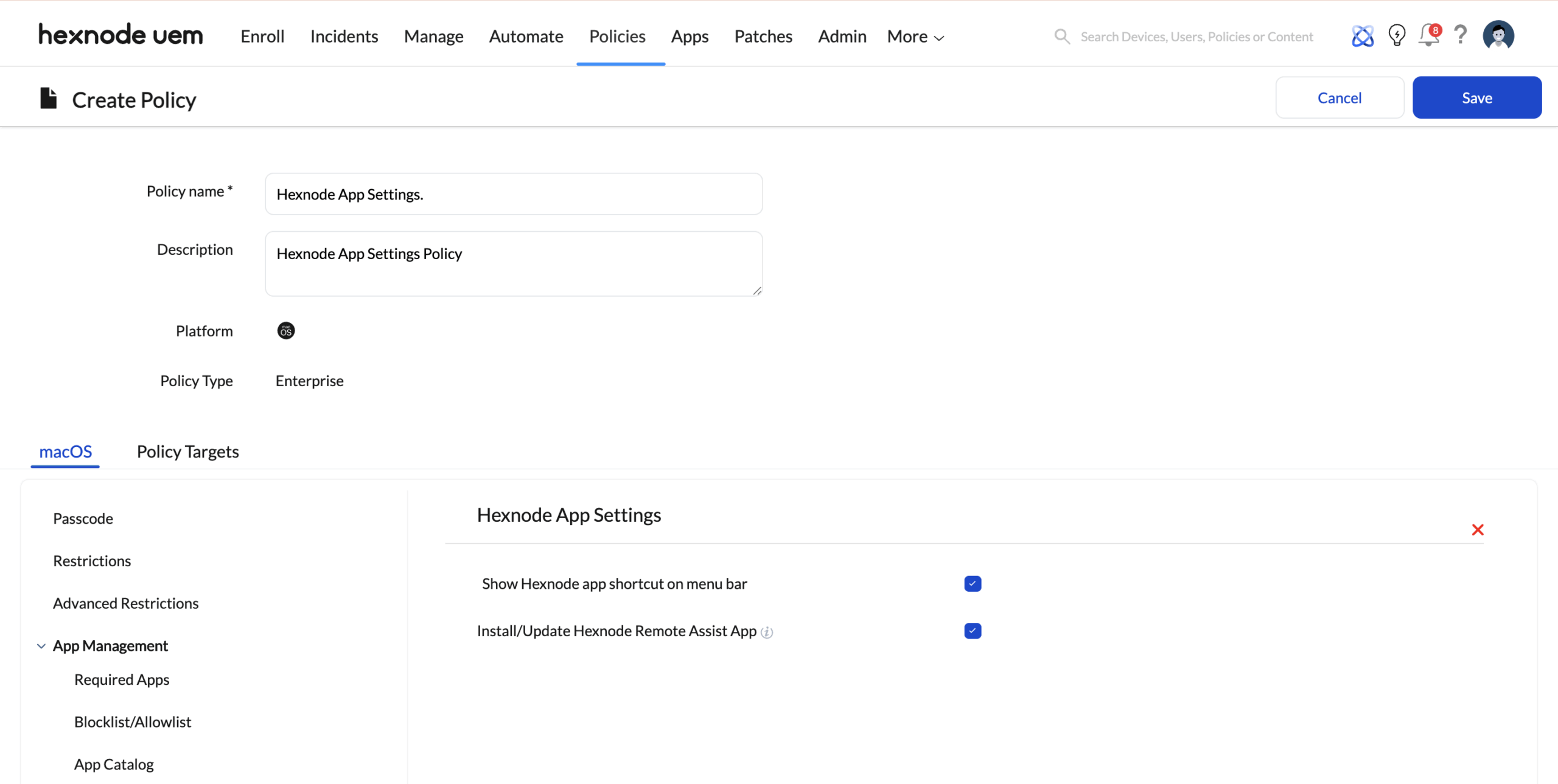
- Navigate to Policies > New Policy. Assign a suitable name and description (optional) for the policy. You can also choose to continue with an existing policy.
- Go to macOS > Customizations > Hexnode App Settings.
- Click Configure.
| Settings | Description |
|---|---|
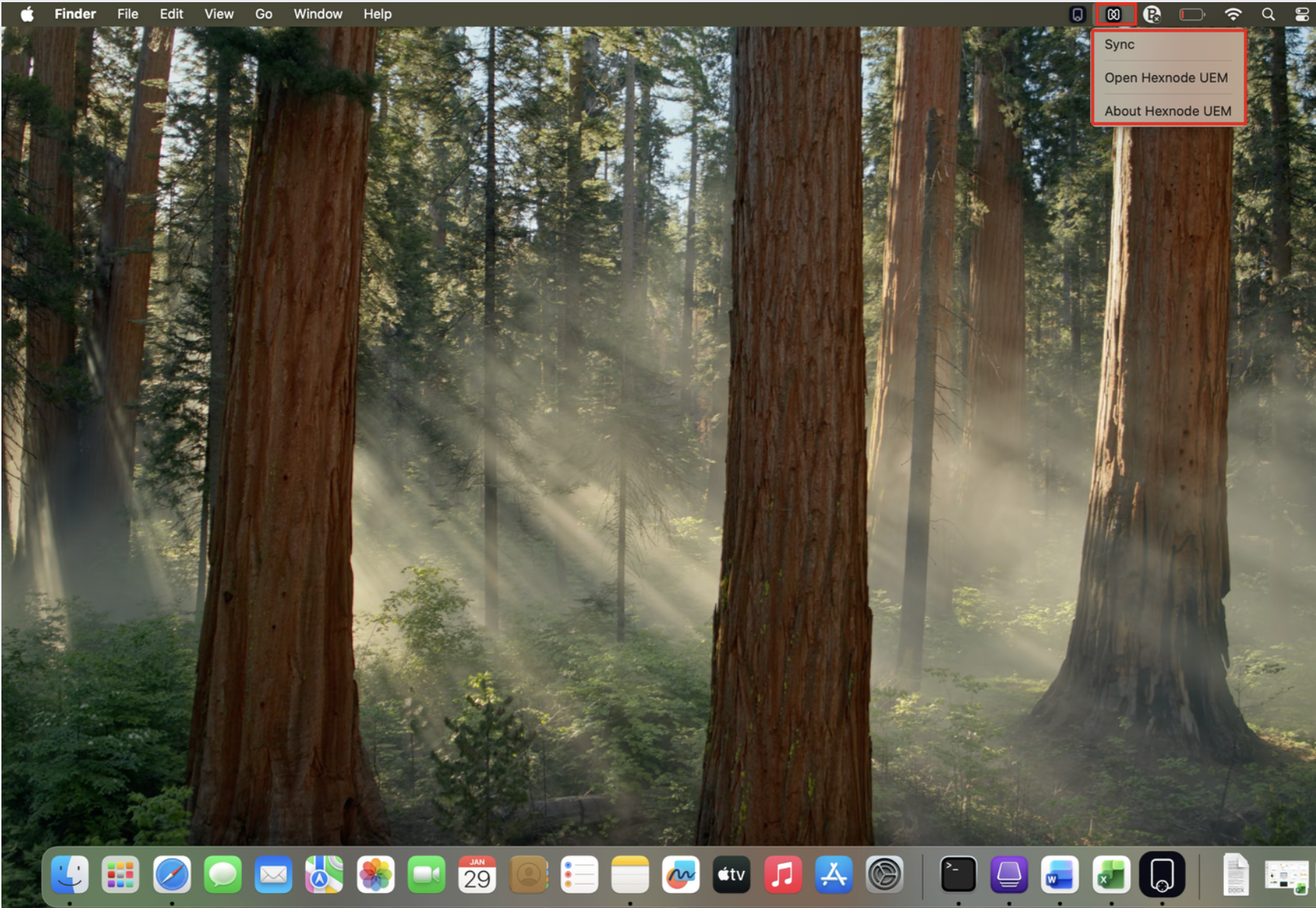
| Show Hexnode app shortcut on menu bar | If enabled, it adds a persistent Hexnode UEM App icon to the macOS menu bar at the top of the screen. It provides a simple way for users to sync and access Hexnode UEM app. |
| Install/Update Hexnode Remote Assist App | If enabled, it automatically installs the Hexnode Remote Assist app on the device and ensures it stays updated with the latest version. |
Associate the Policies with device or groups
There are two ways by which you can associate policies with the devices in bulk.
If the policy has not yet been saved,
- Navigate to Policy Targets.
- Click on +Add Devices.
- Select the devices and click OK.
- Click on Save to apply the policies to devices.
You can also associate the policies with Device Groups, Users, User Groups, or Domains from Policy Targets.
If the policy has been saved, you can associate it with another method.
- Navigate to Manage > Devices.
- Select the specified device.
- Navigate to Policies.
- Click on Associate Policy to apply the policy to the devices
What happens at the device end?
Once the policy is applied, the macOS device automatically installs or updates the Hexnode Remote Assist app in the background and displays the Hexnode App icon in the menu bar for easy access.