Category filter
Mandatory Administrator Privileges for Google Workspace Integration
Google Workspace is a cloud-based platform that provides businesses and organizations with a suite of collaboration tools. Integrating Google Workspace with Hexnode streamlines device enrollment and enhances user management within the UEM. To effectively manage Google Workspace integration, specific administrative roles and privileges are required, which define the level of access within the Google Admin Console and API. This document will guide you with the necessary roles and privileges necessary for Google Workspace integration with Hexnode.
Necessary roles and privileges for Google Workspace integration
Integrating Hexnode with Google Workspace requires administrative access to manage users, devices, and security settings. This can be achieved by either assigning the Super Admin role or creating a custom admin role with the necessary privileges in the Google Admin Console.
Super Admin Role
The Google Workspace Super Admin holds the highest level of administrative control to all settings and resources within the organization. This role is required for Google Workspace integration with Hexnode, as it allows full control over user management, security configurations, API access, and domain-wide settings. Without this level of access, certain integration features may not function.
How to assign super admin role?
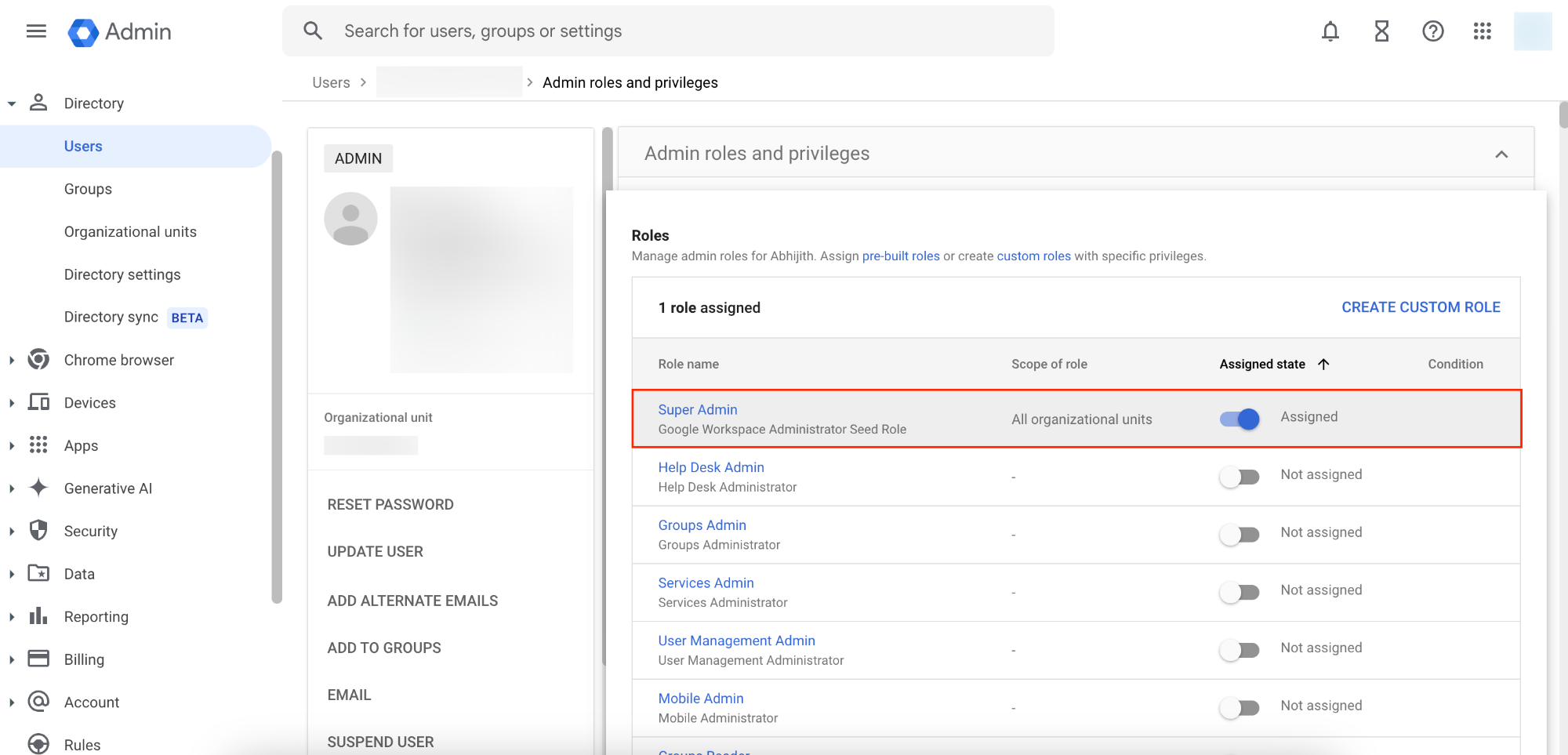
- Log in to the Google Admin Console.
- Navigate to the Users section.
- Click on the user’s name from the list of users.
- Go to Admin roles and privileges.
- Toggle the Super Admin role to Assigned by clicking the slider.
- Click Save to apply the changes.
Create custom admin role
While the super admin role provides full administrative control, it may not always be the best choice due to security concerns. Granting super admin access to multiple users can increase security risks if not properly managed. Instead, organizations can create a custom admin role with only the required privileges for Google Workspace integration. A custom admin role lets you adjust the administrative privileges to match specific tasks and responsibilities, ensuring each user has the right level of access for their role.
For Google Workspace integration with Hexnode, the following Admin console privileges and Admin API privileges are necessary:
Admin console privileges:
| Category | Privilege Name | Use |
|---|---|---|
| 1. Organizational Units |
|
This privilege in Google Workspace allows administrators to view and manage the organizational structure of their account from the Users page in the Admin console. |
| 2. Users |
|
The Users privilege in Google Workspace grants administrators the ability to manage user accounts within the organization. |
| 3. Groups | The Groups privilege in Google Workspace grants administrators full control over groups created within the Admin console. | |
| 4. Domain Settings | The Domain Settings privilege in Google Workspace grants administrators the ability to manage key aspects of their organization’s account settings such as adding/removing domains, domain aliases, change the organization name, logo etc. | |
| 5. Security |
|
The Security privilege in Google Workspace allows administrators to manage security settings for individual users. |
Admin API privileges:
| Category | Privilege Name | Use |
|---|---|---|
| 1. Manage Customer |
|
The Manage Customer privilege allows administrators to read and update customer-related settings within the Admin Console. |
| 2. User Security Management | The User Security Management privilege in Google Workspace grants administrators the ability to manage security settings for individual users. | |
| 3. Billing Management |
|
The Billing Management privilege Google Workspace allows administrators to manage billing tasks within the Admin Console. |
| 4. Domain Management | The Domain Management privilege allows administrators to add, remove, and configure domain aliases within the system. | |
| 5. Groups |
|
The Groups privilege in Google Workspace grants administrators full control over groups created within the Admin console. Admins can perform all the operations granted by the Groups Admin console privilege. |
| 6. Manage locked label on groups resources | The locked label privilege allows administrators to lock or unlock groups within the system. | |
| 7. Add security label on groups resource | The security label privilege allows administrators to add a security label to a group, enabling the control of access to sensitive information and resources. | |
| 8. Organization Units |
|
This privilege in Google Workspace allows administrators to view and manage the organizational structure of their account from the Users page in the Admin console.
Admins can perform all the operations granted by the Organizational Units Admin console privilege. |
| 9. Users |
|
The Users privilege in Google Workspace grants administrators the ability to manage user accounts within the organization.
Admins can perform all the operations granted by the Users Admin console privilege. |
How to create a custom role?
- Log in to the Google Admin Console.
- In the Admin console, navigate to Menu > Account > Admin roles.
- Click on Create new role.
- Enter a name and, optionally, a description for the role and click Continue.
- Select the desired privileges from the Privilege Name list by checking the appropriate boxes.
- Click Continue to proceed.
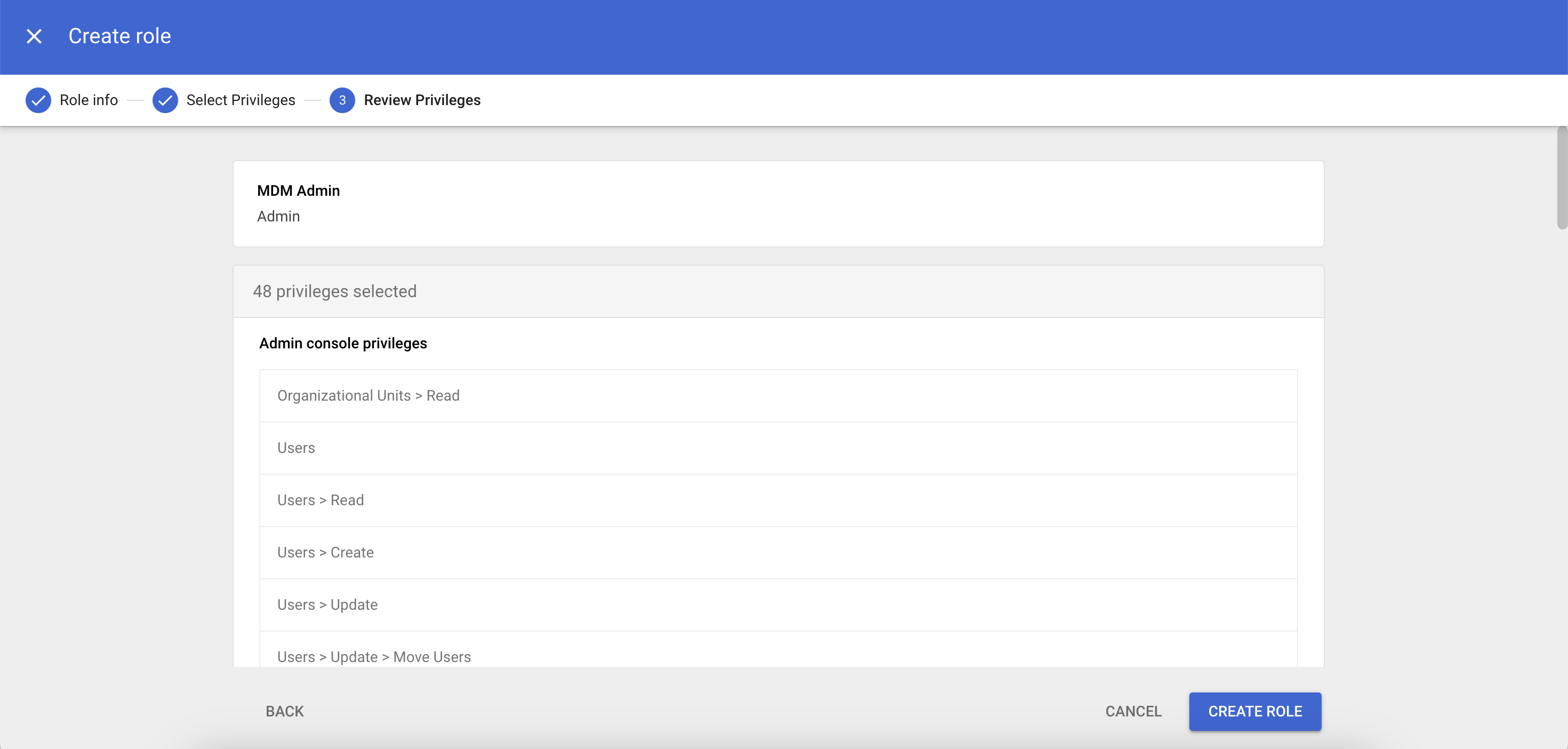
- Review the selected privileges and click Create Role.
- Assign the custom role to the user.