


Category filter
How to configure Email on iOS devices?
Email configuration for iOS devices enables organizations to remotely set up corporate email accounts on the native Mail app. Using Hexnode UEM, administrators can deploy IMAP or POP account settings to supervised and unsupervised devices, ensuring users are ready to work immediately upon enrollment.
For deployments involving a large fleet of devices, the wildcards feature is an essential automation tool that allows administrators to auto-populate unique user credentials—such as usernames and email addresses—across all target devices simultaneously.
1. Configuration Workflow
To configure an email account:
- Log in to the Hexnode UEM portal.
- Navigate to Policies > New Policy > Create a fully custom policy > iOS > Accounts > Email and click Configure.
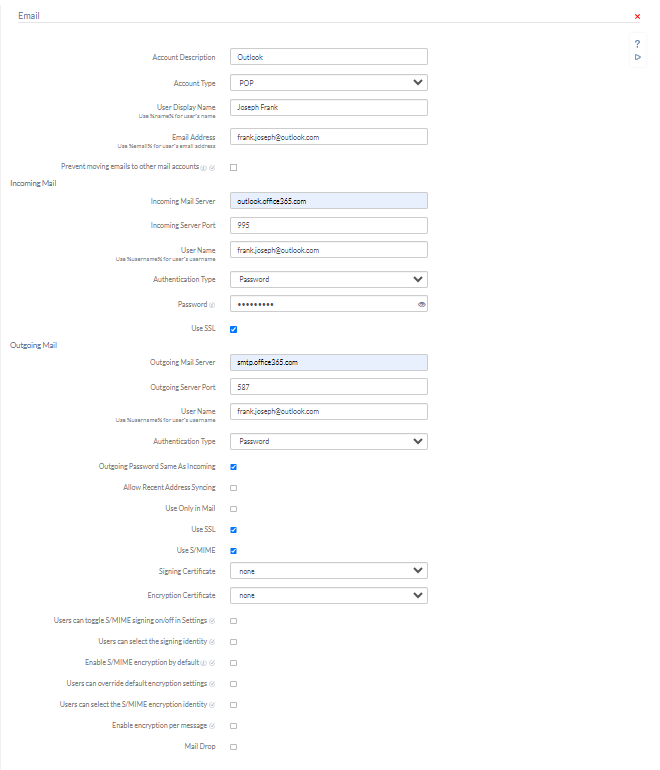
2. General Email Settings
These settings define the identity of the account and how data is synchronized.
| Setting | Description |
| Account Description | Display name for the email account used to distinguish between accounts in the Mail and Settings applications. |
| Account Type | POP (default): Emails are stored locally; messages are usually deleted from the server once stored on the device. IMAP: Syncs with the server; every email is stored on the server and viewable across devices. |
| Path Prefix | (IMAP only) Specifies the location to find mail. Usually “INBOX” (use all caps). |
| User Display Name | The name displayed to recipients. Supports wildcard %name%. |
| Email Address | The full email address for the account. Supports wildcard %email%. |
| Prevent moving emails to other mail accounts (iOS 5.0+) | If enabled, prevents users from moving emails to other accounts. It also prevents forwarding or replying to emails from different accounts configured on the same device. |
3. Incoming Mail Settings
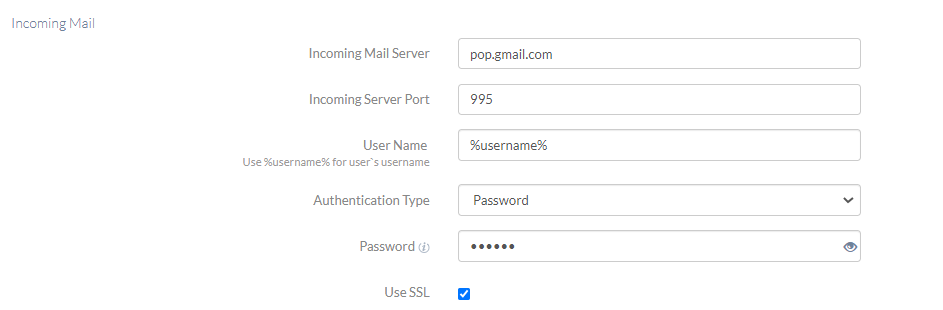
Configures how the device receives mail from the server.
| Setting | Description |
| Incoming Mail Server | The server address for incoming mail. |
| Incoming Server Port | The port number for the incoming server. Default is 143. |
| User Name | Username used to connect. Supports wildcard %username%. |
| Authentication Type | Select from: None, Password (default), MD5 Challenge-response, NTLM, HTTP MD5 Digest. |
| Password | Account password for authentication. |
| Use SSL | Establishes an encrypted connection. Enabled by default. |
4. Outgoing Mail Settings
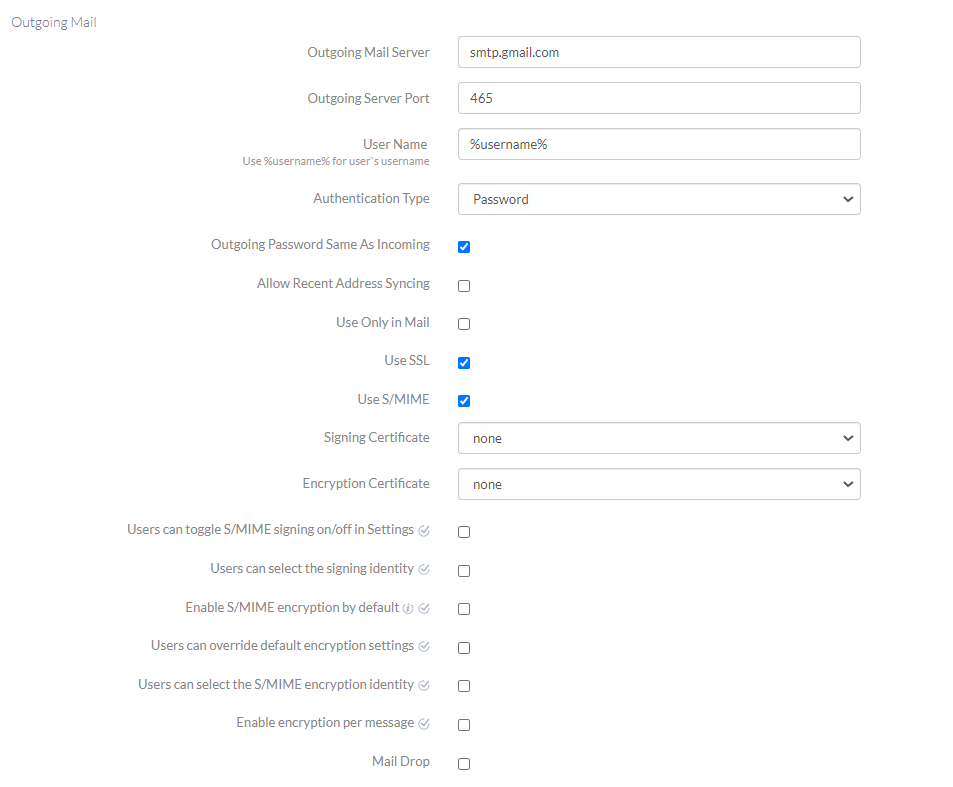
Configures how the device sends mail (SMTP).
| Setting | Description |
| Outgoing Mail Server | The server address for outgoing mail. |
| Outgoing Server Port | The port number for the outgoing server. Default is 587. |
| User Name | Username for outgoing authentication. Supports wildcard %username%. |
| Authentication Type | Select from: None, Password (default), MD5 Challenge-response, NTLM, HTTP MD5 Digest. |
| Outgoing Password Same As Incoming | Determines whether the same password is used for both incoming and outgoing mail server authentication. (Enabled by default.) |
| Password | (If above option is disabled) The SMTP password. Use an App Password if the account has MFA enabled. |
| Allow Recent Address Syncing (iOS 6.0+) |
Syncs recently used addresses with the user’s iCloud account. Disabled by default. |
| Use Only in Mail (iOS 5.0+) |
Restricts viewing and sending emails exclusively to the Apple Mail app. Disabled by default. |
| Use SSL | Establishes an encrypted connection for outgoing mail. Enabled by default. |
| Use S/MIME | Enables asymmetric cryptography to sign, encrypt, or decrypt emails. Disabled by default. |
| Mail Drop (iOS 9.2+) |
Allows the account to use Apple’s Mail Drop for large attachments. Disabled by default. |
5. S/MIME Security Settings
These settings appear when Use S/MIME is enabled.
| Setting | Description |
| Signing Certificate | Certificate used to digitally sign outgoing mail. Select from certificates uploaded via iOS > Security > Certificates. |
| Encryption Certificate | Certificate used to encrypt all messages. Select from uploaded certificates. |
| Users can toggle S/MIME signing on/off | If disabled, forces the use of the configured signing certificate and prevents user changes in Settings. |
| Users can select the signing identity | Allows the user to select the identity used for signing. |
| Enable S/MIME encryption by default (iOS 12.0+) |
Encrypts all emails as the default behavior. |
| Users can override default encryption settings (iOS 12.0+) |
If disabled, forces the configured encryption settings and prevents user toggling. |
| Users can select the S/MIME encryption identity (iOS 12.0+) |
Allows the user to select the identity used for encryption. |
| Enable encryption per message (iOS 12.0+) |
Displays an encryption option for the user while composing individual emails. |
6. Deployment: Associate Policy with Target Devices
If the policy has not been saved:
- Navigate to Policy Targets > +Add Devices.
- Choose target devices and click Ok, then click Save.
- You can also associate via Devices, Device Groups, Users, User Groups, or Domains/OUs from the left pane.
If the policy has already been saved:
- Go to Policies and select the desired policy.
- Click the Manage drop-down and select Associate Targets.
- Choose the target entities and click Associate.
7. What happens on the device end?
Once the policy with valid configurations is successfully deployed, the email account is automatically added to the Mail app on the device. The configured account will appear under Settings > Mail > Accounts. The account details can also be viewed under Settings > General > Device Management > Hexnode UEM > Accounts.
8. Troubleshooting & FAQs
Frequently Asked Questions (FAQs)
- Are passwords required for both incoming and outgoing servers?
By default, the “Outgoing Password Same As Incoming” option is checked, so the password only needs to be entered once. If the SMTP server requires different credentials, uncheck this option.
- What happens if the policy is removed from the device?
Removing or disassociating the policy will automatically remove the email account and all associated local data from the iOS device.
- Can users move emails to their personal iCloud account?
Not if the “Prevent moving emails to other mail accounts” option is enabled. This setting restricts emails to the managed corporate account.
Troubleshooting
- Authentication Failures: Ensure the User Name and Password are correct. If the account uses Multi-Factor Authentication (MFA), confirm that an App Password is being used.
- Port Connection Issues: Verify that the Incoming/Outgoing Server Ports match your mail provider’s requirements (e.g., IMAP usually requires 993 for SSL).
- Certificate Errors: For S/MIME, ensure the necessary certificates were uploaded in the Security > Certificates section of the policy before association.


