


Category filter
How to Disable Policy Inheritance using Exclusion Logic in Hexnode UEM?
In a Unified Endpoint Management (UEM) hierarchy, Inheritance is the automated process where devices acquire settings, restrictions, and configurations based on their membership in specific Groups, Users, or Departments. While inheritance ensures baseline compliance, enterprise environments often require granular exceptions for specific functional units (e.g., DevOps, Executive Leadership, or QA Labs).
Disabling inheritance in Hexnode UEM is achieved through Exclusion Logic. By using the Exclude option in Dynamic Groups and Automation workflows, administrators can break the inheritance chain, ensuring that overarching corporate mandates do not conflict with specialized operational requirements.
Understanding Policy Inheritance
Before implementing exclusions, it is vital to understand how policies “flow” within Hexnode. When a policy is assigned to a parent entity (like a Domain or a large Device Group), every member of that entity automatically inherits those configurations.
The most effective way to “disable” this inheritance for a specific subset is not by removing the policy entirely, but by defining an Exclusion.
Disabling Inheritance via Dynamic Group Exclusions
Dynamic Groups use rule-based membership. To prevent a device from inheriting policies assigned to a broad group, you can define exceptions within the group’s criteria.
- The Logic: Instead of manually moving devices, you define a rule (e.g., Department is not Testing).
- The Result: The device is automatically filtered out of the group. Since it is no longer a member, it effectively “drops” the inherited policies associated with that group.
Implementation Steps:
- Navigate to Manage > Groups > Device Groups.
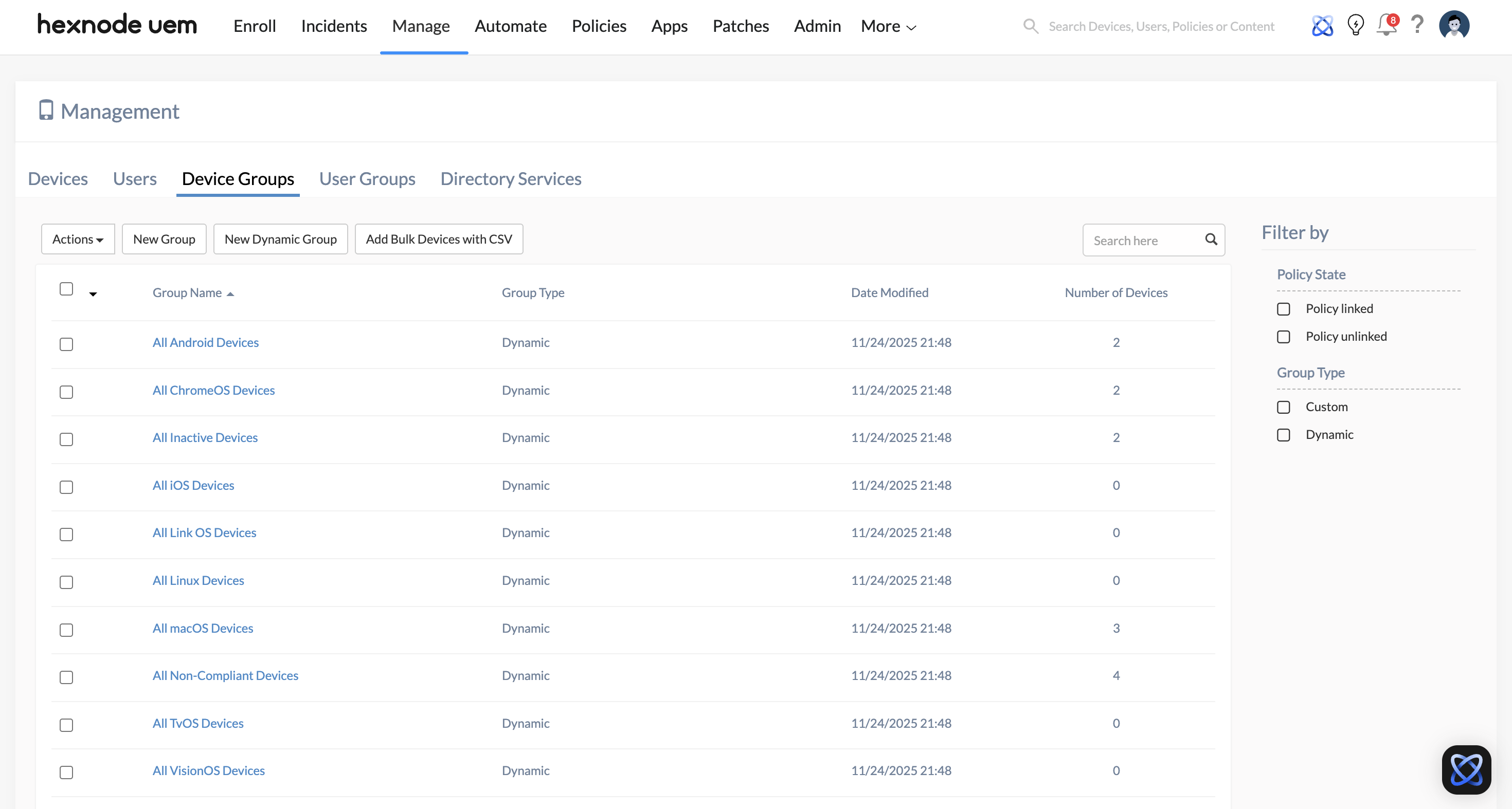
- Click New Dynamic Group.
- Define your primary membership criteria under Choose Condition filters (e.g., Platform is Windows).
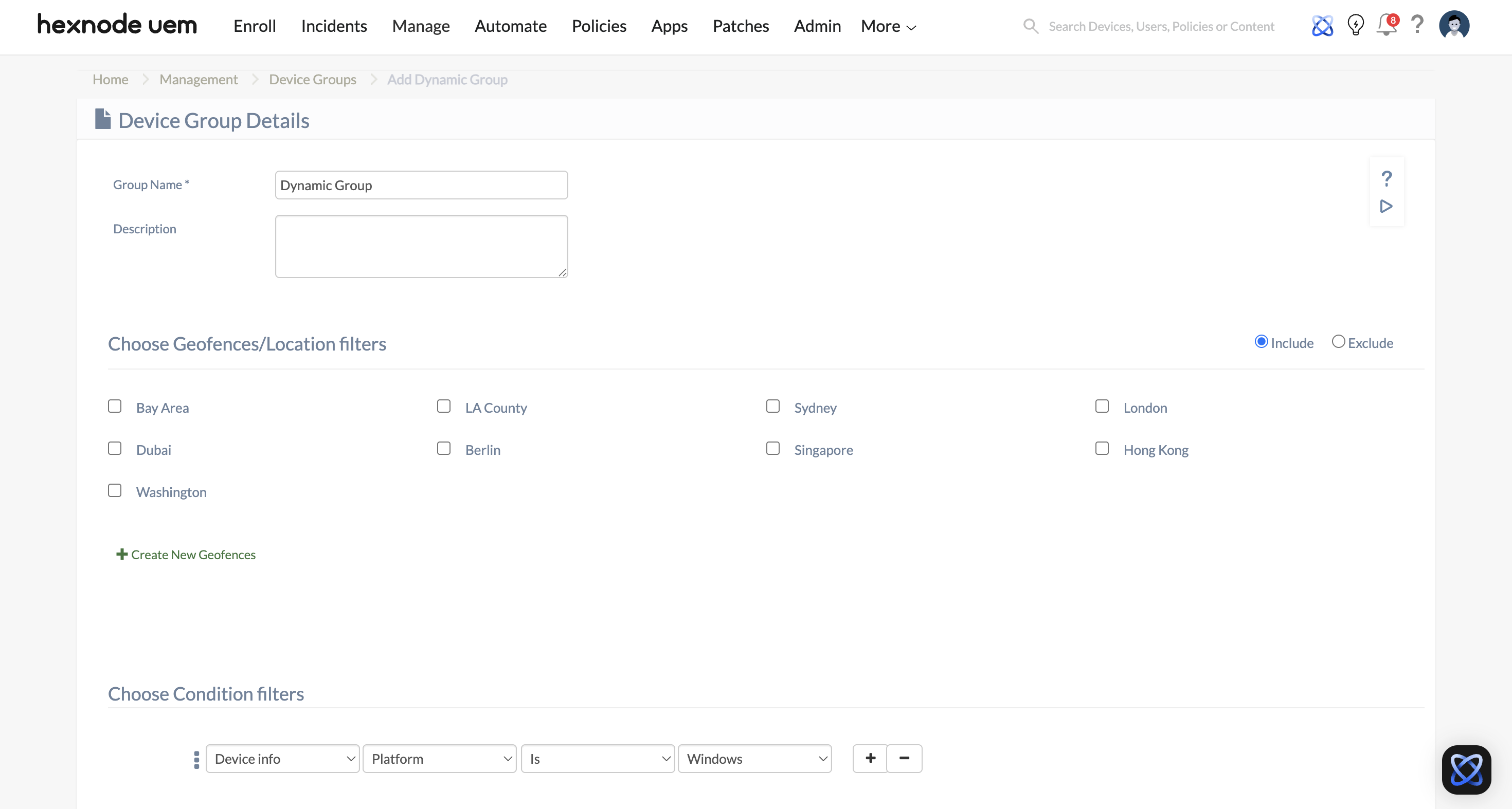
- Under Add Exceptions, Add an exclusion condition using operators such as “is not”, “does not contain”, or “not equal to”.
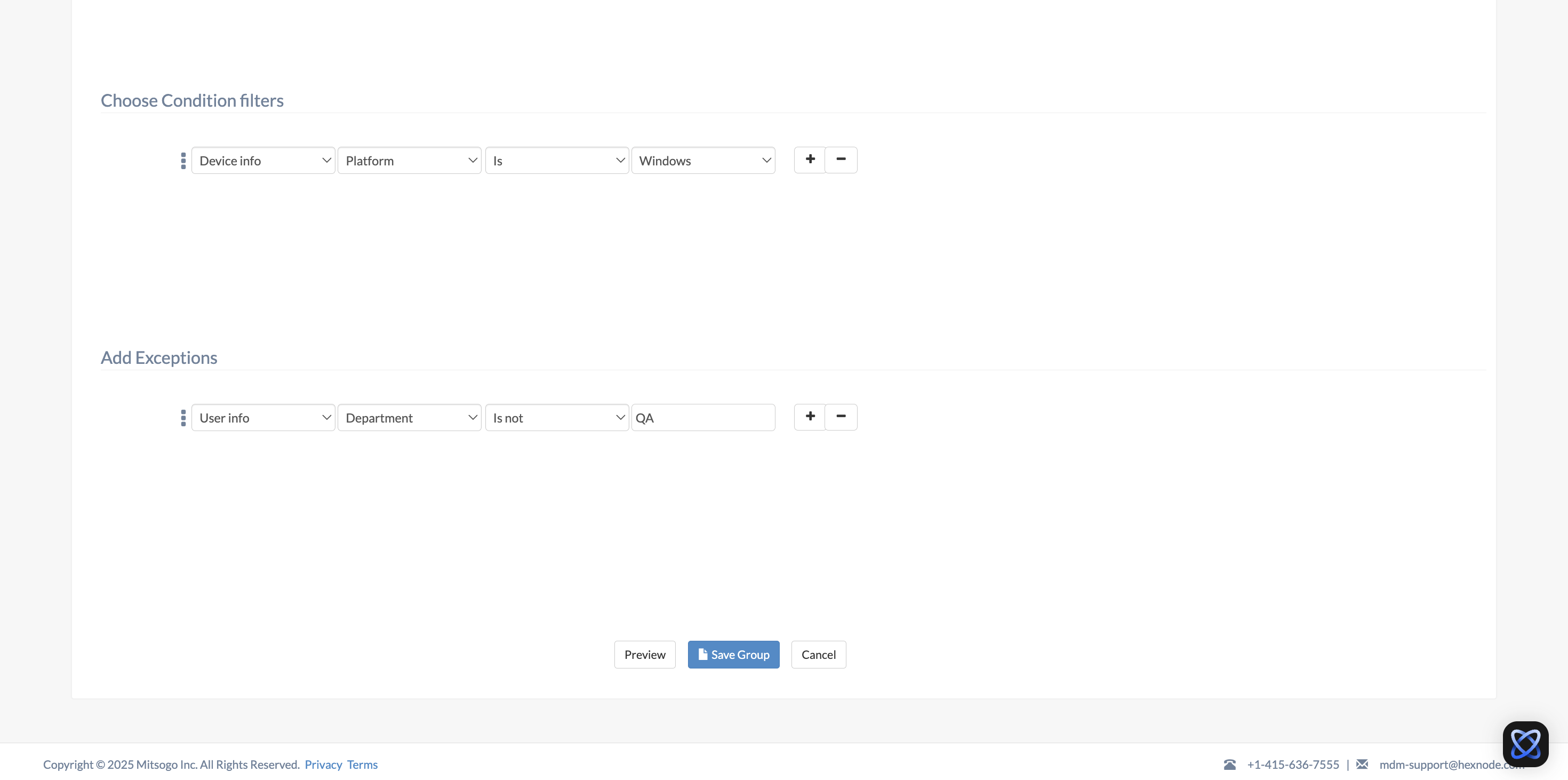
- Save the group.
Disabling Inheritance in Automation (The “Automate” Tab)
The Automate feature in Hexnode is used for scheduled tasks, such as bulk policy associations or script deployments. The “Exclude Groups” feature here is the most powerful tool for ensuring that automated maintenance cycles do not disrupt mission-critical devices.
- The Logic: When setting up the target filters in an automation(e.g., executing a Lock Device remote action on the device group “All iOS devices”), you can specify groups that should be immune to this rule.
- The Result: Even if a device is present in the “Included groups“, its membership in an “Excluded groups” acts as a hard stop, preventing the automation from executing and thus disabling the inherited task.
Implementation Steps:
- Go to the Automate tab and select New Automation.
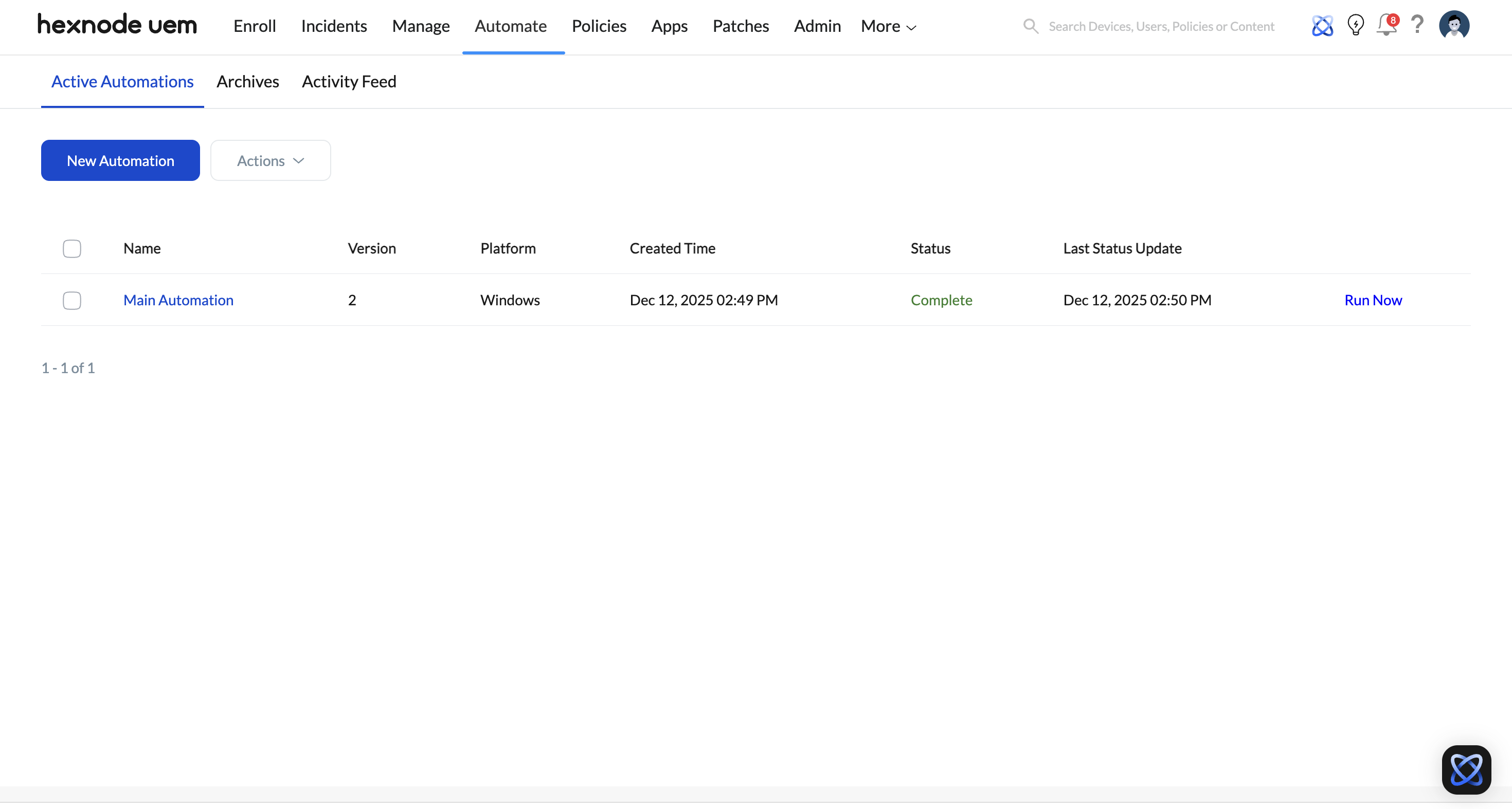
- Select the actions for automation.
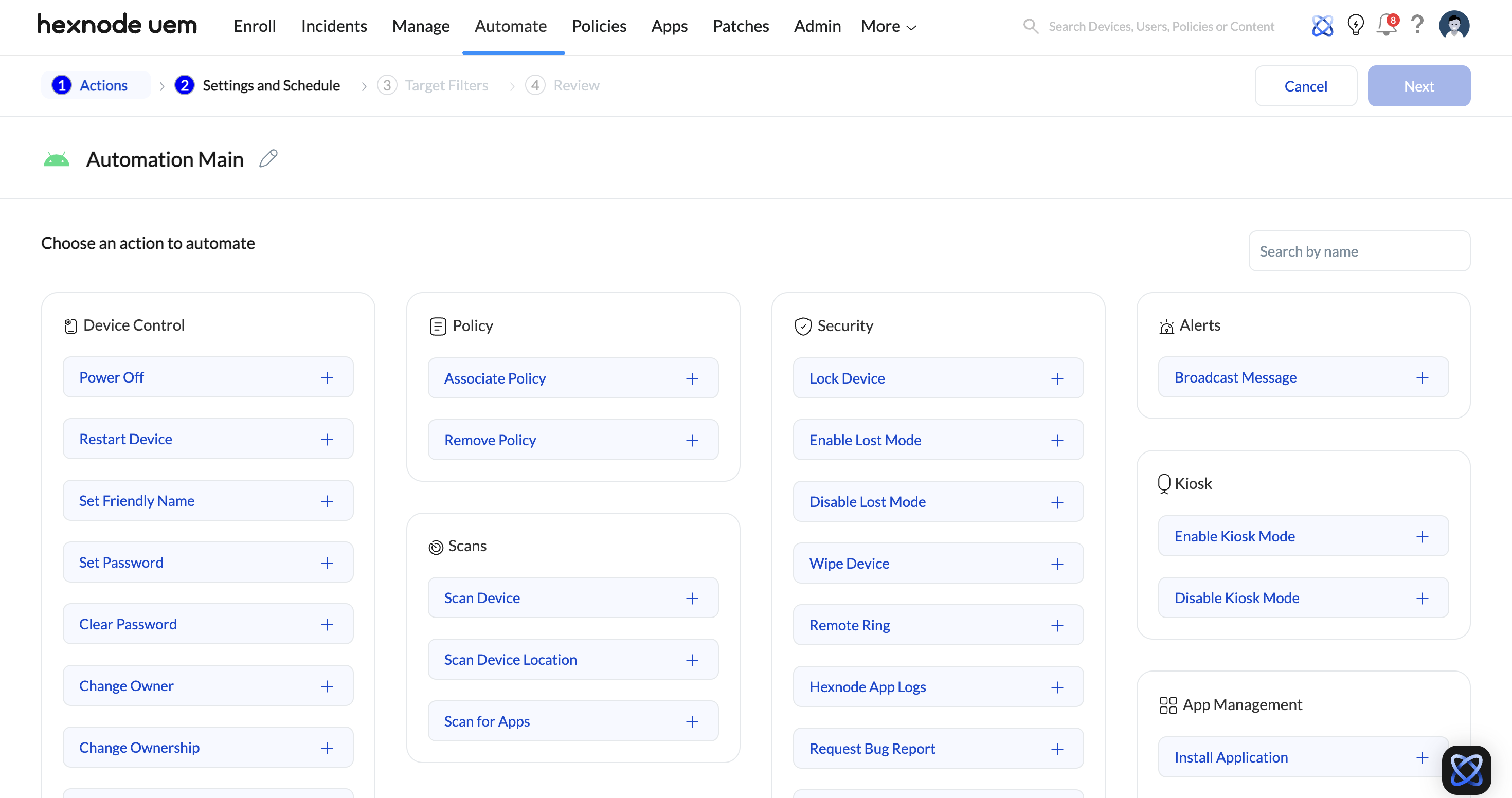
- In the Target Filters section, locate the Excluded Groups field.
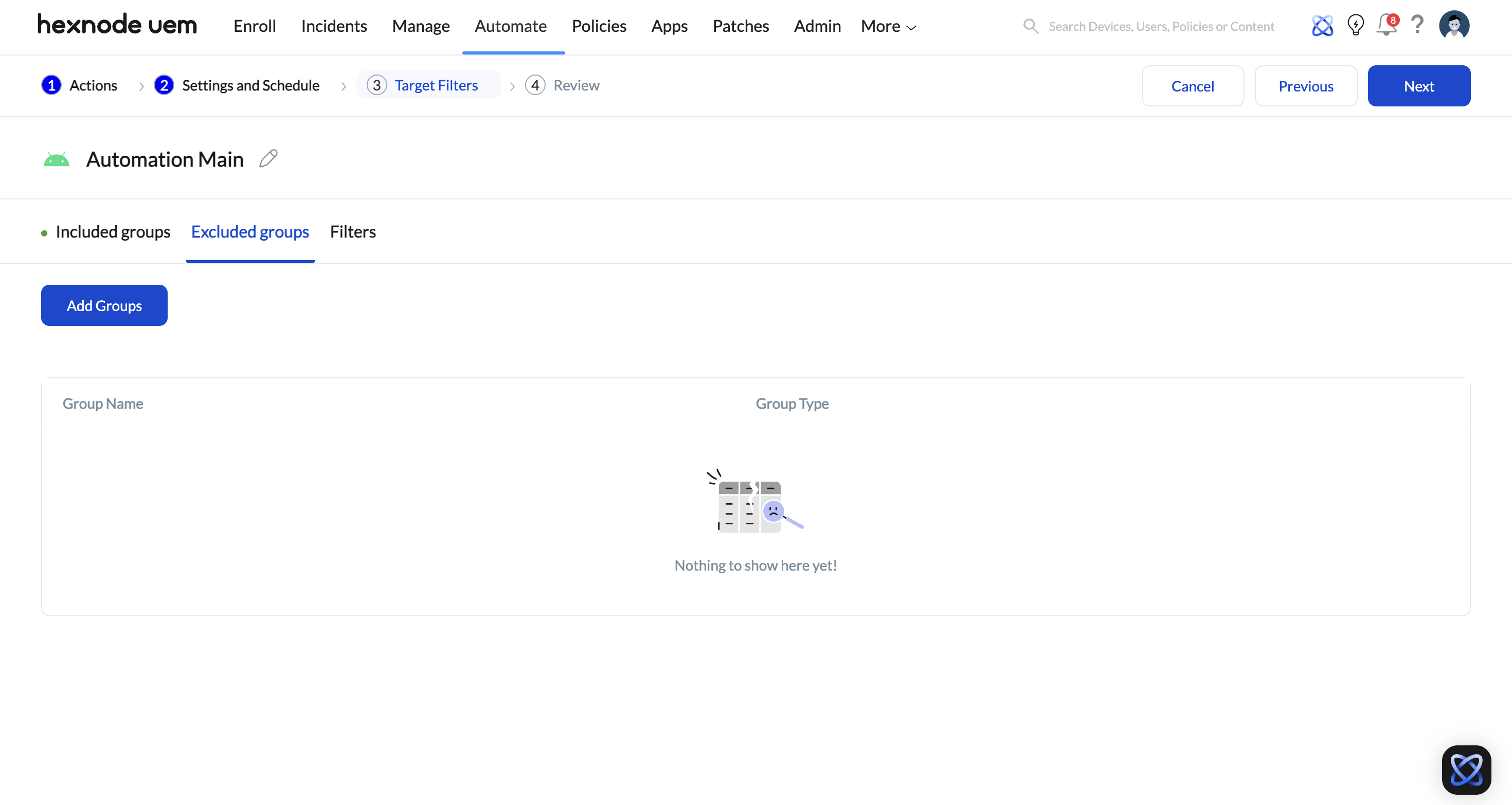
- Select the groups that must not receive this automated configuration.
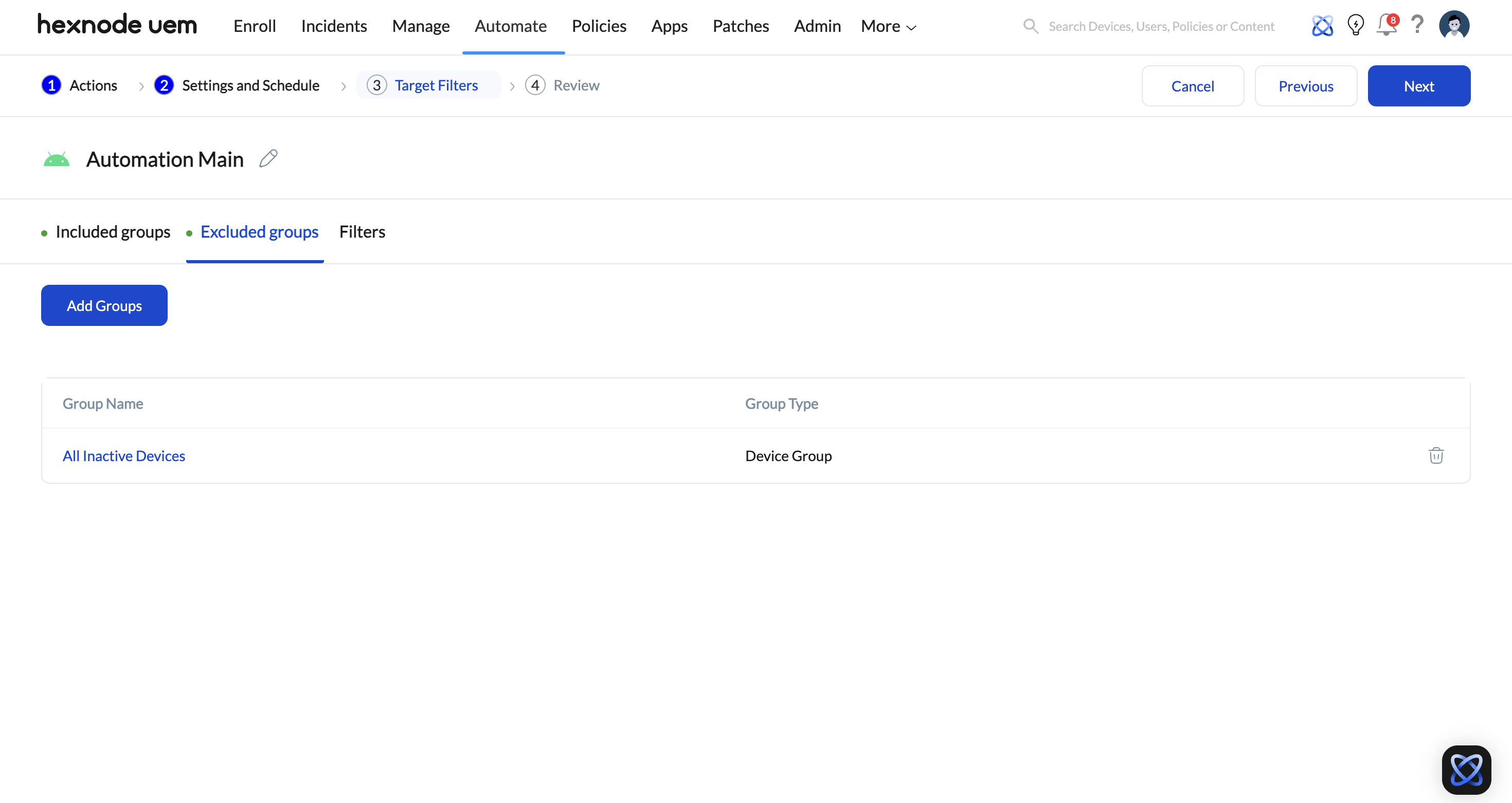
- Save the automation.
Strategic scenarios for Disabling Inheritance
-
Rolling Out changes safely
Exclusion helps administrators control when devices receive new policies or automations. By excluding selected devices or groups, inheritance can be temporarily disabled during testing or phased rollouts, without changing existing policy assignments.
-
Handling Exceptions
Some devices or users need to operate outside standard configurations. Using exclusion, administrators can prevent these devices from inheriting certain policies while keeping the rest of the organization consistently managed.
-
Managing different types of devices
Devices often serve different purposes and do not always require the same configurations. Exclusion ensures that devices with specific roles or limitations do not inherit settings that are not relevant or supported.
-
Pausing policies for specific devices
During troubleshooting, audits, or operational changes, exclusion can be used to stop policies or automations from applying to selected devices. This allows administrators to isolate devices without impacting the overall management setup.


