


Category filter
Configuring Custom Device Groups in Hexnode UEM
Overview
A Custom Device Group is a static, logical classification of managed devices within Hexnode UEM. These groups streamline the process of associating policies, executing remote actions, and applying configurations across multiple devices simultaneously, regardless of their OS platform.
Key Characteristics:
- Static Membership: Devices are added manually or via CSV.
- Organization: Groups can be based on department, branch, hardware characteristics, or type of use.
- Policy Union: A single device can belong to multiple groups; in such cases, the device receives a union of all policies applied to each group.
Creating Custom Device Groups
Method A: Manual Creation
- Log in to the Hexnode UEM portal.
- Navigate to Manage > Device Groups > New Group.
- Enter a Group Name and Description.
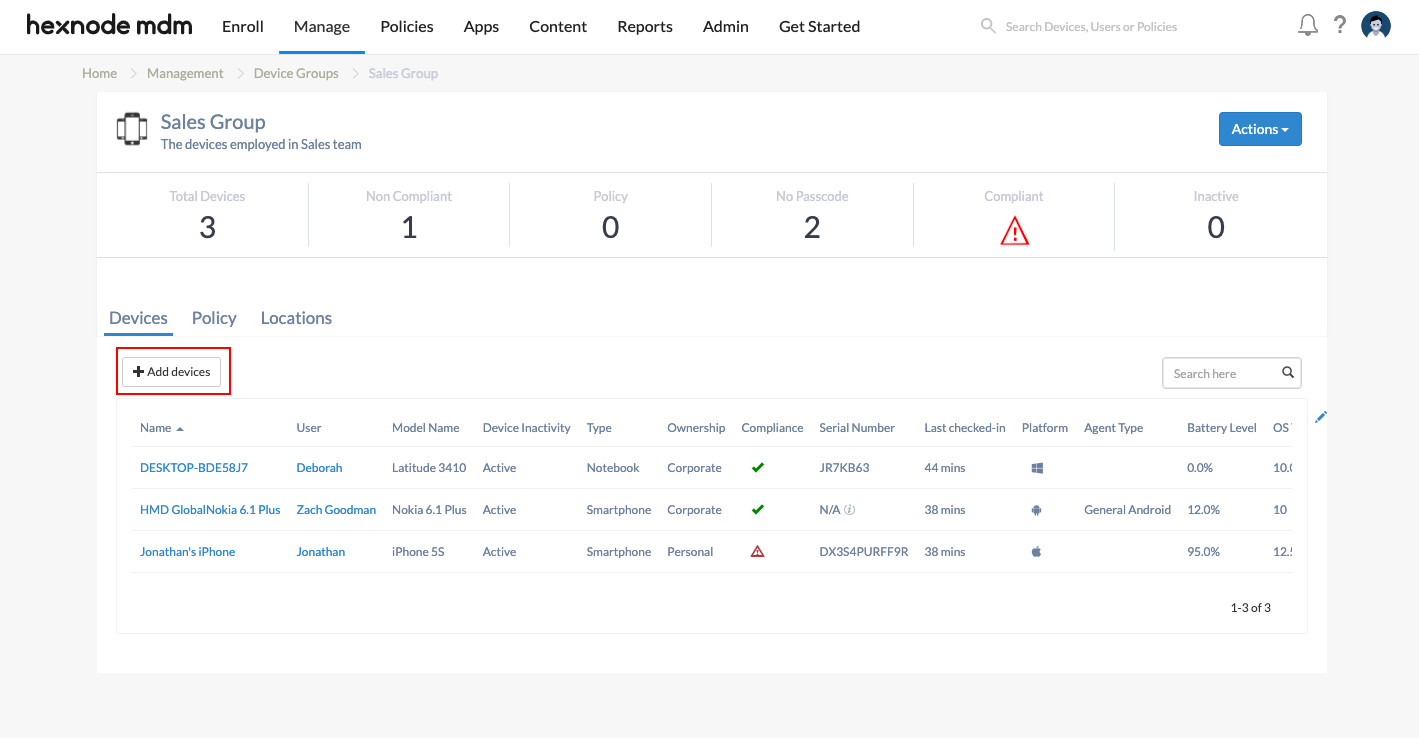
- Click + Add devices under the Devices section.
- Select the desired devices and click Done.
- Click Save group.
Method B: CSV Import
You can create groups by importing device details via a CSV file. This method automates the inclusion process and is ideal for large-scale deployments.
Managing and Viewing Device Groups
Once created, groups are listed under the Manage tab with the Group Type filter set to Custom.
Group Insights
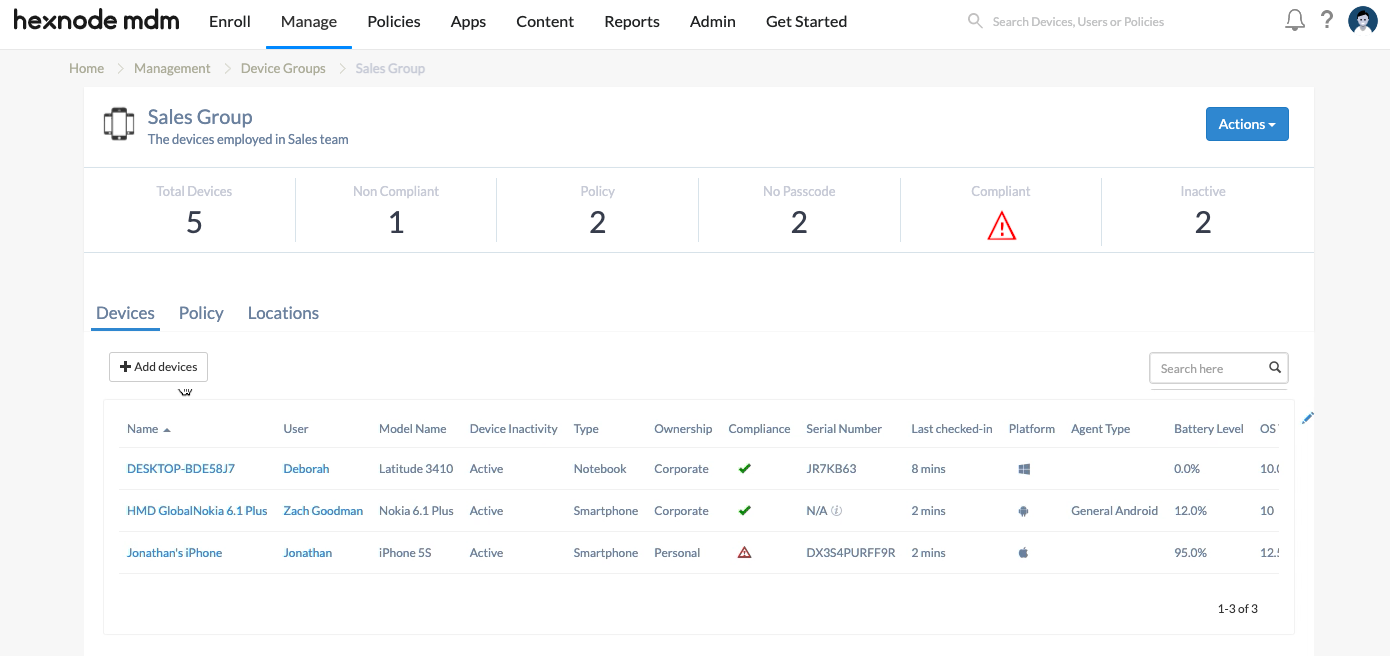
Selecting a specific group provides a dashboard of statuses, including:
- Total number of devices: The aggregate count of all members in the group.
- Non-compliant devices: Total count of devices failing to meet security or configuration standards.
- Associated Policies: The total number of policies currently linked to the group.
- Device vulnerabilities: Specifically identifies the number of devices with no passcode.
- Compliance Status: A visual indicator showing whether the group is compliant or non-compliant.
- Inactive devices: Total count of devices that have not checked in within the specified interval.
Sub-Tabs
- Devices Tab: Lists all member devices and their specific hardware/software specifications.
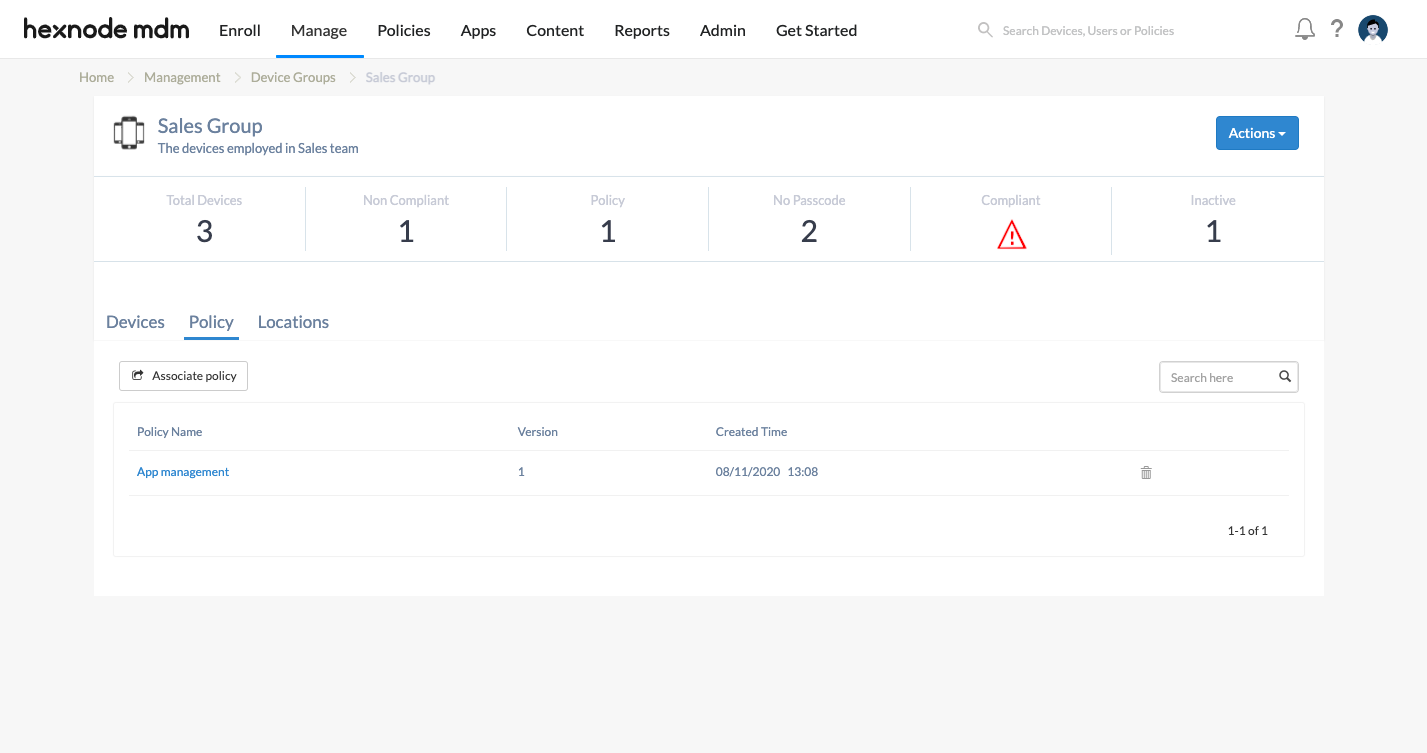
- Policy Tab: Displays associated policies. To add a new one, click Associate policy, select the saved policy, and click Associate.
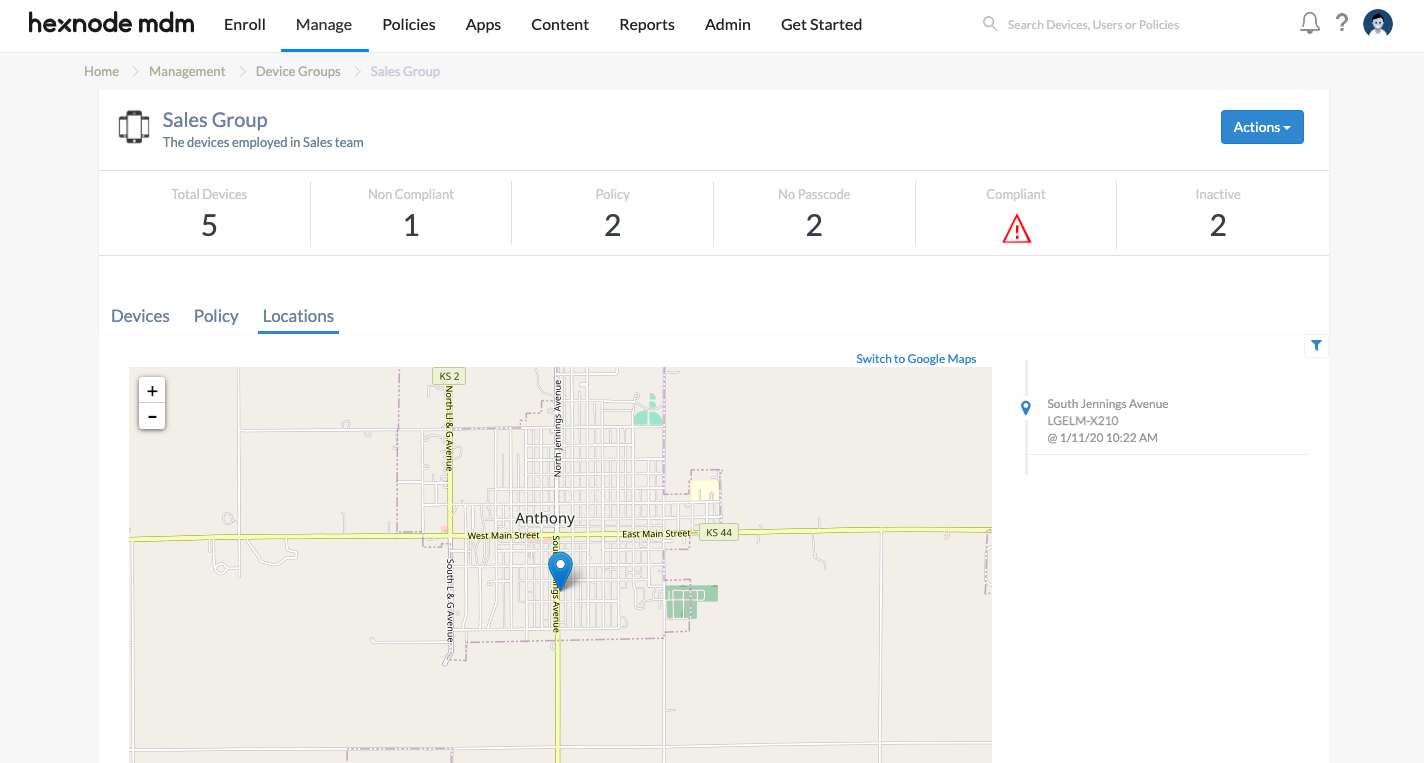
- Locations Tab: If a Location Tracking Policy is active, this tab lists the complete history of locations traversed by the member devices.
Group Operations and Remote Actions
Remote Management
Administrators can perform group management functions, which allow for instantaneous remote commands to be sent to every device within the group simultaneously.
Editing a Group
- Go to Manage > Device Groups.
- Search for and select the target group.
- Click + Add Devices.
- Choose the devices and click Done.
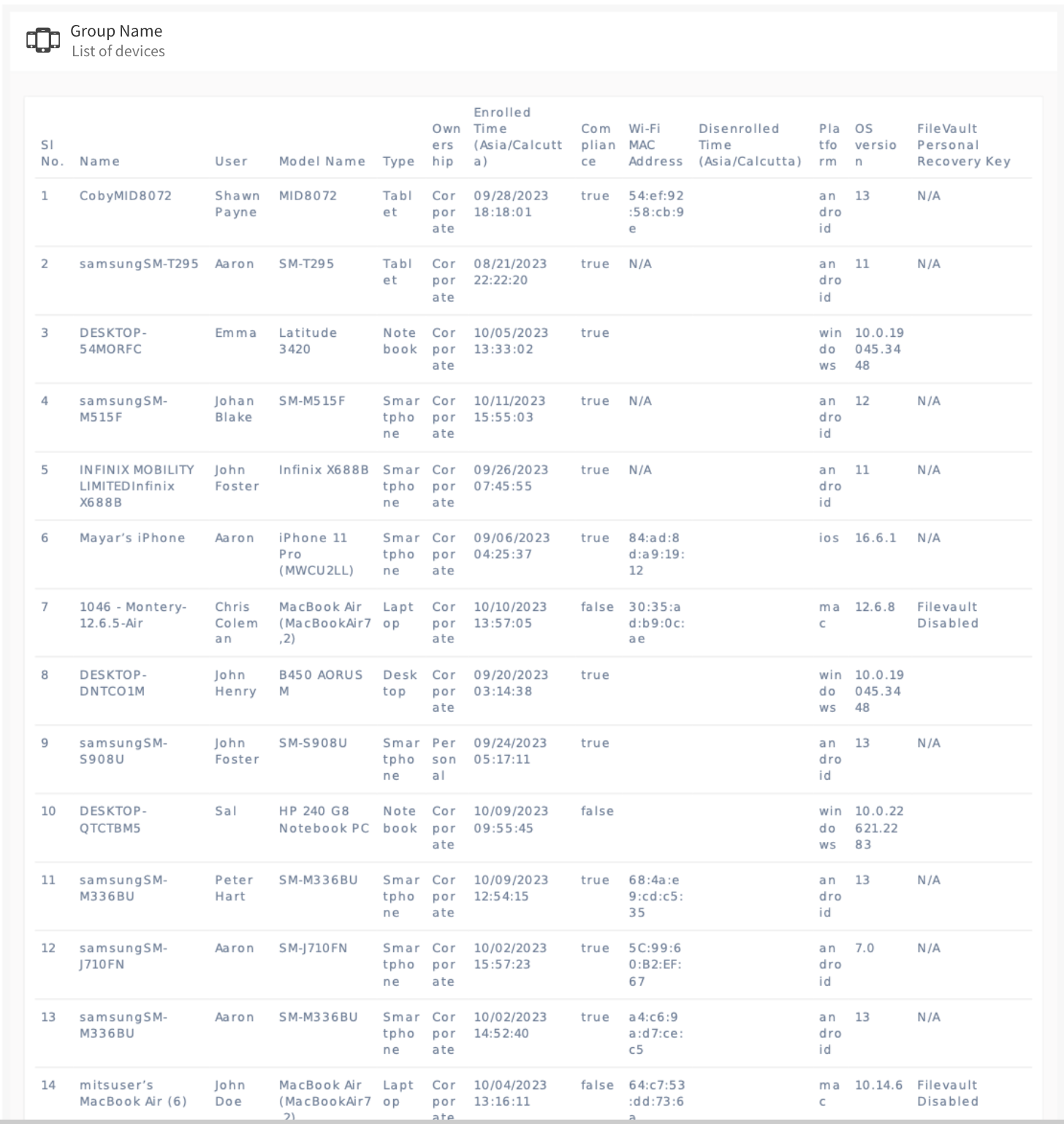
Exporting Reports
- Go to Manage > Device Groups.
- Select the checkbox for the required group(s).
- Click Export.
- Choose the format: PDF or CSV.
Deleting a Group
- Go to Manage > Device Groups.
- Identify the group and click Actions > Delete Group.
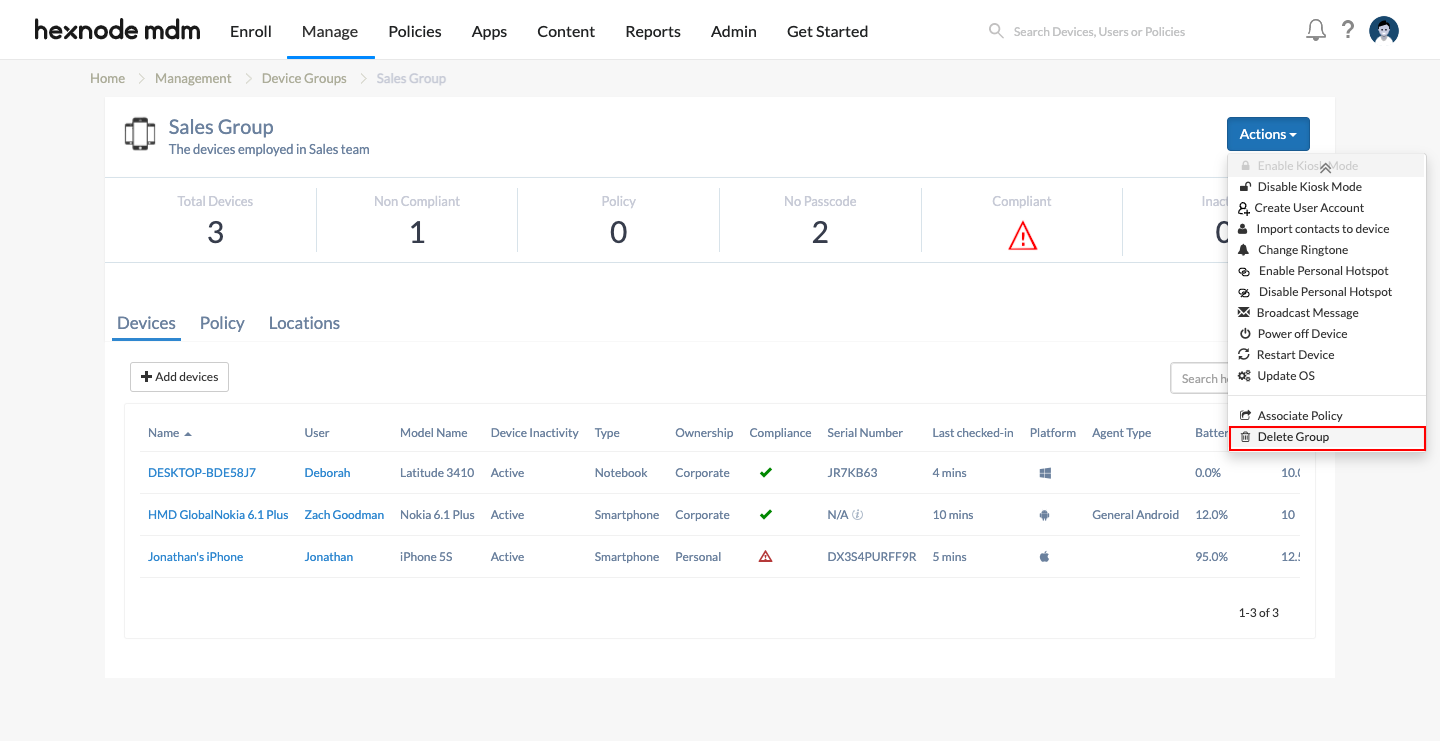
Important: Deleting a group removes all policies associated with that group from the member devices.
Frequently Asked Questions (FAQ)
- Can a device belong to more than one group?
Yes. If a device is in multiple groups, Hexnode applies the union of all policies from those groups to that device.
- Does deleting a group remove the devices from Hexnode?
No. Deleting a group only removes the logical organization and the policies tied to that group. The devices remain enrolled and managed in the portal.
- Why is my “Locations” sub-tab empty?
The Locations tab only populates data if a Location Tracking Policy has been specifically associated with the devices or the group.
- Can I mix Android and iOS devices in the same Custom Group?
Yes. Custom groups are platform-agnostic, allowing you to group devices by department (e.g., “Sales”) regardless of their operating system.


