Category filter
Script to restart Windows devices
Regularly restarting a Windows device ensures optimal performance by enabling the completion of essential updates and installations, finalizing security patches and driver integrations. It resolves memory leaks by completely clearing the system’s volatile Random Access Memory (RAM). A restart can also terminate frozen or stuck background processes and services, release file locks and restore core system functions.
Deploying custom scripts to remotely restart managed devices provides administrators with granular control beyond standard system commands. Using the Execute Custom Script action in Hexnode UEM, you can fully customize the restart experience.
Specifically, these scripts allow for a delayed reboot or a custom warning message displayed to the user beforehand. Additionally, they can retrieve critical audit data, such as the last restart time and the identity of the user who initiated the action. This article provides both Batch and PowerShell scripts to facilitate these workflows.
Executing custom script via Hexnode UEM – Quick steps
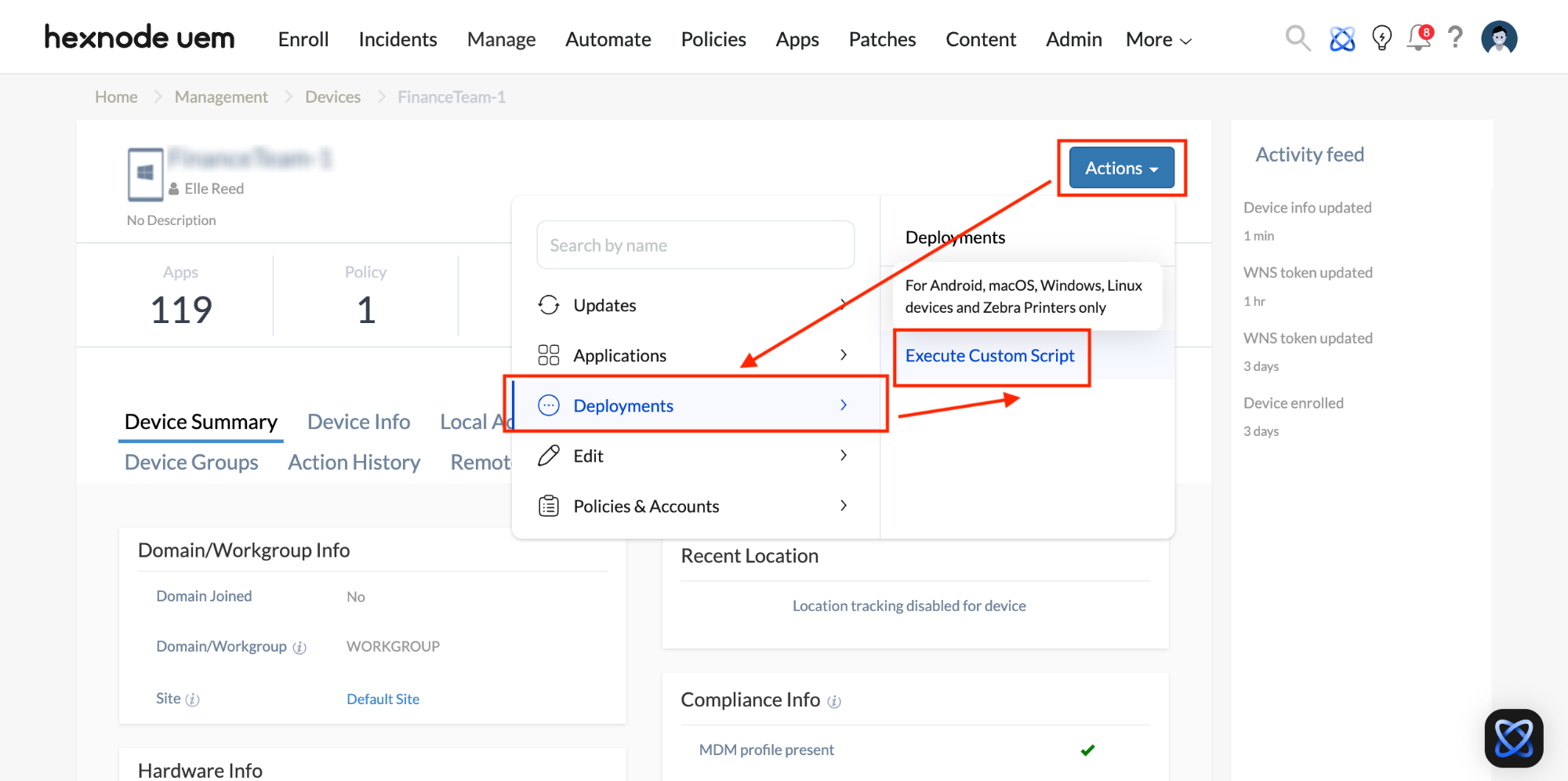
- Navigate to the Manage tab in your Hexnode UEM console and select your Windows device.
- From Actions, select Execute Custom Script from Deployments.
- Upload the
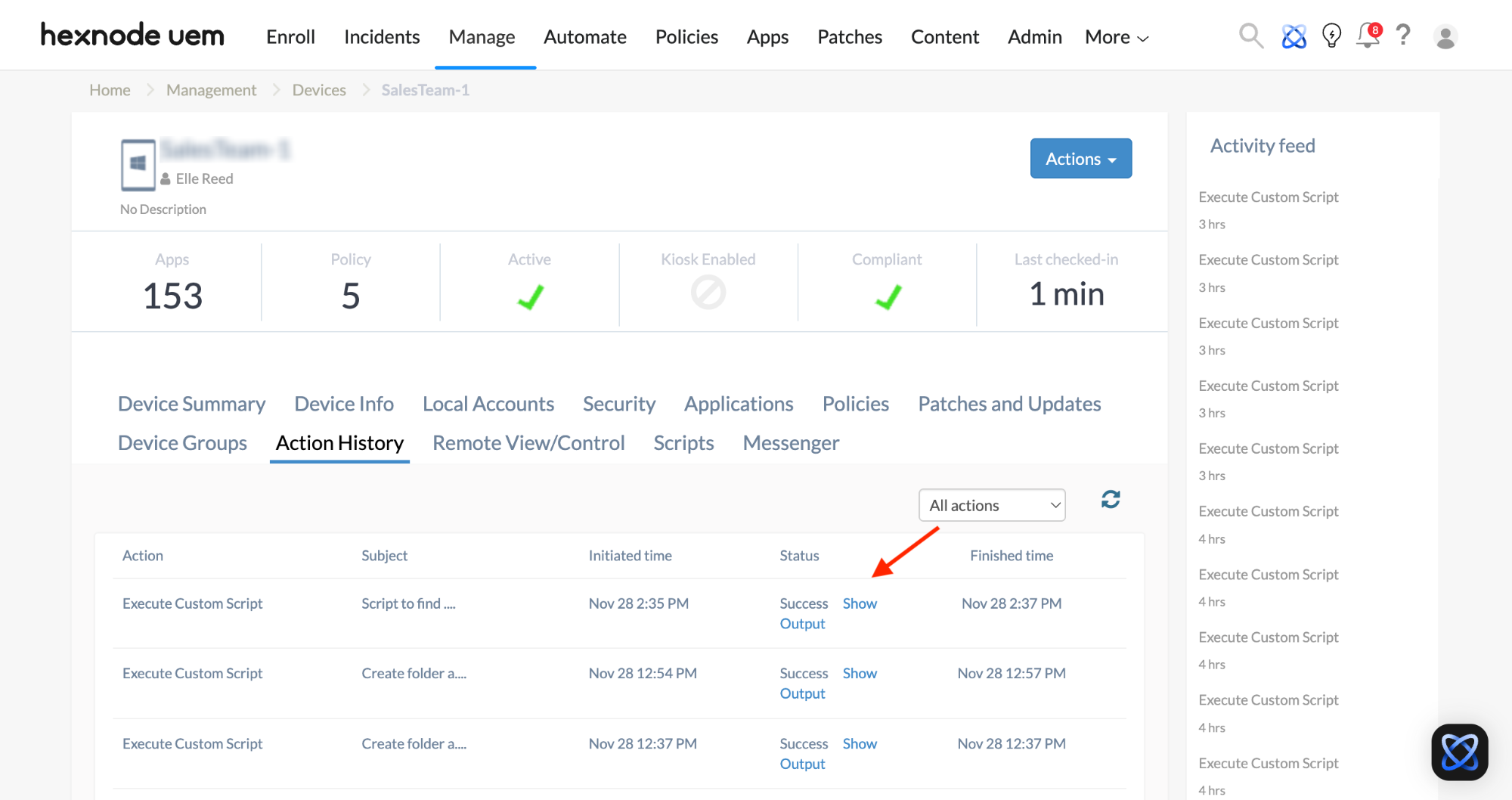
.ps1PowerShell script and click Execute. - The script output is available via Action History > Execute Custom Script action > Status > Show Output.
Batch scripts
-
Restart device after a time delay
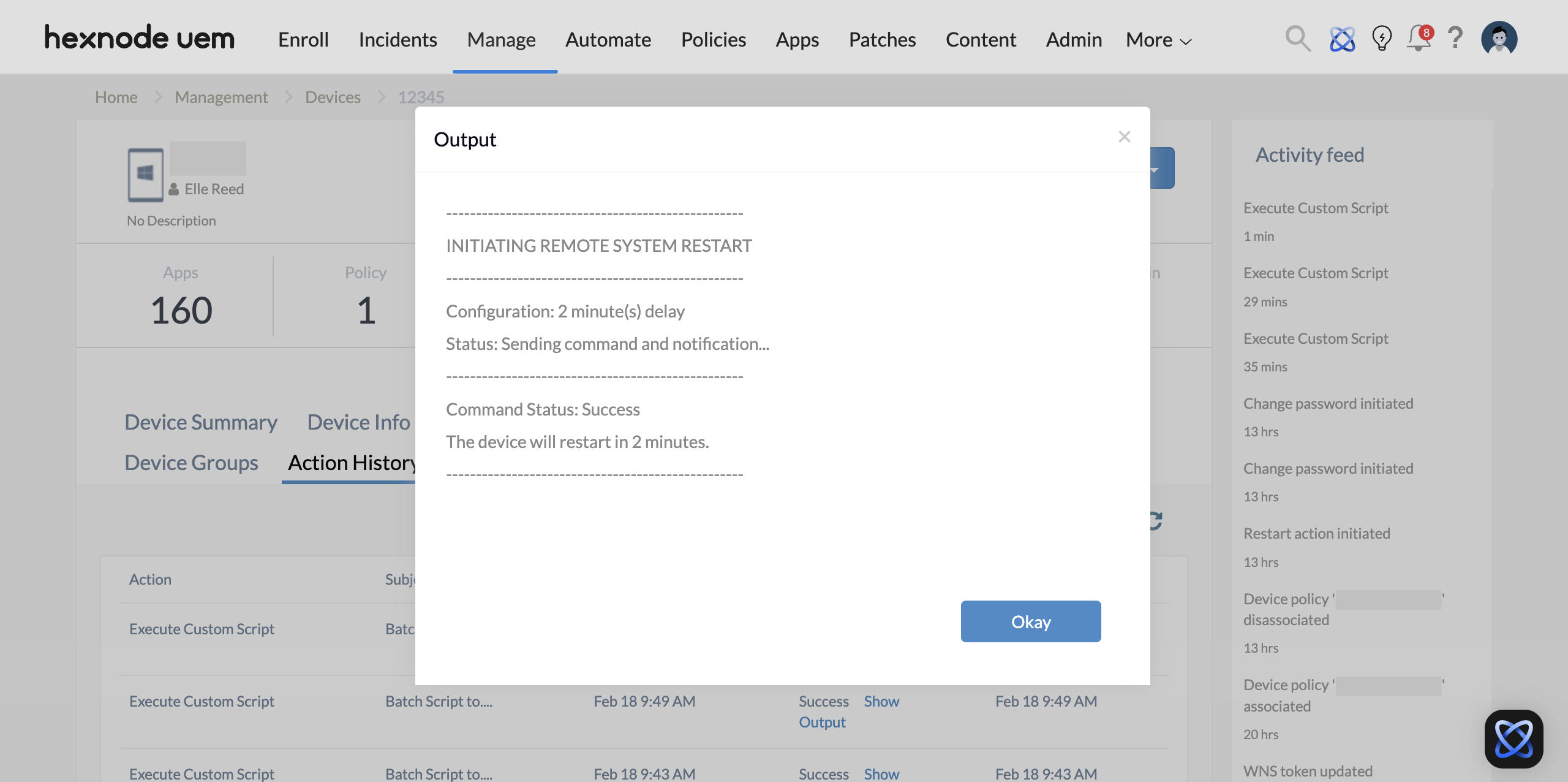
12345678910111213141516171819202122232425262728293031@echo offsetlocal:: Enter a number (e.g., 5) in the Arguments field in Hexnode consoleset "delay_minutes=%1":: Fallback to 1 minute if no argument is providedif "%delay_minutes%"=="" set "delay_minutes=1":: Convert minutes to seconds for the shutdown commandset /a "delay_seconds=%delay_minutes% * 60":: Dynamic message that reflects the chosen timeset "message=Your administrator has scheduled a system restart in %delay_minutes% minute(s). Please save your work immediately."echo --------------------------------------------------echo INITIATING REMOTE SYSTEM RESTARTecho --------------------------------------------------echo Configuration: %delay_minutes% minute(s) delayecho Status: Sending command and notification...:: Execute the shutdown:: /r = Restart | /f = Force | /t = Time in seconds | /c = Dynamic Messageshutdown /r /f /t %delay_seconds% /c "%message%"echo --------------------------------------------------echo Command Status: Successecho The device will restart in %delay_minutes% minutes.echo --------------------------------------------------endlocalWhen deploying the script via the Execute Custom Script action, enter the desired restart delay (in minutes) as a numerical value within the Arguments field; this automatically triggers a warning message on the device to notify the user of the imminent restart.
-
Restart device immediately
Execute the script below to restart the device immediately.
1234567891011121314151617181920212223@echo offsetlocal:: Configuration for immediate actionset "delay_seconds=0"echo --------------------------------------------------echo INITIATING IMMEDIATE RESTARTecho --------------------------------------------------echo Status: Executing shutdown command (no delay)...:: Execute the shutdown:: /r = Restart:: /f = Force close all applications:: /t 0 = Zero second delay (immediate)shutdown /r /f /t %delay_seconds%echo --------------------------------------------------echo Command Status: Successecho The device is restarting now.echo --------------------------------------------------endlocal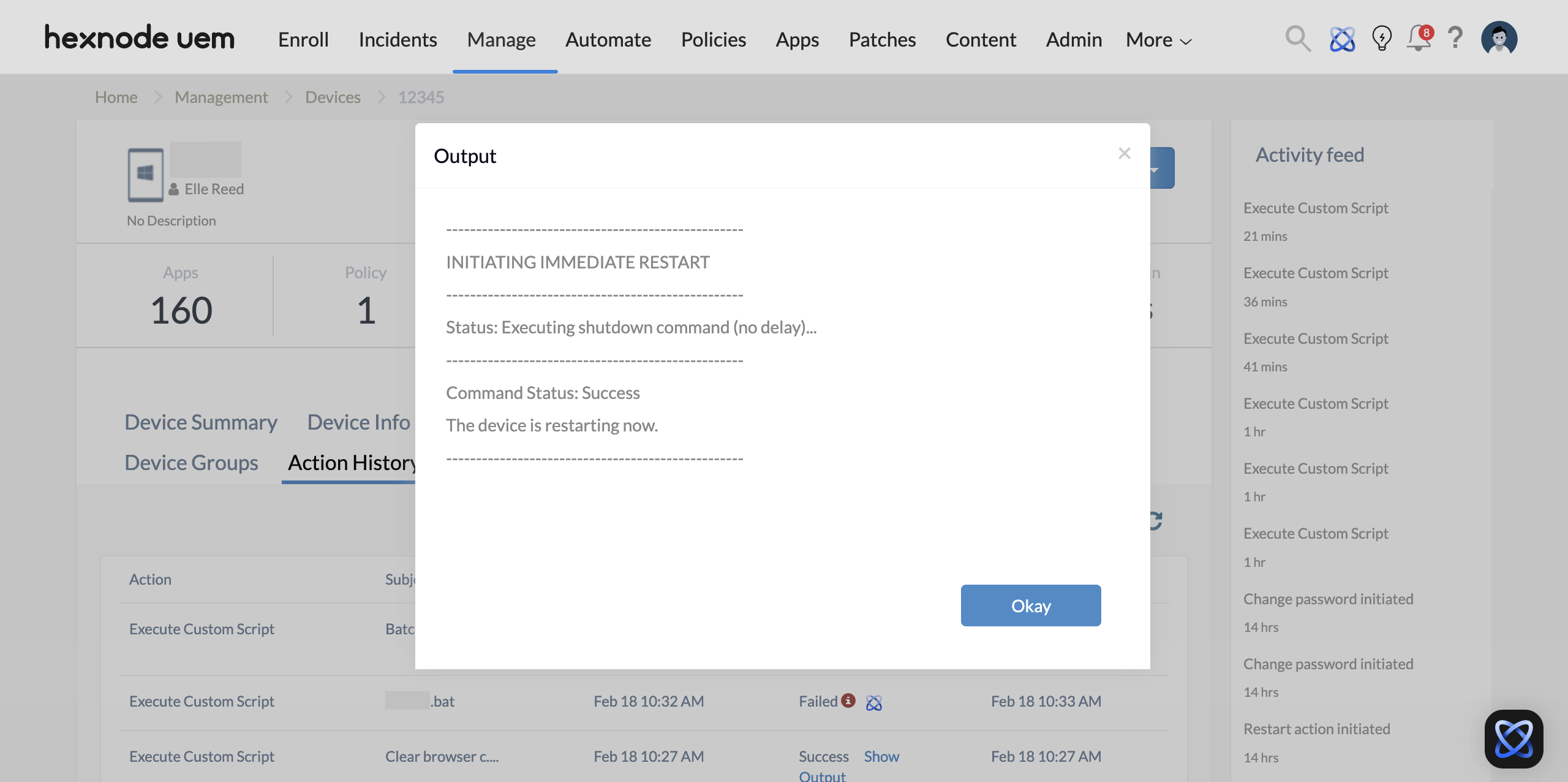
-
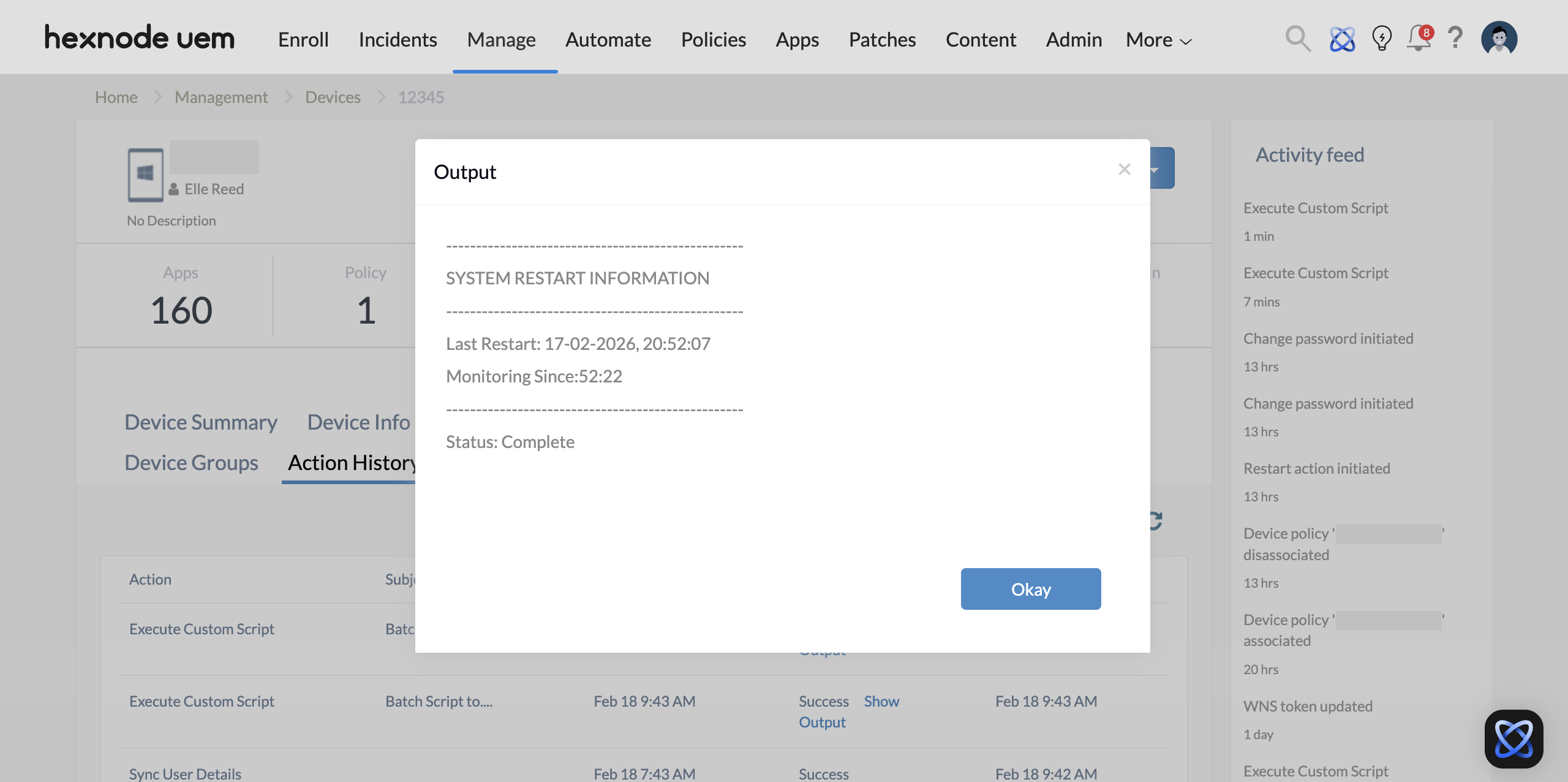
Check last restart time of device
1234567891011121314151617@echo offecho --------------------------------------------------echo SYSTEM RESTART INFORMATIONecho --------------------------------------------------:: Retrieve the Restart Timefor /f "tokens=1,* delims=:" %%a in ('systeminfo ^| find "System Boot Time"') do (echo Last Restart:%%b):: Retrieve System Uptime (Optional)for /f "tokens=1,* delims=:" %%a in ('net statistics workstation ^| find "Statistics since"') do (echo Monitoring Since:%%b)echo --------------------------------------------------echo Status: CompleteScript returns the date and time of the last restart of the endpoint device to the Show Output window in the UEM console.
PowerShell scripts
-
Restart device
Execute the following command to restart the device immediately.
1234567891011121314Write-Host "--------------------------------------------------"Write-Host " INITIATING IMMEDIATE RESTART "Write-Host "--------------------------------------------------"Write-Host "Status: Sending restart command to the OS..."# -Force: Closes applications without warning the user# -Confirm:$false: Prevents the script from waiting for a manual 'Yes'Restart-Computer -Force -Confirm:$falseWrite-Host "--------------------------------------------------"Write-Host "Command Status: Success"Write-Host "The device is restarting now."Write-Host "--------------------------------------------------"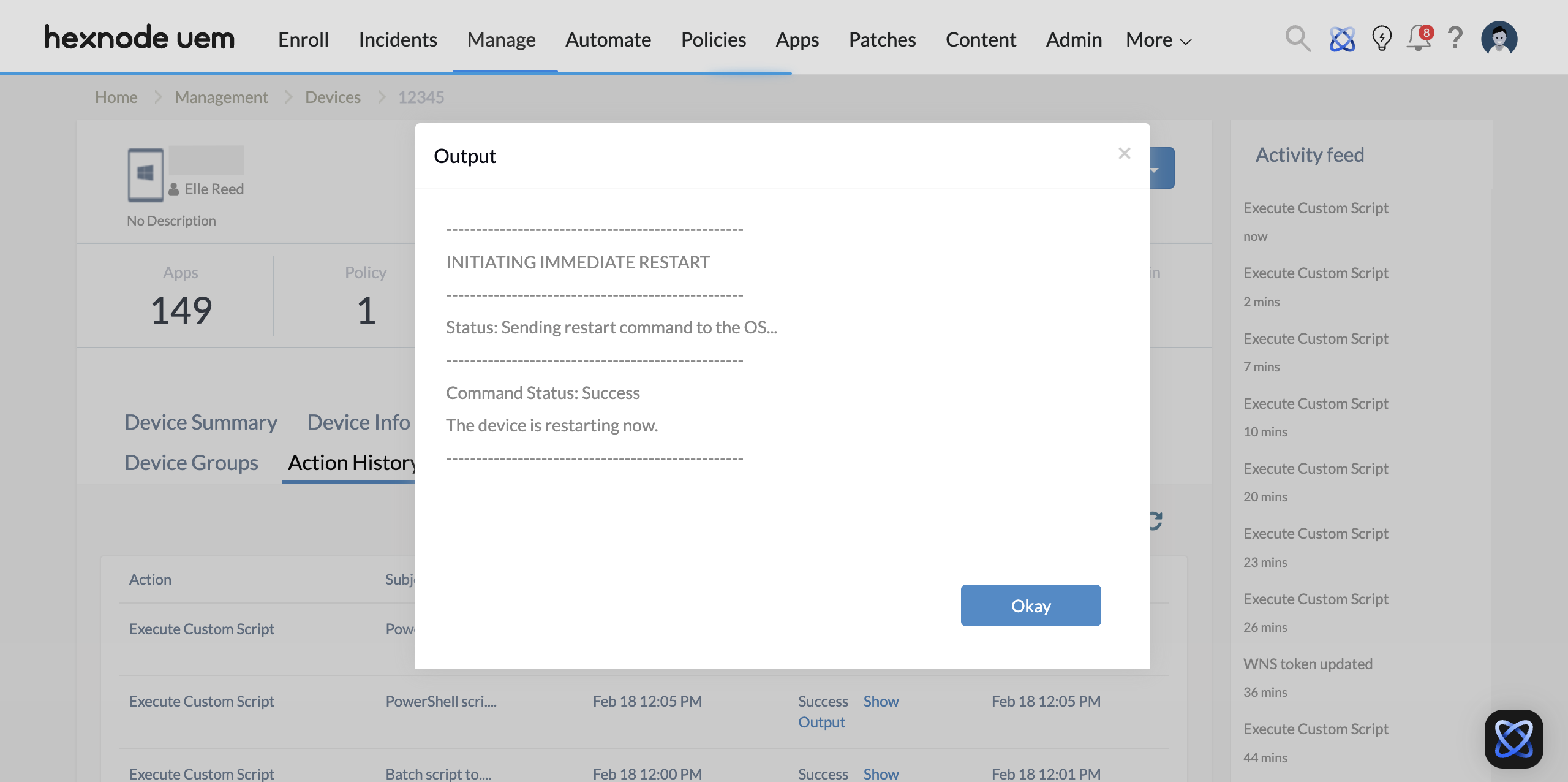
-
Schedule device restart
To schedule restart on a Windows device, run the following script:
123456789101112131415161718192021222324252627282930313233343536Write-Host "--------------------------------------------------"Write-Host " SCHEDULING RESTART TASK "Write-Host "--------------------------------------------------"# 1. Define Paths and Content$ScriptPath = "C:\Users\Admin\Downloads\restart.ps1"$ScriptContent = "Restart-Computer -Force"try {# 2. Create the physical script fileWrite-Host "Status: Creating local script at $ScriptPath..."Set-Content -Path $ScriptPath -Value $ScriptContent -Force# 3. Configure the Task Trigger (Daily at 09:35)$Trigger = New-ScheduledTaskTrigger -Daily -At 09:35# 4. Configure the Task Action (Execute PowerShell)$Action = New-ScheduledTaskAction -Execute "PowerShell.exe" -Argument "-ExecutionPolicy Bypass -NoProfile -File `"$ScriptPath`""# 5. Set Principal for Highest Privileges$Principal = New-ScheduledTaskPrincipal -RunLevel Highest -GroupId "BUILTIN\Users"# 6. Register the TaskWrite-Host "Status: Registering Task 'MaintenanceRestart' in Task Scheduler..."Register-ScheduledTask -TaskName "MaintenanceRestart" -Trigger $Trigger -Principal $Principal -Action $Action -ForceWrite-Host "--------------------------------------------------"Write-Host "SUCCESS: Task 'MaintenanceRestart' scheduled successfully."Write-Host "The device will restart daily at 09:35 AM."}catch {Write-Host "ERROR: Failed to register task. Details: $($_.Exception.Message)"}Write-Host "--------------------------------------------------"Write-Host "Status: Complete"The script triggers,
$Trigger, an action$Actionat a specific time and frequency set by the administrator deploying the script. The Action is the execution of the script filerestart.ps1.The command to restart the device is given under$ScriptContent, which is saved to therestart.ps1script file. The restart.ps1 script file is saved to the location specified by the admin under$ScriptPath.The scheduler script will use the path of
restart.ps1provided to trigger the restart action with the highest privilege.The administrator must also configure the frequency to run the script (Once, Daily, Weekly etc) in
$Triggerreplacing-Dailyin the script and the specific time (in 24 hour format) to execute the scheduler script, following–At. -
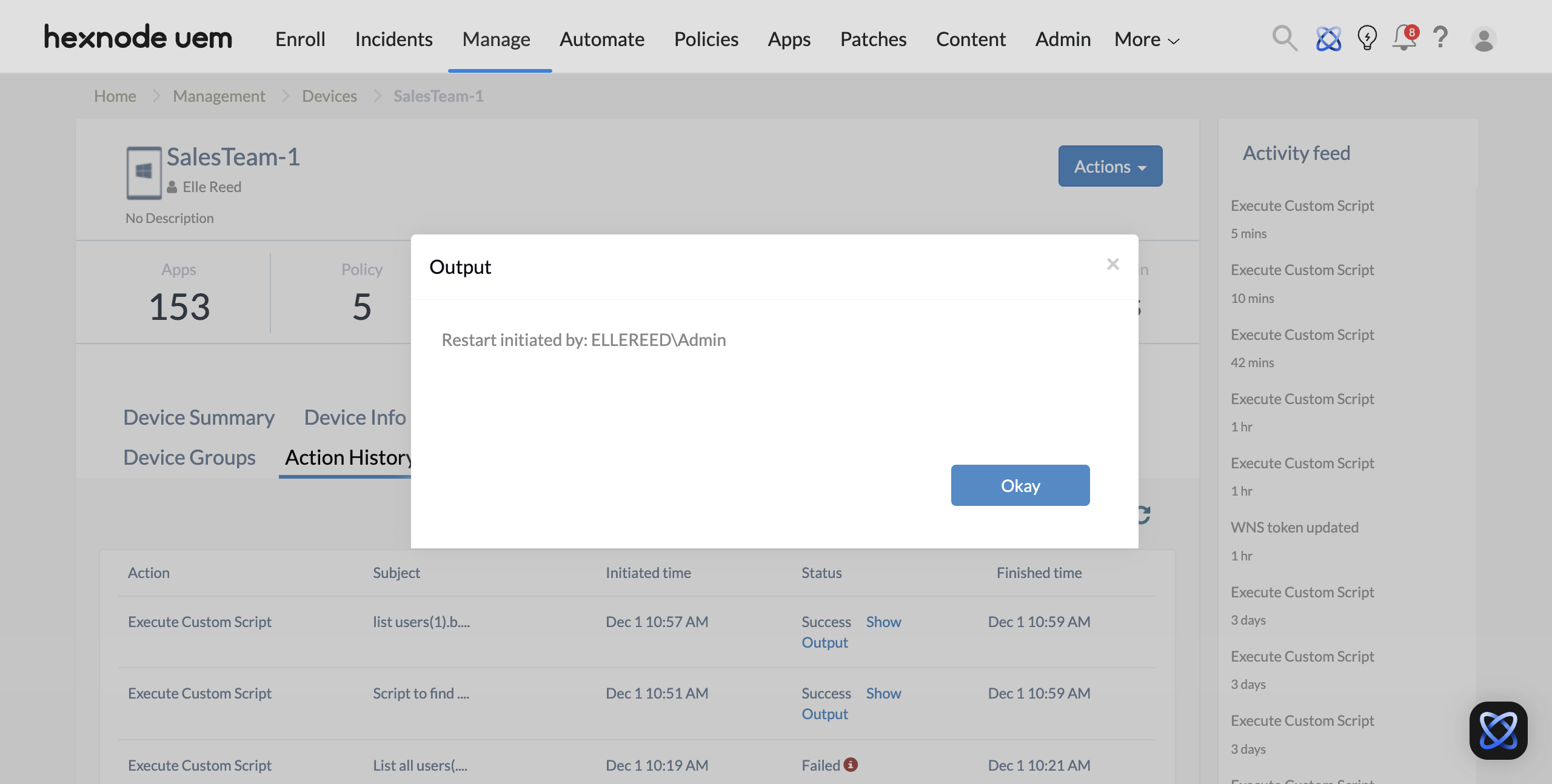
Find the user who last restarted the device
123456789101112131415161718192021Write-Host "--------------------------------------------------"Write-Host " USER RESTART IDENTIFICATION "Write-Host "--------------------------------------------------"# Attempt to retrieve the last reboot event$rebootData = Get-WinEvent -FilterHashtable @{LogName='System'; Id=1074; ProviderName='User32'} -MaxEvents 1 -ErrorAction SilentlyContinueif ($rebootData) {# Execute the exact snippet provided$rebootData | ForEach-Object {$output = "Restart initiated by: $($_.Properties[6].Value)"Write-Host $output}}else {Write-Host "Result: No recent restart logs (ID 1074) found."}Write-Host "--------------------------------------------------"Write-Host "Status: Execution Complete"Write-Host "--------------------------------------------------"On running the script, the name of the user who last restarted the remote device is returned to the Hexnode UEM console in the Show Output window.
-
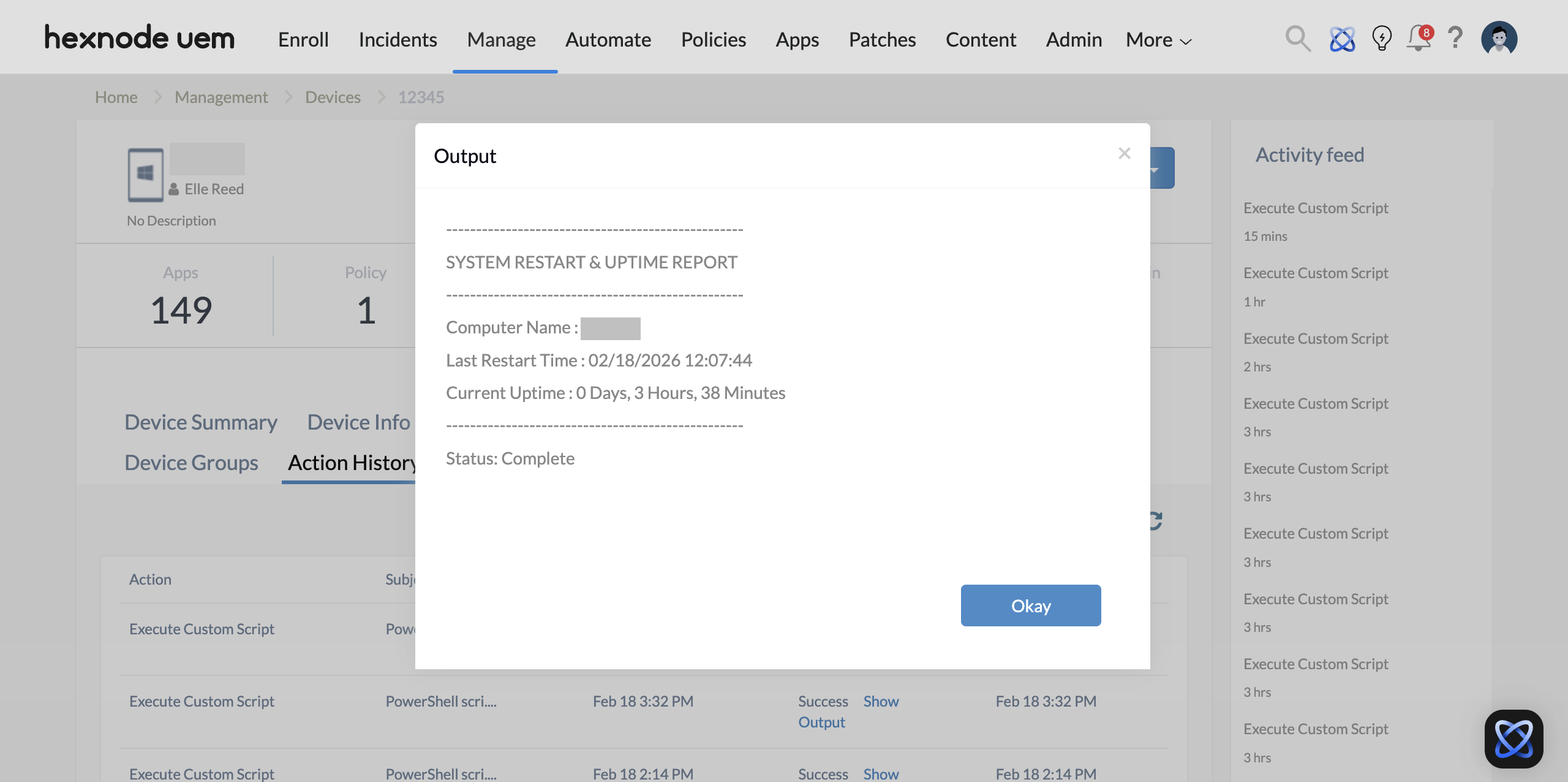
Check last restart and uptime of device
12345678910111213141516171819202122Write-Host "--------------------------------------------------"Write-Host " SYSTEM RESTART & UPTIME REPORT "Write-Host "--------------------------------------------------"# 1. Retrieve the Last Restart Time and Computer Name$OS = Get-CimInstance Win32_OperatingSystem$BootTime = $OS.LastBootUpTime$ComputerName = $OS.CSName# 2. Calculate Uptime Span$UptimeSpan = (Get-Date) - $BootTime# 3. Format Uptime for human readability$UptimeString = "{0} Days, {1} Hours, {2} Minutes" -f $UptimeSpan.Days, $UptimeSpan.Hours, $UptimeSpan.Minutes# 4. Final Output to Hexnode ConsoleWrite-Host "Computer Name : $ComputerName"Write-Host "Last Restart Time : $BootTime"Write-Host "Current Uptime : $UptimeString"Write-Host "--------------------------------------------------"Write-Host "Status: Complete"Script returns the date and time of the last restart and the uptime of the endpoint device to the UEM console in the Show Output window.
-
Get Windows restart audit report
1234567891011121314151617181920212223242526272829303132333435363738Write-Host "--------------------------------------------------"Write-Host " SYSTEM RESTART AUDIT REPORT "Write-Host "--------------------------------------------------"# 1. RESTART HISTORY (Event 6005 - System Start Times)Write-Host "RESTART HISTORY"Write-Host "---------------"$HistoryEvents = Get-CimInstance Win32_NTLogEvent -Filter "LogFile='System' and EventCode=6005" | Select-Object -First 5if ($HistoryEvents) {foreach ($Event in $HistoryEvents) {Write-Host "System Start Time: $($Event.TimeWritten)"}} else {Write-Host "No startup history events found."}Write-Host "--------------------------------------------------"# 2. RESTART LOG (Event 1074 - Initiation Details)Write-Host "RESTART LOG"Write-Host "-----------"$LogEvents = Get-WinEvent -FilterHashtable @{LogName='System'; Id=1074} -MaxEvents 5 -ErrorAction SilentlyContinueif ($LogEvents) {foreach ($Event in $LogEvents) {Write-Host "Event time: $($Event.TimeCreated)"Write-Host "Event ID: $($Event.Id)"Write-Host "Initiated User: $($Event.Properties[6].Value)"Write-Host "Reason for initiation: $($Event.Properties[2].Value)"Write-Host ""}} else {Write-Host "No detailed restart logs found (ID 1074)."}Write-Host "--------------------------------------------------"Write-Host "Status: Audit Complete"The Windows restart log is retrieved using the PowerShell
Get-WinEventcommand, which provides a detailed audit trail of every restart since the device was enrolled in Hexnode. This log identifies the specific date and time of each event along with the name of the user or system process that initiated the restart.
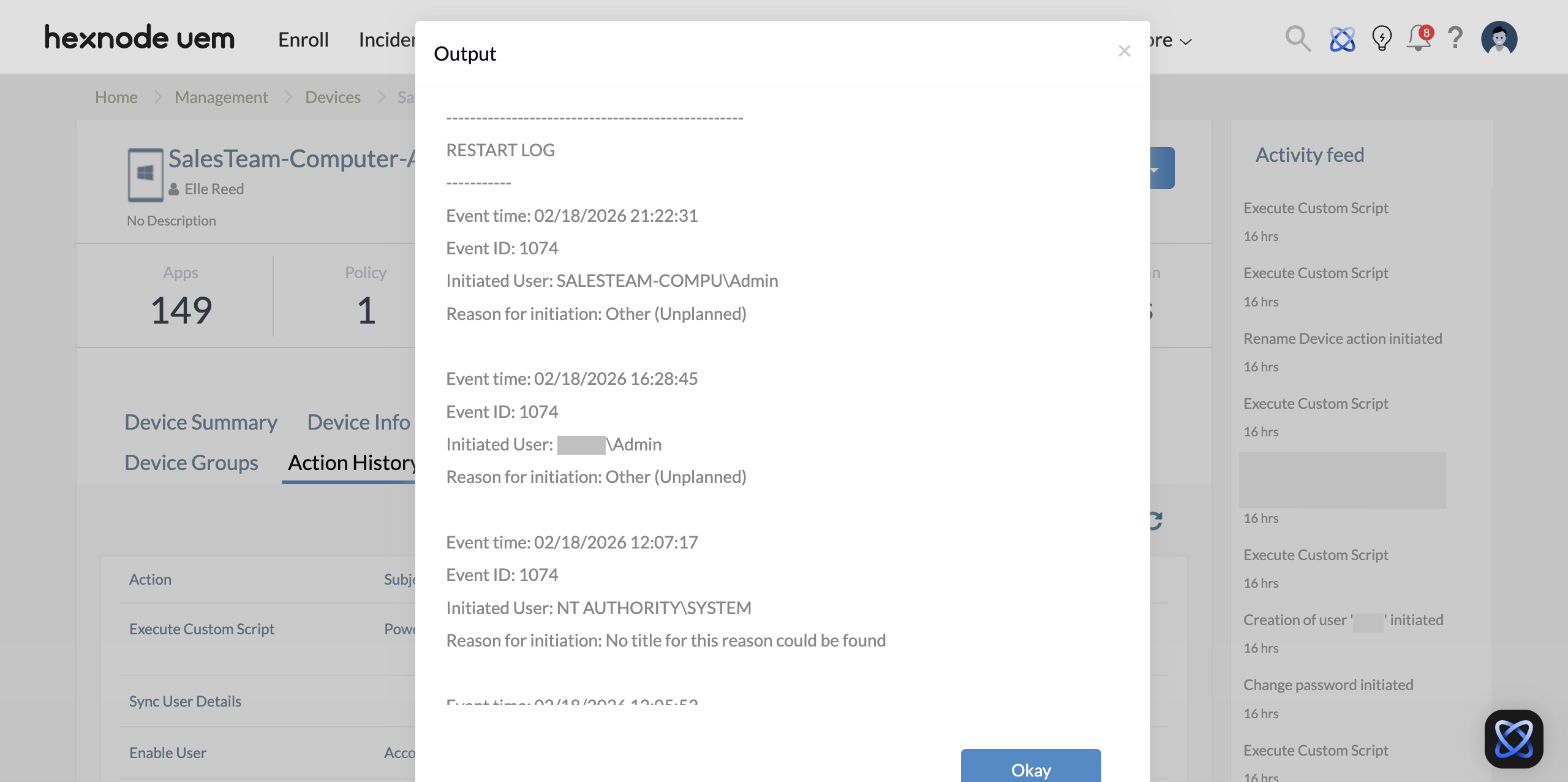
Admins can access the comprehensive list directly through the Show Output window to review the full history of system restart events.