


Category filter
Deploying ThreatLocker to Windows devices with Hexnode UEM
ThreatLocker, a zero-trust endpoint protection platform, provides robust cybersecurity solutions to organizations, ensuring continuous verification and protection against potential threats. ThreatLocker protects endpoints from a wide variety of threats, including phishing, malware, ransomware, rootkits, password attacks, and IoT attacks. This document will assist you through the step-by-step process to deploy ThreatLocker to Windows devices with the help of Hexnode UEM guaranteeing strong protection against cybersecurity threats.
How to deploy ThreatLocker to Windows?
Follow these steps to deploy ThreatLocker to Windows endpoints:
- Download the PowerShell script from the ThreatLocker portal to deploy ThreatLocker on the devices.
- Login to your ThreatLocker portal.
- Click the option Computers from the navigation panel.
Create a new group for the Windows devices by navigating to option +Computer Group and providing the details of the group.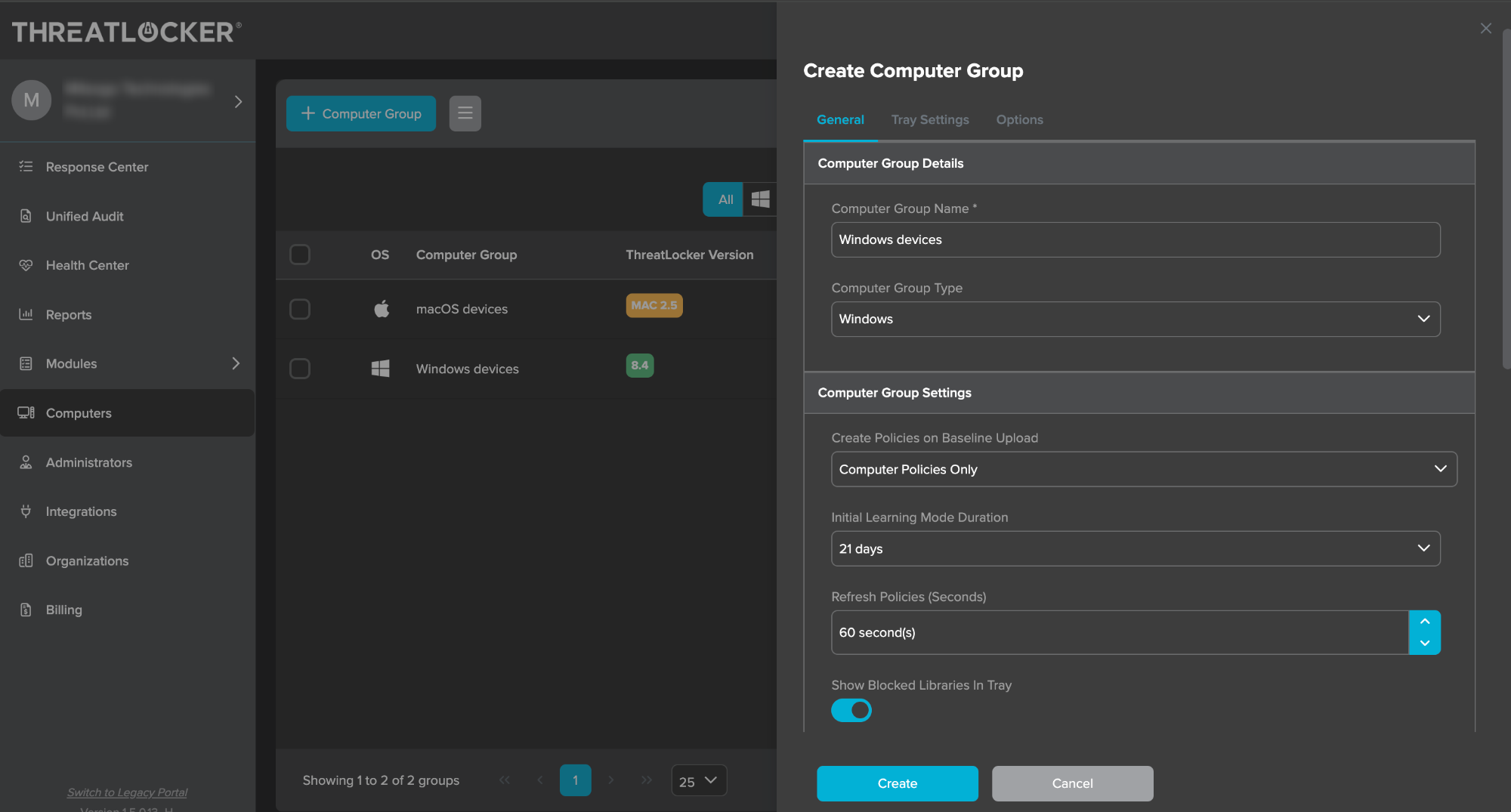
- After creating the group, the Install Key value can be obtained from the device group information in the ThreatLocker portal. This will be used to replace the
Groupkeyin the PowerShell script.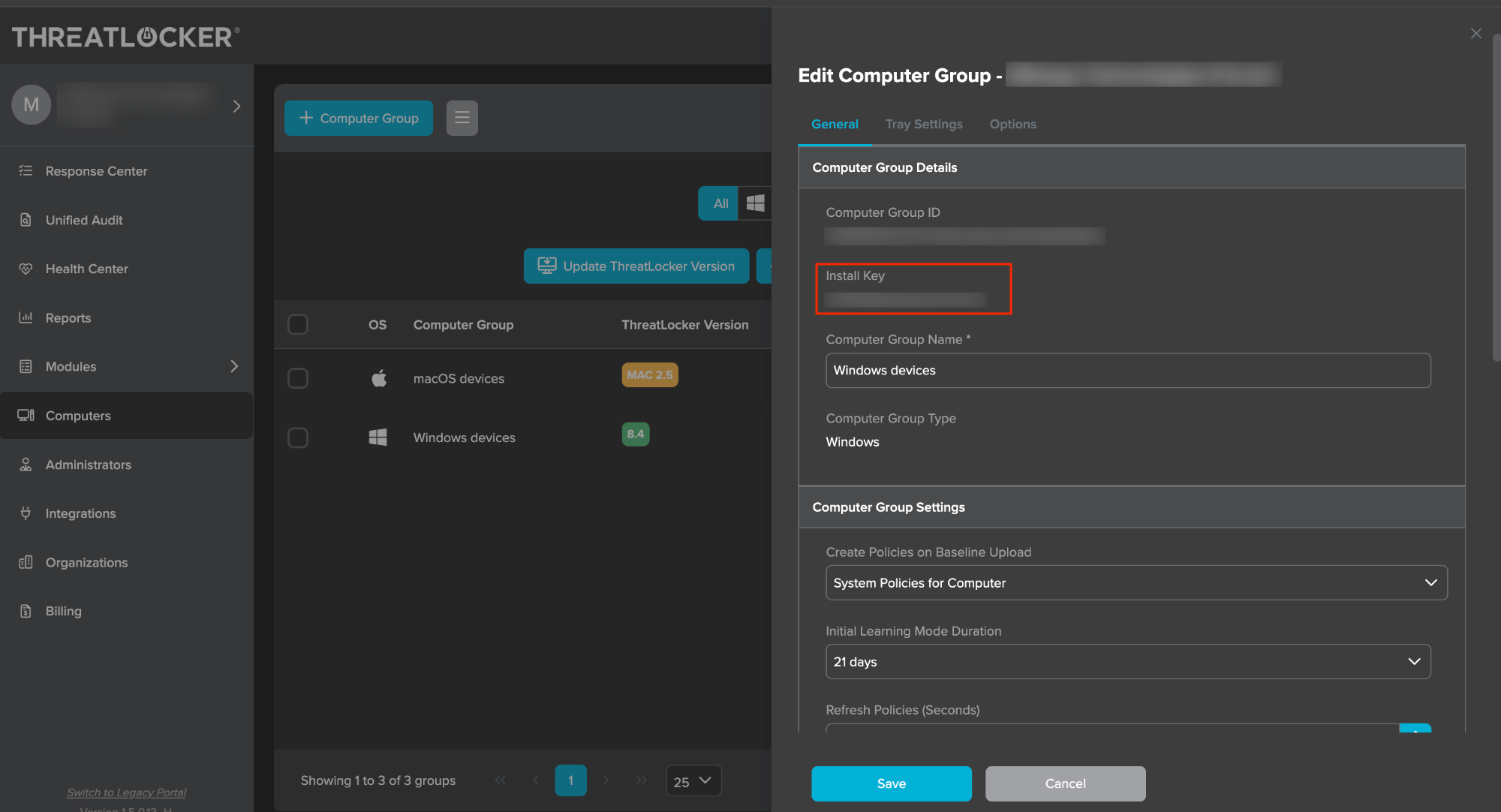
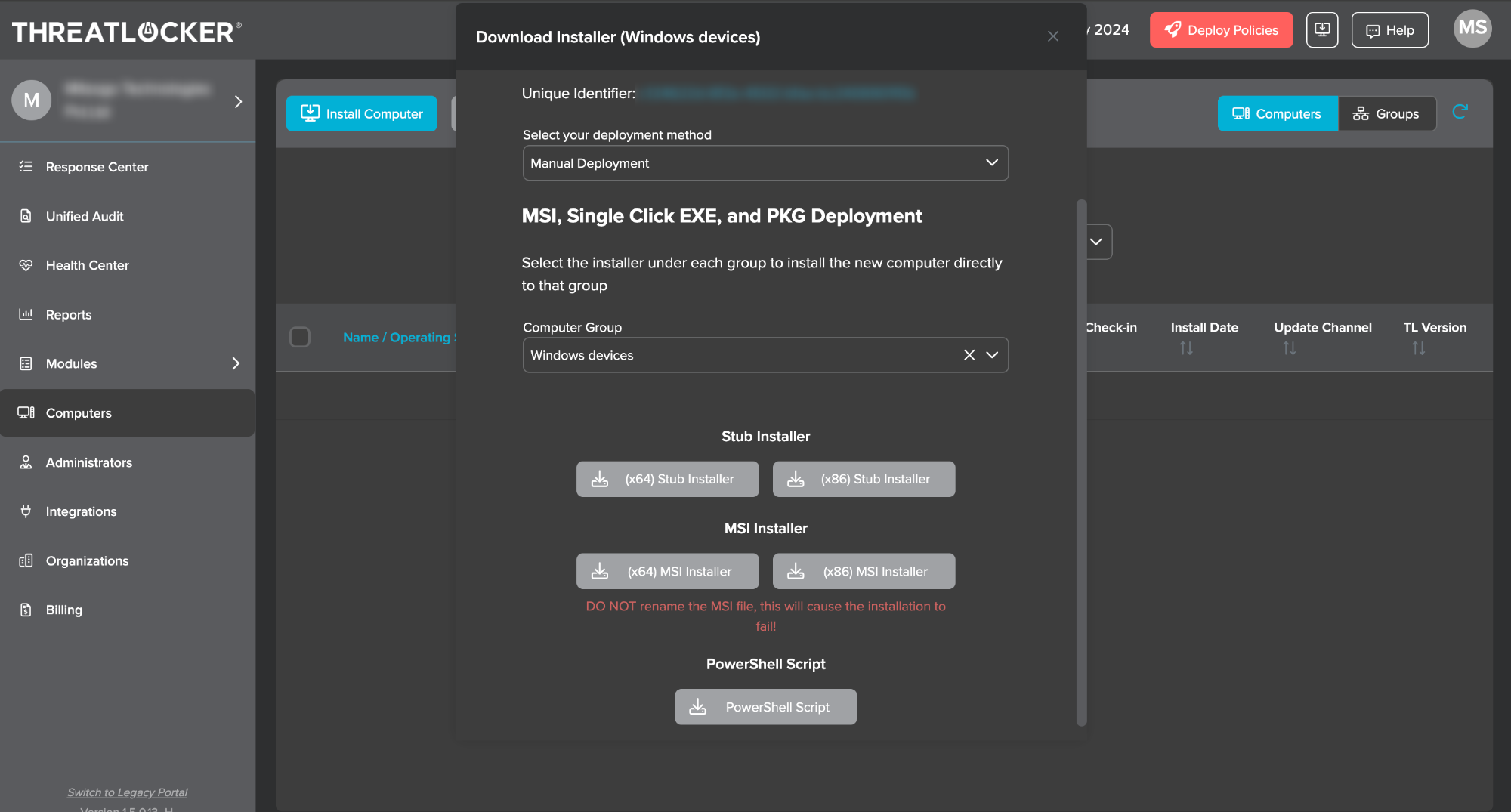
- Click the option Install Computer and select deployment method as Manual Deployment and Computer Group as the group created for the Windows devices.
- Then an option to download the PowerShell script will appear in the same tab.
- Download the PowerShell script.
- Execute the script to deploy ThreatLocker to the devices.
- Login to Hexnode UEM portal.
- Go to the Manage tab and select the device.
- Click on the Actions drop-down and select the Execute Custom Script option.
- Click Choose file to upload the PowerShell script downloaded from the ThreatLocker portal. The script is given below:
ThreatLocker installation script
1234567891011121314151617181920212223242526272829303132333435363738#!/bin/bashGroupKey="xxxxxxxxxxxxxxxxxxxxxxxx"# Check for ThreatLocker appif [ ! -d /Applications/Threatlocker.app ]; then# Make API call and extract version numberVersion=$(curl -H "InstallKey: $GroupKey" https://api.threatlocker.com/getgroupkey.ashx | awk -F ':' '/URL/ {print $2}')# Check if Version is retrievedif [ -z "$Version" ]; thenecho "Unable to retrieve version number"exit 1fi# Download the specific version of ThreatLockercurl --output "/private/var/tmp/Threatlocker.app.zip" "https://updates.threatlocker.com/repository/mac/$Version/Threatlocker.app.zip"# Unzip and installunzip -qq /private/var/tmp/Threatlocker.app.zip -d /Applicationsif [ ! -d /Applications/Threatlocker.app ]; thenecho "Not able to download the file"exit 1elseopen /Applications/ThreatLocker.app --args -groupKey $GroupKeyecho "Installing Threatlocker"sleep 15echo "Verifying Group Key"sleep 15if [ ! -d /Library/Application\ Support/Threatlocker ]; thenecho "GroupKey is Invalid"exit 1elseecho "Threatlocker Installed"exit 0fififi# Check if ThreatLocker is already installedif [ -d /Applications/ThreatLocker.app ]; thenecho "Threatlocker is already installed"exit 1fi - Click Execute.
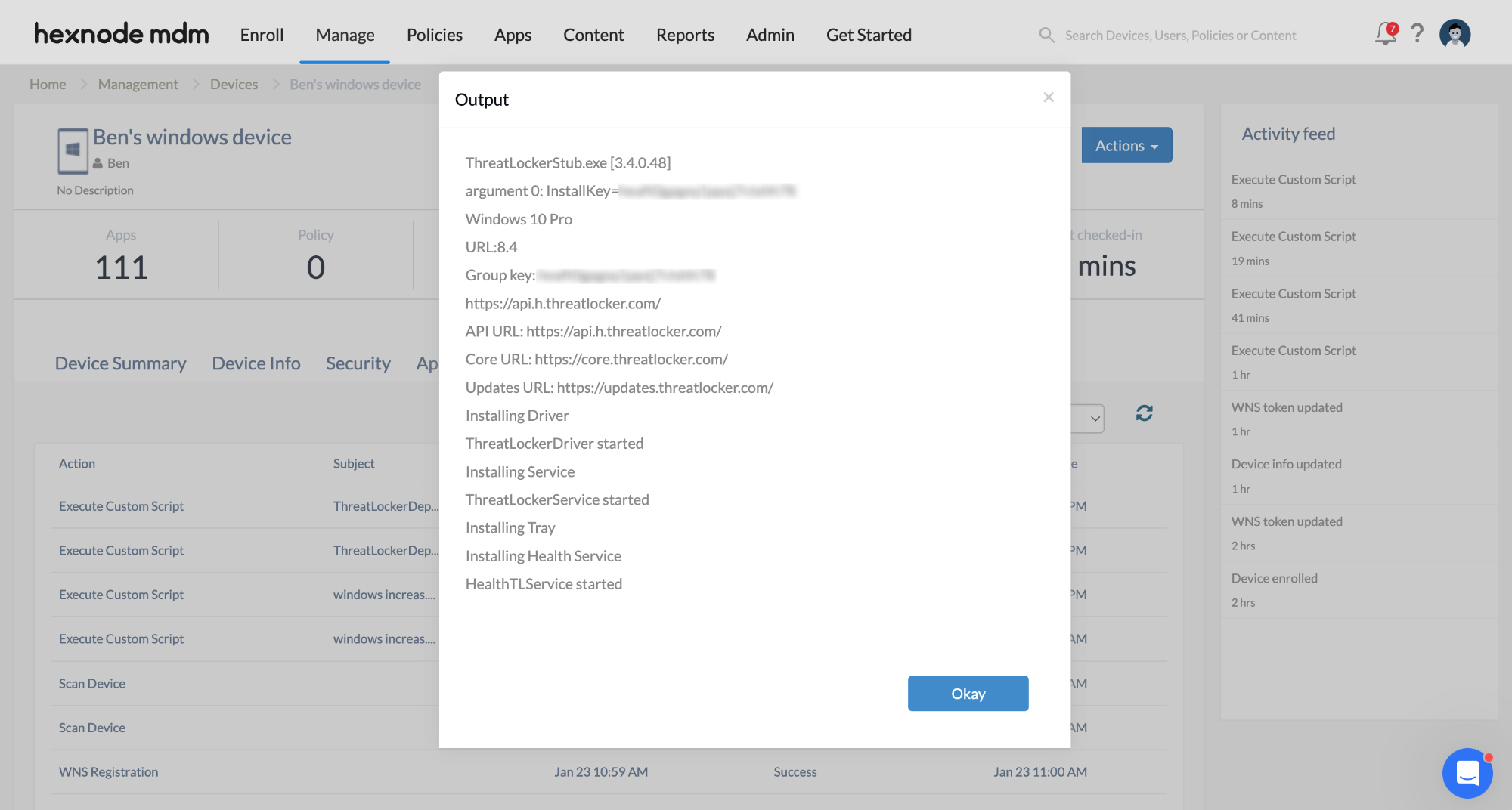
- Navigate to the Action History tab of the device to check if the ThreatLocker has been installed successfully.
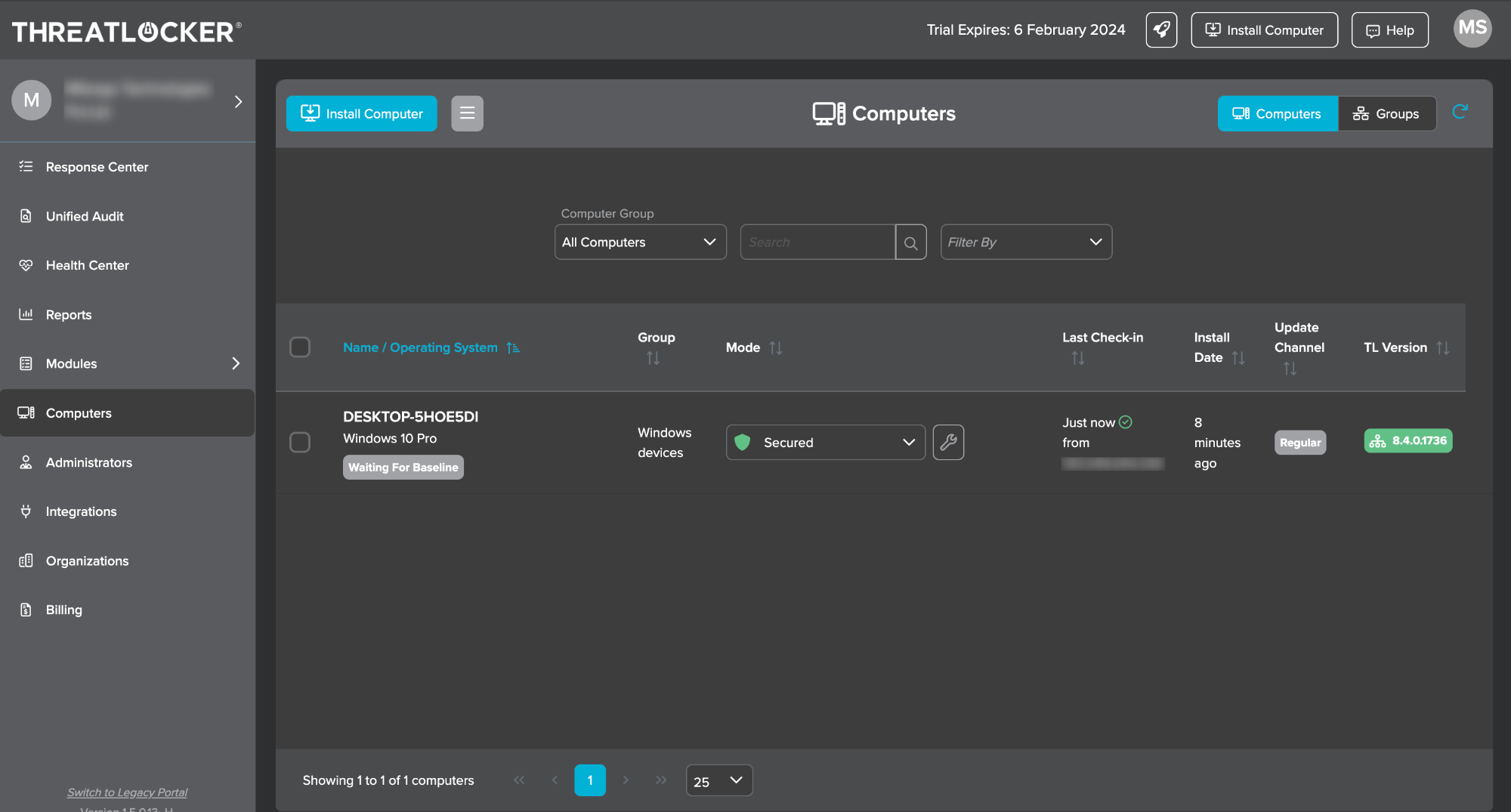
- In the ThreatLocker portal, navigate to the Computers section to view the devices on which the ThreatLocker is deployed.
What happens at the device end?
Once the deployment is successfully completed, the devices will be added to the ThreatLocker portal. It helps ensure that the devices are actively protected against a wide range of threats, including phishing, malware, ransomware, rootkits, password attacks, and IoT-related vulnerabilities.
Frequently Asked Questions
1. Does Hexnode automatically update the ThreatLocker agent?
No. The script installs the specific version available at the time of execution. To update the agent, an updated script can be executed with the latest version of the agent.
2. Can ThreatLocker be deployed to multiple device groups?
Yes, the ThreatLocker agent can be deployed to entire device groups. Navigate to Manage > Device Groups within the Hexnode portal. After selecting the required groups, the deployment can be initiated by choosing the Execute Custom Script option from the Actions drop-down menu. However, ensure that the GroupKey in the script matches the intended ThreatLocker group for those devices.
3. What happens if I execute the script on a device where ThreatLocker is already installed?
The script includes a check: if [ -d /Applications/ThreatLocker.app ]. If the agent is detected, the script will echo “Threatlocker is already installed” and exit with an error code to prevent redundant installations.
Troubleshooting
1. GroupKey Reported as “Invalid” in Hexnode Action History
Probable cause:
The deployment fails, or the agent fails to register because the GroupKey used in the script is incorrect, expired, or the corresponding device was deleted in the ThreatLocker portal.
Solution:
Confirm the GroupKey by navigating to Computers > [Group Name] in the ThreatLocker portal. Ensure the key is copied exactly and update the variable in the Hexnode PowerShell script before re-executing the deployment action.
2. Version Retrieval Failure
Probable Cause:
The script fails with the message “Unable to retrieve version number.” This happens when the endpoint is unable to communicate with the ThreatLocker API to determine the latest agent version.
Solution:
Verify that the device has an active internet connection, and that TLS 1.2 or higher is enabled on the Windows device to allow secure API communication.
Best Practices
- Always execute the script on a single test device first. Verify the device appears in the ThreatLocker portal before pushing the script to your entire fleet.
- Ensure the target Windows devices are connected to the internet.


