


Category filter
Deploy CrowdStrike Falcon on Windows devices using Hexnode
CrowdStrike Falcon is a cloud-based endpoint security solution designed to proactively prevent attacks on devices. It employs Next Generation Anti-Virus (NGAV) capabilities and cyber threat intelligence to constantly monitor the endpoints. It records data associated with the device, including the users logging in and the programs being run, looking out for malicious activity. CrowdStrike Falcon uses this information to identify and protect the device from potential attacks. In this document, we will look at how the CrowdStrike Falcon Sensor can be seamlessly deployed to Windows devices managed by Hexnode UEM. In this document, we will explore how to deploy the CrowdStrike Falcon sensor on Windows devices managed by Hexnode UEM.
How to deploy CrowdStrike Falcon?
Step 1: Download the latest sensor installer from the CrowdStrike Falcon portal
- Login to your CrowdStrike Falcon portal.
- Click on the hamburger icon on the left top corner of the page and navigate to Host setup and management > Deploy > Sensor downloads.
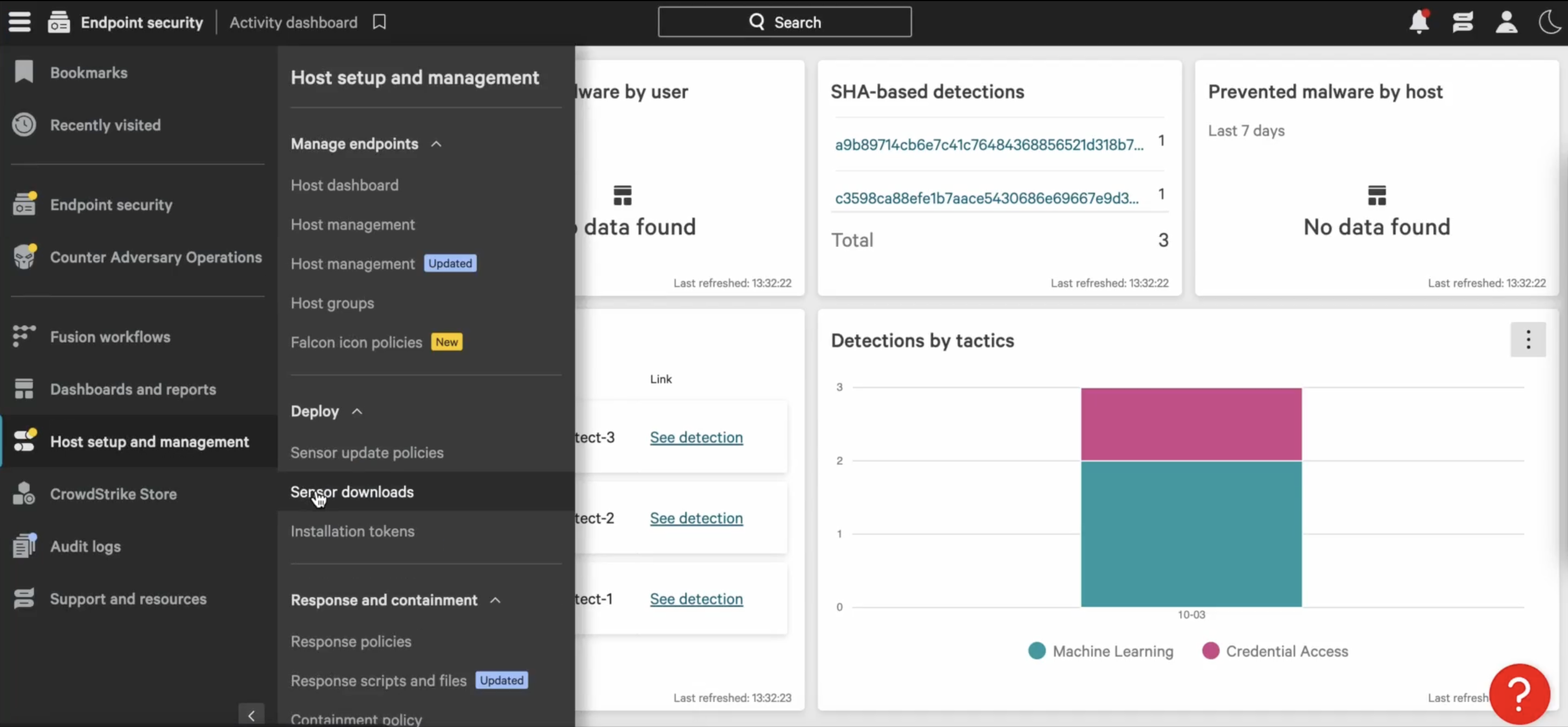
- Click the Download button next to the Windows sensor installer to download the EXE file, named WindowsSensor.exe.
- Copy the Customer ID checksum to your clipboard.

- Generate a download URL for the downloaded EXE file by uploading it to a cloud storage platform/file sharing service.
Step 2: Deploy the CrowdStrike Falcon sensor using Hexnode UEM
There are two methods to deploy the CrowdStrike Falcon sensor on your Windows devices:
Method 1: Execute a script to deploy the sensor installer to the devices.
- Login to the Hexnode UEM portal.
- Go to the Manage tab and select the required devices.
- Click on the Actions drop-down and select the Execute Custom Script option.
- Click Choose File to upload the PowerShell script given below:
12345678910111213141516171819202122$download_url = "***************************"$CID = "***************************"$filepath = "C:HexnodeLogsfalconsensor.exe"#downloading applicationWrite-Host "Downloading application"$client = new-object System.Net.WebClient$client.DownloadFile($download_url,$filepath)#if (-not(Test-Path -Path $filepath)){Write-Host "Failed to download application from the provided url"}else{Write-Host "Starting app installation process"$argumentList = "/install /quiet /norestart CID=$CID"Write-Host $argumentListStart-Process -FilePath $filepath -ArgumentList $argumentList -WaitWrite-Host "Successfully installed"}
Assign the generated download URL to the variable
$download_urland the customer ID checksum copied from the CrowdStrike console to the variable$CID. Determine a location on the device for the installer and assign it to the variable $filepath. - Click Execute.
- Navigate to the Action History tab of the devices to check if the sensor has been installed successfully.

Method 2: Deploy the CrowdStrike Falcon sensor EXE file using the Install Application action.
- Login to the Hexnode UEM portal. Add the downloaded app into Hexnode app inventory
- In the Hexnode UEM portal, navigate to Manage > Devices.
- Select the required devices.
- Click Actions > Install Application.
- Select the uploaded CrowdStrike Falcon sensor from the app list.
- Click Configure to specify the installation settings.
- Check the options Install silently, Install app at system level and Add installation commands.
- Enter the installation parameters in the format:
1/install /quiet /norestart CID=< Enter the customer ID with checksum >
For example, if the CID is X2256702-FJSQE, the parameters will be:
1/install /quiet /norestart CID=X2256702-FJSQE - Choose the Success Criteria.
For instance, if you choose Registry Exists as the success criterion, select HKLM as the registry file and enter SOFTWARECrowdStrike as the registry path.
- Set the Installation timeout(minutes) and Retry options according to your preferences.
- Click Install.
- Navigate to the Action History tab of the devices to check if the sensor has been installed successfully.

- In the CrowdStrike Falcon portal, navigate to Host setup and management > Manage endpoints > Host management to view the devices on which the sensor is deployed.

Once successfully deployed, CrowdStrike Falcon will begin to protect the devices from malware and other potential attacks through the installed sensor.
See also:
Deploy Windows EXE apps using Hexnode UEM
Frequently Asked Questions
1. What happens if the admin deploys the sensor to a device that already has another antivirus installed?
CrowdStrike Falcon is designed to coexist with other security solutions; however, for optimal performance, the admin should configure mutual exclusions. Some legacy AVs may flag the Falcon sensor’s installation as suspicious. The admin should ideally phase out the previous AV once the Falcon sensor is confirmed to be in “Normal” state.
2. How does the admin handle sensor updates after the initial deployment?
The admin does not need to manually redeploy the EXE for every update. CrowdStrike Falcon is a “cloud-native” sensor, meaning once the initial version is installed, it can be configured to auto-update via the CrowdStrike Falcon Console’s Sensor Update Policies.
3. Is a reboot required after the sensor is deployed via Hexnode?
Generally, no. The Falcon sensor is designed to start protecting the host immediately without a reboot. However, if the admin is deploying to a highly sensitive server or a device with pending Windows updates, the /norestart flag in the script ensures the deployment doesn’t interrupt the user. The admin may choose to schedule a reboot later to ensure all kernel-level drivers are fully initialized.
Troubleshooting
1. “Invalid Customer ID” message in Hexnode UEM Action History.
Probable Cause:
The Customer ID was entered without the checksum or contains hidden spaces/special characters from copying.
Solution:
The admin should re-copy the Customer ID directly from the CrowdStrike portal and ensure it includes the trailing characters after the main string.
2. “Failed to download application” message in Hexnode UEM Action History.
Probable Cause:
The cloud storage URL provided in the script has expired.
Solution:
The admin should test the URL in a private browser tab. If it doesn’t trigger an immediate download, the link needs to be replaced with a direct download link.
Best Practices
- Verify the Customer ID: The most common “silent” failure is a typo in the Customer ID. The admin should always double-check that the string is exactly as it appears in the CrowdStrike portal, including any special characters.
- Sync Devices: Before deploying a major security tool, the admin should trigger a “Scan Device” action. This ensures that the device is communicating with Hexnode.


