


Category filter
Usage Insights Reports in Hexnode UEM
The Usage Insights reports in Hexnode provide a detailed view of device activity and data usage across your organization. They help administrators track network data consumption, monitor apps and device usage, and understand how devices are used in real time. Usage Insights include two main report types, Data Usage and Device Usage.
Together, these reports help administrators monitor device behaviour and data usage effectively. You can use the Schedule Report button to generate reports at specific intervals and send them to the required recipients via email. Moreover, you can also Export the report to your device as a PDF or CSV file.
Creating Data Usage Reports
Data Usage Reports provide a summary of network data usage across Android and iOS devices in the Hexnode portal that have a Network Data Usage Management policy configured. You can also obtain a data management report based on the applications installed on Android devices. Data Usage reports are available for the following entities:
- Devices
- Apps
- Device groups
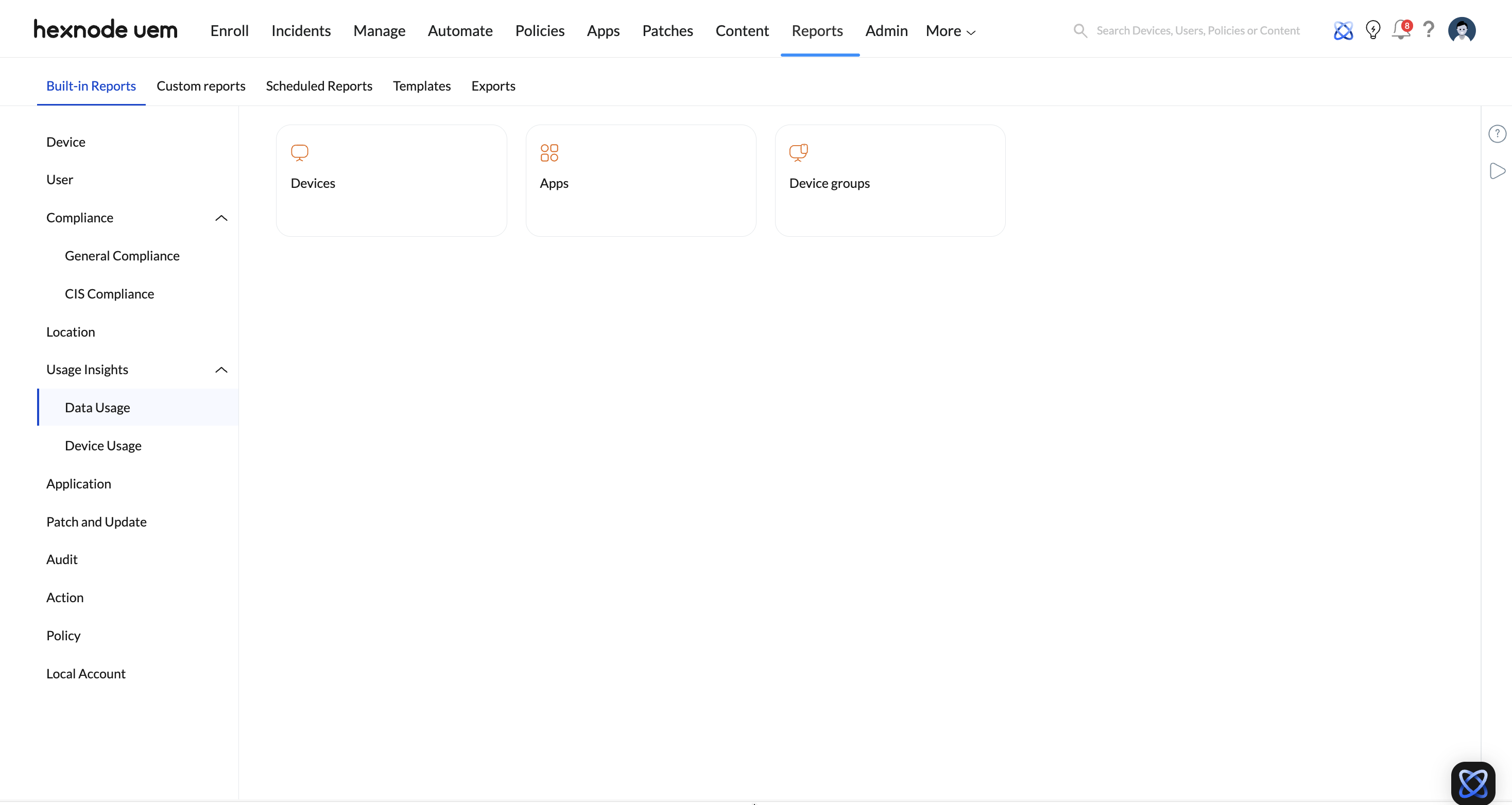
Devices
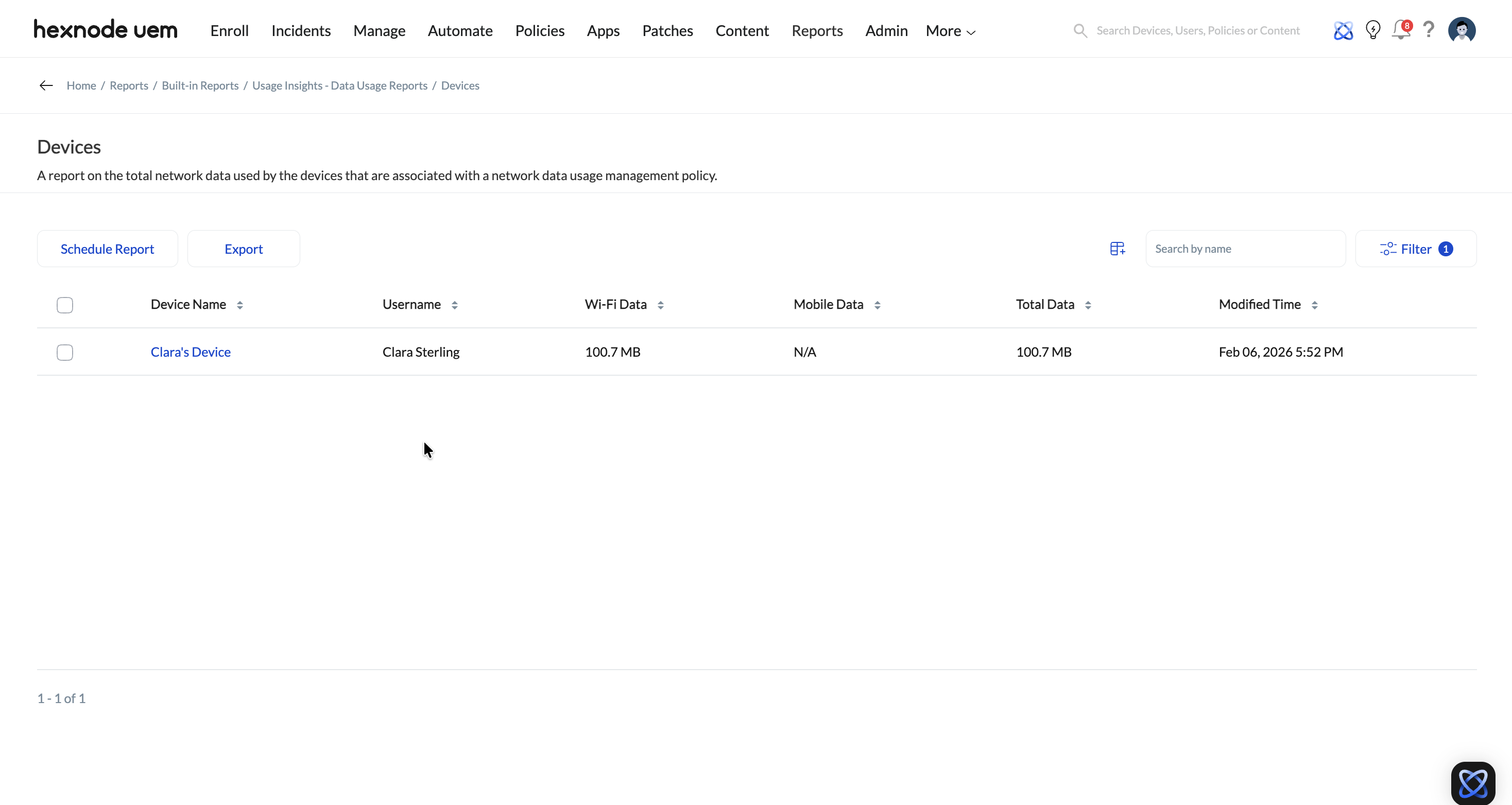
Displays a summary of network data (Mobile Data, Wi-Fi Data and Total Data) used by devices enrolled in the Hexnode portal to which a Network Data Usage Management policy is associated.
To generate a data usage report of devices:
- Log in to your Hexnode portal.
- Navigate to Reports > Built-in Reports > Usage Insights > Data Usage.
- Click on Devices.
The report contains the following details:
- Device Name: Name of the device.
- Username: Name of the user associated with the device.
- Wi-Fi Data: Displays the data consumed by the device using Wi-Fi.
- Mobile Data: Displays the data consumed by the device using mobile data.
- Total Data: Displays the total data consumed by all the devices in the device group, including mobile data, Wi-Fi data and other data usages such as data consumed by the Android OS and data shared via tethering.
- Modified Time: Displays the last updated date and time of the network data usage.
- Serial Number: Serial number of the device.
Apps
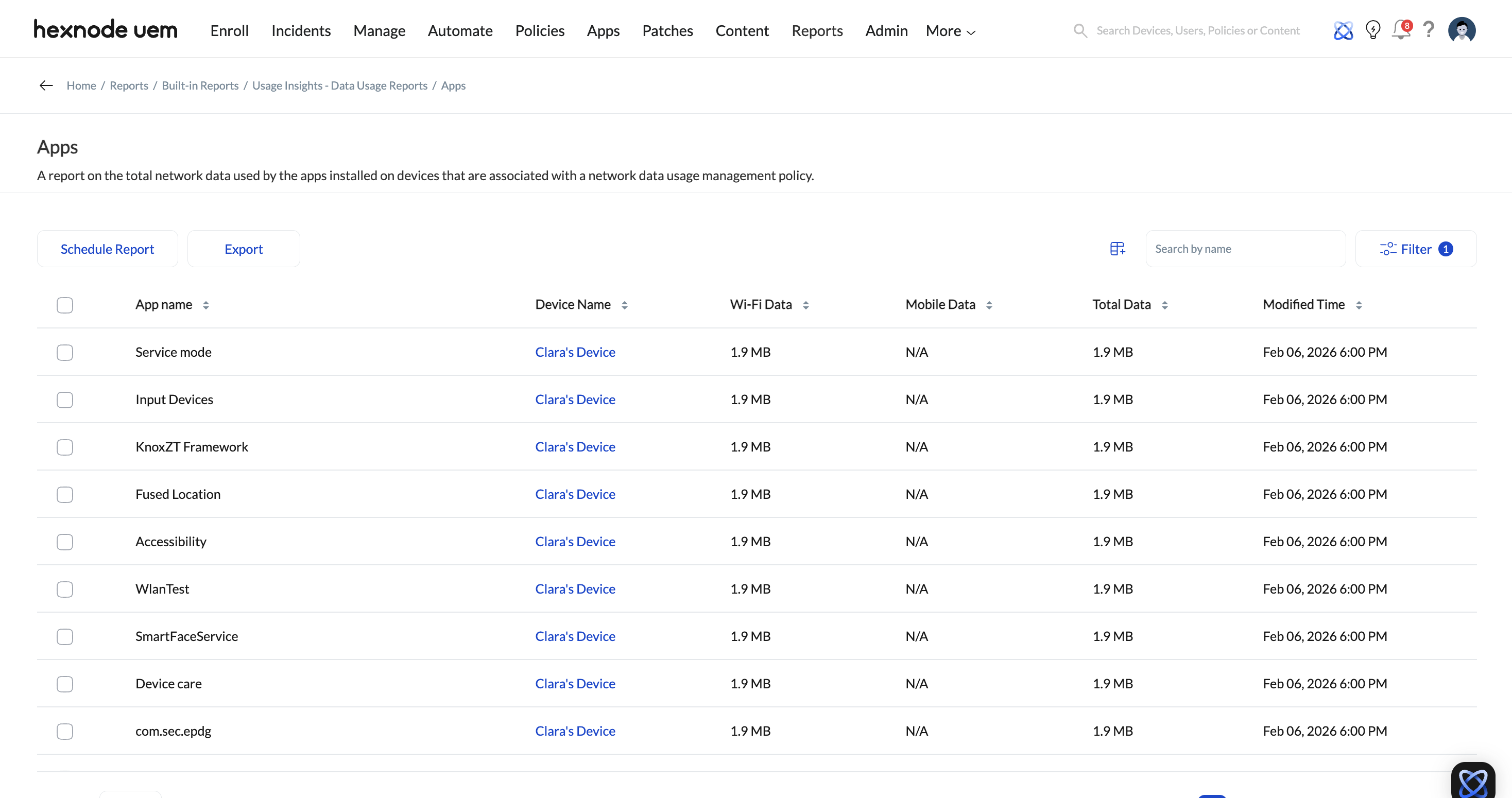
Displays a summary of network data (Mobile Data, Wi-Fi Data and Total Data) used by the applications installed on Android devices enrolled in the Hexnode portal to which a Network Data Usage Management policy is associated.
To generate a data usage report of applications:
- Log in to your Hexnode portal.
- Navigate to Reports > Built-in Reports > Usage Insights > Data Usage.
- Click on Apps.
The report contains the following details:
- App Name: Name of the application.
- Device Name: Name of the device on which the application is installed.
- Wi-Fi Data: Displays the data consumed by the application using Wi-Fi.
- Mobile Data: Displays the data consumed by the application using Mobile Data.
- Total Data: Displays the total data consumed by the application including mobile data and Wi-Fi data.
- Modified Time: Displays the last updated date and time of the network data usage.
- Serial Number: Serial number of the device.
Device Groups
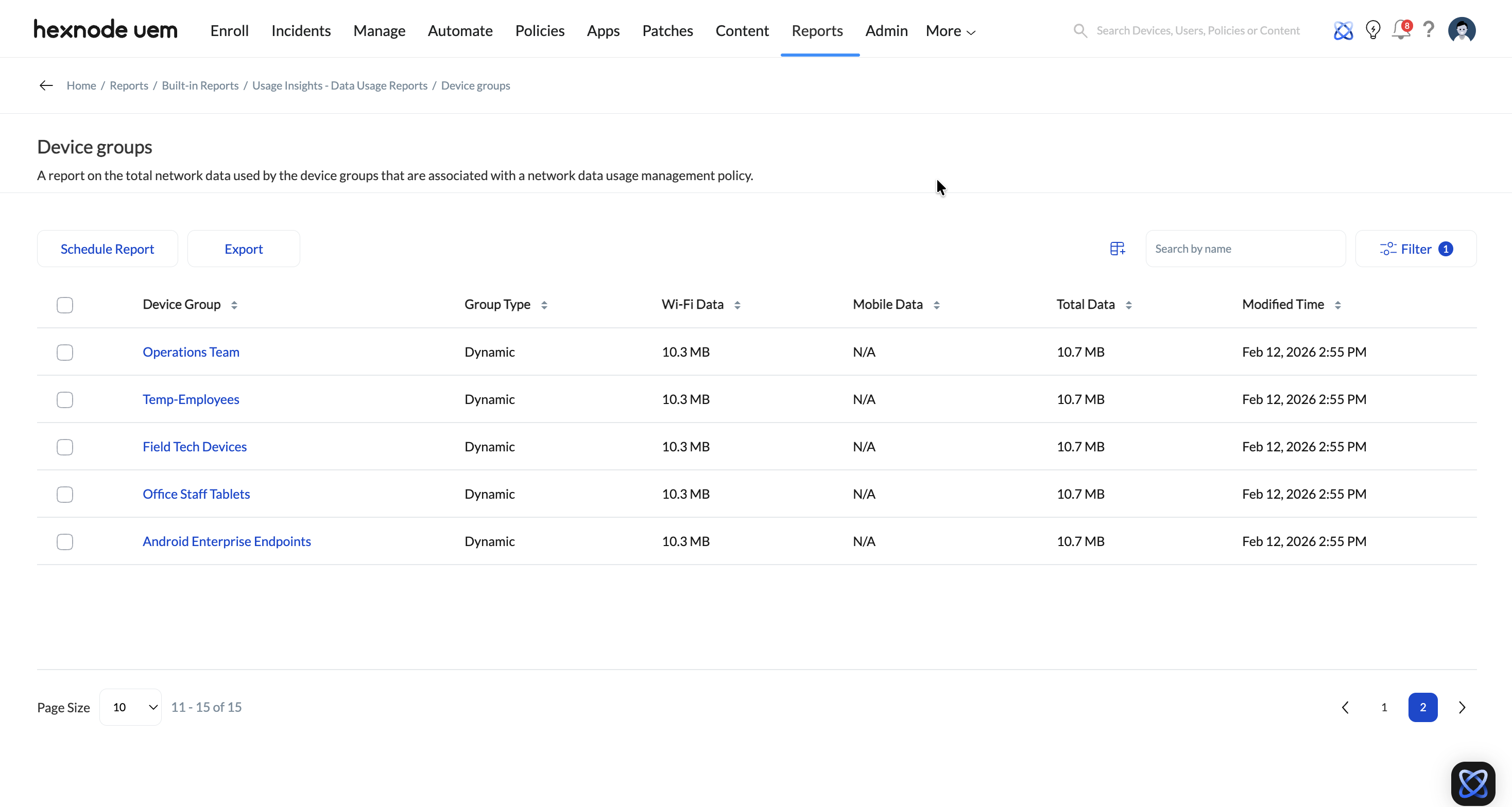
Displays a summary of network data (Mobile Data, Wi-Fi Data and Total Data) used by the Custom Device Groups or Dynamic Device Groups configured in the Hexnode portal to which a Network Data Usage Management policy is associated.
To generate a data usage report of device groups:
- Log in to your Hexnode portal.
- Navigate to Reports > Built-in Reports > Usage Insights > Data Usage.
- Click on Device Groups.
The report contains the following details:
- Group Name: Name of the device group.
- Group Type: Type of the device group – Custom or Dynamic.
- Wi-Fi Data: Displays the Wi-Fi data consumed by all the devices in the device group.
- Mobile Data: Displays the mobile data consumed by all the devices in the device group.
- Total Data: Displays the total data consumed by all the devices in the device group, including mobile data, Wi-Fi data and other data usages such as data consumed by the Android OS and data shared via tethering.
- Modified Time: Displays the last updated date and time of the network data usage.
Creating Device Usage reports
The Device Usage reports highlight how Android devices are used. They include key activity metrics such as app usage duration, total screen-on time, unlock count, and number of missed notifications for each app. Device Usage reports are available for the following entities:
- Application Usage
- Screen Time
- Unlock Count
- Missed Notification Counts
Application Usage
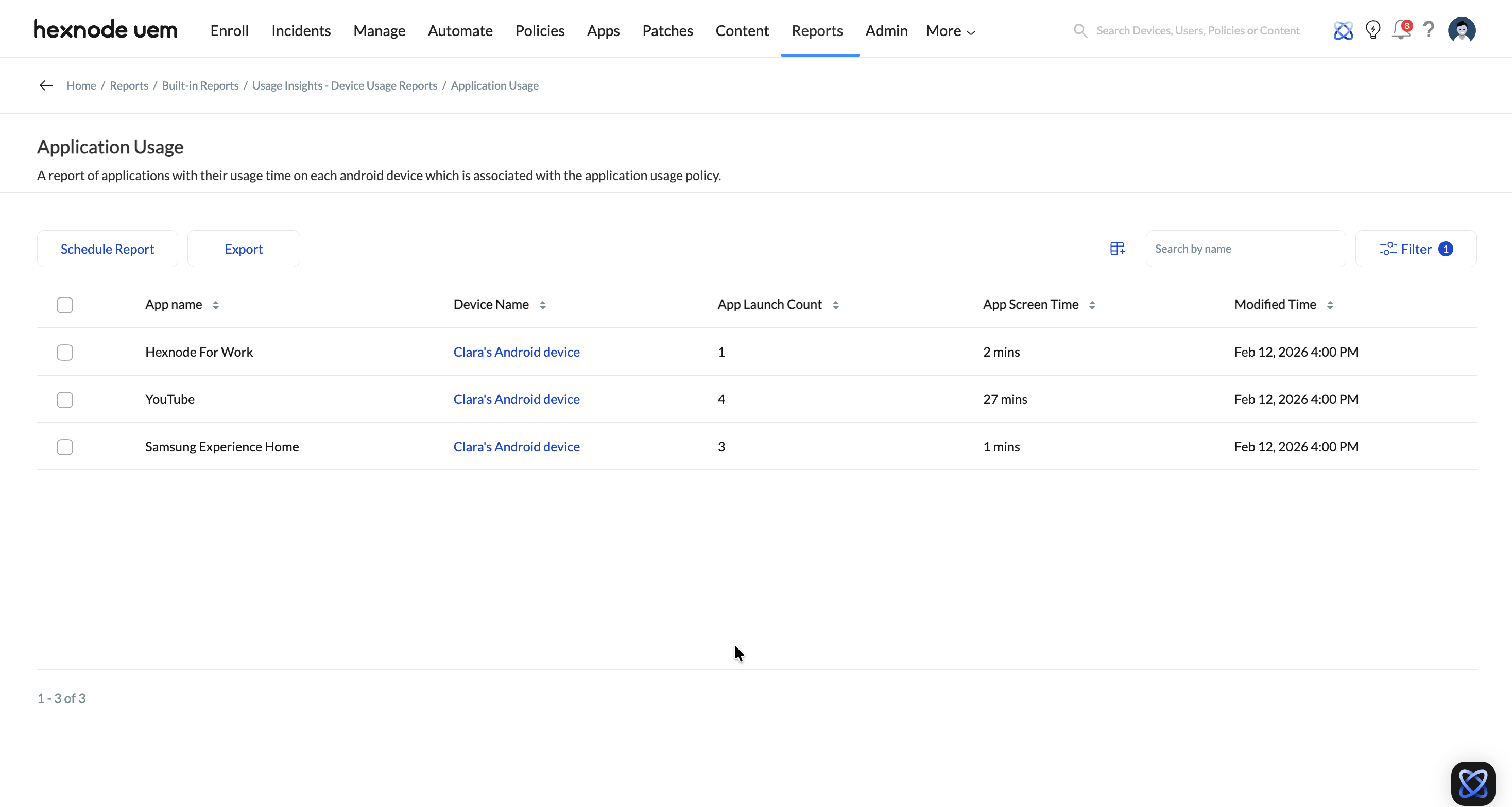
The Application Usage report shows how long each app is used on Android devices that have the Application Usage Management policy applied. The report retrieves usage data from the time the policy is successfully associated with the device. It helps admins monitor app activity and understand how apps are being used.
To generate a device usage report of applications:
- Log in to your Hexnode portal.
- Navigate to Reports > Built-in Reports > Usage Insights > Device Usage.
- Click on Application Usage.
The report contains the following details:
- Device Name: Shows the name of the device where the app is installed.
- App Name: Displays the name of the application.
- App Version: Indicates the version of the app installed on the device.
- App Publisher: Shows the developer or publisher of the app.
- App Category: Displays the category the app belongs to.
- App License Type: Indicates whether the app is free, paid, or enterprise.
- Platform: Shows the operating system of the device.
- App Launch Count: Displays how many times the app was opened.
- App Screen Time: Shows the total time the app was used.
- Modified Time: Indicates the last time the app usage data was updated.
Screen Time
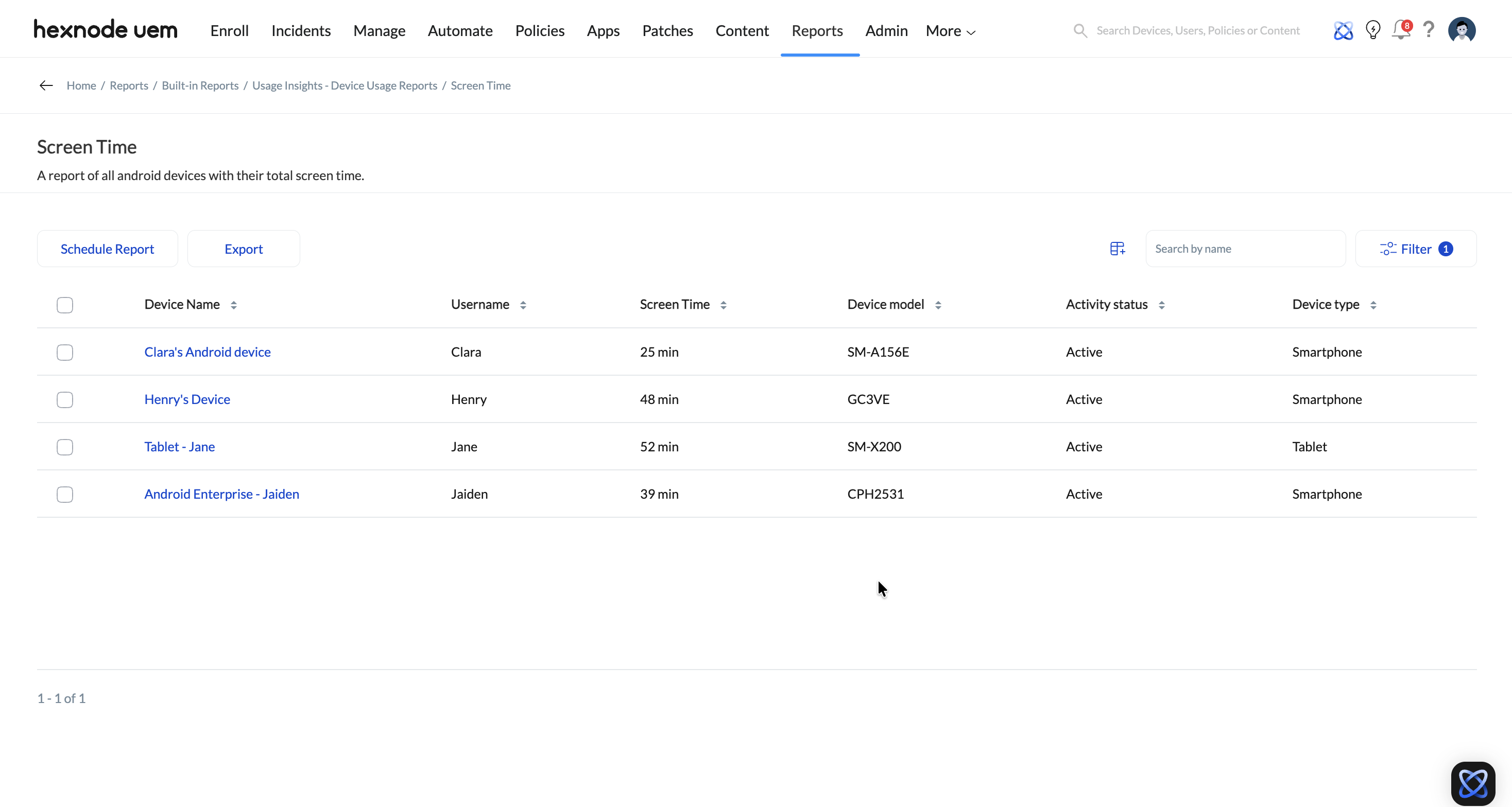
The Screen Time report lists all Android devices along with their total screen time duration. Screen time data is recorded from the time the device is enrolled in the portal. It helps admins track how long device screens stay active and monitor overall device usage.
To generate a device usage report of applications:
- Log in to your Hexnode portal.
- Navigate to Reports > Built-in Reports > Usage Insights > Device Usage.
- Click on Screen Time.
The report contains the following details:
- Device name: The name of the device.
- Device group: List of all device groups associated with the device.
- Device model: Specific model of the device.
- Ownership: Shows if the device is Corporate or Personal.
- Platform: The operating system of the device.
- OS version: Current operating system version of the device.
- Manufacturer: The manufacturer of the device (e.g., Apple, Samsung).
- Device ID: Device ID assigned by the portal.
- Battery level: Current battery level of the device.
- Department: Department associated with the device.
- Asset tag: Custom label assigned to a device for identification.
- Device notes: Custom description added to a device.
- UDID: Unique Device Identifier used to map devices enrolled in UEM.
- MEID: Mobile Equipment Identifier (a unique 14-digit number) for identifying a physical mobile device.
- Serial number: The serial number of the device.
- Enterprise Management Type: Enrollment type of device, specific to Android devices (e.g., Generic, Android Enterprise).
- Enrolled time: Date and time when the device was enrolled.
- Disenrolled time: Date and time when the device was disenrolled.
- Last checked-in time: Date and time of the last check-in from the device.
- Available internal storage: Amount of available internal storage on the device.
- Used internal storage: Amount of internal storage currently used on the device.
- Total internal storage: The total internal storage capacity of the device.
- Installed RAM: Amount of RAM installed on the device.
- Processor name: Name of the device’s processor.
- OS name: Name of the operating system installed on the device.
- Device type: Type of device (e.g., smartphone, tablet, PC, etc.).
- Device Configuration: Configuration profile or settings applied to the device.
- Agent Type: Type of agent installed on Android devices (e.g., General Android, Samsung Knox).
- License Activation Date: Date on which the Hexnode license was activated on the device.
- Enrollment Type: The method used to enroll the device (e.g., manual, Apple ADE, Zero-touch).
- EID: Embedded Identity Document number, associated with eSIM if available.
- Build Version: The software or firmware version currently running on the device.
- OU Name: The Organizational Unit to which the device is assigned within the organization.
- Screen Time: Displays the total screen time of the Android device.
- Username: The username of the user associated with the device.
- Email: The primary email address of the user associated with the device.
- Alternate email: Alternate email address associated with the user.
- Domain name: Domain name associated with the user account or device.
- User type: Type of user (e.g., AD, Microsoft Entra ID, Google Workspace, local).
- SAMAccountName: Security Account Manager (SAM) account name associated with the user in Active Directory.
- Title (AD): Job title of the user as listed in Active Directory.
- Department (AD): Department of the user as listed in Active Directory.
- Office location (AD): Office location of the user as listed in Active Directory.
- User Group: Group to which the user belongs.
- Phone number SIM 1: Phone number associated with SIM card 1.
- IMEI SIM 1: IMEI number associated with SIM card 1.
- Current carrier network SIM 1: Wireless carrier network for SIM card 1.
- ICCID SIM 1: ICCID number associated with SIM card 1.
- Phone number SIM 2: Phone number associated with SIM card 2.
- IMEI SIM 2: IMEI number associated with SIM card 2
- Current carrier network SIM 2: Wireless carrier network for SIM card 2.
- ICCID SIM 2: ICCID number associated with SIM card 2.
- IMSI: International Mobile Subscriber Identity associated with the device’s SIM card.
- SIM carrier network: Carrier network associated with the SIM card in the device.
- Roaming enabled: Indicates if the device has roaming enabled.
- International data roaming: Status of international data roaming on the device.
- Home carrier: The device’s home carrier network.
- Home country: Country of the device’s home carrier network.
- Last connection date: Date of the device’s last network connection.
- Wi-Fi IP Address: IP address of the Wi-Fi network the device is connected to.
- Ethernet IP Address: IP address of the Ethernet connection, if available.
- Personal Hotspot: Indicates if the device’s personal hotspot feature is enabled.
- Bluetooth MAC address: MAC address of the device’s Bluetooth interface.
- Ethernet MAC address: MAC address of the device’s Ethernet interface
- Wi-Fi MAC address: MAC address of the device’s Wi-Fi interface.
- Wi-Fi SSID: SSID (Service Set Identifier) of the Wi-Fi network the device is connected to.
- Current MCC: Mobile Country Code of the current network the device is connected to.
- Current MNC: Mobile Network Code of the current network the device is connected to.
- Subscriber MCC: Mobile Country Code of the subscriber’s carrier network.
- Subscriber MNC: Mobile Network Code of the subscriber’s carrier network.
- Activity status: Displays whether the device is Active or Inactive.
- Enrollment status: Shows the current enrollment status of the device (e.g., enrolled, disenrolled).
- Compliance status: Indicates whether the device is compliant or non-compliant with policies.
- Application compliance status: Compliance status based on the applications installed on the device.
- Password compliance status: Compliance status based on the device’s password settings.
- Geofence compliance status: Compliance status based on the device’s location in relation to geofencing policies.
- Kiosk mode: Indicates if the device is in kiosk mode.
- Lost mode: Status of whether the device is in lost mode.
- Rooted: Indicates if the device has been rooted.
- MDM profile: Indicates if the MDM profile is installed on the device.
- Root Access: Displays if the device has root access enabled.
Unlock Count
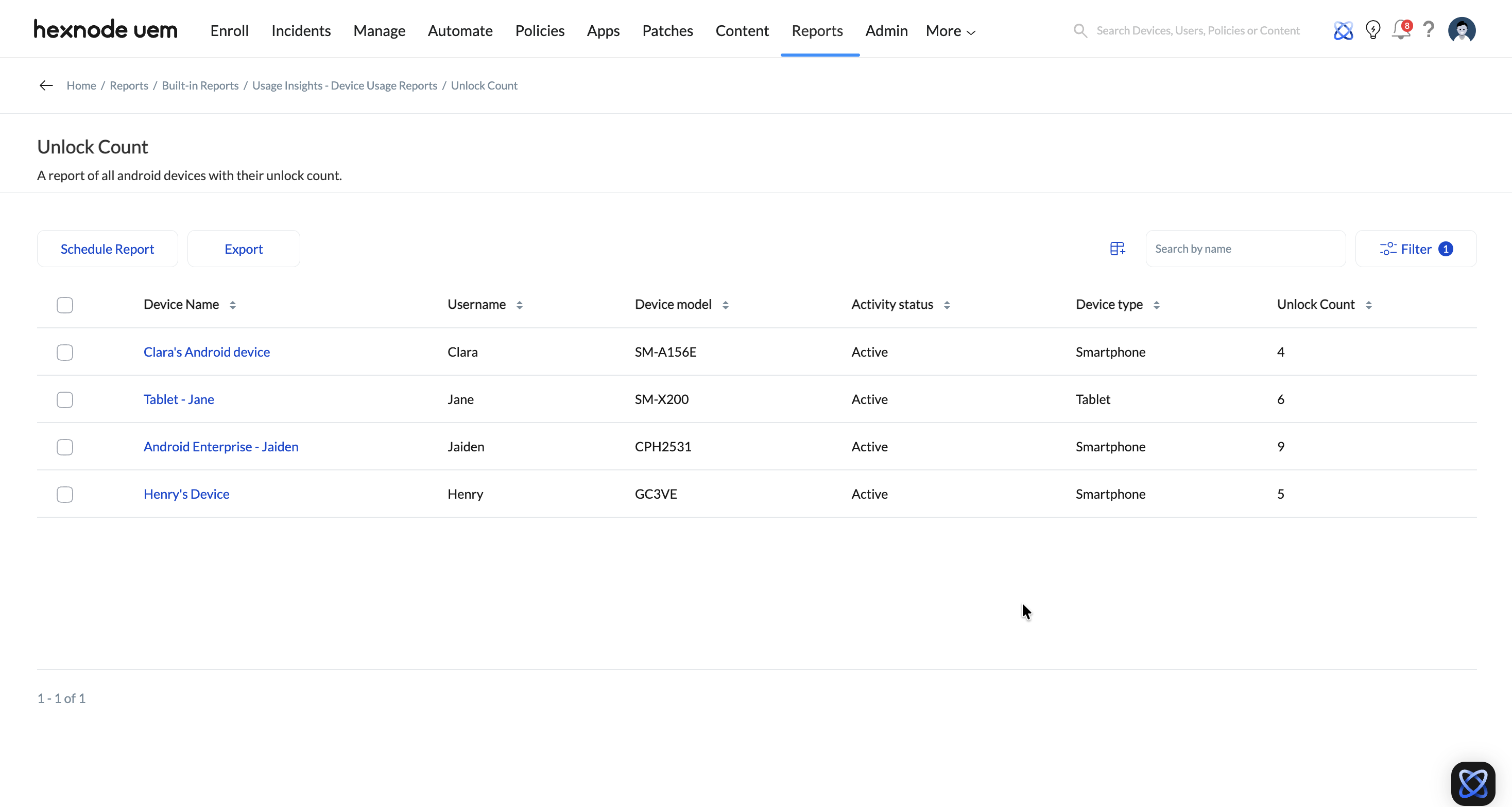
The Unlock Count report shows how many times each Android device has been unlocked. Unlock activity is recorded from the time the device is enrolled in the portal. It gives an overview of overall device activity and usage behavior.
To generate a device usage report of applications:
- Log in to your Hexnode portal.
- Navigate to Reports > Built-in Reports > Usage Insights > Device Usage.
- Click on Unlock Count.
The report contains the following details:
- Device name: The name of the device.
- Device group: List of all device groups associated with the device.
- Device model: Specific model of the device.
- Ownership: Shows if the device is Corporate or Personal.
- Platform: The operating system of the device.
- OS version: Current operating system version of the device.
- Manufacturer: The manufacturer of the device (e.g., Apple, Samsung).
- Device ID: Device ID assigned by the portal.
- Battery level: Current battery level of the device.
- Department: Department associated with the device.
- Asset tag: Custom label assigned to a device for identification.
- Device notes: Custom description added to a device.
- UDID: Unique Device Identifier used to map devices enrolled in UEM.
- MEID: Mobile Equipment Identifier (a unique 14-digit number) for identifying a physical mobile device.
- Serial number: The serial number of the device.
- Enterprise Management Type: Enrollment type of device, specific to Android devices (e.g., Generic, Android Enterprise).
- Enrolled time: Date and time when the device was enrolled.
- Disenrolled time: Date and time when the device was disenrolled.
- Last checked-in time: Date and time of the last check-in from the device.
- Available internal storage: Amount of available internal storage on the device.
- Used internal storage: Amount of internal storage currently used on the device.
- Total internal storage: The total internal storage capacity of the device.
- Installed RAM: Amount of RAM installed on the device.
- Processor name: Name of the device’s processor.
- OS name: Name of the operating system installed on the device.
- Device type: Type of device (e.g., smartphone, tablet, PC, etc.).
- Device Configuration: Configuration profile or settings applied to the device.
- Agent Type: Type of agent installed on Android devices (e.g., General Android, Samsung Knox).
- License Activation Date: Date on which the Hexnode license was activated on the device.
- Enrollment Type: The method used to enroll the device (e.g., manual, Apple ADE, Zero-touch).
- EID: Embedded Identity Document number, associated with eSIM if available.
- Build Version: The software or firmware version currently running on the device.
- OU Name: The Organizational Unit to which the device is assigned within the organization.
- Unlock Count: The total number of times the device has been unlocked.
- Username: The username of the user associated with the device.
- Email: The primary email address of the user associated with the device.
- Alternate email: Alternate email address associated with the user.
- Domain name: Domain name associated with the user account or device.
- User type: Type of user (e.g., AD, Microsoft Entra ID, Google Workspace, local).
- SAMAccountName: Security Account Manager (SAM) account name associated with the user in Active Directory.
- Title (AD): Job title of the user as listed in Active Directory.
- Department (AD): Department of the user as listed in Active Directory.
- Office location (AD): Office location of the user as listed in Active Directory.
- User Group: Group to which the user belongs.
- Phone number SIM 1: Phone number associated with SIM card 1.
- IMEI SIM 1: IMEI number associated with SIM card 1.
- Current carrier network SIM 1: Wireless carrier network for SIM card 1.
- ICCID SIM 1: ICCID number associated with SIM card 1.
- Phone number SIM 2: Phone number associated with SIM card 2.
- IMEI SIM 2: IMEI number associated with SIM card 2
- Current carrier network SIM 2: Wireless carrier network for SIM card 2.
- ICCID SIM 2: ICCID number associated with SIM card 2.
- IMSI: International Mobile Subscriber Identity associated with the device’s SIM card.
- SIM carrier network: Carrier network associated with the SIM card in the device.
- Roaming enabled: Indicates if the device has roaming enabled.
- International data roaming: Status of international data roaming on the device.
- Home carrier: The device’s home carrier network.
- Home country: Country of the device’s home carrier network.
- Last connection date: Date of the device’s last network connection.
- Wi-Fi IP Address: IP address of the Wi-Fi network the device is connected to.
- Ethernet IP Address: IP address of the Ethernet connection, if available.
- Personal Hotspot: Indicates if the device’s personal hotspot feature is enabled.
- Bluetooth MAC address: MAC address of the device’s Bluetooth interface.
- Ethernet MAC address: MAC address of the device’s Ethernet interface
- Wi-Fi MAC address: MAC address of the device’s Wi-Fi interface.
- Wi-Fi SSID: SSID (Service Set Identifier) of the Wi-Fi network the device is connected to.
- Current MCC: Mobile Country Code of the current network the device is connected to.
- Current MNC: Mobile Network Code of the current network the device is connected to.
- Subscriber MCC: Mobile Country Code of the subscriber’s carrier network.
- Subscriber MNC: Mobile Network Code of the subscriber’s carrier network.
- Activity status: Displays whether the device is Active or Inactive.
- Enrollment status: Shows the current enrollment status of the device (e.g., enrolled, disenrolled).
- Compliance status: Indicates whether the device is compliant or non-compliant with policies.
- Application compliance status: Compliance status based on the applications installed on the device.
- Password compliance status: Compliance status based on the device’s password settings.
- Geofence compliance status: Compliance status based on the device’s location in relation to geofencing policies.
- Kiosk mode: Indicates if the device is in kiosk mode.
- Lost mode: Status of whether the device is in lost mode.
- Rooted: Indicates if the device has been rooted.
- MDM profile: Indicates if the MDM profile is installed on the device.
- Root Access: Displays if the device has root access enabled.
Missed Notifications Counts
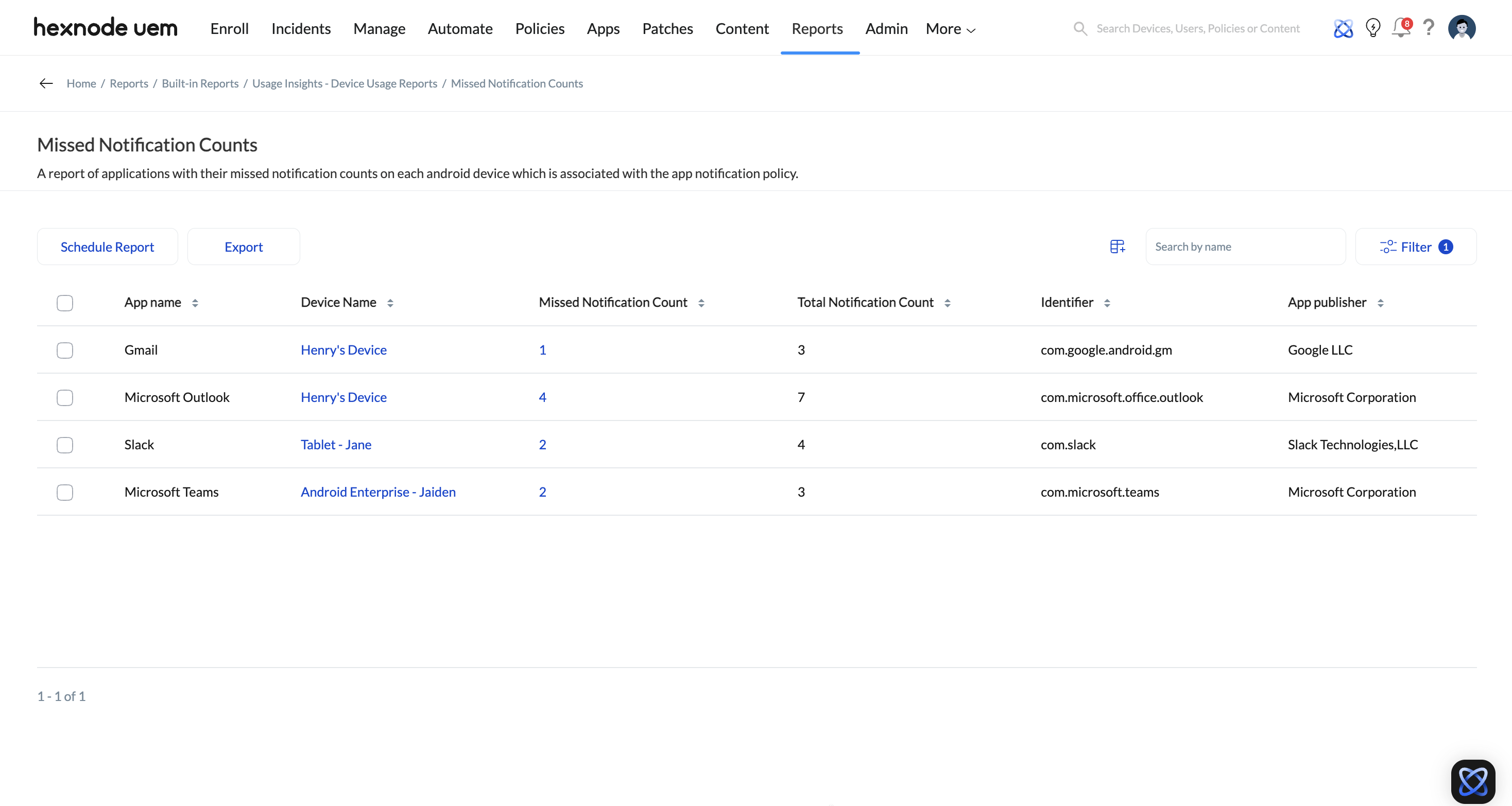
The Missed Notifications Counts report lists the number of notifications missed for each app on Android devices linked to the App Notifications policy. Notification tracking begins once the policy is successfully applied to the devices. It helps identify apps whose notifications are frequently ignored or unattended.
To generate a device usage report of applications:
- Log in to your Hexnode portal.
- Navigate to Reports > Built-in Reports > Usage Insights > Device Usage.
- Click on Missed Notifications Counts.
The report contains the following details:
- Device Name: Shows the name of the device.
- App Name: Displays the name of the application.
- App Version: Indicates the version of the app installed on the device.
- App Publisher: Shows the developer or publisher of the app.
- App Category: Displays the category the app belongs to.
- App License Type: Indicates whether the app is free, paid, or enterprise.
- Platform: Shows the operating system of the device.
- Missed Notification Count: Displays the total number of notifications that were not opened for the app.
- Total Notification Count: Displays the total number of notifications received by the app.
Time Range Filter
All Usage Insights reports, including Data Usage and Device Usage reports, support the Time Range filter. It limits the report to usage data recorded within the selected date range.
Available Time Range filters are:
- All – Displays all recorded usage data since the policy was applied.
- Today – Displays usage recorded for the current day.
- Yesterday – Displays usage recorded for the previous day.
- Last 7 days – Displays usage recorded over the past 7 days.
- Last 30 days – Displays usage recorded over the past 30 days.
- Custom – Displays usage recorded within a user-defined date range.


