


Category filter
Create user account on Windows devices enrolled in Hexnode UEM
The Create User Account remote action in Hexnode UEM allows IT administrators to provision local or directory-synced user profiles on Windows 10 and 11 endpoints over-the-air, streamlining employee onboarding and access management.
Overview of Remote User Provisioning
Remote account creation eliminates the need for manual setup on individual machines. By using the Hexnode console, administrators can define account roles, security credentials, and login behaviors for a distributed workforce from a single interface.
- Scalability: Provision accounts across multiple organizational units simultaneously.
- Security: Enforce complex passwords and specific account roles (Standard vs. Administrator).
- Efficiency: Automate data entry using wildcards for usernames and full names.
Prerequisites and Security Guidelines
Before executing the account creation action, ensure the following technical requirements and best practices are met:
| Requirement | Specification |
|---|---|
| Agent Software | Latest version of the Hexnode UEM app must be installed on the device. |
| OS Compatibility | Windows 10 and Windows 11 Pro, Enterprise, and Education editions. |
| Restricted Characters | Avoid using special characters such as: ¡, ™, £, ¢, ∞, §, ¶, •, ª, º, –, ≠, «, ‘, “, æ, …, ÷, ≥, ≤. |
Step-by-Step Guide: Creating a User Account
Administrators can choose to link an existing Hexnode user to the device or create a completely new local profile.
- Log in to the Hexnode UEM portal.
- Navigate to Manage > Devices and select the target device.
- Click on Actions > Policies & Accounts > Create User Account.
- Select one of the two configuration modes:
A. Choose User from Hexnode
Use this option to sync and map accounts already existing within the portal or integrated directory services.
- Domain: Select the specific local or directory domain.
- User: Choose the existing user from the drop-down.
- Auto-generated Fields: Account Name and Full Name are populated automatically based on the user selection.
B. Create New User
Use this option for manual entry of local account details.
- Account Name: Specify the login name (supports wildcards).
- Full Name: Provide the display name (supports wildcards).
Common Account Configurations
Regardless of the mode selected, you must define the following:
- Description: Details visible under the Local Accounts tab in the portal.
- Account Role: Select Standard (restricted access) or Administrator (full system access).
- Password Management: Set and verify the Password (supports wildcards).
- User must change password at next login: Forces an immediate credential update.
- Password never expires: Bypasses standard password aging policies.
- User cannot change password: Prevents local modification of credentials.
- Password Hint: Text displayed upon incorrect login attempts (supports wildcards).
- Disable Account: Prevents the account from appearing on the login screen or Start menu.
- Click Create.
Device-End Experience
Once the action is successfully pushed and executed:
- The new Username becomes visible on the Windows login screen.
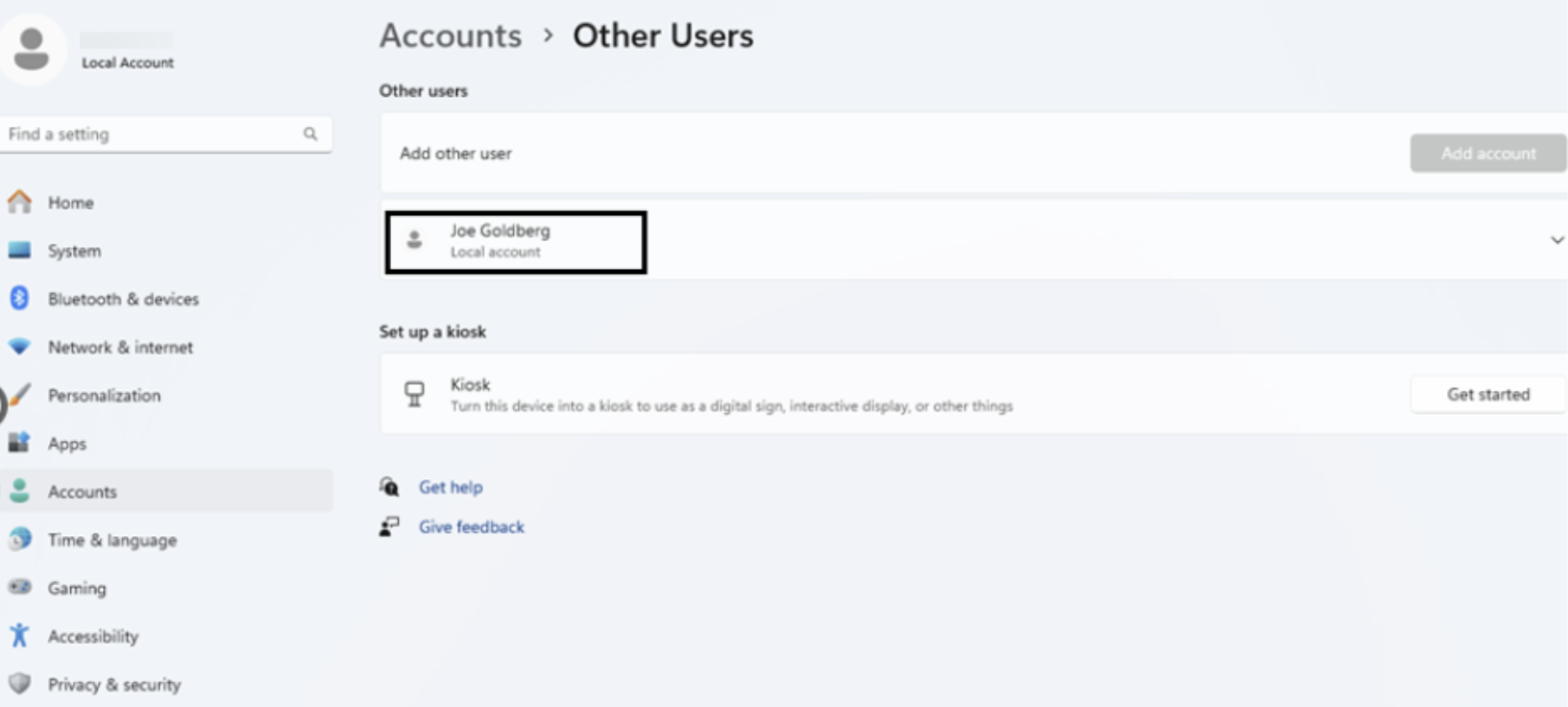
- Administrators can verify the account locally by navigating to Settings > Accounts.
- Hexnode tracks the account under the Local Accounts sub-tab of the specific device in the portal.
Troubleshooting Guides
| Problem | Potential Root Cause | Resolution |
|---|---|---|
| Action Greyed Out / Fails | Outdated Agent app. | Update the Hexnode UEM app to the latest version on the device before retrying. |
| Login Rejected | Unsupported special characters in password. | Re-create the account avoiding restricted characters like ™, £, or ∞. |
| User not visible at Login | Disable Account option was selected. | Re-execute the action or modify the account status to ensure it is not disabled. |
| Wildcards not resolving | Missing data in User profile. | Ensure the user fields in the Users tab are populated before using wildcards in the creation prompt. |
Frequently Asked Questions (FAQs)
Can an Administrator account be created remotely?
Yes. You can select the Administrator role during the creation process to grant the user full elevated privileges on the Windows device.
What happens if wildcards are used?
Wildcards (e.g., %username%) automatically pull data from the user’s information already stored in Hexnode, ensuring the local account matches the portal records without manual typing.
Can multiple accounts be created at once?
While the action is triggered per device, you can select multiple devices in the Manage tab to push the Create User Account action in bulk.
Does “Password never expires” override local Group Policy?
Generally, MDM-set attributes for a specific account take precedence for that user, but it is recommended to align these settings with your organizational GPO.


