


Category filter
Create organizational unit in Hexnode
Technical Overview: Organizational Units (OUs) in Hexnode UEM
An Organizational Unit (OU) is a logical container used to group devices, users, or resources. It enables hierarchical management and policy inheritance across specific subsets of an organization.
Key Architecture & Constraints
- Root Directory: The Hexnode Directory acts as the top-level root.
- Default OUs: Includes predefined Devices and Users OUs.
- Hierarchy Depth: Supports up to 7 levels of nested OUs.
- Assignment Logic: Each device or user can be assigned to only one OU at a time.
- Exclusions: ChromeOS devices cannot be added to an OU.
- Inheritance: Policies applied to a Parent OU are automatically inherited by Child OUs (Sub-OUs).
Step-by-Step: Creating a New OU
Follow these steps to initialize and populate a new unit within the Hexnode UEM console:
- Navigate: Go to the Manage tab > Directory Services.
- Select Root: Under Domains/OUs, select Hexnode Directory.
- Initialize: Click New Organizational Unit (under the Organizational Units section).
Alternative: Click the Folder Icon next to Hexnode Directory.
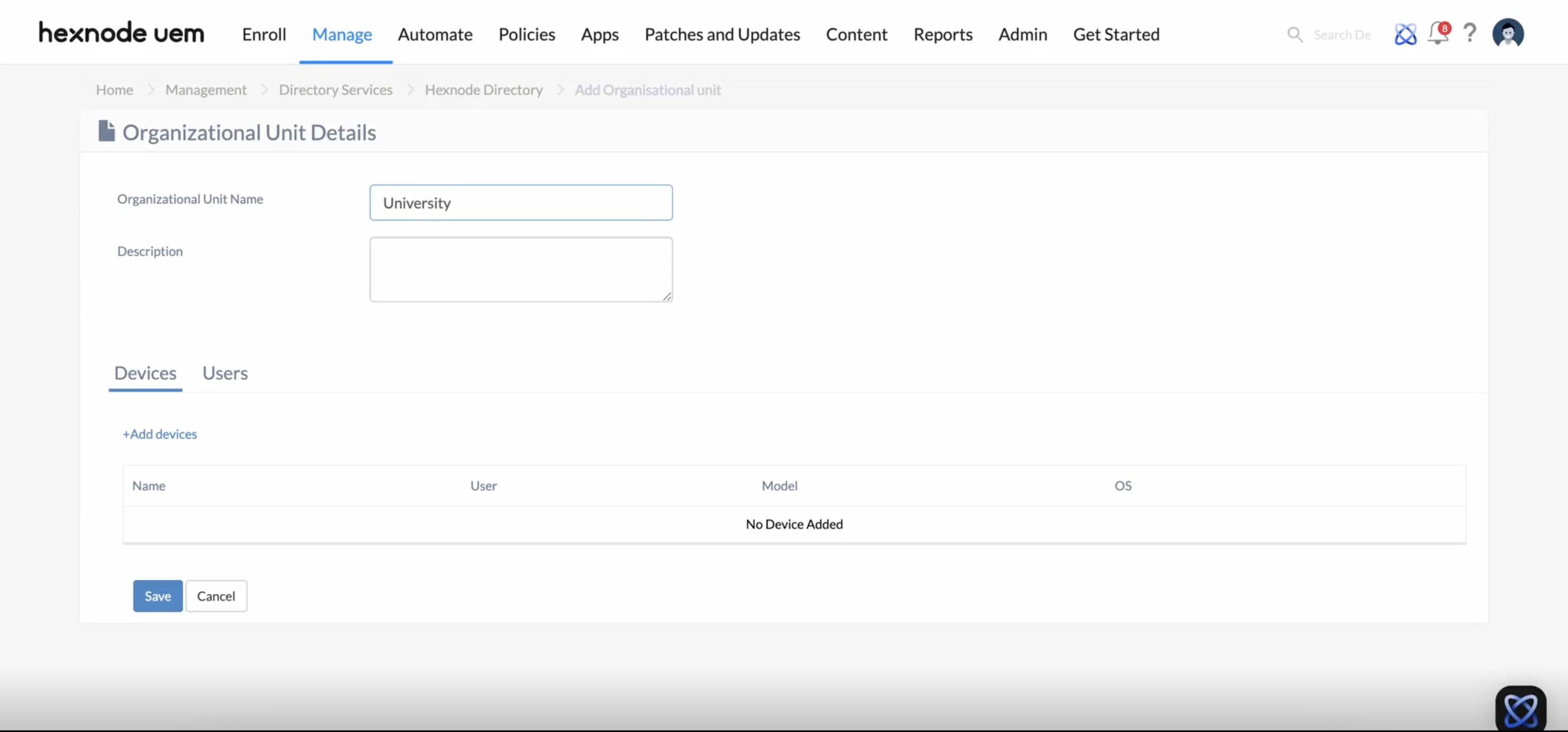
- Configure Details:
- Organizational Unit Name (Required): Enter a unique identifier.
- Description (Optional): Provide context for the OU’s purpose.
- Assign Assets:
- Devices: Click +Add devices to select and bind specific hardware.
- Users: Click +Add users to select and bind specific personnel.
- Finalize: Click Save.
Management & Lifecycle Actions
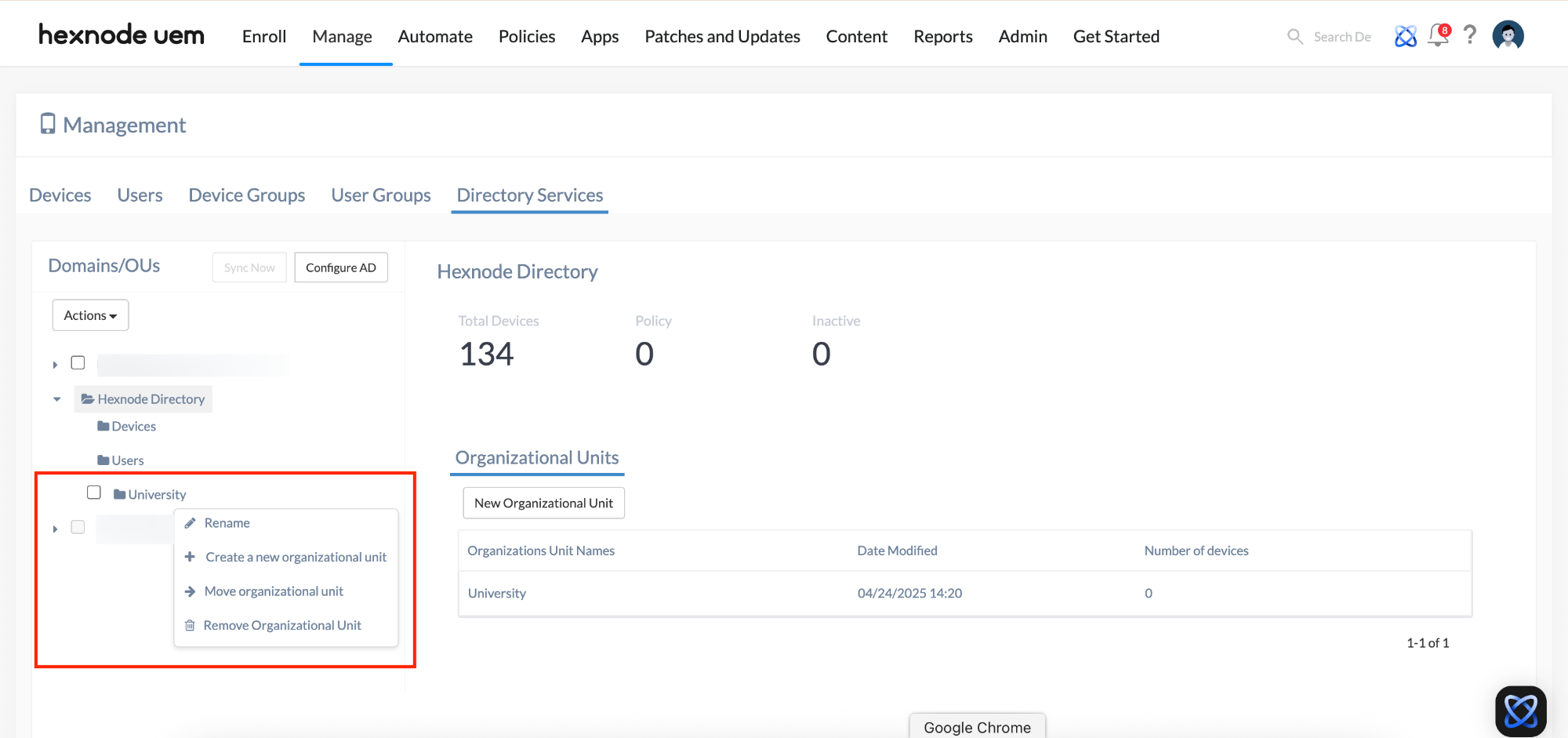
Once an OU is created, it is listed under the Organizational Units sub-tab. Use the three-dot menu next to any unit to perform the following operations:
| Action | Result |
|---|---|
| Rename | Modifies the display name of the OU. |
| Create a new organizational unit | Generates a Sub-OU nested within the selected unit. |
| Move organizational unit | Transfers the OU and its contents to a different Parent unit. |
| Remove organizational unit | Deletes the selected unit from the directory. |
Frequently Asked Questions (FAQs)
- What can I see and manage when I select a specific OU?
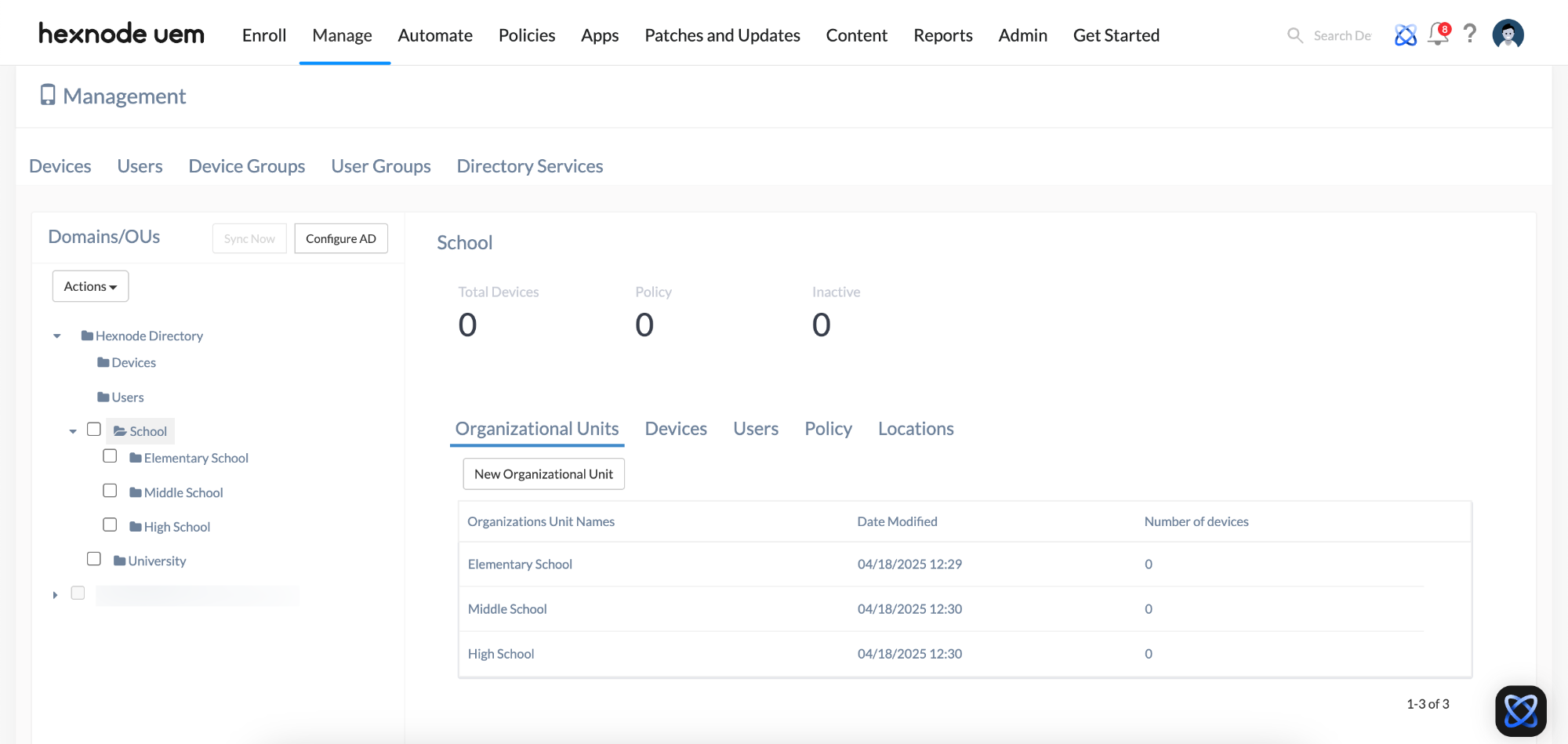
Selecting an OU provides a centralized view of its entire ecosystem. This includes:
- Data View: A list of all nested Sub-Organizational Units, as well as the specific Devices and Users associated with that unit.
- Policy Associations: You can view and manage the specific Security Policies and configurations linked directly to that OU.
- Location Tracking: You can view the Geographic Locations corresponding to the assets assigned to that specific Organizational Unit.
- Does deleting an OU delete the users inside it?
No. Removing an OU deletes the organizational container. The users/devices remain in the system but will need to be reassigned to a new OU.
- What criteria can I use to group users or devices?
You can create custom OUs to group assets based on any classification relevant to your business, including:
- Departments (e.g., Marketing, HR)
- Job Roles (e.g., Managers, Interns)
- Locations (e.g., New York Office, London Branch)
- Project Teams or other custom categories.


