


Category filter
How to configure Exchange ActiveSync on Android devices?
Configuring Exchange ActiveSync on Android devices via Hexnode UEM ensures seamless synchronization of Mail, Calendar, Contacts, Reminders and other accounts. This setup allows users to maintain productivity by accessing corporate data securely, even offline.
Prerequisites and Compatibility
Before starting the configuration, please note the following technical requirements:
- Device Support: This feature is specifically designed for Samsung Knox devices.
- Version Limits: Supported on Android versions below 9 and Knox versions below 3.2.1.
How to Configure Exchange ActiveSync for Android
Follow these steps to set up the ActiveSync profile within the Hexnode UEM console:
- Login: Access your Hexnode UEM portal.
- Navigate to Policies: Go to the Policies tab.
- Create/Edit Policy: Select an existing policy or click New Policy to create a fresh one.
- Configure Account: Go to Android > Accounts > Exchange ActiveSync and click Configure.
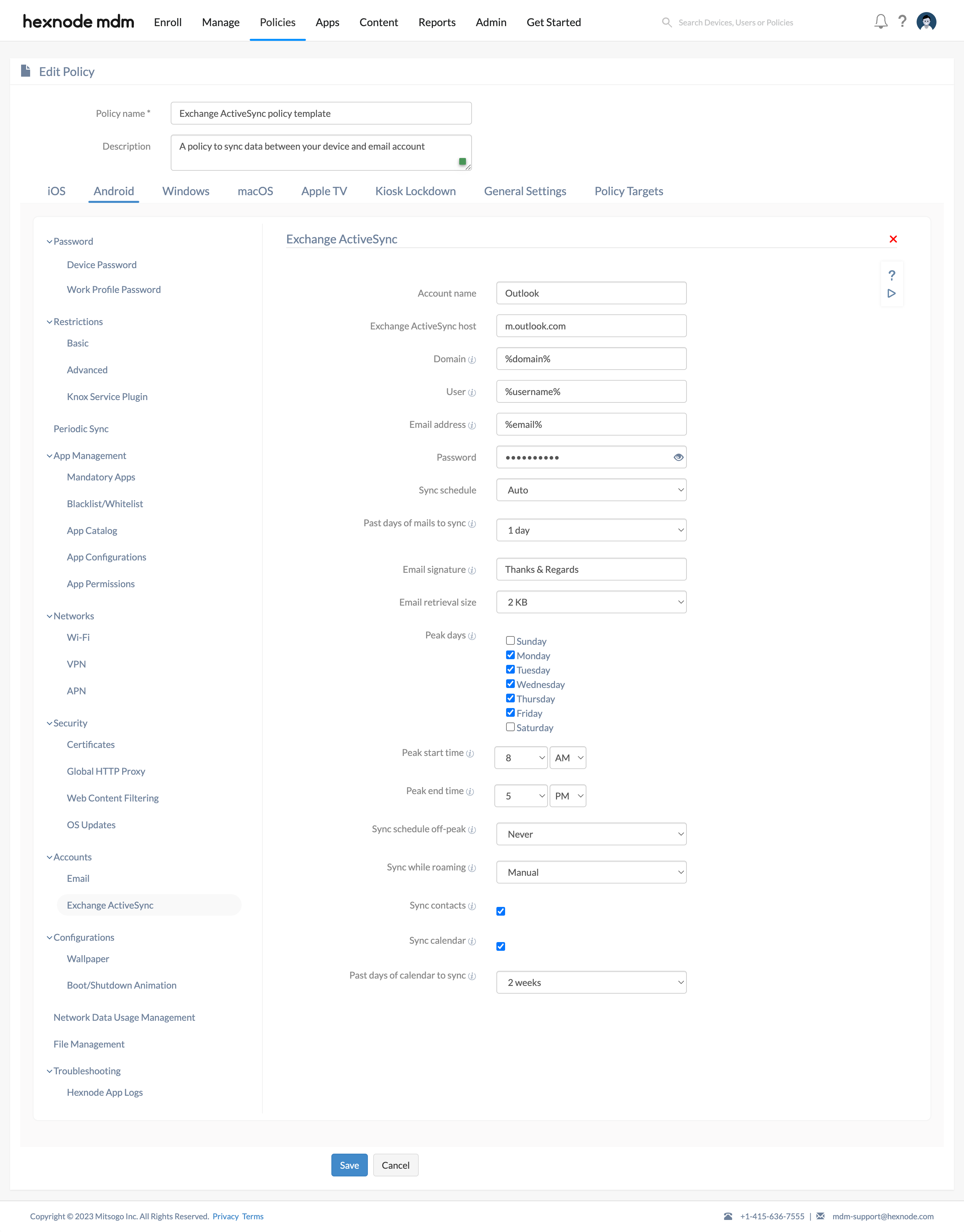
Configuration Settings Reference
| Setting | Description |
|---|---|
| Account name | A unique identifier for the ActiveSync setting. |
| Exchange ActiveSync host | The hostname of your corporate ActiveSync server. |
| Domain | The domain name (optional) or the NetBIOS name of the user. Supports wildcards: %domain%, %netbiosname%. |
| User | The email address of the user. If this isn’t provided as a parameter, the policy won’t take effect. Supports wildcards: %username%, %userprincipalname%, %email%. |
| Email address | The email address of the user to sync messages with their device. Supports wildcards: %userprincipalname%, %email%. |
| Password | The password associated with the email address in the User field. |
| Sync schedule | Frequency to sync emails during peak time. Options: Auto (default), Manual, 15 min, 30 min, 1 hr, 2 hr, 4 hr. |
| Past days of mail to sync | Number of past days of email to sync. Options: 1 day (Default), 3 days, 1 week, 2 weeks, or 1 month. |
| Email signature | The default signature for outgoing emails. Supports wildcards: %username%, %email%, %phonenumber%. |
| Email retrieval size | Size limit for downloads. Above this, only headers download until opened. Options: 1KB, 2KB (Default), 5KB, 10KB, 20KB, 50KB, or 100KB. |
| Peak days | Select the specific days of the week to be considered “Peak” for syncing. |
| Peak start/end time | Set the specific window for when Peak sync frequency should be active. |
| Sync schedule off-peak | Frequency to sync during off-peak times. Options: Automatic push, Never (Default), 5 min, 10 min, 15 min, 30 min, 1 hour, 4 hours or 12 hours. |
| Sync while roaming | Sync frequency when roaming. Options: Manual (Default) or Use sync schedule settings (inherits above settings). |
| Sync contacts | Enable this to sync device contacts with the server (includes GAL and Google Workspace). |
| Sync calendar | Enable this to sync calendar events between the device and server. |
| Past days of calendar to sync | How much calendar history to sync. Options: 2 weeks (Default), 1 month, 3 months, 6 months, or All. |
How to Associate ActiveSync with Devices/Groups
Once the policy is configured, you must target it to your specific devices or users.
Method 1: Within the Policy Editor
- Before saving the policy, click the Policy Targets tab.
- Click + Add Devices to select individual units.
- You can also choose Device Groups, Users, User Groups, or Domains from the left-hand pane.
- Click Save.
Method 2: From the Policy List
- Navigate to the Policies tab.
- Check the box next to the desired ActiveSync policy.
- Click the Manage dropdown and select Associate Targets.
- Select your target devices or groups and confirm.
Frequently Asked Questions
1. What happens on the device if the password field is left empty in the policy?
When the password field is left blank in the Hexnode UEM console, the device will successfully receive the account configuration but will prompt the user to enter their credentials manually.
2. Does the removal of a policy delete the ActiveSync account from the device?
Yes. If an ActiveSync policy is disassociated from a device or if the policy itself is deleted from the Hexnode portal, the corresponding email account and all its synchronized data (mail, contacts, and calendar) will be automatically removed from the device to maintain corporate data security.
3. Can users manually bypass or change the server settings once the policy is applied?
No. Settings deployed via a Hexnode policy on Samsung Knox devices are typically “locked.” Users will be unable to modify critical infrastructure fields such as the server host, domain, or sync frequency, ensuring the device remains in compliance with the organization’s IT standards.
4. Is it possible to configure multiple ActiveSync accounts on a single device?
Yes. Hexnode allows the creation and association of multiple ActiveSync accounts on a single device by deploying multiple policies, each containing a different account configuration.
Troubleshooting
1. Email Account Does Not Appear
If the policy shows as “Success” in the portal but the account is missing from the device, it is usually because the user’s email address is missing in Hexnode.
The Fix: Go to the Users tab in your Hexnode UEM portal. Ensure the user has an email address listed in their profile. If the email field is empty, the policy cannot create the account.
2. Connection or Server Error
If the device says it “cannot connect to the server,” there is likely a typo in the server address.
The Fix: Check the Exchange ActiveSync host field in your policy. Make sure it contains only the address (like s.outlook.com) and does not include https:// or any extra slashes at the end.
3. Emails Do Not Sync Automatically
If the account is set up but new emails only appear when the user manually refreshes the app, the sync frequency is likely set incorrectly in the policy.
The Fix: In the Hexnode policy, check the Sync schedule settings for both Peak and Off-peak times. Ensure it is set to Auto or a specific time interval (like 15 minutes) instead of Manual, which requires the user to pull to refresh.


