


Category filter
How to configure Managed Domain for iOS devices
Managed Domains provide a layer of security for Apple devices by controlling how corporate data is handled within Safari and the native Mail app. This feature allows administrators to dictate which web domains are considered “corporate” and which email recipients are “out-of-domain.”
1. Key Functionalities
- Data Containerization: Restricts documents downloaded from managed web domains so they can only be opened by managed applications.
- Email Security: Highlights email addresses in the Mail app that do not belong to your organization’s approved list.
- Credential Management: Controls which domains are eligible for Password Autofill in Safari.
2. Configuration Workflow
To set up Managed Domains:
- Log in to the Hexnode UEM portal.
- Navigate to Policies > New Policy > Create a fully custom policy > iOS > Security > Managed Domain and click Configure.
3. Technical Parameter Breakdown
| Setting | Technical Description |
| Unmarked Email Domains | List the approved corporate email suffixes (e.g., hexnode.com). Any recipient address not matching these will be highlighted as “out-of-domain” in the native Mail app. |
| Managed Web Domains | Specify corporate web domains. Documents downloaded from these URLs are classified as “Managed.” Unchecking the option “Open documents from managed apps in unmanaged apps” in iOS > Hexnode Business Container restricts access of all documents downloaded from managed domains only to managed apps. |
| Managed Web Domains for Password Autofills | List domains where Safari is permitted to save and autofill user passwords. This prevents users from saving sensitive credentials on unapproved sites. (Requires iOS 9.3+). |
4. Managing App Status (Managed vs. Unmanaged)
For the Managed Domain policy to be effective, apps must be recognized as “Managed.”
- Default Managed Status: All applications installed directly from the Hexnode portal are automatically considered managed apps.
- Converting User-Installed Apps: To manage an app that a user previously installed manually:
- Go to Manage > Devices > [Select Device] > Applications.
- Locate the specific application (use filters for efficiency).
- Select the “Manage App” option from the gear icon next to the application name.
5. Policy Association & Deployment
- Navigate to the Policy Targets tab within the policy.
- Select the desired Devices, Device Groups, Users, User Groups, or Domains/OUs.
- Click Save.
6. What Happens at the Device End?
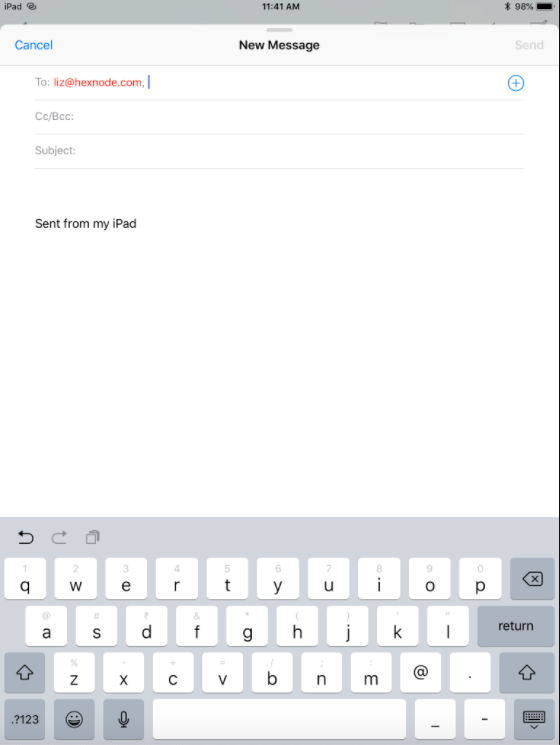
Unmarked Email Domains
When a user composes an email to a recipient whose domain is not in the “Unmarked Email Domains” list, the address will be highlighted in red (or a similar warning color) within the Mail app, alerting the user that they are sending data outside the managed environment.
Managed Safari Domains
Documents (PDFs, spreadsheets, etc.) downloaded from these domains are treated as managed data. If the Hexnode Business Container policy is active, the iOS “Open In” menu will only display managed apps as options for viewing these files, preventing data leakage to personal apps like Dropbox or personal Gmail.
Safari Password Autofills Domain
Users can save password only for the URL’s listed here.
7. Troubleshooting & FAQs
FAQs
- Are all apps managed by default?
No. Only apps installed via the Hexnode portal are “Managed.” However, you can manually convert a user-installed app to a managed app by going to Manage > Devices > Applications and selecting Manage App from the gear icon.
- Does this work with third-party email apps?
No. Managed Email Domains primarily affect the native iOS Mail app. Third-party apps like Outlook have their own internal configuration settings (App Configurations) for similar behavior.
- Is there a limit to the number of domains?
While there is no hard limit defined in the portal, it is best practice to keep the lists concise to ensure optimal performance of the Safari and Mail engines.
Troubleshooting
- Documents still opening in personal apps: Check the Hexnode Business Container settings. The option “Open documents from managed apps in unmanaged apps” must be unchecked to enforce the restriction.
- Email addresses not highlighting: Ensure the domain is entered correctly without the
@symbol (e.g., entercompany.comrather than@company.com). - Autofill not working: Verify the device is running iOS 9.3 or later. Also, ensure the exact subdomain is listed if the site uses one.


