


Category filter
Linux Browser History Cleanup with Shell Scripts
Web browser is the primary gateway for both productivity and vulnerability. Browsers silently accumulate a “Digital Footprint”- a vast repository of navigation history and cached assets. While this data is designed to accelerate the user experience, it often contains Personally Identifiable Information (PII) and sensitive corporate metadata that can persist indefinitely on the local disk.
For IT Administrators, unmanaged browser data presents two critical risks: Security Vulnerabilities (unauthorized access to private session history) and Operational Inefficiency (corrupted cache buffers). This document provides a standardized method to remotely clear browser and cache data on Linux endpoints with scripts executed via the Execute Custom Script in Hexnode UEM.
Technical Overview: Browser Data Persistence on Linux
On Linux systems, web browsers follow the XDG Base Directory Specification. Most browser data is bifurcated into two specific locations within the user’s home directory:
- ~/.config/:
This directory is governed by the XDG_CONFIG_HOME variable. Think of this as the “permanent record” for your applications.
- Purpose: It stores everything required to restore the browser to its exact state if you were to move to a new computer.
- User Profiles: Logged-in accounts and sync settings.
- Preferences: Homepage, dark mode settings, and privacy toggles.
- Databases: Most browsers use SQLite files here to store your Bookmarks and Browsing History.
- ~/.cache/:
This directory is governed by XDG_CACHE_HOME variable. It stores data that is non-essential for the application’s functionality but helps it run faster.
- Purpose: It stores data that can be re-downloaded or regenerated without losing any user information.
- Web Resources: Images, CSS files, and JavaScript from websites you visit frequently so they load faster next time.
- Thumbnails: Small preview images of sites you’ve visited.
1. Script Architecture & Code Logic
The following table explains how the provided scripts interact with the Linux filesystem to ensure a “Clean State.”
| Component | Target File/Directory | Technical Logic | Outcome |
|---|---|---|---|
| Firefox History | places.sqlite | Iterates through randomized .default profile folders. | Purges all URL and navigation metadata. |
| Chromium History | ~/Default/History | Direct path removal for Chrome, Chromium, Brave, and Vivaldi. | Wipes search and site visit logs. |
| Generic Cache | ~/.cache/* | Recursive force removal (rm -rf) of temporary assets. | Reclaims disk space and fixes loading errors. |
| Firefox Cache | cache2/* | Deep cleaning of the specific Firefox cache engine. | Purges temporary web assets and cookies. |
| Opera Cache | ~/.config/opera/Cache/* | Targets dual locations (Cache and Config) for Opera. | Ensures no session fragments remain. |
2. Script: To clear browser history
This script targets the underlying SQLite databases where navigation metadata is stored. Removing these files physically erases the “breadcrumb trail” of user activity.
|
1 2 3 4 5 6 7 8 9 10 11 12 13 14 15 16 17 18 19 20 21 22 23 24 25 26 27 28 29 30 31 32 33 34 35 36 37 38 39 40 41 42 43 |
#!/bin/bash echo "Clearing browsing history on Linux..." # --- Firefox --- if [ -d "$HOME/.mozilla/firefox" ]; then echo "Clearing Firefox history..." for profile in $HOME/.mozilla/firefox/*.default*; do if [ -f "$profile/places.sqlite" ]; then rm -f "$profile/places.sqlite" echo "Deleted Firefox history database in $profile" fi done fi # --- Google Chrome --- if [ -d "$HOME/.config/google-chrome" ]; then echo "Clearing Google Chrome history..." rm -f $HOME/.config/google-chrome/Default/History fi # --- Chromium --- if [ -d "$HOME/.config/chromium" ]; then echo "Clearing Chromium history..." rm -f $HOME/.config/chromium/Default/History fi # --- Brave --- if [ -d "$HOME/.config/BraveSoftware/Brave-Browser" ]; then echo "Clearing Brave Browser history..." rm -f $HOME/.config/BraveSoftware/Brave-Browser/Default/History fi # --- Opera --- if [ -d "$HOME/.config/opera" ]; then echo "Clearing Opera history..." rm -f $HOME/.config/opera/History fi # --- Vivaldi --- if [ -d "$HOME/.config/vivaldi" ]; then echo "Clearing Vivaldi history..." rm -f $HOME/.config/vivaldi/Default/History fi echo "Done! Browsing history cleared." |
3. Script: To clear browser cache
This script performs a recursive forced removal of volatile directories to reclaim storage space and resolve browser-based application errors.
|
1 2 3 4 5 6 7 8 9 10 11 12 13 14 15 |
#!/bin/bash echo "Clearing browser caches..." # Chrome/Chromium rm -rf ~/.cache/google-chrome/* rm -rf ~/.cache/chromium/* # Firefox rm -rf ~/.cache/mozilla/firefox/* for profile in ~/.mozilla/firefox/*.default*; do rm -rf "$profile"/cache2/* done # Brave rm -rf ~/.cache/BraveSoftware/Brave-Browser/* # Opera rm -rf ~/.cache/opera/* rm -rf ~/.config/opera/Cache/* echo "All browser caches cleared!" |
4. Post – deployment verification
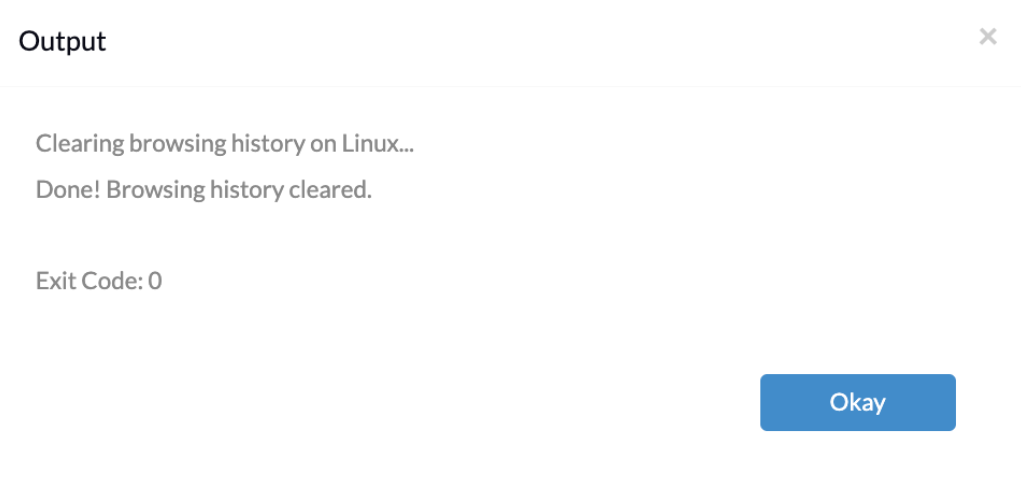
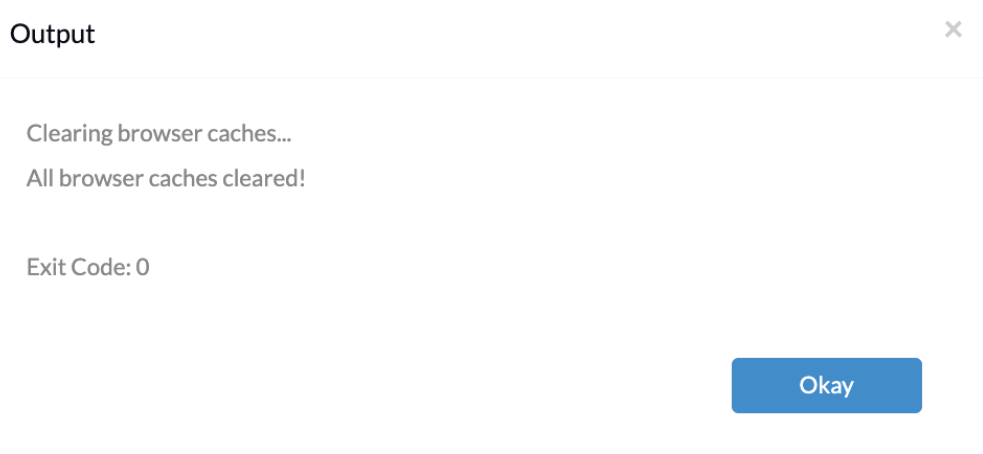
Once the script to Clear browser history and cache has been deployed via Actions, IT Admins must verify the execution status and output in the Action History:
Navigation Path:
- 1. Navigate to Manage > Devices.
- 2. Click the specified Linux device.
- 3. Select Action History and click Show Output.
5. Deployment Steps:
- Preparation: Save the provided Bash code as a .sh file (e.g., clear_history.sh, clear_cache.sh).
- Hexnode Deployment: The script can be deployed in two ways: it can be executed as a one-time remote action.
Actions:- 1. Navigate to Manage -> Devices.
- 2. Select the target Linux device(s).
- 3. Click Actions -> Execute Custom Script.
- 4. Upload the .sh file and execute.
Automation:
- Navigate Automate –> Linux device(s).
- Upload the script in .sh file and schedule it.
- Add the target Linux device(s).
- Then save the automation.
6. Strategic Implementation via Hexnode UEM
1. Shared Workstation Sanitization:
Problem: In many organizations, multiple employees may use the same Linux device across different shifts. Without proper sanitization, this creates a significant privacy and security gap.
Solution: IT admins use Execute Custom Script action to physically delete the browser history and cache files. This ensures that every user starts with a complete sanitization maintaining privacy boundaries on Linux endpoints.
2. Compliance & Audit Readiness:
Problem: Laws like GDPR or HIPAA require companies to prove they are protecting user privacy. An auditor might ask: “How do you make sure private data isn’t sitting on your Linux laptops for years?”
Solution: When you run these scripts through Hexnode, the system creates a digital receipt. You can show an auditor the Action History log as proof that you are actively “minimizing data” (clearing history/cache) across your entire company.
3. Remote Troubleshooting:
Problem: A common IT issue is a website “glitching” because of old, saved data (stale cache). Usually, an IT person must call the user and walk them through clicking “Settings > Clear Cache.”
Solution: With the Clear Browser Cache script, the IT admin can stay in the Hexnode portal, select the broken device, and click “Execute.” The script wipes the ~/.cache/ folders remotely, fixing the website instantly without the user intervention. This is known “zero-touch resolution”.
7. Troubleshooting & FAQ
| Potential Issue | Root Cause | Troubleshooting Step |
|---|---|---|
| Permission Denied/Data Not Found | Script executed under root but targeting the wrong home directory. | In the Hexnode Execute Custom Script action, modify the script to target user directories explicitly, since actions run as root by default. |
| Files Not Deleted | The Browser is open and has a “file lock” active. | Add pkill -f [browser] at the top of the script to force-close the browser before the deletion commands run. |
1.What issues are mitigated by clearing Browser history and cache?
It reduces the risk of sensitive data exposure and enhances device performance by freeing up disk I/O and storage.
2.What happens if the script is executed while the browser is running?
Some files may remain undeleted if the browser is still running, because active processes hold locks on history and cache databases. To ensure complete sanitization, IT administrators should enforce browser closure before executing the script. This can be done by adding a command such as pkill -f [browser] at the beginning of the script, which force‑terminates the specified browser process.
Operational Notes for Administrators
- It is recommended to manually validate the script execution on a system before executing the action in bulk.
- Hexnode will not be responsible for any damage/loss to the system on the behavior of the script.


