Category filter
How to Change Linux User Passwords via Custom Scripts in Hexnode
Enterprise fleet management often struggles with account lockouts and forgotten passwords, as manually resetting credentials on every device is slow and inefficient. Utilizing the Execute Custom Script feature in Hexnode UEM turns this manual helpdesk chore into a fast, automated process through custom bash scripts. This script allows administrators to update passwords in the background without interrupting the user or requiring a terminal window, ensuring a smooth device recovery across the entire Linux fleet. This centralized approach secures endpoints and restores user access instantly, all while eliminating the complexity of traditional password remediation.
Strengthening Linux Security: The Strategic Value of Scripted Password Updates
Utilizing scripting for Linux credential management through Hexnode UEM replaces manual resets with a unified security framework, delivering these five strategic advantages for enterprise identity governance:
- Silent Fleet-Wide Recovery: Unlike traditional methods that require users to be present to input temporary codes, scripts execute in the background. This ensures that users can simply log in with their new credentials without any downtime or session interruptions.
- Security Posture Uniformity: Rather than relying on individual users to update passwords, administrators can push uniform credential standards (for example, a service account in all the devices must have the same password) across the entire fleet simultaneously.
- Auditability and Compliance: The script execution is automatically logged within the Hexnode portal. This creates a tamper-proof audit trail, detailing which device was targeted, and the exact time of execution, which is vital for meeting SOC 2, HIPAA, or GDPR compliance requirements.
- Bulk Emergency Rotations: In the event of a potential credential leak or as part of a “Day 0” onboarding process, scripts allow for mass password updates across hundreds of devices at once.
- Privileged Execution Control: Because Hexnode executes commands with system-level (root) privileges, the script can bypass local account restrictions. This ensures that password changes are applied successfully regardless of the user’s local permission level.
System Prerequisites & Script Compatibility
To ensure this script executes successfully across your Linux fleet, the following technical environment and system configurations must be met:
- Supported Distributions: The script is compatible with Ubuntu, Debian, and Fedora Linux distributions.
- Shell Environment: Requires the Bash shell 4.0 to higher.
- Binary Dependencies: The script utilizes the
chpasswd,id,tee, anddateutilities available in the system PATH. - Hexnode Agent: The Hexnode UEM agent must be active on the target Linux devices to receive the script payload and report the “Success” or “Failure” exit codes back to the portal.
- File Configuration: The script must be saved with a
.shextension.
Bash Script for Non-Interactive Linux User Password Updates via Hexnode UEM
This Bash script provides a secure, automated method for updating Linux credentials via Hexnode UEM’s Execute Custom Script action. By leveraging the chpasswd utility, the script incorporates built-in validation for user existence, root-level privilege checks, and localized logging to /var/log/ for auditability and compliance reporting.
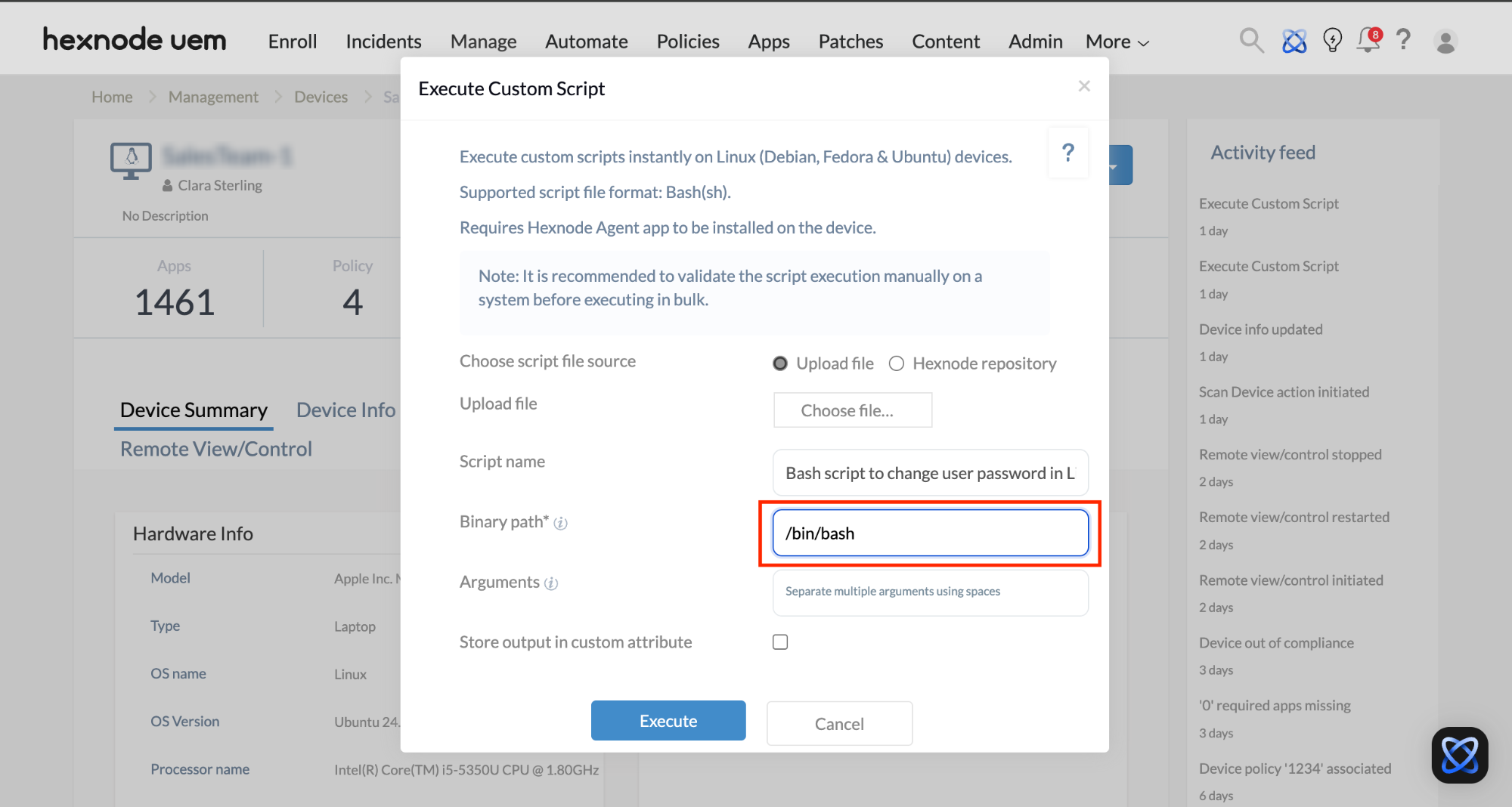
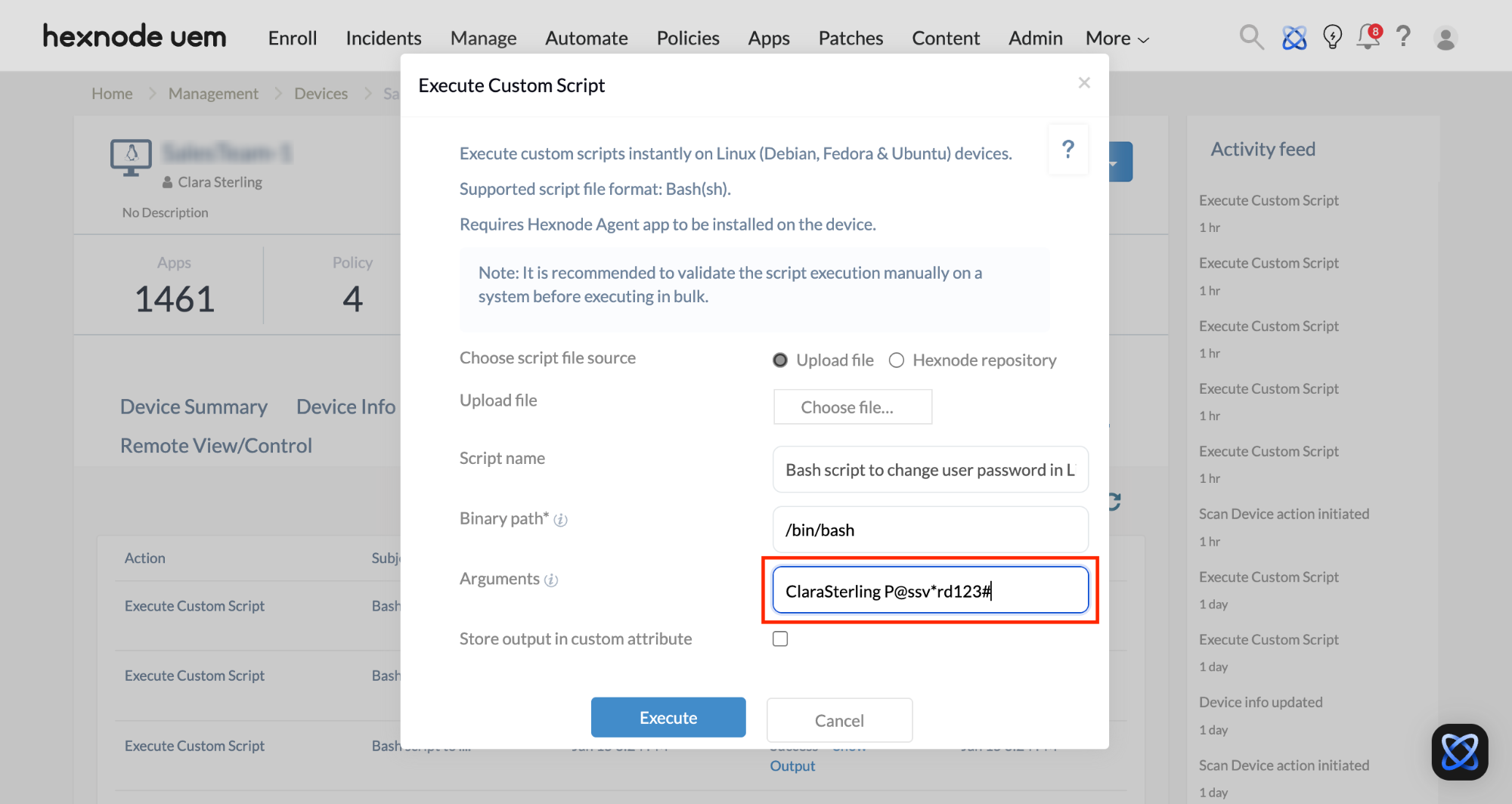
To execute the given script from the Hexnode UEM console, follow these steps:
- Go to Manage > Devices.
- Choose your Linux device.
- Click on Actions > Execute Custom Script.
- Upload the
.shscript file and click Execute.
|
1 2 3 4 5 6 7 8 9 10 11 12 13 14 15 16 17 18 19 20 21 22 23 24 25 26 27 28 29 30 31 32 33 34 35 36 37 38 39 40 41 42 43 44 45 46 47 48 49 50 51 52 53 |
#!/bin/bash # --- 1. Configuration: Targeted Account & Logging --- TARGET_USER=$1 NEW_PASSWORD=$2 LOG_FILE="/var/log/hexnode_password_change.log" CURRENT_TIME=$(date '+%Y-%m-%d %H:%M:%S') # --- 2. Logic: Logging & Privilege Validation --- log_event() { local TYPE="$1" local MSG="$2" # Redirecting both stdout and stderr to /dev/null to keep the UEM console clean echo "$(date '+%Y-%m-%d %H:%M:%S') [$TYPE] $MSG" | sudo tee -a "$LOG_FILE" > /dev/null 2>&1 } # --- 3. Execution: Password Update --- change_password() { # Check if the user exists on the system if id "$TARGET_USER" &>/dev/null; then echo "Initiating password change for user: $TARGET_USER" log_event "INFO" "Attempting password change for user: $TARGET_USER" # Using chpasswd for non-interactive background update # Redirecting any potential error output to /dev/null echo "$TARGET_USER:$NEW_PASSWORD" | sudo chpasswd > /dev/null 2>&1 if [ $? -eq 0 ]; then log_event "SUCCESS" "Password successfully changed for user: $TARGET_USER." echo "Password change successful for $TARGET_USER" echo "Time of password reset : $CURRENT_TIME" else log_event "ERROR" "Failed to change password for $TARGET_USER." echo "[FAILED] Password update failed for $TARGET_USER." exit 1 fi else log_event "ERROR" "User $TARGET_USER not found on this system." echo "[ERROR] User $TARGET_USER does not exist." exit 1 fi } # --- 4. Privilege Check & Start --- if [[ "$EUID" -ne 0 ]]; then echo "Error: Elevated privileges required. Please run as root/sudo." exit 1 fi log_event "INFO" "--- Password Reset Session Started ---" change_password log_event "INFO" "--- Password Reset Session Complete ---" exit 0 |
Resolving Common Execution Failures for Linux Password Update Script
The following guide maps common script errors to their solutions, helping to quickly fix deployment issues:
| Error Code/Symptom | Primary Cause | Detailed Resolution |
|---|---|---|
| “[ERROR] User does not exist” | Case-Sensitivity | Linux usernames are case-sensitive. Ensure “Admin” vs “admin” is correctly specified in the Hexnode Arguments field. |
| “[ERROR] User does not exist” | Argument mismatch | Ensure that the arguments are given in the order:
username new_password. |
Validation Guide: Verifying Successful Linux Password Reset
Once the script execution completes, administrators can validate the credential update through the Hexnode UEM console or by performing a localized technical audit. Following a successful script execution, the updated credentials take effect immediately, requiring the user to authenticate with the new secure password during their next login session.
Strategy 1: Remote Validation via Hexnode UEM Console
This method is ideal for fleet-wide verification without requiring terminal access to individual endpoints.
- Locate the Endpoint: Navigate to the Manage tab and select the specific Linux device.
- Audit the Action History: Click the Action History sub-tab to view the log of recent remote commands.
- Confirm Execution Status: Identify the Execute Custom Script entry. A “Success” status indicates the script logic finished without errors.
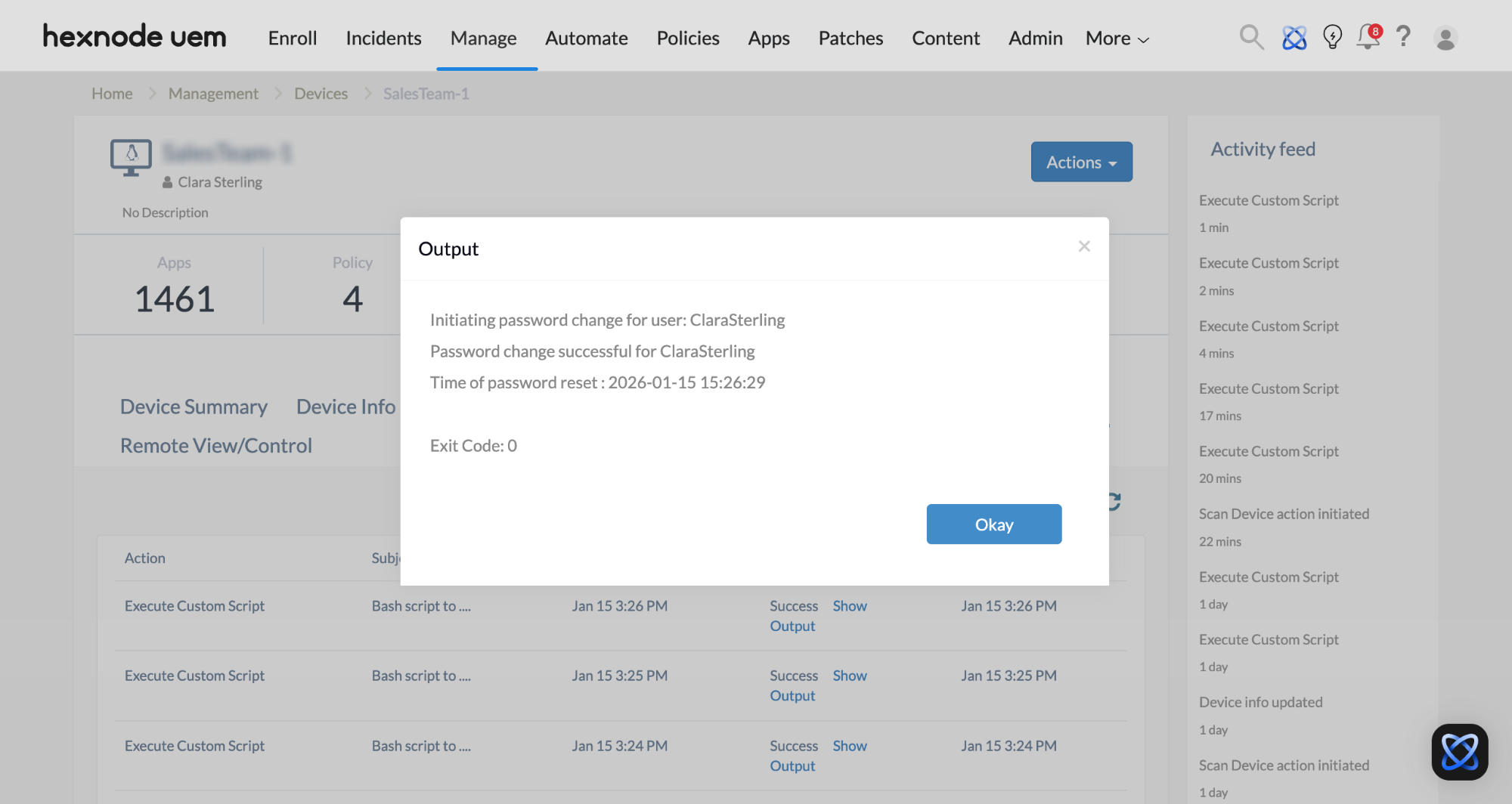
- Analyze Console Output: Select Show Output. The console will display the formatted results:
- Initiating password change for [user]
- Password change successful for [user]
- Time of password reset: [timestamp]
Strategy 2: On-Device Technical Audit (Local Logs)
For compliance verification, inspect the persistent log file generated by the script logic on the local machine.
- Log Path:
/var/log/hexnode_password_change.log - Verification Command: Run
tail -f /var/log/hexnode_password_change.login the terminal of the Linux device to view the latest entries. - Data Points: The log captures the session start, the specific user targeted, and the high-resolution timestamp of the successful credential update.