


Category filter
CardDav settings for iOS
CardDAV (vCard Extensions to WebDAV) is an address book client-server protocol designed to allow users to access and share contact data on a server. Hexnode UEM enables administrators to remotely configure CardDAV settings, ensuring that corporate or shared contact lists are automatically synchronized with the native Contacts app on iOS devices.
1. Configuration Workflow
To configure CardDAV settings on iOS devices:
- Log in to the Hexnode UEM portal.
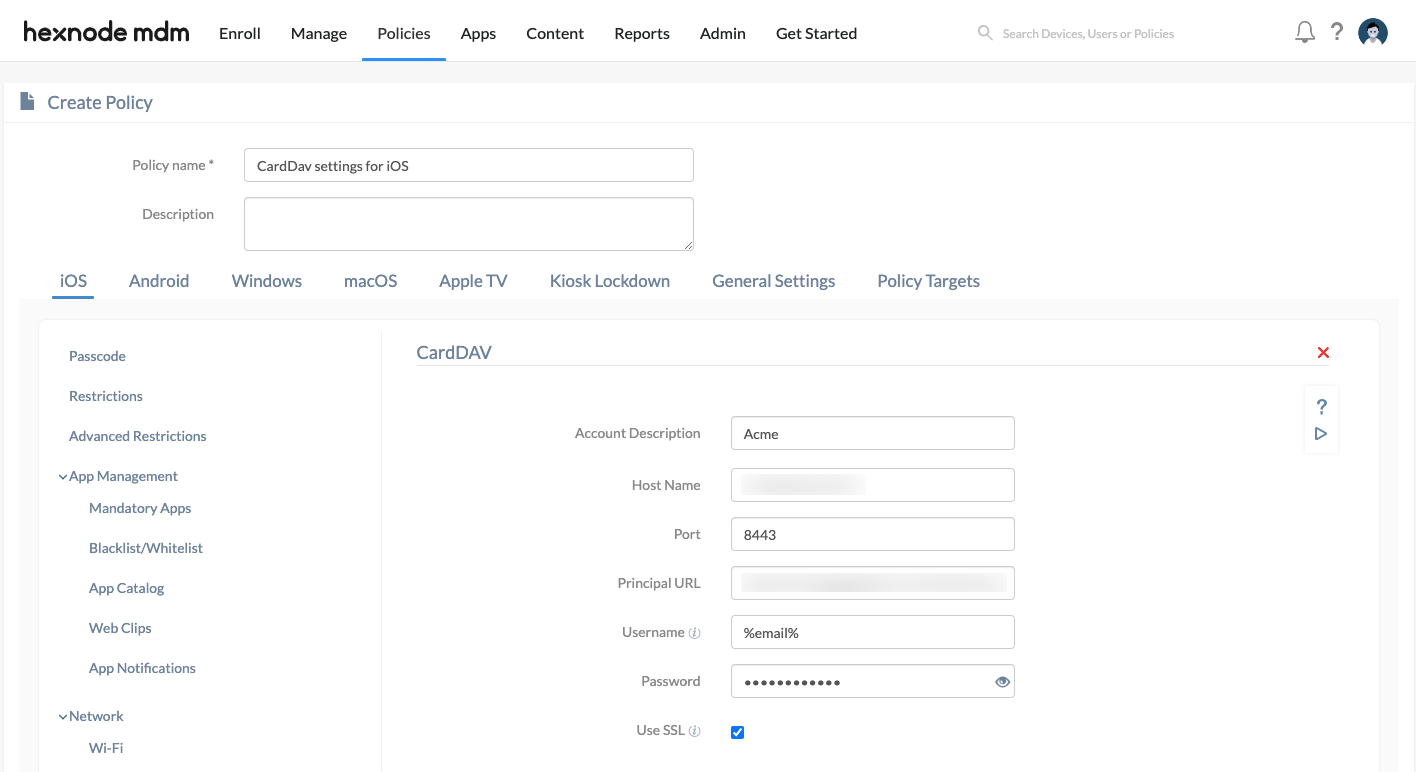
- Navigate to Policies > New Policy > Create a fully custom policy > iOS > Accounts > CardDAV and click Configure.
2. Technical Parameter Breakdown
| Setting | Technical Description |
| Account Description | A display name used to identify and distinguish the CardDAV account on the device. |
| Host Name | Mandatory. The IP address or Fully Qualified Domain Name (FQDN) of the CardDAV server. |
| Port | Mandatory. The port number of the CardDAV server. Default is 8443. |
| Principal URL | The URL that provides account information. For example, Google CardDAV API uses: https://www.googleapis.com/carddav/v1/principals/user@gmail.com/. |
| Username | Mandatory. The email address of the account to be synced. Supports wildcards %email% and %alternateemail%. |
| Password | The password for the CardDAV account. |
| Use SSL | (Enabled by default) Establishes an encrypted connection between the iOS device and the server. |
3. Policy Association and Deployment
- In the policy window, go to Policy Targets.
- Select Devices, Device Groups, Users, User Groups, or Domains/OUs.
- Choose the specific targets and click Save.
4. What Happens at the Device End?
Once the policy is successfully associated and pushed to the device:
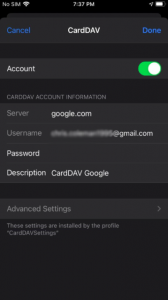
- Account Creation: The CardDAV account is automatically added to the native iOS Contacts app.
- Authentication Prompt: As noted in the table, if the credentials provided by the MDM are missing or invalid, the user will see a native iOS pop-up requesting the password to authorize the sync.
- Syncing: Upon successful authentication, contacts from the server will begin syncing with the device.
5. Troubleshooting & FAQs
Frequently Asked Questions (FAQs)
- Can multiple CardDAV accounts be configured?
Yes. You can add multiple accounts to a single policy to sync different address books to the same device.
- What happens if the policy is removed?
Disassociating the policy from the device will automatically remove the CardDAV account and all synced contacts from the native Contacts app.
- Are wildcards supported for the Principal URL?
While the documentation specifically mentions wildcards for the Username field, the Principal URL often requires a specific format. Double-check your provider’s API documentation if you attempt to use variables there.
Troubleshooting
- Connection Failures: Ensure the Host Name and Port are correct and that the server is reachable from the device’s network.
- Authentication Loops: If the device repeatedly prompts for a password, verify the Username and Password in the portal. If using wildcards, ensure the user data is correctly populated in the Hexnode UEM portal.
- Principal URL Issues: Ensure the Principal URL is formatted correctly as per your CardDAV provider’s requirements.


