


Category filter
Configure CalDAV Settings for iOS
CalDAV (Calendaring Extensions to WebDAV) is a standard protocol that allows users to access and manage calendar data on a remote server. By using Hexnode UEM, organizations can remotely deploy CalDAV configurations to iOS devices, enabling seamless synchronization of corporate events, schedules, and tasks with the native Calendar and Reminders apps.
1. Configuration Workflow
To configure a CalDAV account on iOS devices:
- Log in to the Hexnode UEM portal.
- Go to Policies > New Policy > Create a fully custom policy > iOS > Accounts > CalDAV and click Configure.
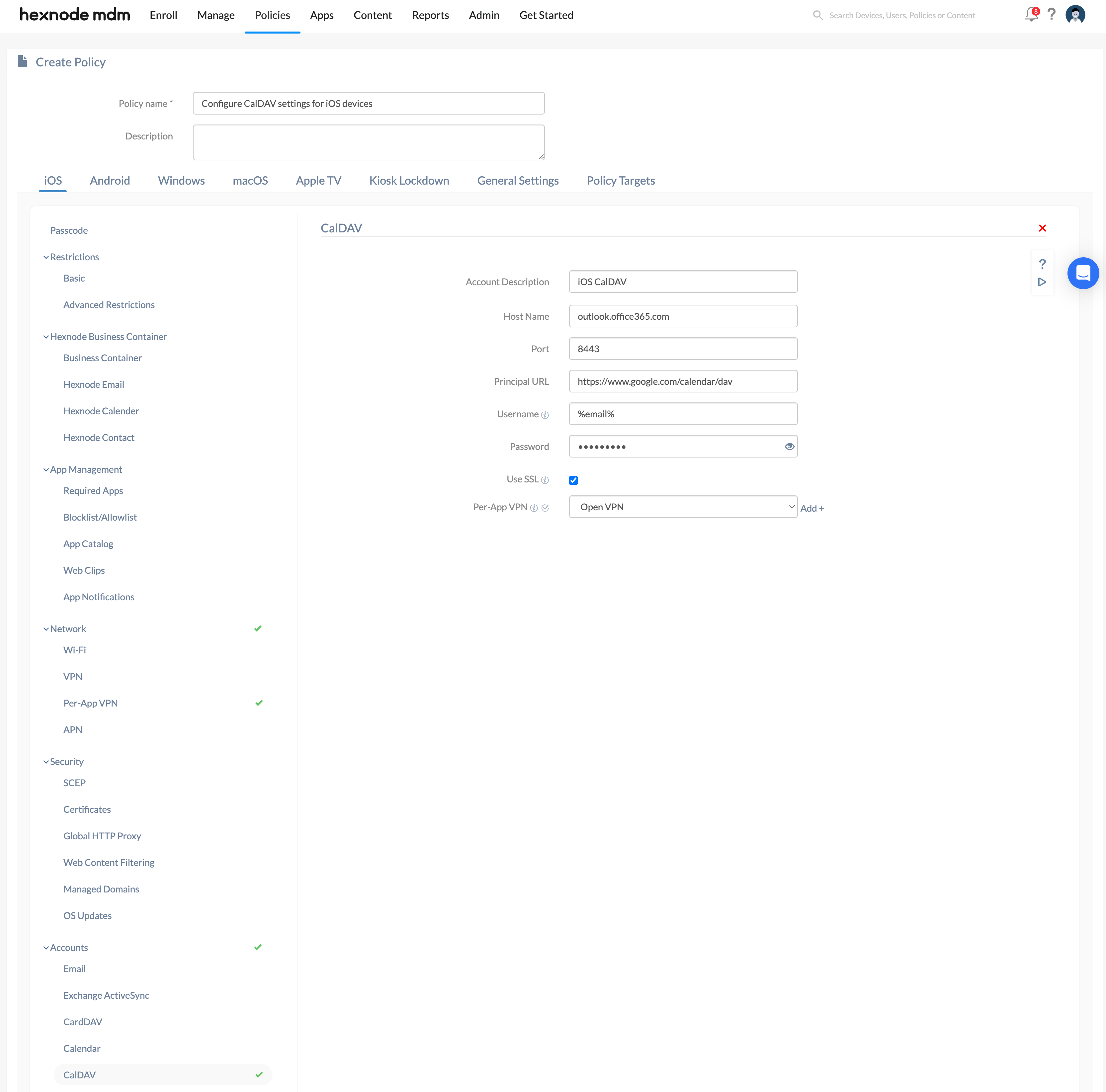
2. Technical Parameter Breakdown
| Setting | Technical Description |
| Account Description | A display name to identify and distinguish between various CalDAV accounts on the device. |
| Host Name | The domain name or IP address of the CalDAV server. |
| Port | The port number used by the CalDAV server for connections. |
| Principal URL | The base URL used to access the user’s calendar. For example, all iCloud calendars for the same user share a single principal URL. |
| User Name | The account username. Supports wildcards %email% and %alternateemail%. |
| Password | The password associated with the CalDAV username. |
| Use SSL | (Recommended) Establishes an encrypted connection between the device and the CalDAV server. |
| Per-App VPN (iOS 14.0+) | Ensures that calendar synchronization data is securely transmitted through a private network. To use this, select a VPN from the drop-down menu. If the VPN hasn’t been configured yet, click the “+Add” option to set up a Per-app VPN. Once configured, it can be selected for use with CalDAV. |
3. Policy Association
To deploy the configuration:
- For new policies: Go to the Policy Targets tab, click +Add Devices, select targets, and click Save.
- For existing policies: Select the policy from the Policies list, click Manage > Associate Targets, and choose the relevant entities.
4. What Happens at the Device End?
Once the policy is associated and deployed to the device:
- Account Integration: The CalDAV account is added to the native iOS Calendar and Reminders apps.
- User Capabilities: Users can view corporate events, receive and create invitations, and sync tasks directly on their iPhone or iPad.
- Verification: The account status can be checked under Settings > Calendar > Accounts or under the MDM profile details in Settings > General > VPN & Device Management.
5. Troubleshooting & FAQs
Frequently Asked Questions (FAQs)
- Can users edit events in a CalDAV calendar?
Yes. Unlike “Subscribed Calendars” (which are typically read-only), CalDAV supports two-way synchronization, allowing users to create and edit events if the server permissions allow.
- What happens if the policy is removed?
Disassociating the policy from the device will automatically remove the CalDAV account and all synced calendar data/tasks from the iOS device.
- Are wildcards supported for the Principal URL?
No. While wildcards are supported for the User Name, the Principal URL must be a static entry pointing to the calendar root.
Troubleshooting
- Sync Errors: Ensure the Host Name and Principal URL are correct. If the server is only accessible internally, verify the device is connected to the corporate network or a Per-App VPN is active.
- Authentication Prompts: If the device repeatedly asks for a password, check if the User Name matches the server requirements. If wildcards are used, ensure the user’s email data is populated in the Hexnode portal.
- SSL Failures: If the server does not support SSL, ensure the Use SSL toggle is turned off, though this is less secure.


