


Category filter
Importing Device Groups via CSV in Hexnode UEM
Bulk importing allows IT administrators to manage endpoints at scale by creating new groups or updating existing ones using a CSV file. This is ideal for department-based categorization and bulk policy targeting.
Prerequisites and CSV Preparation
To ensure a successful import, your CSV file must contain specific attributes. If your column headers match Hexnode’s standard terms, mapping occurs automatically.
Required CSV Columns
- groupname: The name of the target group (existing or new).
- members: The unique identifier for the device. You may use the Serial Number, Device ID, UDID, or IMEI Number.
- description: A brief explanation of the group’s purpose.

Important Formatting Note: If adding multiple devices to a single group in one row, separate the identifiers in the members column using a semicolon (;).
The Import Process
Step 1: Upload CSV
- Log in to the Hexnode UEM portal.
- Navigate to Manage > Device Groups.
- Select Add Bulk Devices with CSV.
- Upload your prepared file.
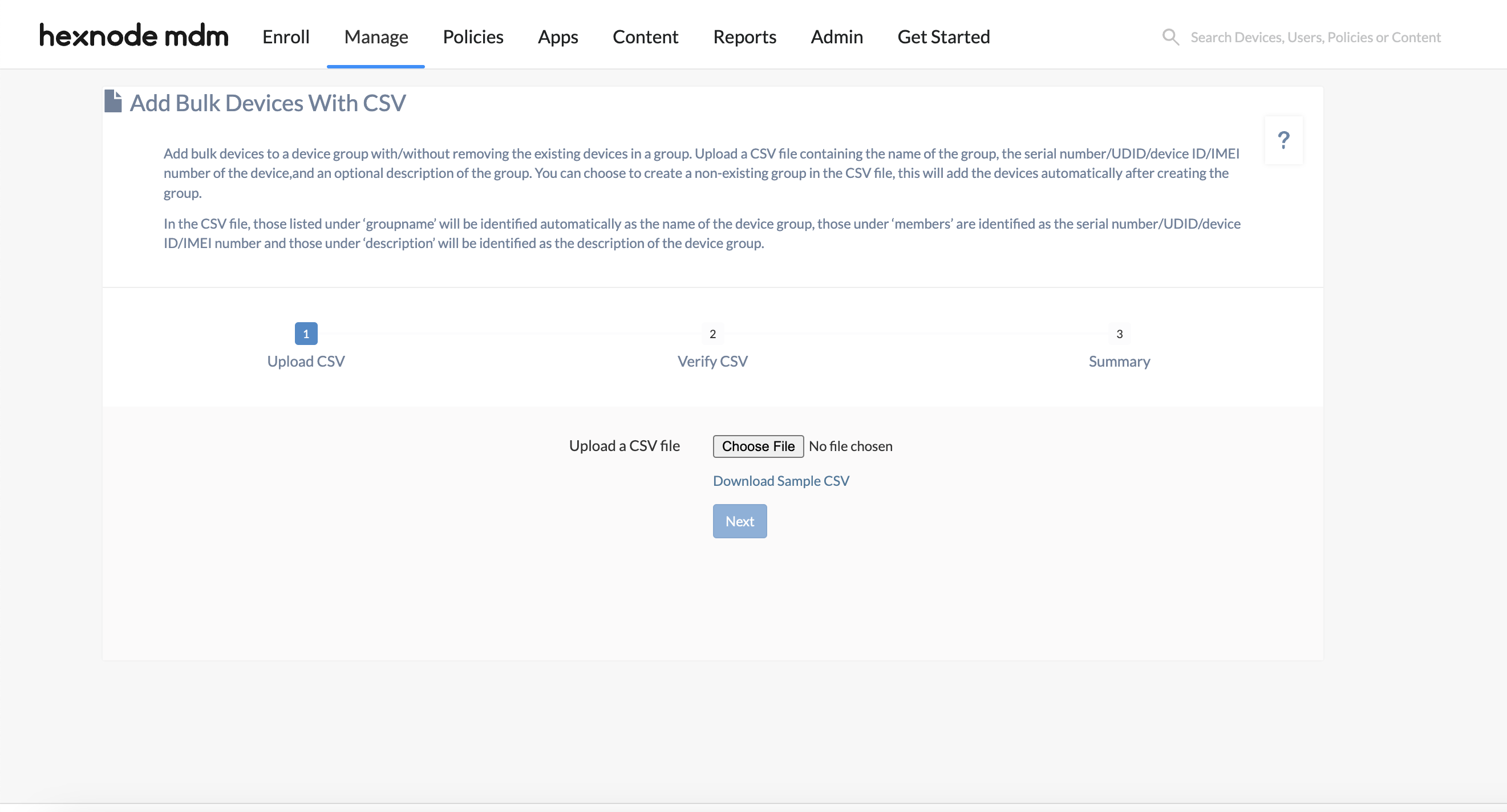
Step 2: Verify and Map CSV Attributes
During this stage, you must align your CSV headers with Hexnode’s data fields:
- Automatic Mapping: Occurs if your CSV uses standard column names (groupname, members, description).
- Manual Mapping: If your headers differ, a Map Keys box will open. Use the dropdown menus to map your keys to Hexnode’s attributes.
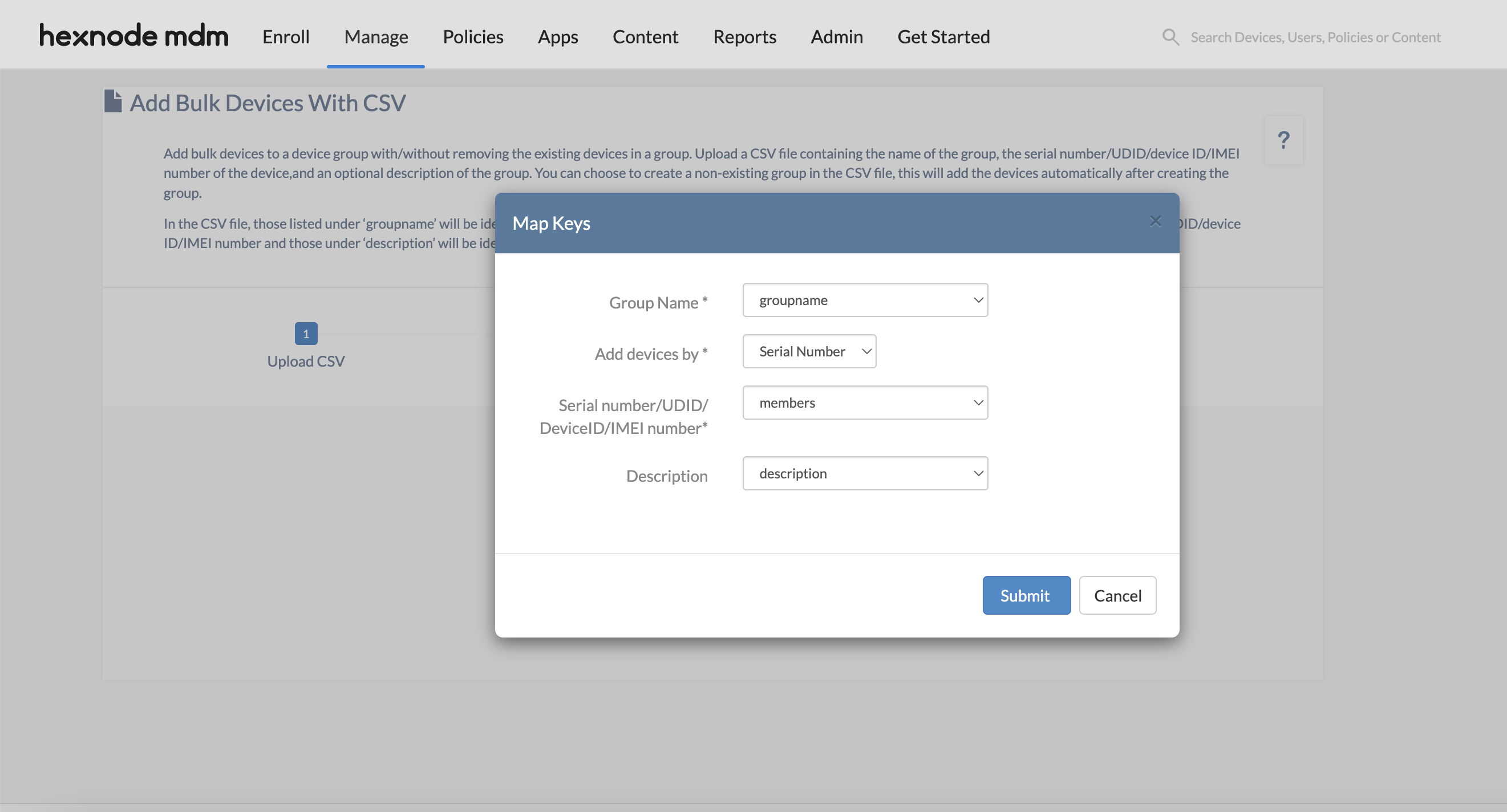
- Group Creation Logic:
- New Groups: Check Create non-existing groups to generate a new group based on the CSV.
- Existing Groups: Uncheck Create non-existing groups to only add devices to already established groups.
- Cleanup: Check Remove existing devices in the group(s) if you wish to clear the current members before adding the new list.
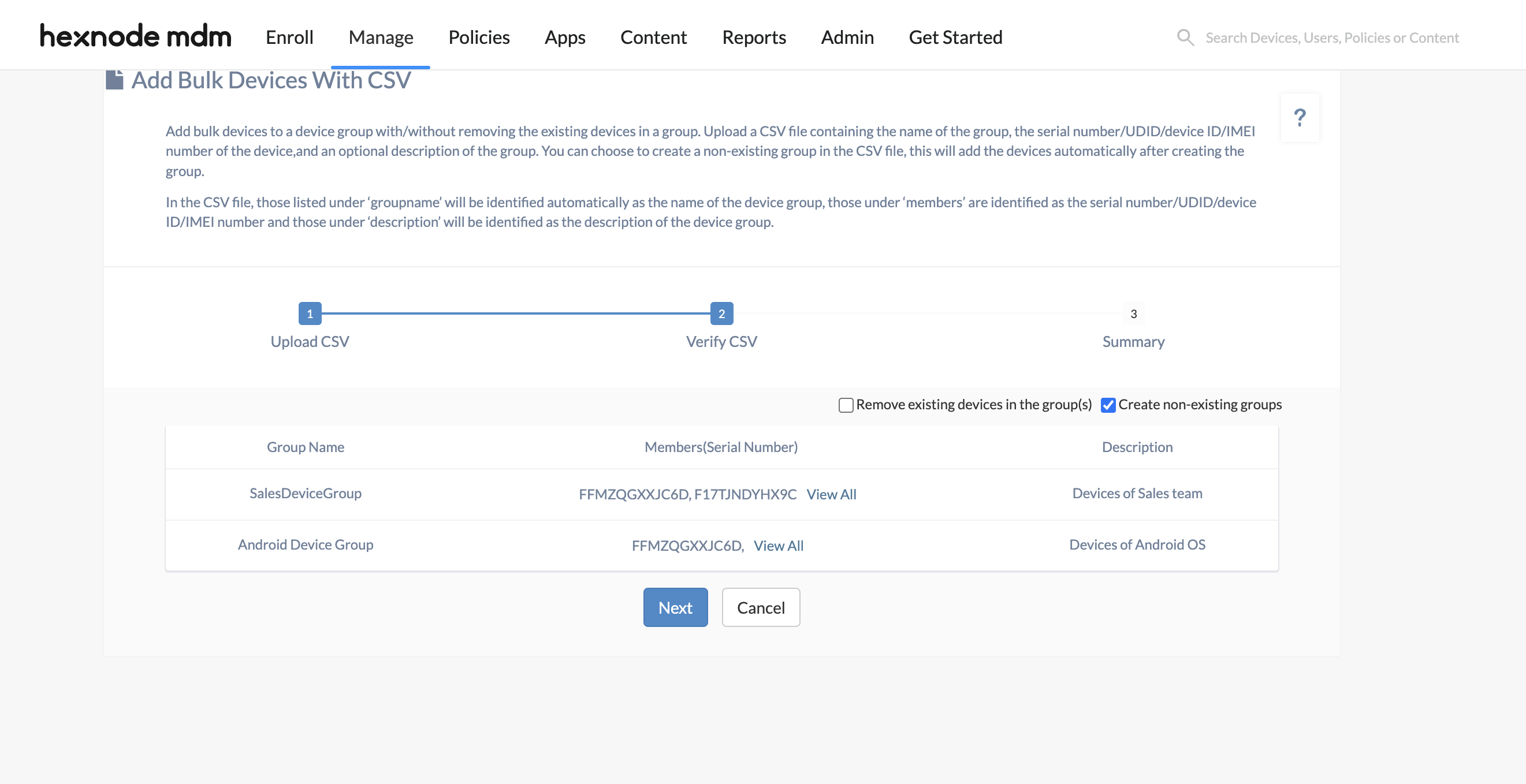
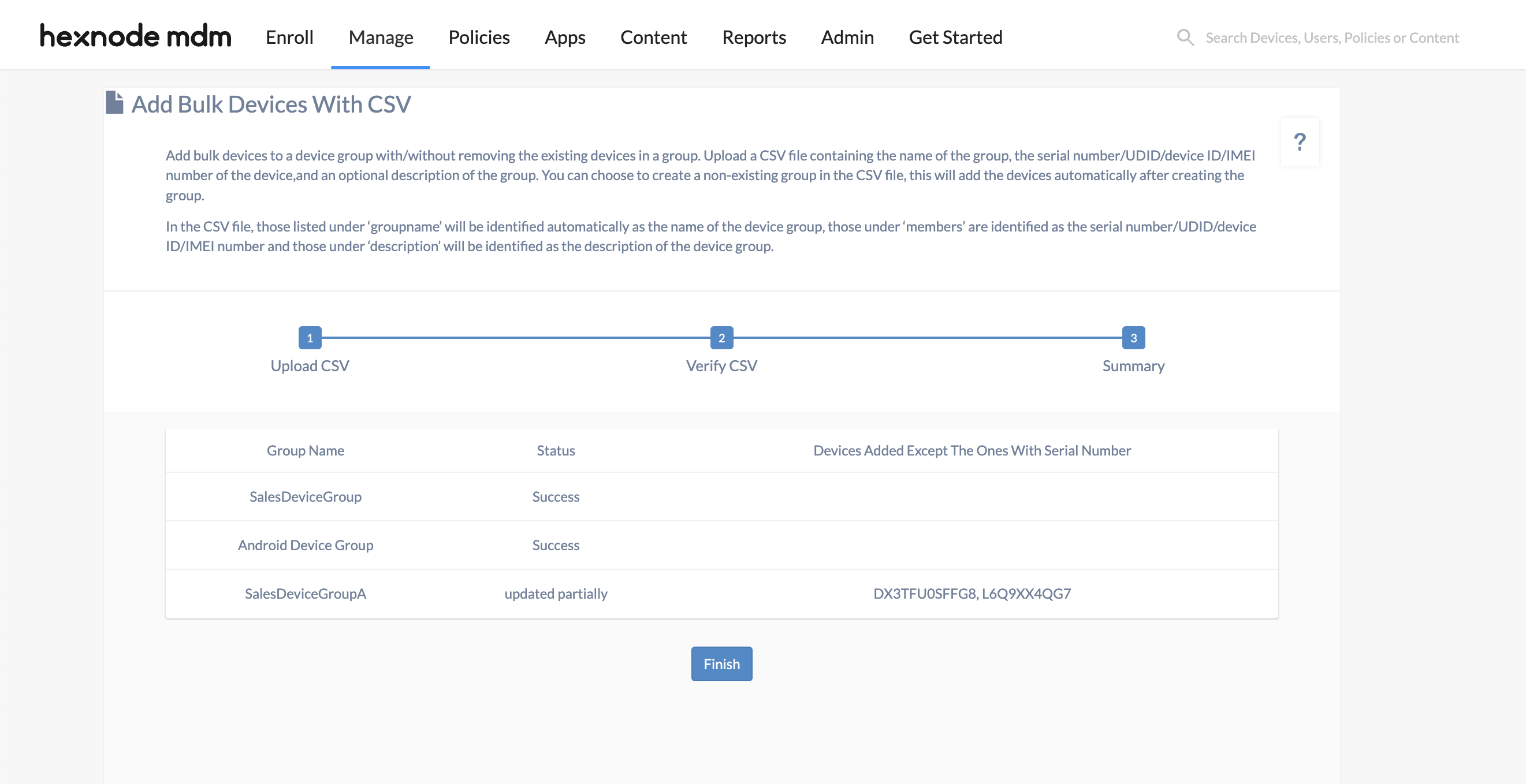
Step 3: Summary and Completion
After verification, Hexnode provides a final summary of the import. Click Finish to view your updated or newly created device groups.
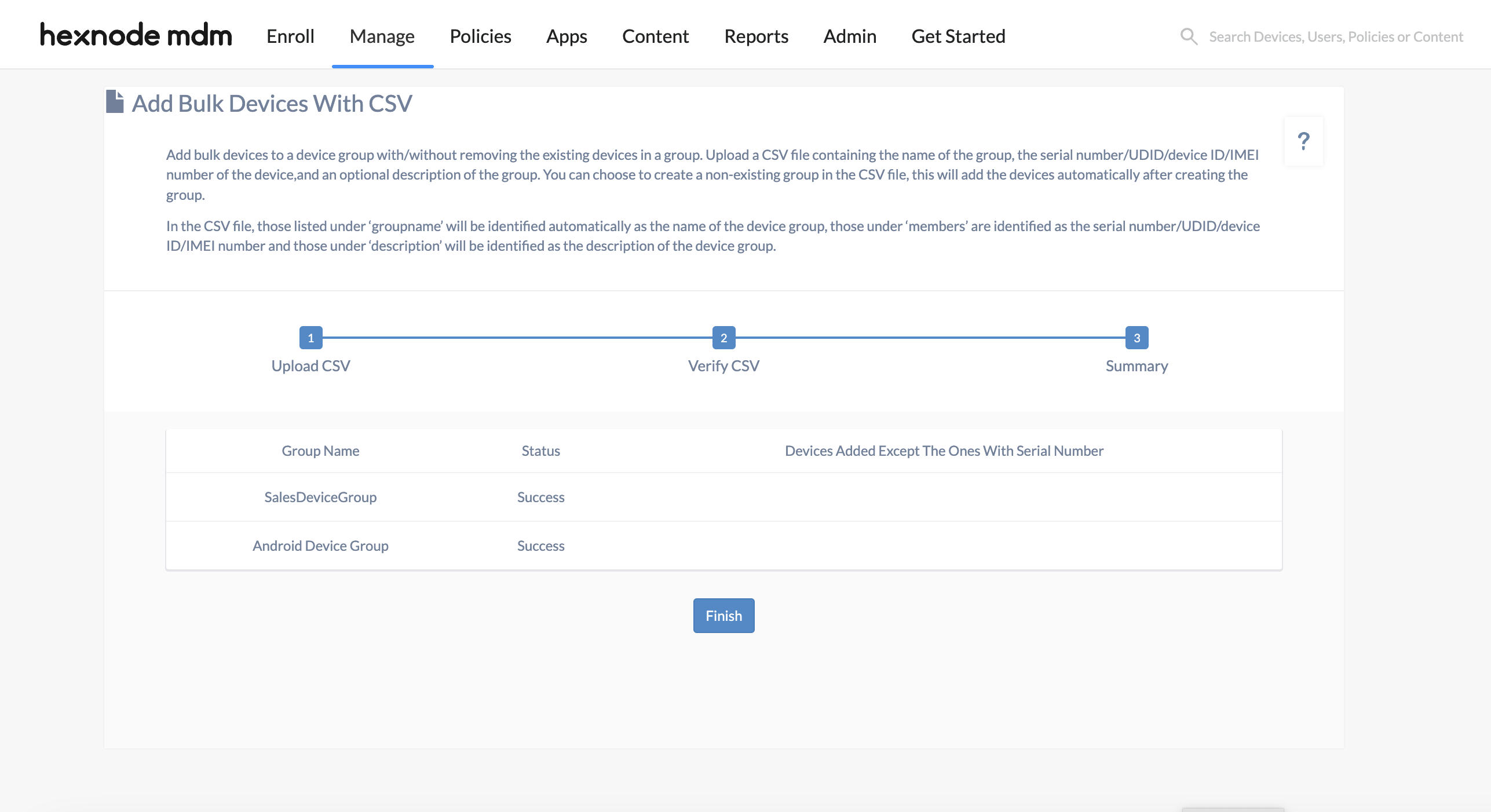
Understanding Import Statuses
When the process finishes, the summary indicates the success rate of your import:
- Success: All devices were identified and added to the specified groups.
- Updated Partially: This status appears if certain devices failed to join the group. Common reasons include:
- The device is disenrolled.
- The device has not yet been enrolled in Hexnode.
- An incorrect Serial Number, UDID, or IMEI was entered.
Note: Devices that failed to join will be listed specifically under “Devices Added Except the Ones With…” for your review.
Frequently Asked Questions (FAQs)
- What happens if I enter a group name that already exists?
If you have “Create non-existing groups” checked but the name matches an existing group, Hexnode will not create a duplicate. Instead, it will merge the devices from your CSV into the existing group.
- How do I replace all current members of a group with a new list?
During the Verify CSV step, ensure you check the box labeled Remove existing devices in the group(s). This wipes the current membership before importing the new CSV data.
- What should I do if my CSV columns have custom names like “Dept_Name” instead of “groupname”?
You can still perform the import. During the Map Keys pop-up, simply select “groupname” from the Hexnode dropdown and pair it with your custom “Dept_Name” column.


