


Category filter
PowerShell Script to Automate Windows OS Updates remotely via Hexnode UEM
Maintaining a unified OS version across an enterprise fleet is a critical component of security compliance. This guide demonstrates how to automate Windows OS updates remotely using Hexnode UEM’s Execute Custom Script feature, providing administrators with a robust mechanism to trigger the native Windows Update engine.
This orchestration script automatically verifies required system services and initiates an on-demand scan, downloads, and installs the latest compatible updates. This ensures a transparent and granular way to manage critical security patches and version jumps across the entire Windows inventory.
System Requirements
-
Hardware & Operating System
- Operating System: Windows 10 (Version 1607 or later), Windows 11.
- Architecture: x86, x64, or ARM64 (the script dynamically identifies these during execution).
- Disk Space: 6GB (Minimum), 10GB (Recommended)
-
Network & Connectivity
- Stable Internet: A stable internet connection to download required files.
- BITS Service: The Background Intelligent Transfer Service (BITS) must be active for Windows Update orchestration to succeed.
Executing custom script via Hexnode UEM- Quick steps
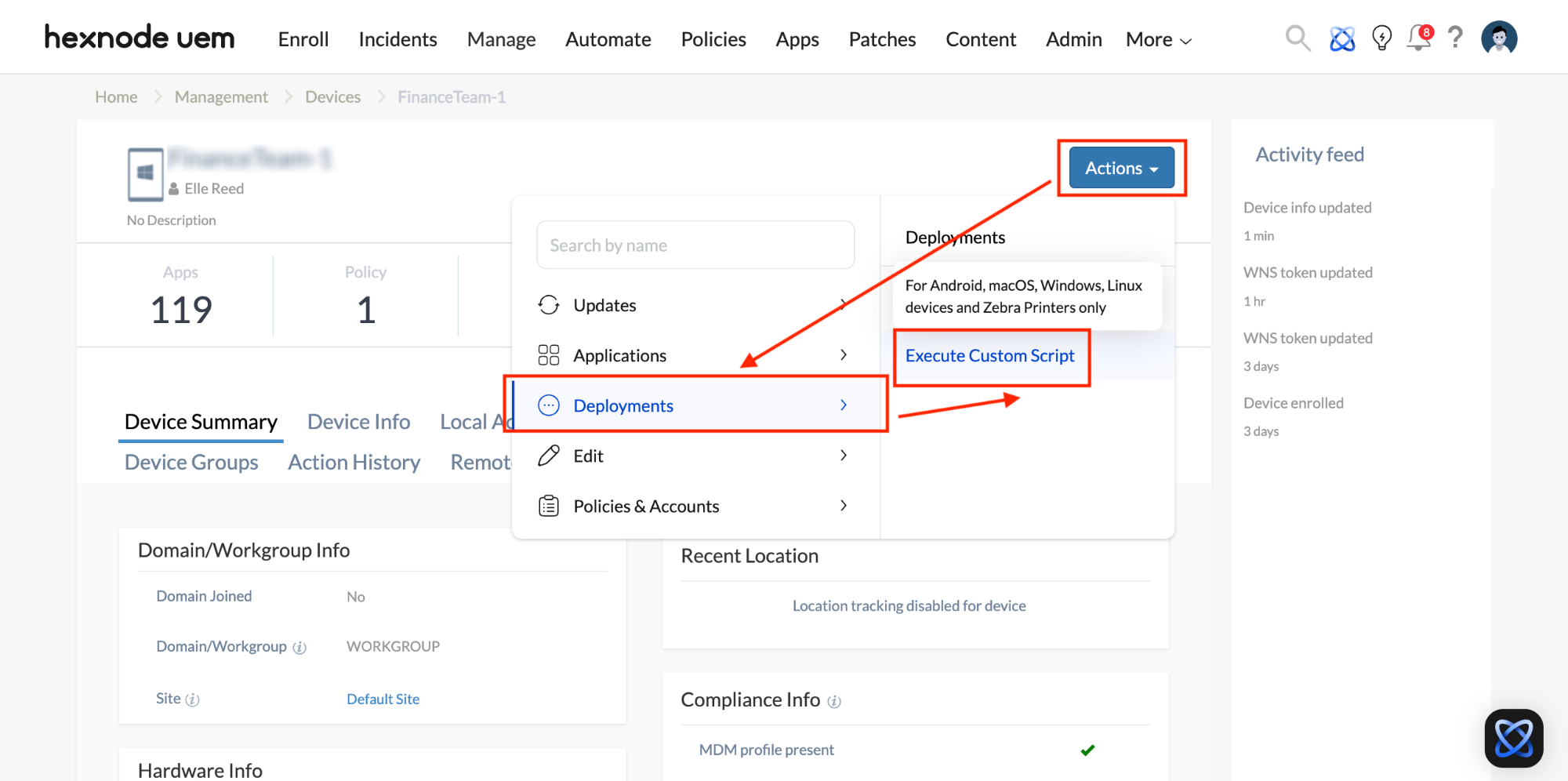
- Navigate to the Manage tab in your Hexnode UEM console and select your Windows device.
- From Actions, select Execute Custom Script from Deployments.
- Upload the
.ps1PowerShell script and click Execute.
PowerShell script to install latest Windows OS
This PowerShell script enables administrators to remotely scan, download, and install the latest version of Windows OS updates across a device fleet via Hexnode UEM.
|
1 2 3 4 5 6 7 8 9 10 11 12 13 14 15 16 17 18 19 20 21 22 23 24 25 26 27 28 29 30 31 32 33 34 35 36 37 38 39 40 41 42 43 44 45 46 47 48 49 50 51 52 53 54 55 56 57 58 59 60 61 62 63 64 65 66 67 68 69 70 71 72 73 74 75 76 77 78 79 80 81 82 83 |
<# .SYNOPSIS Enterprise OS Update Orchestration. .DESCRIPTION Combines high-speed native triggers with descriptive audit reporting and customized transcript labels. #> # 1. Initialize Log and custom "Started" message $LogPath = "C:\Windows\Temp\UEM_Update_Log_$(Get-Date -Format yyyyMMdd_HHmmss).txt" Write-Host "Transcript Started" Start-Transcript -Path $LogPath -Append | Out-Null # 2. System Intelligence & Descriptive Header $OSInfo = Get-CimInstance Win32_OperatingSystem Write-Host "--- Windows Update Initiation ---" Write-Host "Target Device: $env:COMPUTERNAME" Write-Host "OS Version: $($OSInfo.Caption)" Write-Host "Architecture: $($OSInfo.OSArchitecture)" Write-Host "-------------------------------------------" $USOClient = "C:\Windows\System32\USOClient.exe" # 3. Dependency & Service Verification Write-Host "Checking system dependencies..." if (-not (Test-Path $USOClient)) { Write-Host "[ERROR] USOClient.exe not found." Stop-Transcript | Out-Null exit 1 } try { Write-Host "Synchronizing Windows Update and BITS services..." Set-Service -Name wuauserv, bits -StartupType Manual -ErrorAction SilentlyContinue Start-Service -Name wuauserv, bits -ErrorAction SilentlyContinue Write-Host "Services are active and ready." } catch { Write-Host "Could not initialize services." } # 4. Native Orchestration Write-Host "Launching Native Orchestration..." $Actions = @( @{ Name = "Scan"; Arg = "StartInteractiveScan"; Msg = "Scanning Microsoft Update Catalog..." }, @{ Name = "Download"; Arg = "StartDownload"; Msg = "Initiating background download..." }, @{ Name = "Install"; Arg = "StartInstall"; Msg = "Executing installation of updates..." } ) foreach ($Action in $Actions) { Write-Host "$($Action.Name): $($Action.Msg)" Start-Process -FilePath $USOClient -ArgumentList $Action.Arg -NoNewWindow -Wait Start-Sleep -Seconds 5 } # 5. Final Audit & Verification Write-Host "Finalizing execution and verifying status..." Write-Host "-------------------------------------------" try { $RebootPending = Test-Path 'HKLM:\SOFTWARE\Microsoft\Windows\CurrentVersion\WindowsUpdate\Auto Update\RebootRequired' $UpdateSession = New-Object -ComObject Microsoft.Update.Session $UpdateSearcher = $UpdateSession.CreateUpdateSearcher() $SearchResult = $UpdateSearcher.Search("IsInstalled=0 and Type='Software' and IsHidden=0") if ($RebootPending) { Write-Host "Action Successful: Update installed. A REBOOT IS REQUIRED to finalize." -ForegroundColor Yellow } elseif ($SearchResult.Updates.Count -eq 0) { Write-Host "Action Successful: System is already on the latest compatible version." -ForegroundColor Green } else { Write-Host "Action Successful: Update commands issued. $($SearchResult.Updates.Count) updates are processing." -ForegroundColor Green } } catch { Write-Host "Action Successful: Orchestration complete." } Write-Host "-------------------------------------------" Write-Host "Execution Complete for $env:COMPUTERNAME." # 6. Final custom "Stopped" message Stop-Transcript | Out-Null Write-Host "Transcript Stopped: Find log file at the following path: $LogPath" |
Post-Deployment Verification
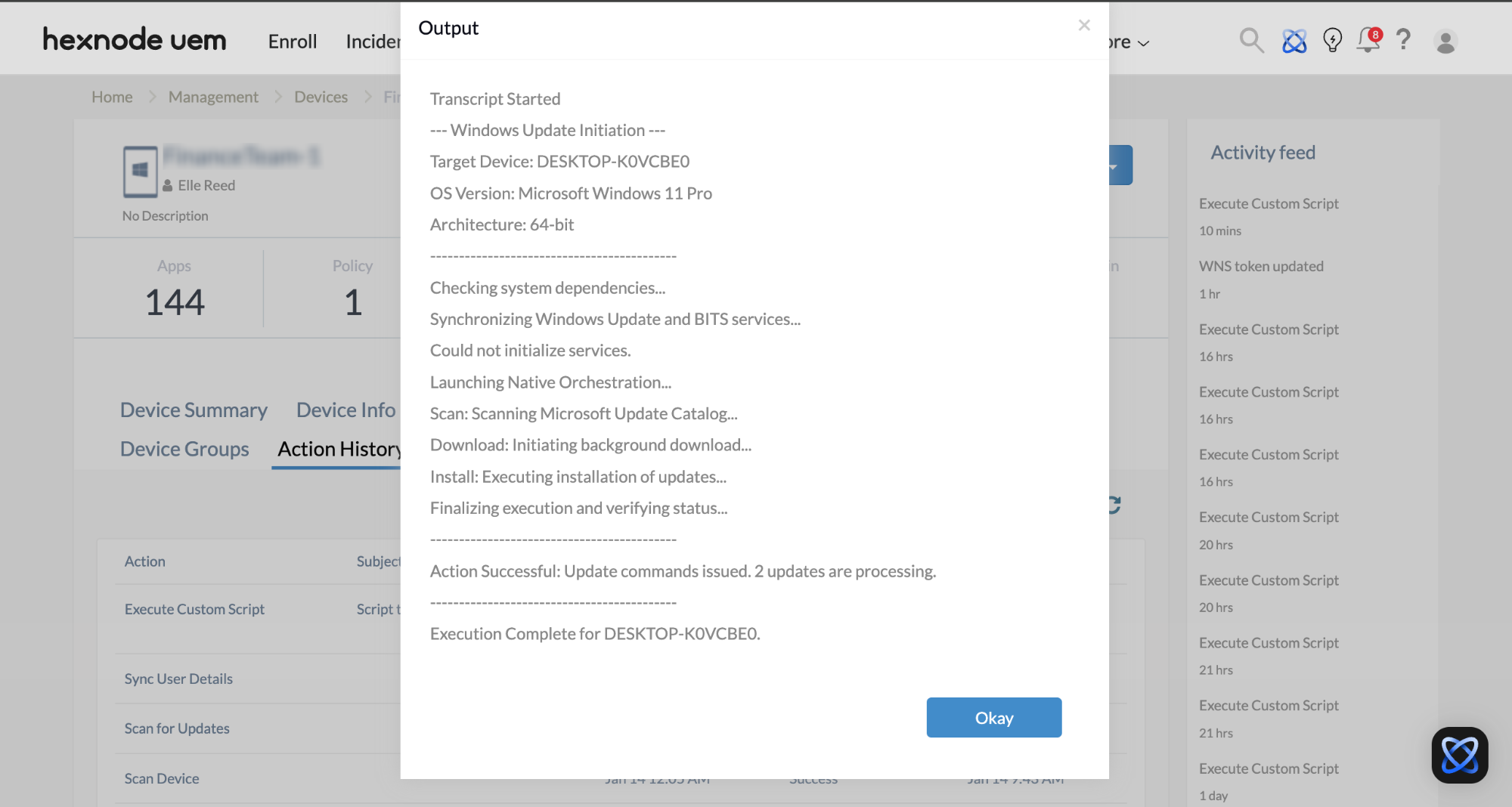
Once the script is executed, the real-time output and execution logs are captured and displayed within the Action History tab of the Hexnode UEM console. This provides administrators with immediate visibility into the update lifecycle. You can quickly confirm whether the device is already compliant, if a download has been initiated, or if a system reboot is pending.
To review the execution logs, follow these steps within your Hexnode UEM portal:
- Navigate to the Action History tab under the specific device.
- Locate the entry for your PowerShell script (e.g., “Update OS”) in the Subject column.
- Click the Show Output button located next to the status field.
Key Benefits and Use Cases
- Rapid Vulnerability Mitigation: By triggering the Windows Update engine remotely, an organization can achieve near-instant compliance across the fleet, bypassing the standard 24-hour delay often associated with native automatic updates.
- Automated Service Remediation: The script ensures the Background Intelligent Transfer Service (BITS), and Windows Update services are active, automatically repairing “broken” update agents on remote endpoints without manual IT intervention.
- Zero-Touch Deployment: Administrators can force critical OS patches on home-based or remote laptops via Hexnode UEM, ensuring systems stay updated even if users ignore “Update and Restart” notifications.
- Verified Compliance Reporting: Detailed execution logs are returned to the Hexnode UEM console, providing an audit trail that confirms whether the device has successfully initialized the update process or requires a reboot.
Implementing this orchestration script ensures that Windows devices remain secure and compliant without manual intervention. By automating service checks and forcing the update engine to run via Hexnode UEM, administrators can maintain elevated security standards across hybrid environments. This streamlined approach minimizes downtime, optimizes bandwidth usage, and provides an audit trail, ensuring every endpoint in your organization stays current with the latest Microsoft security patches.


