


Category filter
Automating macOS TCC/PPPC Permissions with Zsh/Bash Script Library
Managing privacy permissions on macOS specifically Transparency, Consent, and Control (TCC) is a critical task for IT Administrators. While Hexnode UEM allows you to deploy Privacy Preferences Policy Control (PPPC) profiles to pre-approve many prompts, some scenarios require a more “surgical” approach.
This guide explains how to use a Zsh/Bash Script Library to automate, reset, and audit TCC permissions on managed macOS devices.
Overview: TCC and PPPC in a Managed Environment
On macOS, the TCC framework ensures that apps cannot access sensitive data (like the Microphone, Camera, or Full Disk Access) without explicit user consent.
While UEM profiles can “Allow” many of these services, administrators often face three challenges:
- Stuck Permissions: App updates can sometimes cause existing permissions to stop working.
- User Logic: Certain permissions, like Screen Recording, cannot be fully “Allowed” by UEM due to Apple’s security privacy; they can only be toggled by the user or enabled for standard users to toggle.
- Verification: Confirming that a profile has actually reached the device and modified the TCC.db before a user reports an issue.
Why use a Script Library instead of just a Policy?
- Resetting “Stuck” Permissions: If an app update breaks a permission, a script can run tccutil reset to clear the old record and let the new policy take effect.
- Standard User Elevation: While UEM cannot “Allow” Screen Recording, a script can be used to set the “Allow Standard User to Set System Service” flag so non-admins can toggle the switch themselves.
- Validation: Scripts can check the TCC.db SQLite database to ensure a profile actually applied correctly before a user starts a support call.
Core Script Library Commands
Add these snippets to your Hexnode Script Repository to streamline troubleshooting and deployment.
- The “Privacy Reset” Script
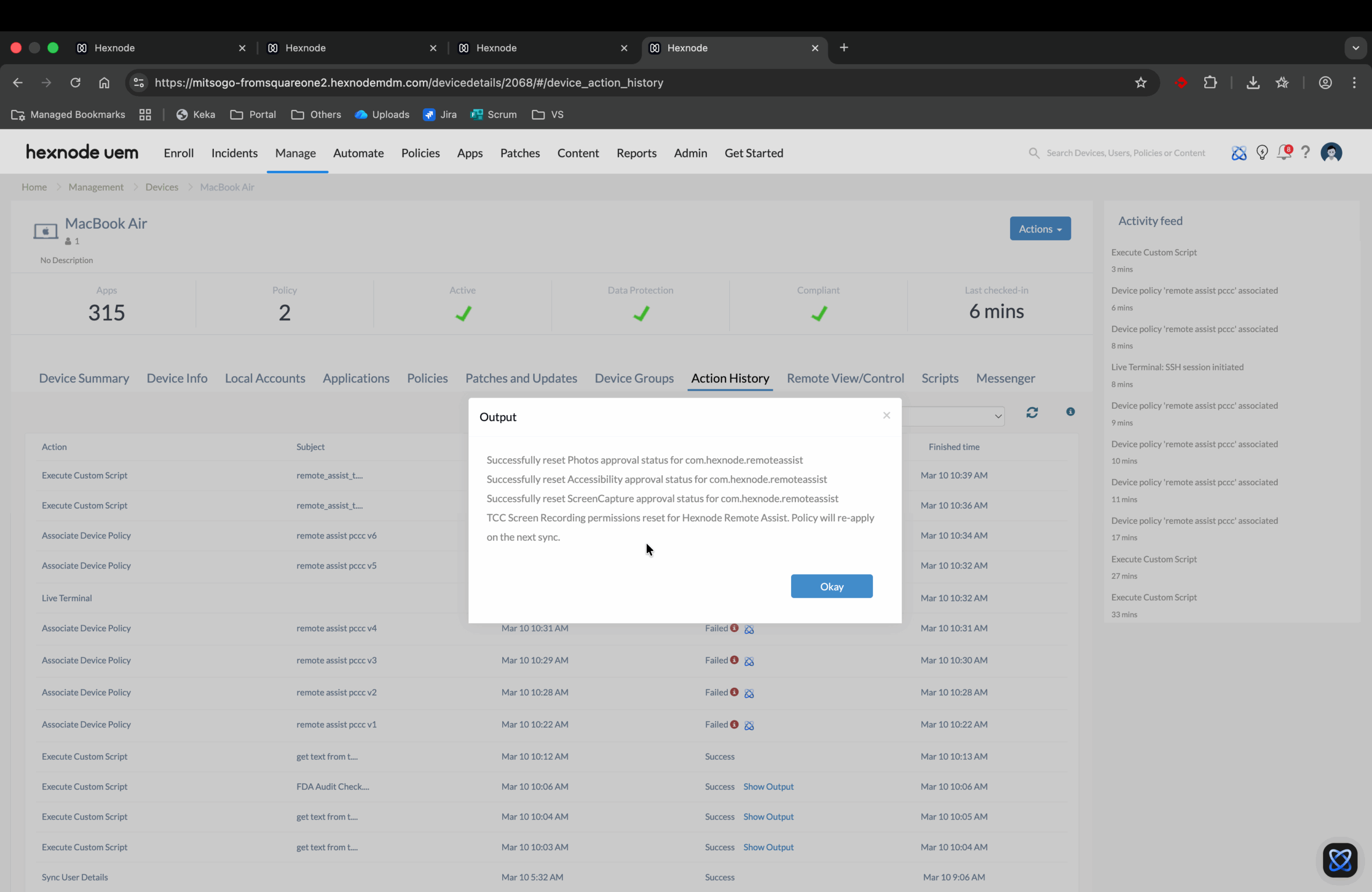
Use this script when an app (e.g., Zoom or Microsoft Teams) stops recognizing the permissions granted via your UEM profile. This wipes the “stale” TCC record, forcing macOS to look at the current UEM policy.
1234567891011#!/bin/zsh#Reset specific TCC services for Hexnode Remote Assisttccutil reset Photos com.hexnode.remoteassisttccutil reset Accessibility com.hexnode.remoteassisttccutil reset ScreenCapture com.hexnode.remoteassistecho "TCC Screen Recording permissions reset for Hexnode Remote Assist. Policy will re-apply on the next sync."Pro Tip: macOS usually requires the application to be closed for TCC changes to take effect. Add killall “Zoom” to the start of the script to ensure the reset registers.
- Full Disk Access (FDA) Auditor
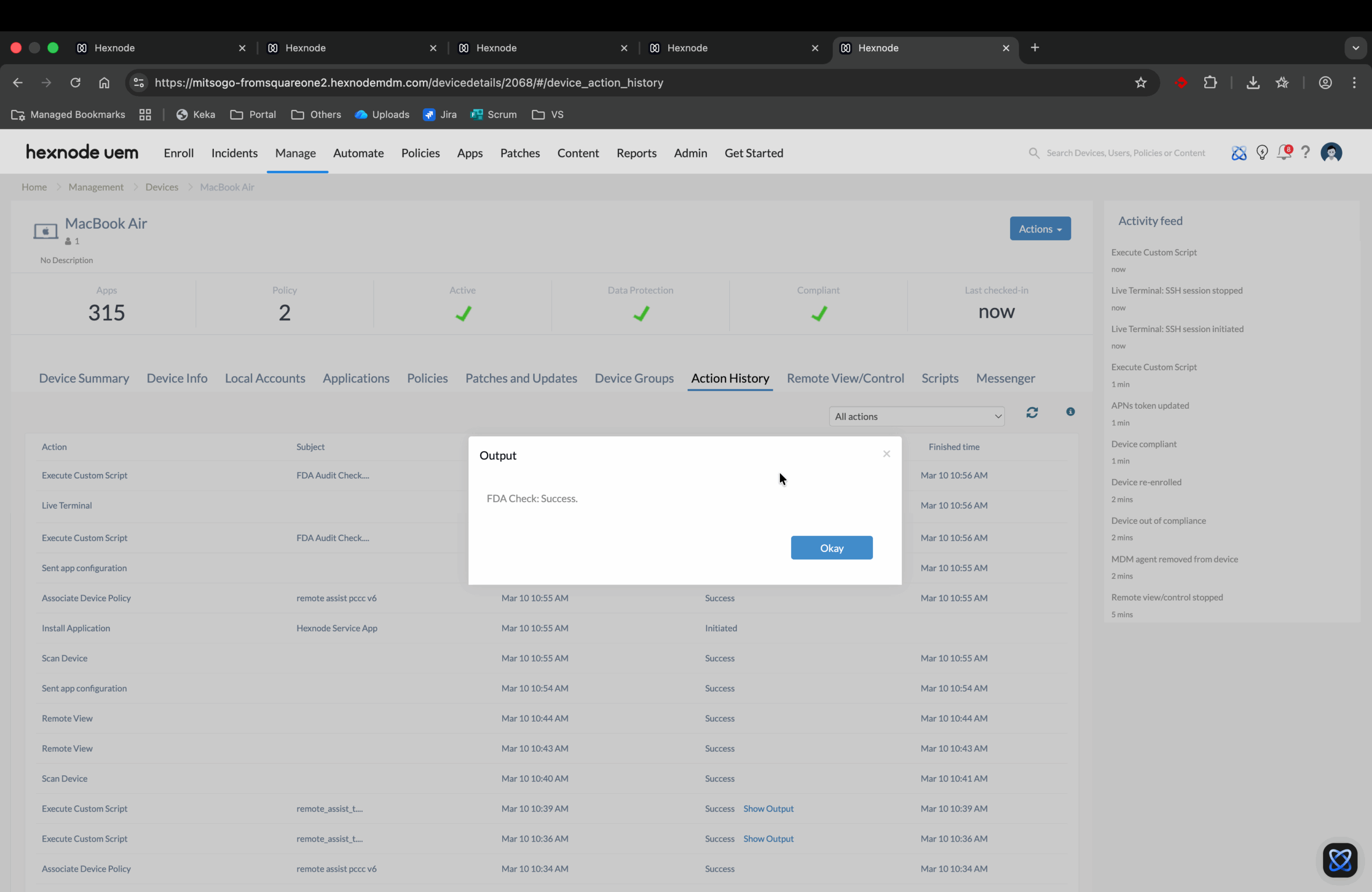
This script verifies if the Hexnode Agent or a specific security tool has the necessary Full Disk Access to perform management tasks.
1234567891011#!/bin/zshif [[ -r "/Library/Application Support/com.apple.TCC/TCC.db" ]]; thenecho "FDA Check: Success."elseecho "FDA Check: Failed."fi
Deploying Scripts via Hexnode UEM
Step 1: Upload to the Script Library
- Log in to your Hexnode portal and navigate to Content > My Files > Scripts.
- Click Add Script and upload your .zsh or .sh files.
- Use clear naming conventions (e.g., macOS_TCC_Reset_Teams) for easy searching.
Step 2: Set as a Post-Install Action
To ensure an app has the correct permissions immediately after a remote installation:
- Go to Policies > macOS > App Management > Required Apps.
- Select your application and click on Post-install Script.
- Choose your TCC-refresh script from the library.
- Save the policy.
Understanding Logic Constraints
Apple’s security architecture (System Integrity Protection) limits what UEM and scripts can do. Use the table below to plan your automation strategy:
| Permission Type | UEM Policy Capability | Script Library Role |
|---|---|---|
| Accessibility | Can be set to Allow. | Reset/Audit if the app stops responding. |
| Full Disk Access | Can be set to Allow. | Verify status via directory checks. |
| Screen Recording | Deny Only / Standard User Toggle. | Reset the “Standard User Toggle” flag. |
| Camera / Mic | Deny Only. | Reset to trigger a fresh prompt for the user. |
Troubleshooting Common Errors
Script runs but nothing changes
This often happens because the target application was open during the reset.
- Solution: Ensure you use the killall command to terminate the app before running tccutil reset.
Bundle ID mismatches
TCC reset commands rely on the exact Bundle ID of the app.
- Solution: Run codesign -dr – /Applications/AppName.app on a test machine to verify the correct Bundle ID before adding it to your script.


