


Category filter
Auditing Linux Network Interfaces with Bash Scripts: A Complete Guide
Maintaining visibility into network configurations is a cornerstone of modern IT infrastructure management, essential for both troubleshooting connectivity and ensuring security compliance. This guide outlines how to leverage the Execute Custom Script action in Hexnode UEM to audit and verify the networking state of managed Linux devices.
By automating the retrieval of network interface details, IT administrators can remotely review hostnames, IP addresses, and live connection statuses. This visibility allows teams to quickly identify misconfigured adapters, detect inactive connections, and document connectivity trends without manual intervention or user disruption.
Core Technical Capabilities
The provided Bash script targets the Linux networking stack to extract high-fidelity telemetry:
- Dynamic Tool Selection: The script intelligently prioritizes the modern ip route suite while providing a fallback to the legacy ifconfig utility, ensuring compatibility across older and newer distributions.
- Link State Verification: Identifies whether an interface is operational (UP), disabled (DOWN), or in a virtualized/loopback state (UNKNOWN).
- Dual-Stack IP Visibility: Captures both standard IPv4 addresses and modern, long-form IPv6 addresses for every active interface.
- Asset Identification: Automatically includes the device hostname and execution timestamp to ensure data integrity during forensic audits.
Technical Implementation: Network Interface Report
|
1 2 3 4 5 6 7 8 9 10 11 12 13 14 15 16 17 18 19 20 21 22 23 24 25 26 27 28 29 30 31 32 33 34 35 36 37 38 39 40 41 42 43 44 45 46 47 |
#!/bin/bash # Script: Network Interface Report # Purpose: Show interface name, status, and IP details # Suitable for Execute custom script action in UEM workflows echo "===== Network Interfaces Report =====" echo "Hostname: $(hostname)" echo "Date: $(date)" echo "" # Use ip command for concise output if command -v ip >/dev/null 2>&1; then # Display interface name, status, and IP ip -o addr show | awk ' { iface=$2; status="UNKNOWN"; if ($3 == "inet") { ip4=$4; } if ($3 == "inet6") { ip6=$4; } # Get interface state separately cmd="ip -o link show " iface; cmd | getline linkinfo; close(cmd); split(linkinfo, arr, " "); for (i=1; i<=length(arr); i++) { if (arr[i]=="state") { status=arr[i+1]; } } print "Interface: " iface "\n Status: " status "\n IPv4: " ip4 "\n IPv6: " ip6 "\n"; ip4=""; ip6=""; }' else echo "ip command not found, falling back to ifconfig..." ifconfig -a | awk ' /^[a-z]/ { iface=$1 } /flags/ { print "Interface: " iface "\n Status: UP" } /inet / { print " IPv4: " $2 } /inet6 / { print " IPv6: " $2 } END { print "" }' fi echo "===== End of Report =====" |
Output Breakdown: What the Report Tells You
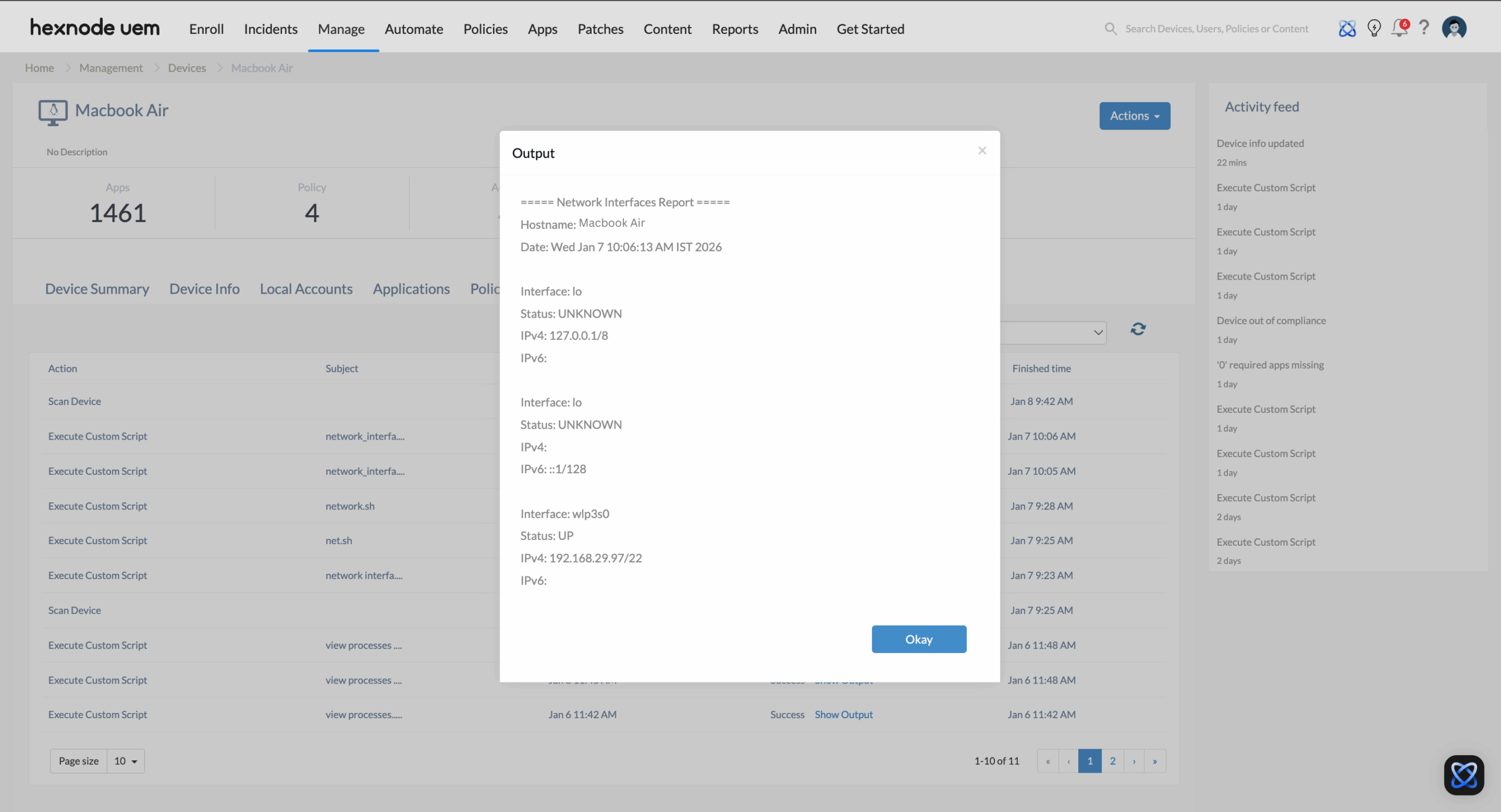
When you view the output in the Hexnode Action History, the results are structured into three key sections:
- The Header: Includes the Hostname (confirming you are auditing the correct machine) and a Timestamp (vital for determining if the connectivity data is current or historical).
- Interface Identity: Lists the specific adapter name, such as eth0 (Ethernet), wlan0 (Wi-Fi), or lo (Loopback).
- Connection Status:
- UP: The interface is active and successfully transmitting data.
- DOWN: The interface is physically disconnected or administratively disabled.
- UNKNOWN: Often seen on virtual or loopback interfaces where a physical “link” signal cannot be determined by the kernel.
- IP Addressing: Displays assigned IPv4 and IPv6 addresses. A blank field here typically indicates a failure to obtain a DHCP lease or a disconnected state.
Verifying Results in Hexnode
Once the script is executed via the Actions menu, follow these steps to review the findings:
- Navigate to Manage > Devices.
- Click on the specific Linux Device.
- Select the Action History tab.
- Locate the “Execute Custom Script” entry and click Show Output.
Frequently Asked Questions (FAQs)
1. Why does the status show as “UNKNOWN” for some interfaces?
This is common for virtual interfaces like the Loopback (lo). Because these aren’t tied to physical hardware (like an Ethernet cable), the Linux kernel may not set an explicit “UP” link state. If the interface is functional, an “UNKNOWN” status is generally not a cause for concern.
2. Why is the IPv4 address blank for a specific interface?
A blank IPv4 field usually indicates that the interface is disconnected, the Wi-Fi is not authenticated, or the device has failed to receive an address from the DHCP server.
3. Does this script require root/sudo privileges?
While standard users can typically view network info, Hexnode executes these scripts with root privileges by default, ensuring full access to all interface metadata across the system.
4. Is the script compatible across all Linux distributions?
Yes. By using the ip command with an ifconfig fallback, the script is designed to work across Ubuntu, Debian, Fedora, RHEL, CentOS, and more.


