


Category filter
Apple User Enrollment for iOS devices
Apple User Enrollment is a specialized enrollment method designed specifically for Bring Your Own Device (BYOD) deployments. It strikes a critical balance between enterprise security and user privacy, making it the ideal choice for organizations where employees use their personal devices for work.
Unlike traditional enrollment methods that grant a Mobile Device Management (MDM) server broad control over the entire hardware, User Enrollment creates a distinct separation between personal and corporate data.
How it Works: Data Separation and Identity
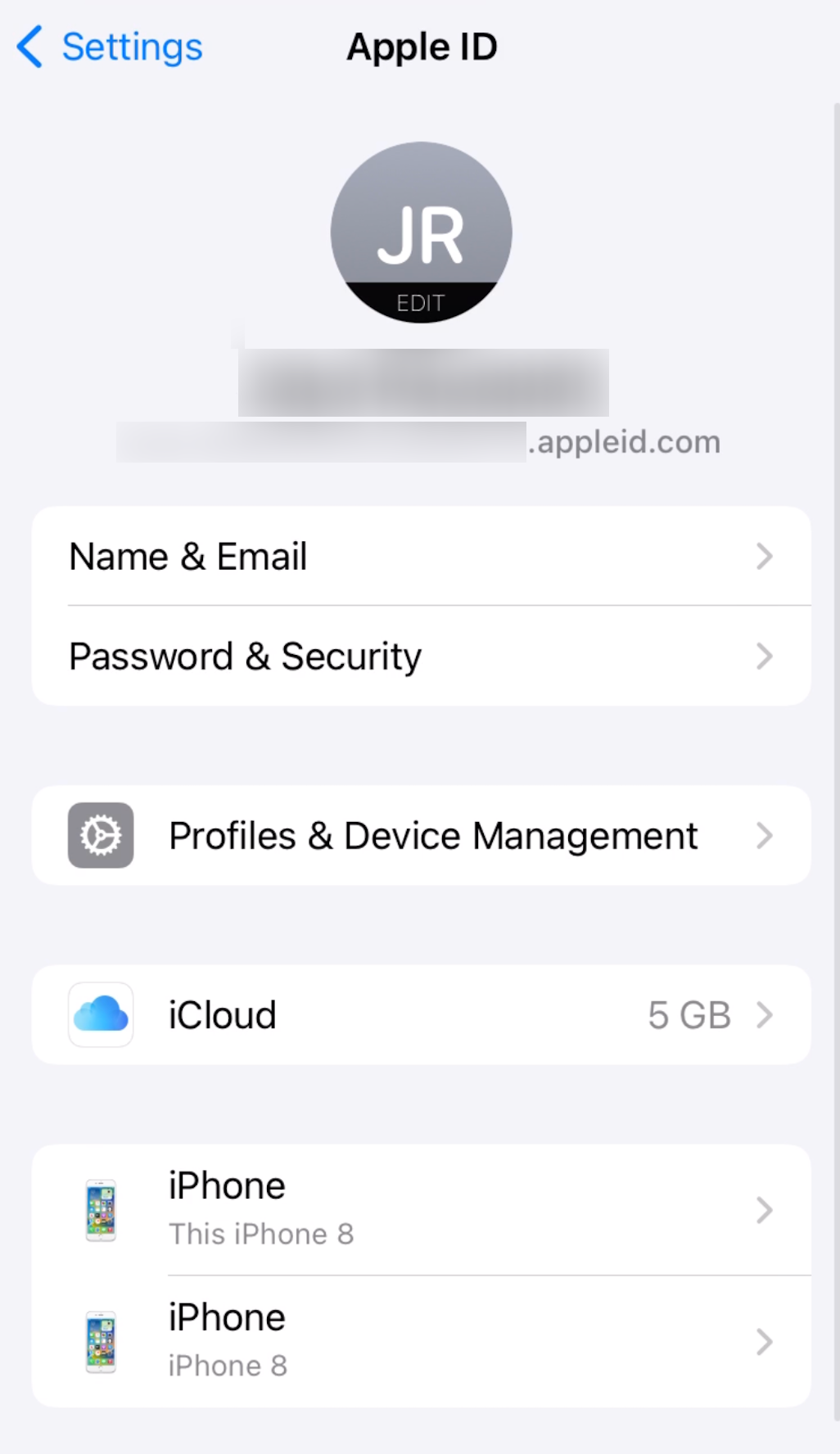
- Managed Apple Account: The core of User Enrollment is the Managed Apple Account created and owned by the organization via Apple Business Manager, this identity co-exists with the user’s personal Apple Account without ever merging or interacting.
- Cryptographic Partitioning: Once the enrollment profile is installed, the device creates separate encryption keys to protect organizational data. This managed data is stored in a separate volume on the device.
- Secure Disenrollment: If a device is disenrolled, these specific encryption keys are destroyed, instantly wiping all corporate data and apps while leaving the user’s personal photos, messages, and apps completely untouched.
1. Technical Prerequisites
Before initiating enrollment, the following configurations must be active:
- APNs Certificate: Configured in the Hexnode UEM portal.
- Apple Business Manager (ABM): Organization must be enrolled in ABM.
- Managed Apple Account: Created in ABM for all end-users.
- Device Specs: Unsupervised devices running iOS 13.0+ or iPadOS 13.1+.
- Safari Settings: Safari must be in Mobile View. If in Desktop Site View, the system will default to “Device Enrollment” instead of “User Enrollment.”
2. Hexnode Portal Configuration
- Navigation: Go to Enroll > Platform – Specific > iOS > Email or SMS.
- Authentication: Set Mode to Authenticated Enrollment.
- Ownership: Set Ownership to Personal.
- Enrollment Type: Select User Enrollment (Avoid selecting “Device Enrollment”).
- Dispatch: Configure request details and click Send.
3. On-Device Enrollment Process (User Actions)
Case A: Ownership is set to “Personal”
- Open Safari and enter the Enrollment URL (e.g., https://portalname.hexnodemdm.com/enroll/).
- Agree to the Terms and Conditions and click Enroll.
- Enter the Managed Apple Account and click Download Profile.
Case B: Ownership is set to “Let the user choose”
- Follow steps 1-2 above.
- Enter Username/Password and select I own this device (Selecting “My organization owns this device” triggers standard Device Enrollment).
- Choose Manage only work-related data and apps.
- Enter the Managed Apple Account and click Download Profile.
Finalizing Installation (All Cases)
- Open Settings and tap Enrol in Hexnode UEM.
- Tap Enrol My iPhone.
- Enter the password for the Managed Apple Account.
- Verify success: Go to Settings > General > VPN & Device Management to view the “Hexnode UEM” profile.
4. Post-Enrollment: App Management (VPP)
To enable advanced management via the Hexnode UEM agent:
- Link a VPP account to the Hexnode portal.
- Purchase licenses in ABM and deploy the app to devices.
- Automatic Deployment: If the Managed Apple Account exists in the VPP account, deployment initiates automatically.
- Manual Deployment: Admins can use the Install Application action or Required Apps policy.
- User Consent: Users must click Install on the device prompt to complete the process.
Managed Apple Account Authentication and Data Separation:
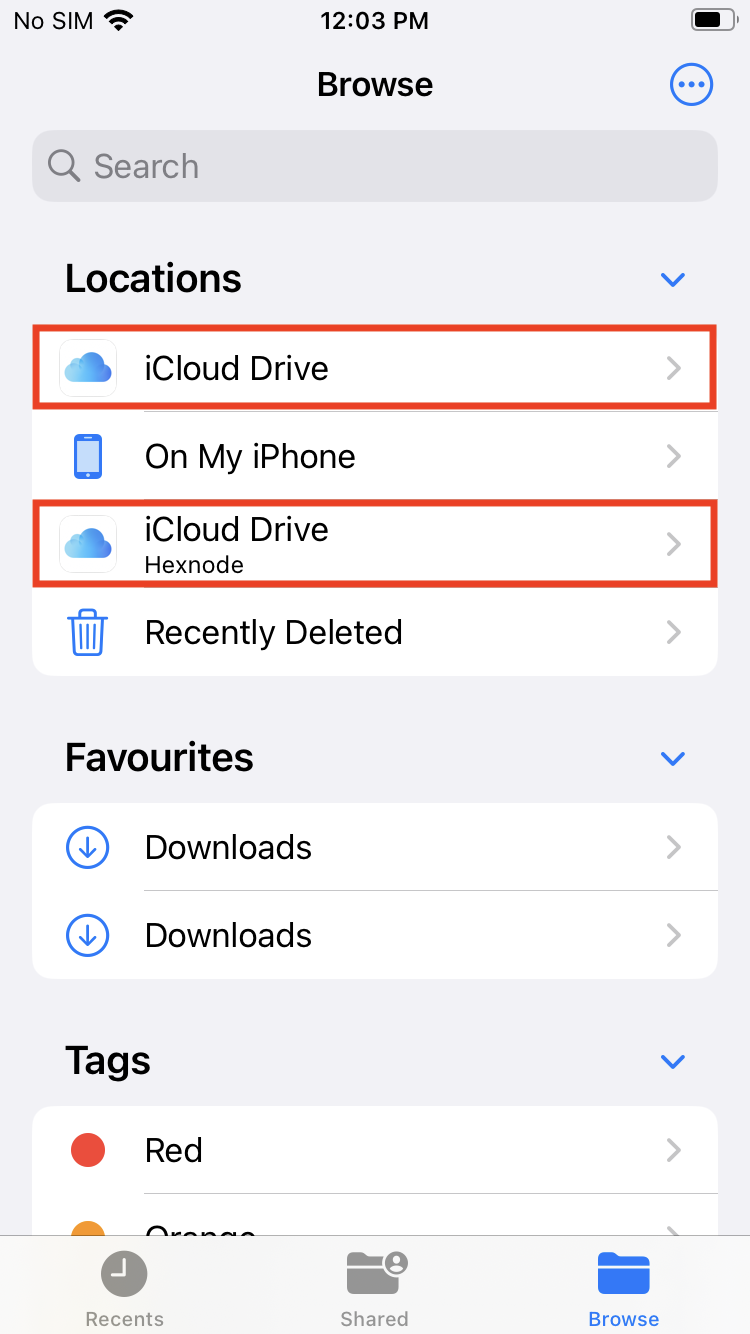
When a user is signed in with both a personal Apple Account and a Managed Apple Account, “Sign in with Apple” will default to using the Managed Apple Account for managed apps and the personal Apple Account for unmanaged apps. During the sign-in process via Safari or SafariWebView within a managed app, the user can opt to enter their Managed Apple Account to associate the sign-in with their work account. Furthermore, users will be able to access personal iCloud Drive files separately from their organization’s iCloud Drive files within the Files app.
5. MDM Functionality & Privacy Boundaries
Data Separation Features
- Managed Apple Account: Defaults for managed apps; Personal Apple Account remains for unmanaged apps.
- iCloud Drive: Separate personal and organizational volumes appear in the Files app.
- Security: Separate encryption keys protect managed data; these are destroyed upon disenrollment.
MDM Limitations (Privacy Protections)
Unlike Automated Device Enrollment, User Enrollment cannot access:
- Serial Number, UDID, IMEI, or MEID.
- Remote actions like Clear Activation Lock or Enable Lost Mode.
6. Supported Functionalities in User Enrollment
| Category | Supported Actions & Payloads |
|---|---|
| Remote Actions | Scan Device, Scan Device Location, Lock Device, Edit Device Attributes, Install/Uninstall App, Disenroll Device, Broadcast Message, Associate Policy, Add Devices to Group, Set Friendly Name, Export Device Details, Delete Device. |
| Passcode | Minimum length: 6. No simple values allowed. (Complex characters cannot be mandated). |
| Restrictions | Siri (while locked), Screen capture, Sync managed data with iCloud, Fraud warning, Lock screen notifications, Today View on lock screen, Control Center on lock screen, Force encrypted backup, Send diagnostic data to Apple. |
| App Management | Enterprise/VPP apps via Required Apps or Install Action. Web Clips. |
| Network | Wi-Fi, VPN, Per-App VPN. |
| Security/Accounts | Certificates, SCEP, Business Container, Email, ExchangeActiveSync, CardDAV, Calendar, CalDAV, Google Accounts, LDAP. |
| Configurations | Deploy Custom Configurations, Fonts, AirPrint, AirPlay. |
| Expense Management | Network Data Usage Management. |
Troubleshooting
- Error: “Profile Download Failed” or Wrong Profile Type
- Symptoms: The device downloads a “Device Enrollment” profile instead of a “User Enrollment” profile, or the download fails entirely.
- Cause: Safari Desktop View. On iPads specifically, Safari often defaults to “Request Desktop Website.” User Enrollment profiles only trigger when Safari is in Mobile View.
- The Fix:
- In Safari, tap the ‘AA’ or the Page Settings icon in the address bar.
- Select Request Mobile Website.
- Restart the enrollment process.
- Error: “Managed Apple Account Authentication Failed”
- Symptoms: The user cannot sign in during the “Enroll in Hexnode UEM” step in the Settings app.
- Causes: The Managed Apple Account has not been created in Apple Business Manager (ABM).
- The user is trying to use their Personal Apple Account instead of the corporate one.
- The Managed Apple Account password has expired or needs a first-time reset.
- The Fix:
- Verify the account exists in ABM under Users.
- Ensure the user is entering the exact Managed Apple Account provided by the admin.
- Reset the password in ABM if the user is locked out.
- Error: “Unable to Install Apps” (VPP Issues)
- Symptoms: Enrollment is successful, but the Hexnode UEM agent or required apps fail to install.
- Cause: User Enrollment requires VPP (Volume Purchase Program) for app deployment. It does not support standard App Store app installation via the UEM.
- The Fix:
- Ensure a VPP Token is active in Admin > Apple Business Manager > Apple VPP.
- Confirm that licenses for the Hexnode UEM app have been “purchased” (even if free) in ABM.
- Check that the Managed Apple Account is associated with the VPP account.
Frequently Asked Questions (FAQs)
- Can the company see personal photos or messages with User Enrollment?
No. Apple User Enrollment is designed with a “Privacy-First” architecture. The MDM server cannot access personal photos, iMessages, personal email, browsing history, or the list of personal apps installed on the device. It can only view and manage data within the corporate “Managed” partition.
- Why is a Managed Apple Account required? Can a personal Apple Account be used?
A personal Apple Account cannot be used for User Enrollment. A Managed Apple Account is required to create the cryptographic separation (APFS volume) between work and personal data. This Account allows the organization to manage work apps and iCloud data without touching the personal Apple Account.
- Why is it impossible to download apps from the App Store using a Managed Apple Account?
Managed Apple Accounts typically have “Purchase” privileges disabled by Apple. Therefore, users cannot browse and download apps from the App Store freely. The organization must “buy” the apps (even free ones) via Apple VPP (Volume Purchase Program) and assign them to the device.


