


Category filter
Allow unattended access to remotely view and control devices with Hexnode UEM
Unattended Remote Access allows IT admins to remotely view and control Windows devices without any interaction from the user at the device end. To enable unattended remote access:
- Login to Hexnode UEM portal.
- Go to Policies, select an existing policy or click on New Policy to create a new one.
- Navigate to Windows > Troubleshooting > Unattended Remote Access and click Configure.
- Choose from the following options:
- Enable unattended remote view
- Enable unattended remote control(available when “Enable unattended remote view” is checked)
- Navigate to Policy Targets, select the required devices and click Save.
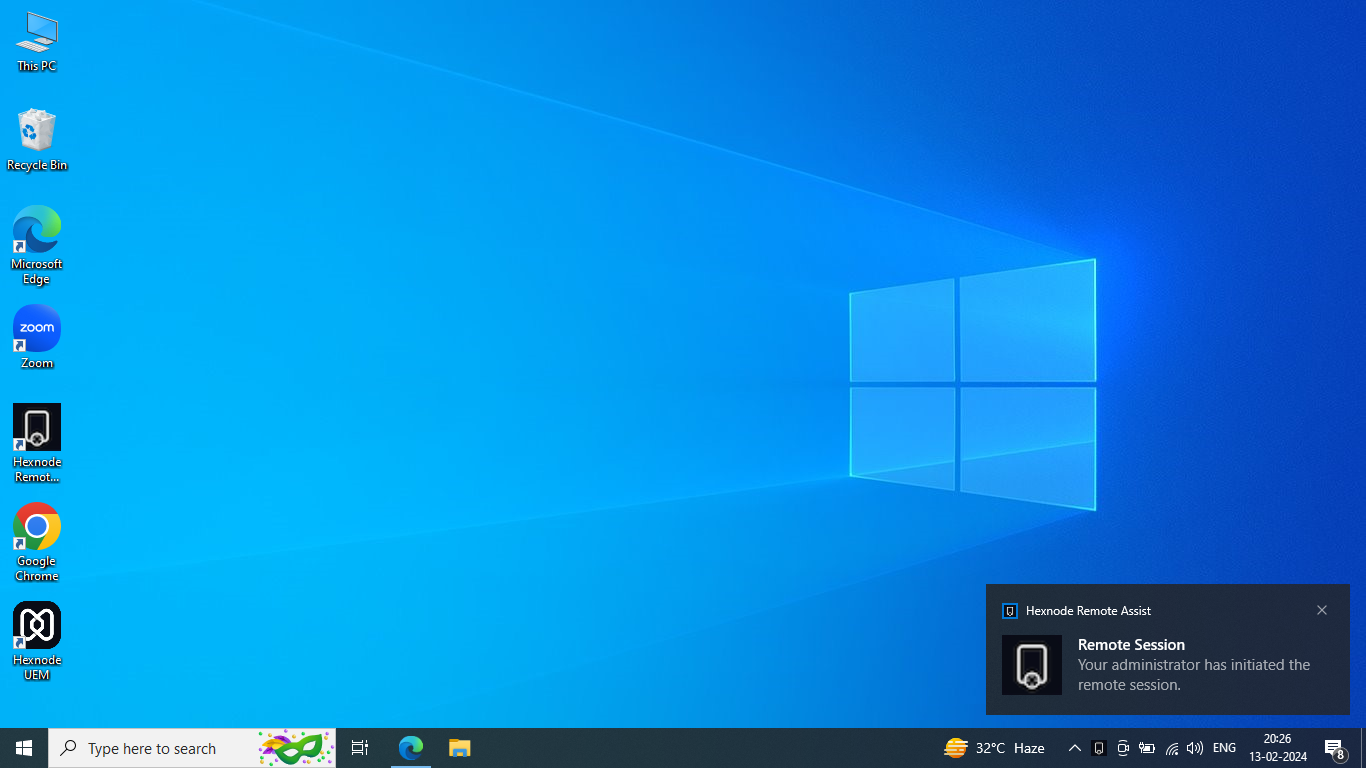
- Go to Manage, select the device and click on Start Session under Remote View.
- Select whether the Hexnode Remote Assist app should run at the User level or the System level.
- Mark the Initiate session without user interaction option.
- Click Start to begin the Remote View session.
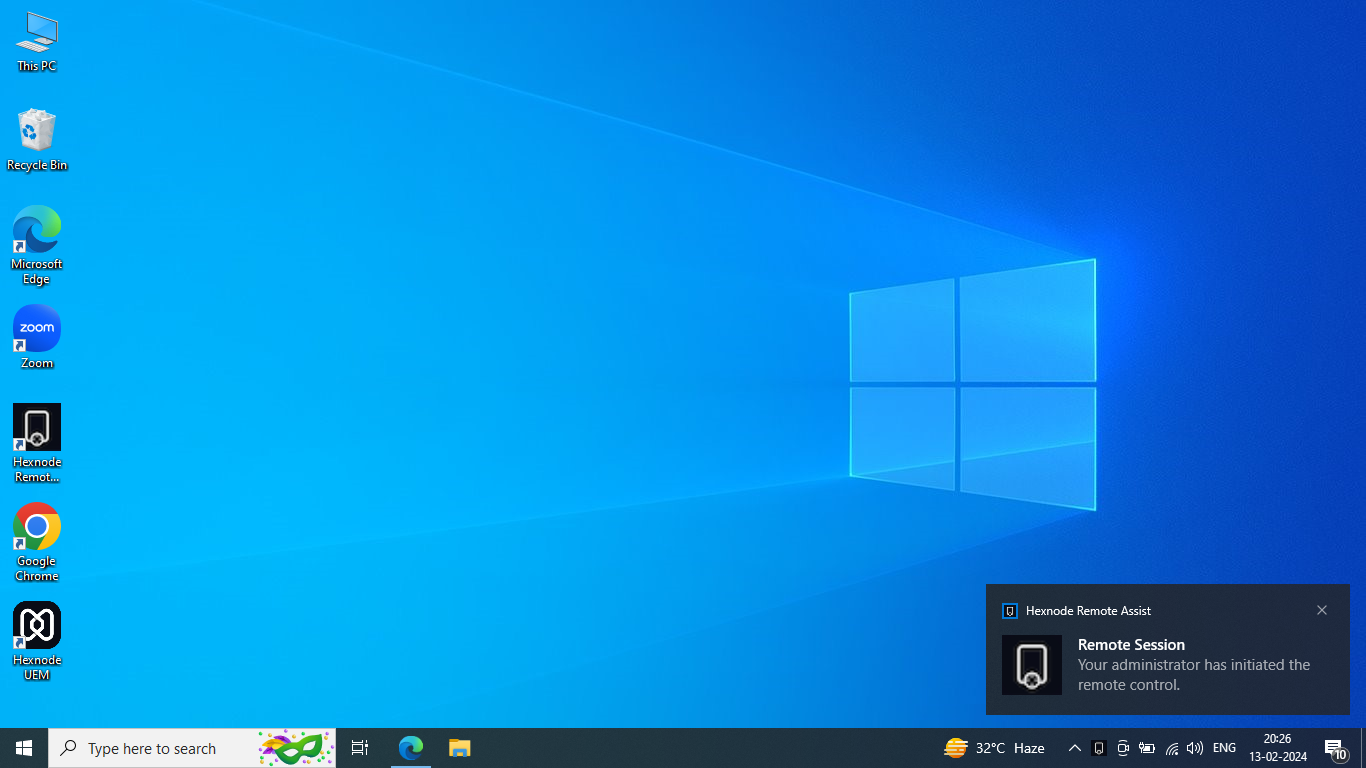
- Click Initiate Remote Control to begin the Remote Control session.
Frequently Asked Questions
1. Can the admin perform unattended remote control if the Windows device is at the Lock screen?
Yes, provided the Unattended Remote Access policy is successfully associated, and the session is initiated at the System level. This allows the admin to enter login credentials or perform maintenance even when no user is currently logged into the desktop.
2. Why might the admin see a “Waiting for connection” message indefinitely in the Hexnode console?
The admin should verify if the Hexnode Remote Assist app is installed on the device. While the policy enables permission, the actual background service must be present. If it’s missing, the admin should deploy the Hexnode Remote Assist app before attempting a connection.
3. What happens if a user is actively using the device when the admin initiates an unattended session?
Since the session is “unattended,” the admin can view or control the screen immediately without a prompt appearing to the user. To avoid disrupting work, the admin should first use the Remote View feature to check for user activity before clicking on Initiate Remote Control.
Troubleshooting
Issue: The remote session displays only a black screen.
Probable Cause:
The remote device has entered a low-power state, such as Sleep mode, or the laptop lid has been closed. When the physical display hardware is deactivated by Windows to save power, the Hexnode Remote Assist app cannot capture the desktop interface, resulting in a blank feed.
Solution:
Ensure the device is powered on and the display is active. To prevent this during future sessions, configure a Power policy in Hexnode and associate it with the device. Setting the “Upon closing the lid” and “Upon pressing Sleep button” options to “Take no action” ensures the system remains awake, and the display stays accessible for remote viewing.
2. The ‘Initiate Remote Control’ button is missing, and only ‘Request Control’ is available.
Probable Cause:
The specific sub-setting “Enable unattended remote control” was not toggled on within the Unattended Remote Access policy.
Solution:
The admin should enable the “Enable unattended remote control” option in the policy, and ensure the policy is updated on the device.
Best Practices
- Notify Users Post-Session: Since unattended access occurs without a prompt, the admin should follow a protocol of sending a “Broadcast Message” via Hexnode UEM after the session is complete. This maintains transparency and informs the user of what changes were made.
- Use “View” Before “Control”: To conserve resources and respect privacy, the admin should initially start with Remote View to diagnose the issue. Only initiate Remote Control once it is confirmed that manual intervention is required.


