


Category filter
How to Add Certificates for iOS Devices?
Digital certificates are essential for authenticating iOS devices to corporate services such as Wi-Fi, VPN, and Exchange (ActiveSync). Hexnode UEM simplifies the deployment of these certificates by allowing administrators to push them via policies, eliminating the need for manual user installation.
1. Why Deploy Certificates via MDM?
- Ease of Access: Seamlessly authenticate to enterprise networks and services.
- Security: Use identity certificates for Wi-Fi and VPN instead of static passwords.
- Centralization: Once a certificate is uploaded to a Hexnode policy, it becomes available for selection in other configuration sections (e.g., Wi-Fi, VPN, or Email).
2. Configuration Workflow
To add a certificate to an iOS device using Hexnode:
- Log in to the Hexnode UEM portal.
- Navigate to Policies > New Policy > Create a fully custom policy > iOS > Security > Certificates and click Configure.
3. Certificate Settings & Management
| Setting | Technical Description |
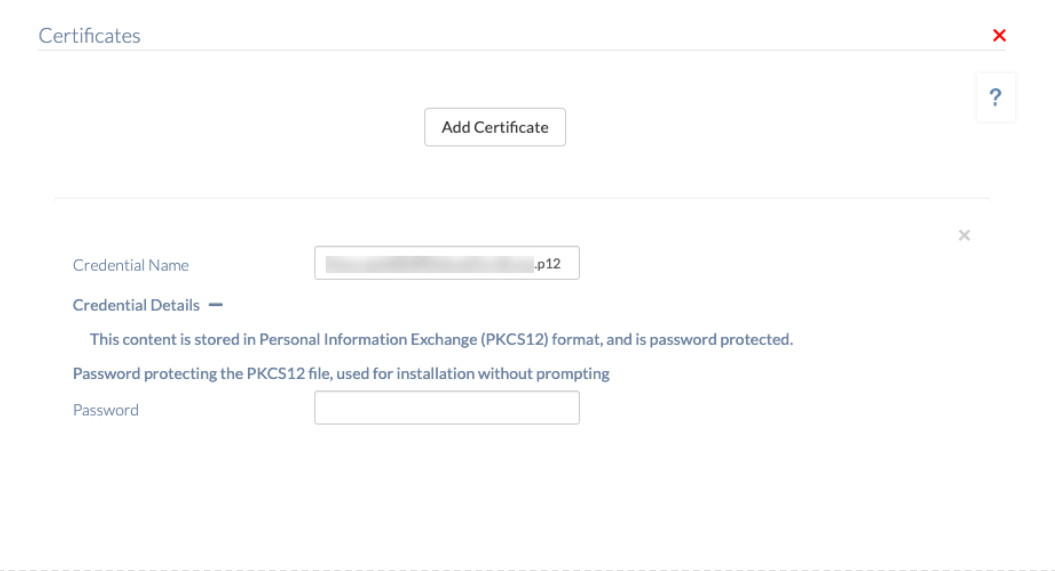
| Add certificate | Imports a new credential certificate profile from the local machine. Multiple certificates can be added to a single policy. |
| Credential name | A unique name used to identify the certificate within the Hexnode console. This is pre-filled but can be modified. |
| Credential details | Click the ‘+’ icon to view the certificate’s Subject, Issuer name, and Expiry date. |
| Remove | Click the ‘x’ button at the top-right corner of a certificate listing to delete it from the policy. |
For .p12 Certificates:
If the certificate file has a .p12 extension, the certificate password must be provided during the upload process.
- Correct Password: Enables a silent installation on the device.
- Incorrect Password: The user may be prompted to manually install or provide credentials on the device end.
4. Policy Association & Deployment
To deploy the certificates to devices:
- Navigate to the Policy Targets tab within the policy.
- Select the desired Devices, Device Groups, Users, User Groups, or Domains/OUs.
- Click Save.
5. What Happens at the Device End?
Once the policy is successfully applied, the user can verify the installed certificates on the iOS device:
- Open the Settings app.
- Navigate to General > Device Management > Hexnode UEM.
- Tap More Details > Certificates to view the list of certificates pushed by the UEM.
6. Troubleshooting & FAQs
Frequently Asked Questions (FAQs)
- Can a single certificate be used across multiple policies?
Yes. After uploading a certificate to the portal, it will appear as an option in the “Identity Certificate” dropdown for Wi-Fi, VPN, and Email configurations. - What happens if the policy is removed?
Certificates deployed via MDM are linked to the policy. If the policy is disassociated or the MDM profile is removed, the certificates are typically revoked and removed from the device. - Is there a limit to how many certificates can be added?
No, as many certificates as needed to satisfy organization authentication requirements can be added.
Troubleshooting
- Certificate Installation Failures: Verify that the certificate password was entered correctly during upload for .p12 files.
- Trust Issues: Ensure that the Root CA and Intermediate CA certificates are also pushed via Hexnode if the identity certificate is signed by a private Certificate Authority.
- Expired Certificates: Check the Credential details in the policy to ensure the certificate has not reached its expiry date.
Need more help?


