


Category filter
ActiveSync configuration for Windows devices
Configuring Exchange ActiveSync on Windows devices sync your emails, attachments, calendar, contacts, and tasks between the device and your email account server. Hexnode UEM enables you to configure ActiveSync remotely and push it to the Windows devices over-the-air.
Configure Exchange ActiveSync for Windows devices
To configure Exchange ActiveSync settings on your Windows devices using Hexnode UEM,
- Login to your Hexnode UEM portal. Navigate to Policies and click on New Policy to create a new one or click on any policy to edit an existing one. Enter the Policy Name and Description in the provided fields.
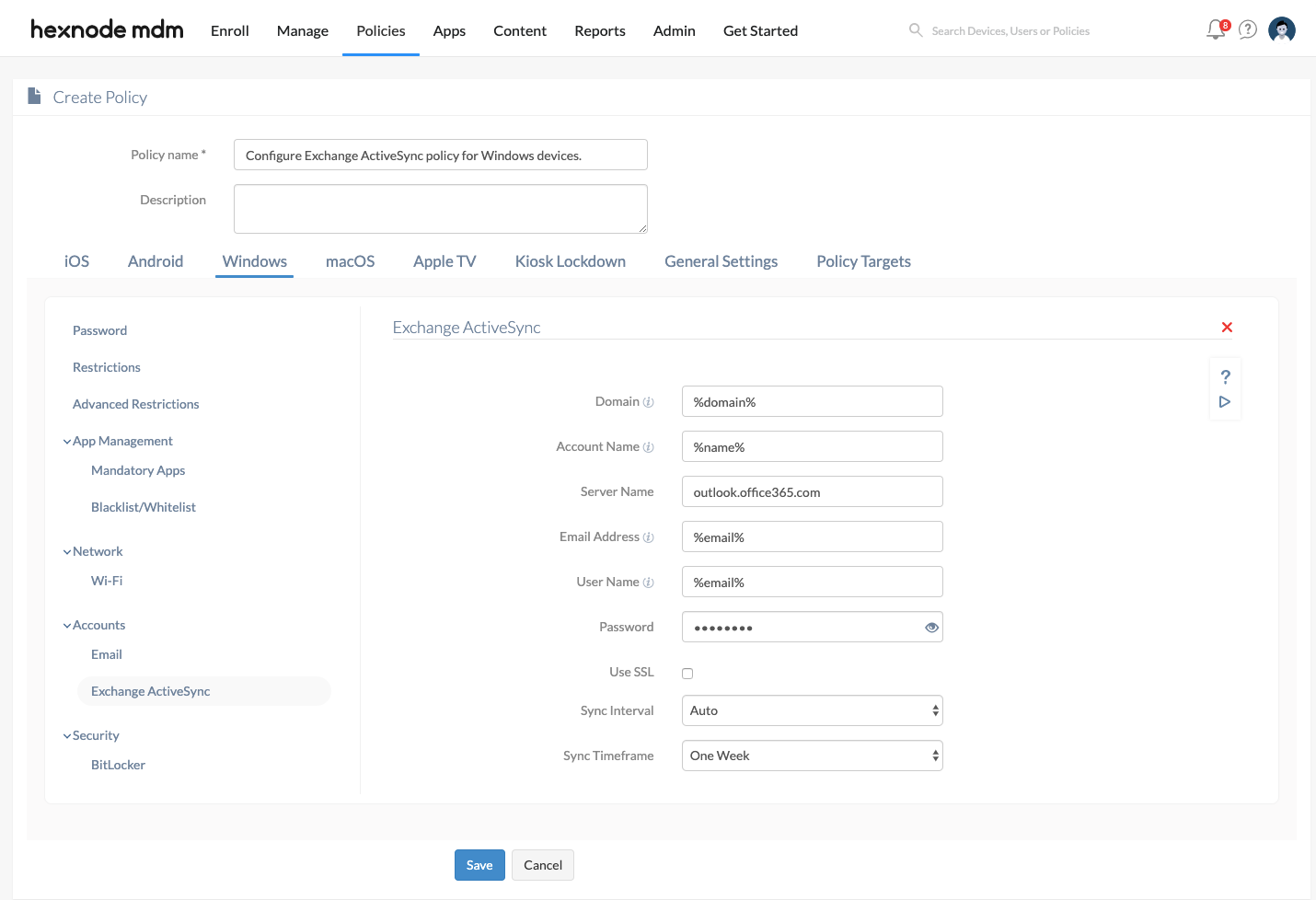
- Navigate to Windows > Accounts > Exchange ActiveSync. Click on Configure.
- Configure Exchange ActiveSync settings.
| Settings | Description |
|---|---|
| Domain | Enter the domain name of the Exchange server. The field supports the use of wildcards. The supported wildcards are:
|
| Account Name | Enter the name of the ActiveSync account. This field supports the use of wildcards. You can use the following:
|
| Server Name | Enter the name or IP address of the server. |
| Email Address | Enter the email address of the user. The field supports the use of wildcards. The supported wildcards is %email%. |
| User Name | Enter the username for logging into your Exchange ActiveSync server. This field supports the use of wildcards. You can use the following:
|
| Password | Enter the password associated with the ActiveSync username. |
| Use SSL | Select the option SSL to establish a safe and encrypted connection between the device and the ActiveSync server.
Disabled by default. |
| Sync Interval | Select an option from Auto (sync in real-time), Manual, 15 Minutes, 30 Minutes, and 60 Minutes to schedule the time interval for syncing the emails and calendar events with the device.
By default, Sync Interval is set to Auto. |
| Sync Timeframe | Select an option from For Ever, Three Days, One Week, Two Weeks, and One Month to set up the time bound for syncing the emails and calendar events that are on the server (for the specified time bound) with the device.
By default, Sync Timeframe is set to One Week. |
Apply the ActiveSync configuration to Devices/Groups
There are two ways by which you can associate the policy with the devices in bulk.
If you haven’t saved the policy yet,
- Navigate to Policy Targets.
- Click on + Add Devices, search and select the required devices to which you need to apply the policy. Click OK.
- Click on Save to apply the policies to the devices.
To associate the policies with a device group, select Device Groups from the left pane under “Policy Targets”, and follow the above instructions. Similarly, you can associate the policy to Users, User Groups, or Domains from the same pane.
If you’ve already saved the policy and taken to the page which displays the policy list,
- Select the required policy.
- Click on Manage, and select Associate Targets.
- Select Device/ User/ Device Group/ User Group/ Domain.
- Search and select the devices/ users/ device groups/ user groups/ domains to which you need to apply the policy and click Associate.
What happens at the device end?
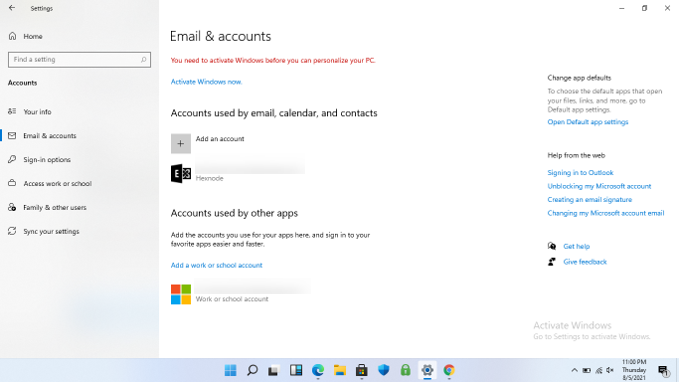
The Exchange ActiveSync policy synchronizes the device with the exchange ActiveSync server. Also, the account gets listed on the device’s built-in Mail and Calendar apps.
The device settings page lists this account among other accounts used by email, calendar and contacts.
Frequently Asked Questions (FAQs)
1. What occurs if the password field remains empty during policy configuration?
If the password field is left blank, the account profile will be associated with the device, but the user will be prompted to provide credentials manually upon the initial launch of the Mail application.
2. How can Exchange servers be configured when the NetBIOS name differs from the domain name?
Administrators can utilize the %netbiosname% wildcard within the Domain field. This configuration is particularly effective in complex on-premises environments where the domain name required for authentication is distinct from the email suffix.
3. Will the sync timeframe affect the attachments?
Yes. If the timeframe is set to “Three Days,” only attachments received in the last three days will be readily available for search and download.
Troubleshooting
1. Account appears but shows “Not synced yet” for a long time.
Probable Cause:
The device cannot reach the mail server due to a typo or SSL being disabled when the server requires it.
Solution:
Double-check the Server Name. Ensure Use SSL is enabled if your server uses port 443 (standard for modern Exchange).
2. Contacts and Calendar are missing, but Email works.
Probable Cause:
The device’s local settings might have “Contacts” or “Calendar” toggled off for that account.
Solution:
Go to Settings > Accounts > Your accounts on the device, click the account > Manage > Change mailbox sync settings, and ensure all toggles are On.
Best Practices
- Enable SSL by Default: Almost all modern Exchange servers (including M365 and On-Premise 2016+) require encrypted connections. Always keep the Use SSL option enabled to prevent connection failures.
- Deploy Certificates First: If your Exchange server uses a private/internal SSL certificate, ensure you deploy the required Root Certificate to the device before the ActiveSync policy to avoid “Account Error” notifications.


