


Category filter
How to enable Lost Mode for Windows PCs
Lost Mode is a remote security action that locks a Windows 10 or 11 device to prevent unauthorized data access, displaying a custom recovery message while restricting all system functionalities until disabled by an administrator.
Why Enable Lost Mode?
If a corporate laptop is misplaced or stolen, sensitive data becomes vulnerable. Enabling Lost Mode ensures that even if an intruder has physical possession, the system is inaccessible.
- Data Lockdown: Restricts all device operations to prevent data breaches.
- Device Recovery: Displays contact information and custom messages to the finder.
- Remote Control: The device remains locked even after a restart and can only be unlocked via the Hexnode portal.
Prerequisites and Compatibility
Before initiating Lost Mode, ensure the following technical requirements are met:
| Requirement | Specification |
|---|---|
| Operating System | Windows 10 or Windows 11. |
| Enrollment Method | Must be enrolled using the Hexnode Installer app. |
| Agent Software | Requires the latest version of the Hexnode UEM app on the device. |
| Connectivity | Device must be online to receive the remote command. |
Step-by-Step Guide: Enabling Lost Mode
Follow these steps to secure a reported lost or stolen Windows device:
- Log in to the Hexnode UEM console.
- Navigate to Manage > Devices and select the target device.
- Click on Actions > Security > Enable Lost Mode.
- Configure the display information:
- Custom Message: Provide instructions for the finder.
- Phone Number: Enter a contact number (supports the %phonenumber% wildcard).
- Footnote: Add additional recovery details.
- Click Enable.
Supported Wildcards for Custom Messages
You can use the following wildcards to dynamically populate device-specific info on the lock screen:
%devicename%, %deviceid%, %username%, %model%, %udid%, %assettag%, %serialnumber%, %name%, %department%, %imei%, %email%, %devicenotes%, %alternateemail%, %phonenumber%, %domain%, %osname%, %wifimacaddress%, %osversion%, %iccid%, %userprincipalname%, %netbiosname%, %newline%.
Tracking and Recovering the Device
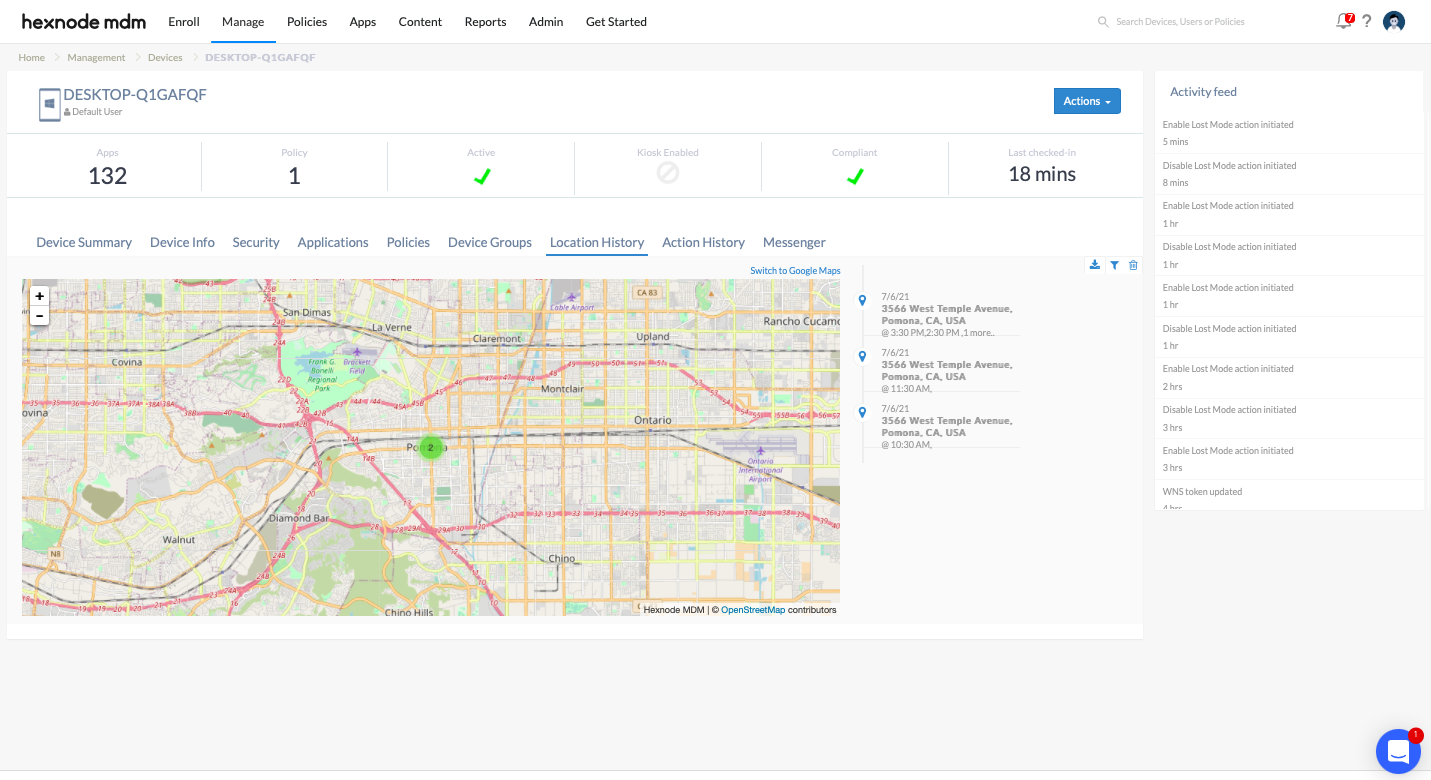
Hexnode allows administrators to monitor the movement of a lost device through integrated location services.
- Location Tracking Policy: If associated before the device was lost, Hexnode fetches the location at periodic intervals.
- Scan Device Location: Execute this action to retrieve the immediate, real-time coordinates of the device.
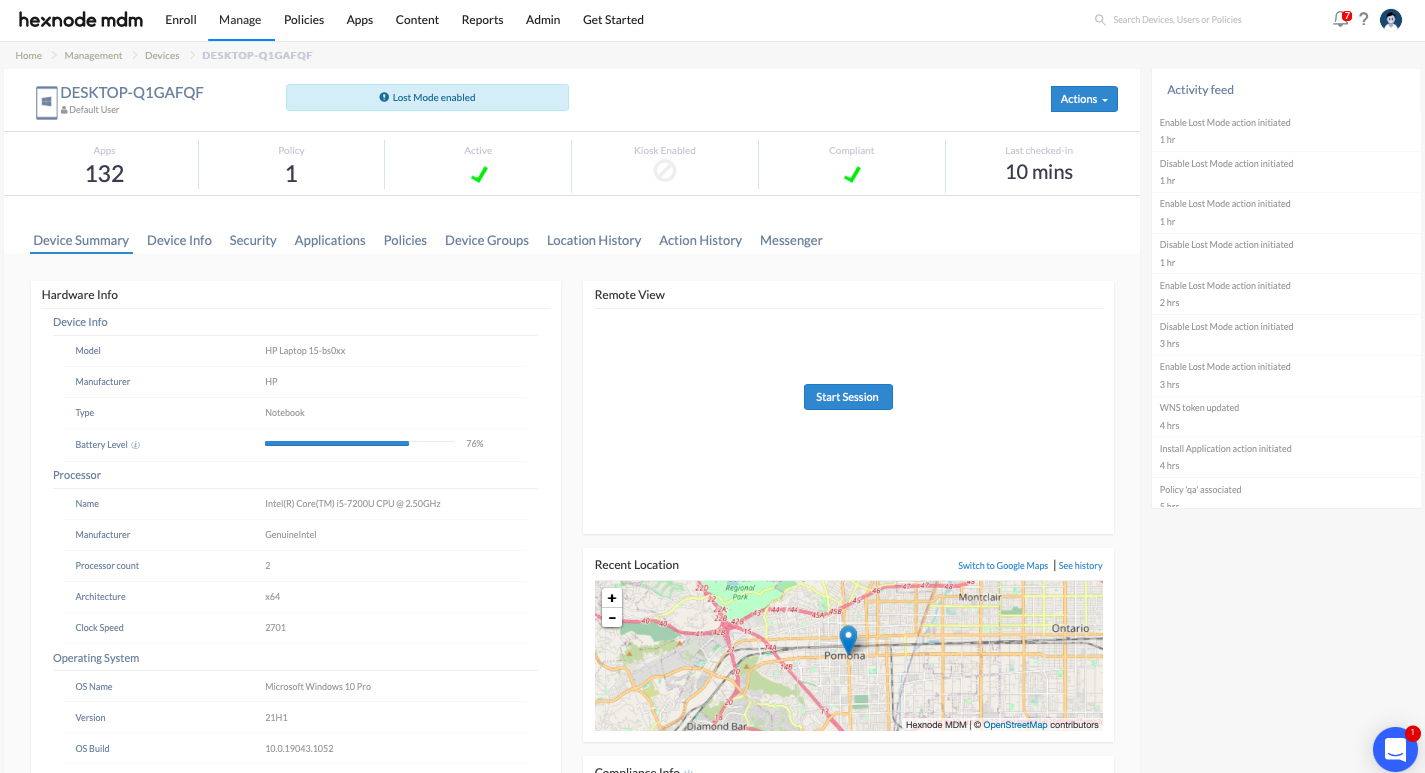
- Viewing Data: Access coordinates via Device Summary > Recent Location or the Location History sub-tab.
Disabling Lost Mode
The device remains unusable until the administrator explicitly lifts the restriction.
- In the Hexnode portal, go to Manage.
- Select the recovered device.
- Click on Actions > Security > Disable Lost Mode.
Troubleshooting Guides
| Problem | Potential Cause | Resolution |
|---|---|---|
| Action is greyed out | Outdated Hexnode UEM app. | Update the Hexnode UEM app on the device to the latest version. |
| Lost Mode not triggering | Device is offline. | The command will remain “Pending” until the device connects to the internet. |
| Kiosk Mode conflicts | Hexnode app not allowlisted. | For Multi-app Kiosk, ensure the app at C:\Hexnode\Hexnode UEM\Current\Hexnode UEM.exe is added to the policy. |
| Single-app Kiosk lock | Locked after restart. | Execute the Disable Lost Mode action from the portal to regain access to the kiosk account. |
Frequently Asked Questions (FAQs)
Does the device restart when Lost Mode is enabled?
Yes, the Windows device will restart immediately after the command is executed to ensure the lockdown environment is initialized.
Can the user bypass Lost Mode by restarting the PC?
No. The device will continue to boot into the Lost Mode screen showing your custom message and phone number until the action is disabled from the Hexnode portal.
What happens to the Kiosk settings?
In Single-app Kiosk, the account locks upon restart but can be recovered by disabling Lost Mode. In Multi-app Kiosk, you must ensure the Hexnode UEM app is allowlisted in the kiosk policy to ensure the Lost Mode interface functions correctly.


