


Category filter
How to Re-enroll Devices in Hexnode UEM
Re-enrollment in Hexnode UEM is the process of re-registering a device that was previously managed or whose management agent was accidentally removed. To re-enroll, you must first disenroll the device from the Manage tab to free up a license, then initiate a fresh enrollment session. Hexnode offers two primary re-enrollment behaviors: Retain Configurations (preserving old data) or Enroll as New Device (generating a unique Device ID).
Preparing for Re-enrollment
1. Freeing Up Licenses
Before a device can be re-enrolled without consuming a duplicate license, the existing entry must be cleared:
- Disenroll Device: Navigate to Manage > Devices, select the device, and choose Disenroll Device from the Actions menu.
- Mark as Disenrolled: If a device is offline and cannot receive the disenroll command, select it in the portal and click Actions > Mark as disenrolled to immediately remove it from the active list.
2. Portal Configuration Options
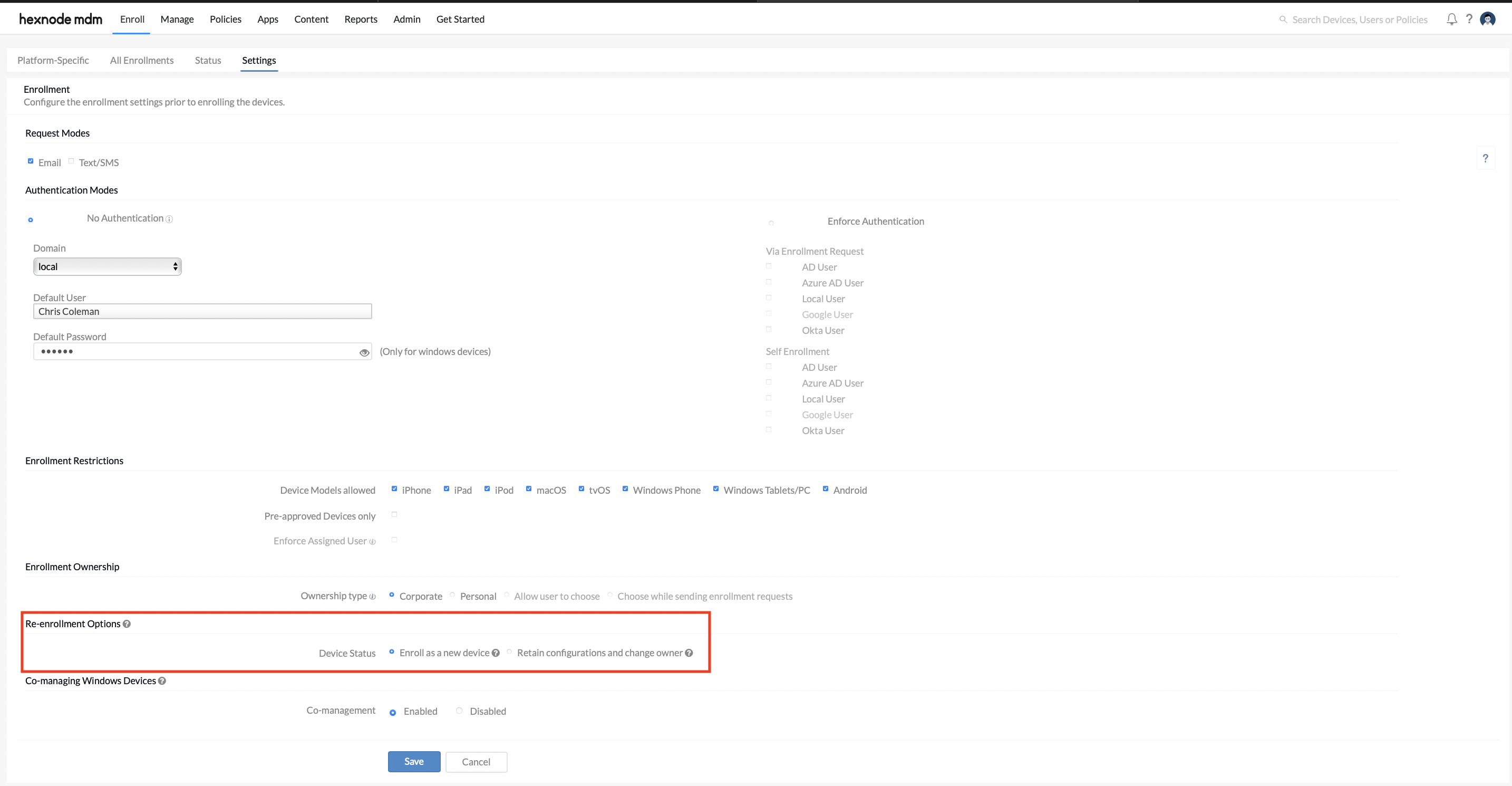
Admins can define how the system handles returning devices under Enroll > Settings > Re-enrollment Options:
- Retain Configurations and Change Owner: Re-enrolling the device will link it back to its original history while assigning it to a new user if necessary.
- Enroll as New Device: Every enrollment creates a unique Device ID, resetting friendly names and historical reports.
Next Steps
Once you have selected and saved the preferred re-enrollment option in the portal, you can proceed to enroll the device using standard enrollment methods (e.g., QR Code, Zero-Touch, or Manual Enrollment).
Overview: Platform-Specific Re-enrollment Steps
Android Re-enrollment
- Standard Method: Uninstall the Hexnode UEM app, remove the “Device Admin” permission in Security Settings, and re-install via the portal URL or QR code.
- Android Enterprise (Device Owner): The device must be Factory Reset to initiate a new Device Owner enrollment.
iOS and macOS Re-enrollment
- Apple ADE (Automated Device Enrollment): For devices in Apple Business Manager (ABM), a factory reset will automatically trigger re-enrollment during the initial setup wizard.
- Manual macOS Renew: For supervised Macs, admins can use the terminal command sudo profiles renew -type enrollment to force an enrollment update.
- Manual iOS Profile: Remove existing MDM profiles in Settings > General > Profile & Device Management before attempting to download a new profile.
Troubleshooting and FAQ
| Scenario | Recommendation |
| “Device Limit Reached” error | Check Admin > License > Subscribe; the portal may have run out of available seats. |


