


Category filter
How to scan for Windows updates on devices from Hexnode?
The Scan for Updates remote action in Hexnode UEM allows IT administrators to remotely audit managed Windows devices for available OS and application patches, providing detailed visibility into update types, file sizes, and installation status.
Why Use “Scan for Updates”?
Maintaining up-to-date software is a cornerstone of endpoint security. This action enables administrators to identify critical vulnerabilities and missing patches from a centralized console without manual device inspection. By analyzing update attributes, IT teams can prioritize high-impact deployments to ensure fleet stability.
- Security Compliance: Identify missing security patches across Windows 10 and 11 fleets.
- Capacity Planning: Review Download Size and Installation Size to manage network bandwidth and disk space.
- Version Control: Compare the Installed Version against the Latest Version available via Windows Package Manager.
Step-by-Step Guide: Executing a Windows Update Scan
Follow these steps to trigger a real-time scan and view the results in the Hexnode portal.
- Log in to your Hexnode UEM portal.
- Navigate to Manage > Devices and select the target Windows device.
- Click on Actions > Updates > Scan for updates.
- Once the action is initiated, navigate to the Patches and Updates sub-tab on the device’s summary page.

Understanding Update Attributes
The Patches and Updates sub-tab categorizes available software into a structured data table for administrative review.
| Attribute | Technical Description |
|---|---|
| Name | The specific title of the available Windows update or application patch. |
| Type | The category of the update (e.g., OS Updates or App Updates). |
| Download Size | The total file size required to be transferred over the network. |
| Installation Size | The total storage footprint required on the local disk to apply the update. |
| Installed Version | The current build or version number presently residing on the device. |
| Latest Version | The most recent version available from the Windows Package Manager. |
| Status | Current state: Installed, Installable, Failed, Approved, or Pending Reboot. |
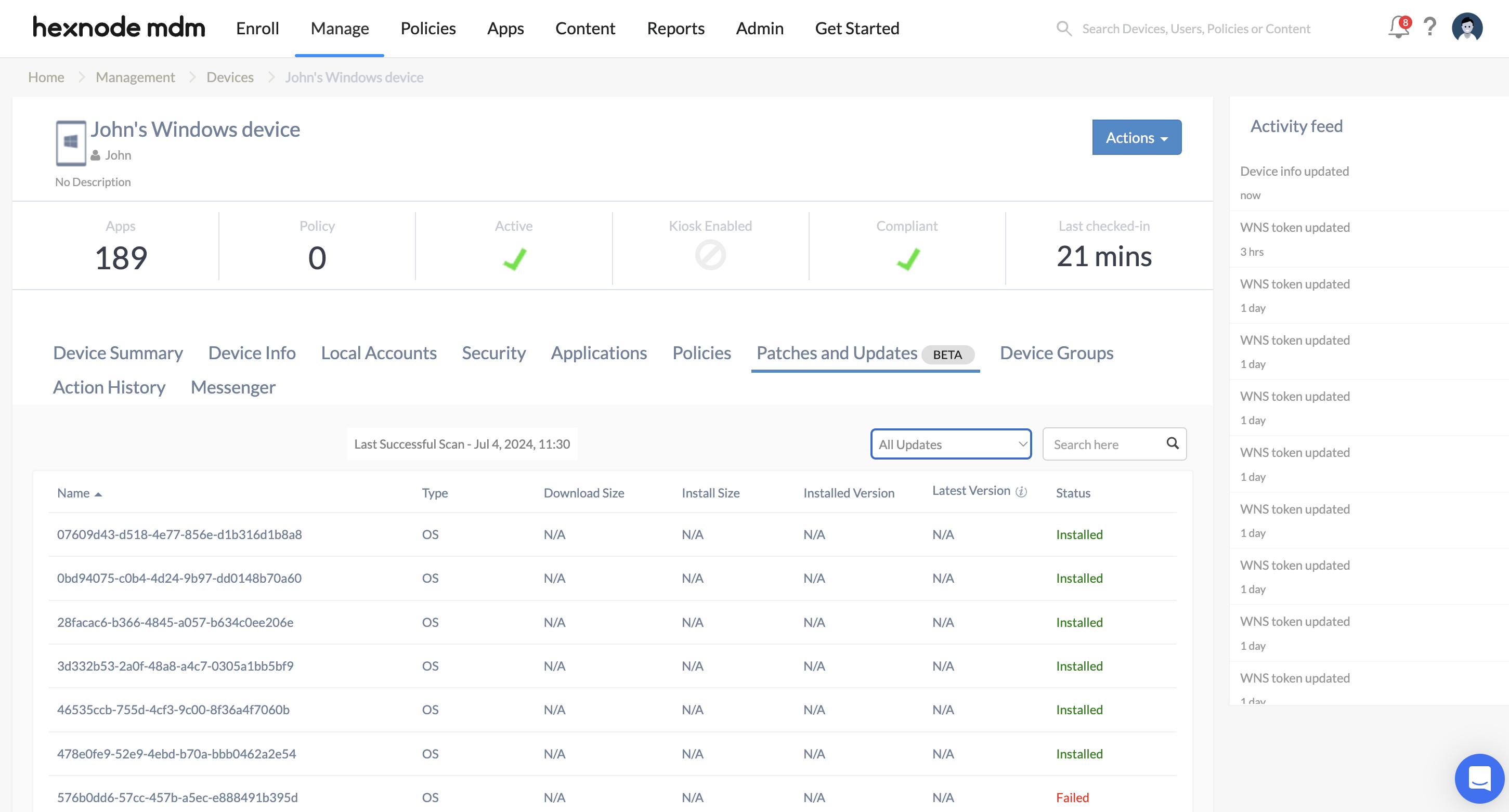
Filtering and Sorting Updates
To streamline the management of large patch lists, administrators can filter results by the following criteria:
- All Updates: Comprehensive list of all detected software states.
- Installed Updates: History of successfully applied patches.
- Installable Updates: Critical list of missing updates ready for deployment.
- Failed Updates: Logs of updates that encountered errors during installation.
- Updates Pending Reboot: Updates that require a system restart to finalize.
Troubleshooting Guides
| Problem | Potential Root Cause | Resolution |
|---|---|---|
| “No updates available” message | Scan action has never been successfully executed or the device is fully patched. | Verify the Action History to ensure the “Scan for updates” command was received. Ensure the device is online and the Hexnode Agent is active. |
| Last Scanned time is outdated | The remote action failed to reach the endpoint. | Re-trigger the scan and check for network connectivity or firewall blocks preventing communication with Windows Update servers. |
| Status remains “Pending Reboot” | The user has not restarted the device after a patch was applied. | Execute the Restart Device remote action from the portal to finalize the update installation. |
| Update size is missing | Metadata not yet synced from Microsoft servers. | Wait a few minutes for the scan to populate or re-trigger the scan to refresh the metadata cache. |
Frequently Asked Questions (FAQs)
Does this action automatically install the updates?
No. The Scan for updates action only identifies and lists available patches. To install them, you must use the Install Updates or Deploy Patches actions.
Where does Hexnode pull these updates from?
Hexnode queries the local Windows Update agent on the device, which retrieves information from Microsoft Update servers or the Windows Package Manager.
Can multiple devices be scanned at once?
Yes. You can select multiple Windows devices in the Manage tab and execute the Scan for updates action as a bulk command.
Why are some app updates appearing in the list?
Hexnode tracks both OS-level patches and application updates managed via the Windows environment, providing a unified view of the device’s software health.


